
Jira and GitHub sit at the heart of modern software delivery, right? Jira Software is where teams plan, prioritize, and track work. GitHub is where code lives — repositories, branches, pull requests, and reviews. When these systems operate separately, teams deal with manual effort, missing context, and slow feedback loops. But when GitHub and Jira work together, development becomes clearer, faster, and easier to manage.
Today, we describe 5 practical benefits teams gain when they connect GitHub with Jira — whether through Atlassian apps or third-party connectors that bring everything into the right context inside Jira. We also present a short list of instructions and settings to complete integration setup with Getint, in order to start working on the same page with other users.
Real-Time Development Context in Jira Software
One of the biggest advantages of connecting Jira with GitHub is bringing development context directly into Jira work items. Developers no longer need to paste commit links manually. Product managers don’t need to chase status updates. Instead, branches, commits, and pull requests appear automatically in the development panel, giving teams real-time context tied to each task.
With work item keys included in branch names and commits, Jira can surface every change related to a feature or bug. This makes development context searchable, improves SDLC use, and helps project and engineering teams stay aligned.
Smart Commits push this even further. Developers can transition issues, log time, or add comments simply by using keywords in GitHub commits — reducing friction and keeping workflows moving.
Better Collaboration Across the Team
When planning happens in one tool and development happens in another, misunderstandings happen fast. Pull requests get stuck without reviewers. QA receives tasks without the associated code context. PMs lose visibility into GitHub development.
Connecting the two tools eliminates this gap.
A synced workflow ensures that Jira work items always link to the right GitHub activity, so every developer, PM, tester, and stakeholder works from the same information. Teams using the Atlassian Teamwork Graph, Rovo Search, Rovo Chat, or Rovo Agents gain even easier access to distributed knowledge, making collaboration smoother than ever.
Whether the team is managing a project, coordinating multiple repositories, or tracking tasks across organizations, a dedicated connector helps everyone speak the same language.
Smarter Automation That Reduces Manual Work
Integrating Jira and GitHub also unlocks smarter automation. When development activity happens in GitHub Cloud or GitHub Enterprise Cloud, Jira can automatically respond. For example:
- Merge a pull request → Jira transitions the issue to “Done”
- Commit with a Smart Commit tag → Jira logs work or adds a comment
- Open a pull request → Jira notifies the assignee
This cuts down on repetitive updates and keeps Jira Software in sync with actual progress. Teams instantly reduce manual effort, speed up feedback loops, and maintain cleaner workflows. Combined with Jira automation rules, your SDLC becomes easier to manage and far more consistent.
Complete Traceability From Code to Deployment
Another key benefit of linking GitHub with Jira is gaining visibility across the entire software development lifecycle. With the integration in place, teams can:
- Track commits, branches, and pull requests tied to requirements
- Connect code changes to vulnerabilities, deployments, and documentation
- Follow updates across multiple repositories and GitHub sites
- See how development decisions impact product delivery
This traceability is essential not just for developers, but also for QA, security teams, compliance, and engineering management. When every change is linked to a Jira work item, teams gain a reliable source of truth for audits, reporting, and post-mortems.
Enterprise-Grade Control and Scalability
For organizations using GitHub Enterprise Cloud, GitHub Enterprise Server, or multiple GitHub organizations, Jira integration becomes even more valuable. Teams can select repositories, control access with strong security data policies, and connect multiple projects across large environments.
A unified connector integrates all of this — supporting SaaS, or On-Premise deployments depending on the organization’s needs. This ensures that both Jira Cloud and Server/Data Center environments can sync with GitHub regardless of installation, structure, or compliance requirements.
With centralized configuration, enterprise teams can manage integrations at scale while enabling data to stay secure.

How to Connect Jira with GitHub Account
Connecting Jira with GitHub is straightforward, especially when using a unified connector like Getint. The setup requires only a few minutes, and once configured, it keeps your work and code in sync automatically. Let's take a look at a simplified version of the setup process based on Getint’s flow.
*Want to read a full Jira GitHub Integration guide? Visit our step-by-step article.
1. Prepare your environment
Before you begin, make sure you have:
- Admin access in both Jira and GitHub account
- A Jira API token (Cloud) or admin credentials (Server/Data Center)
- A GitHub Personal Access Token (PAT)
To access GitHub token, you must log into your account, head to Settings > Developer Settings > Personal Access Tokens. Then generate a new Classic PAT with the required scopes.
2. Install and launch the Getint app
Install Getint from the Atlassian Marketplace and open it from your Jira dashboard. This gives you access to a guided integration setup tailored for connecting both tools.

3. Create the integration
Click Create Integration and select Jira and GitHub as the systems you want to connect.
Choose whether your use case requires:
- Continuous Sync (live two-way exchange of changes)
- Migration (importing historical GitHub activity into Jira)

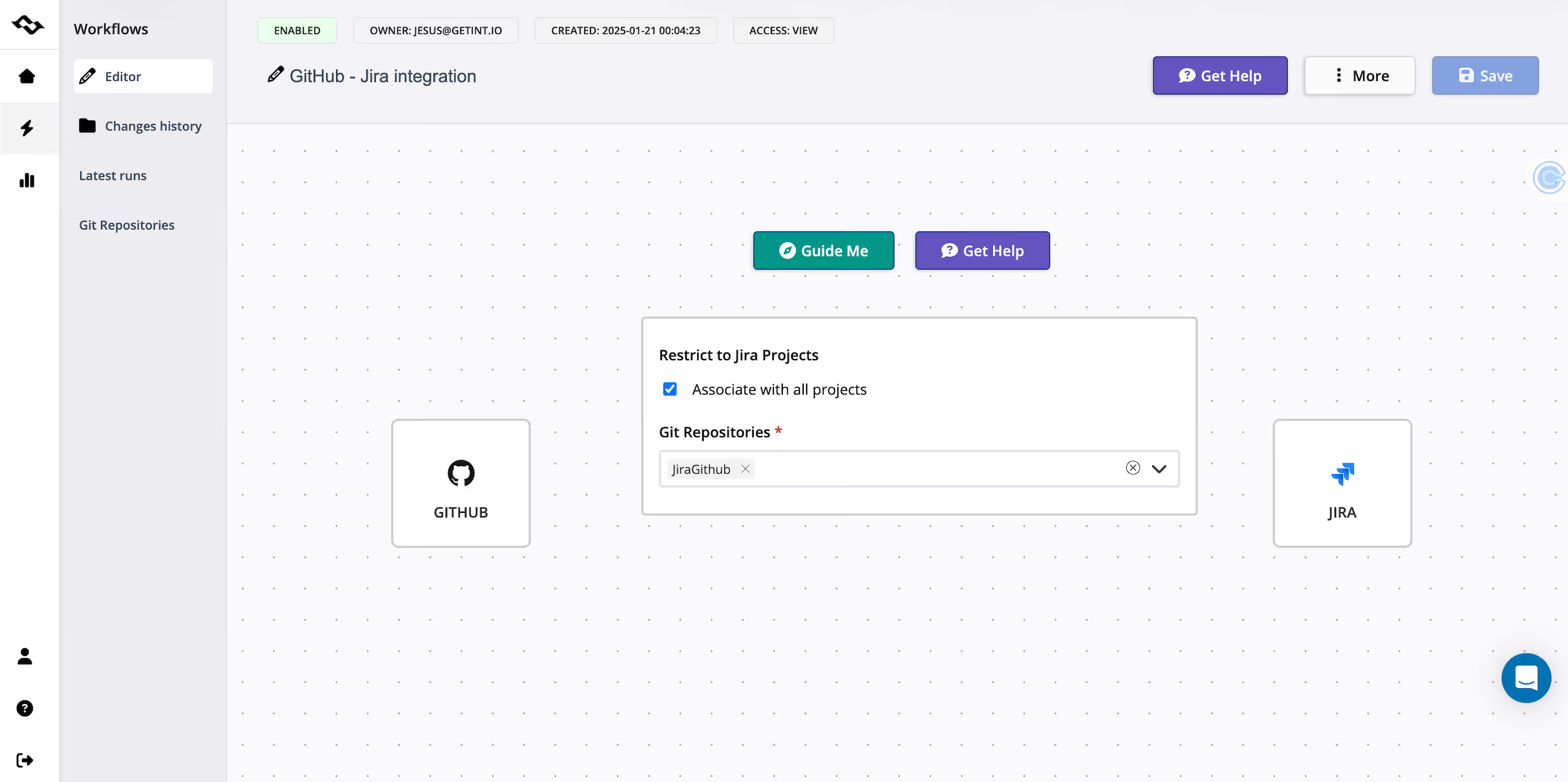
4. Authenticate Jira and GitHub
After choosing the option of integration, you need to enter your Jira instance URL, credentials or token, and then provide your GitHub PAT. This securely links both systems to the connector and lets you proceed with selecting which Jira project will sync with which GitHub repository.
5. Map items, fields, and statuses
Define how work items in Jira should relate to issues or pull requests in GitHub.
- Map item types (e.g., Story → Work Item)
- Map fields like summary, description, priority, or assignee
- Choose one-way or two-way sync for each field
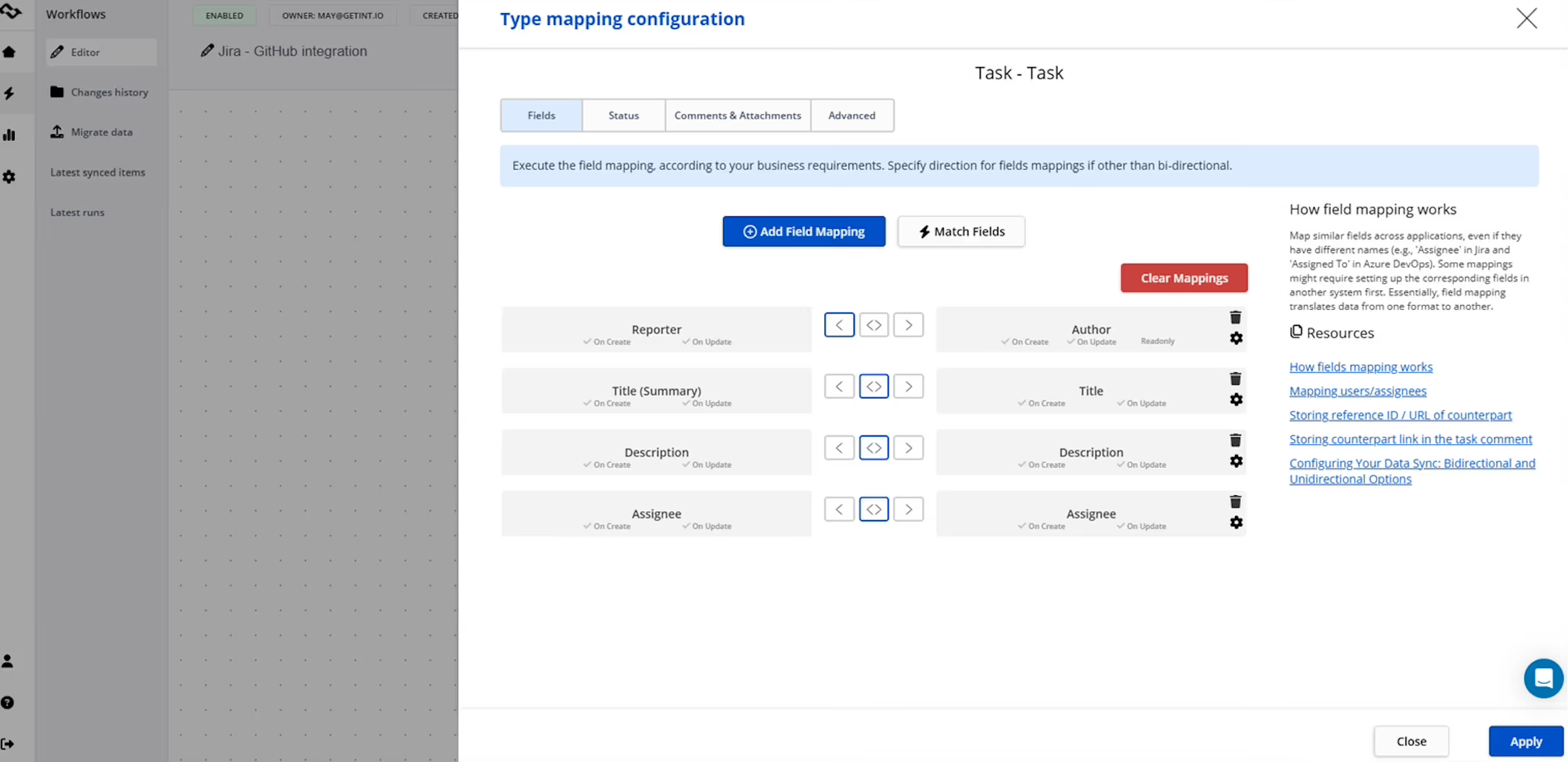
- Align statuses (e.g., Jira “To Do” → GitHub “Open”)
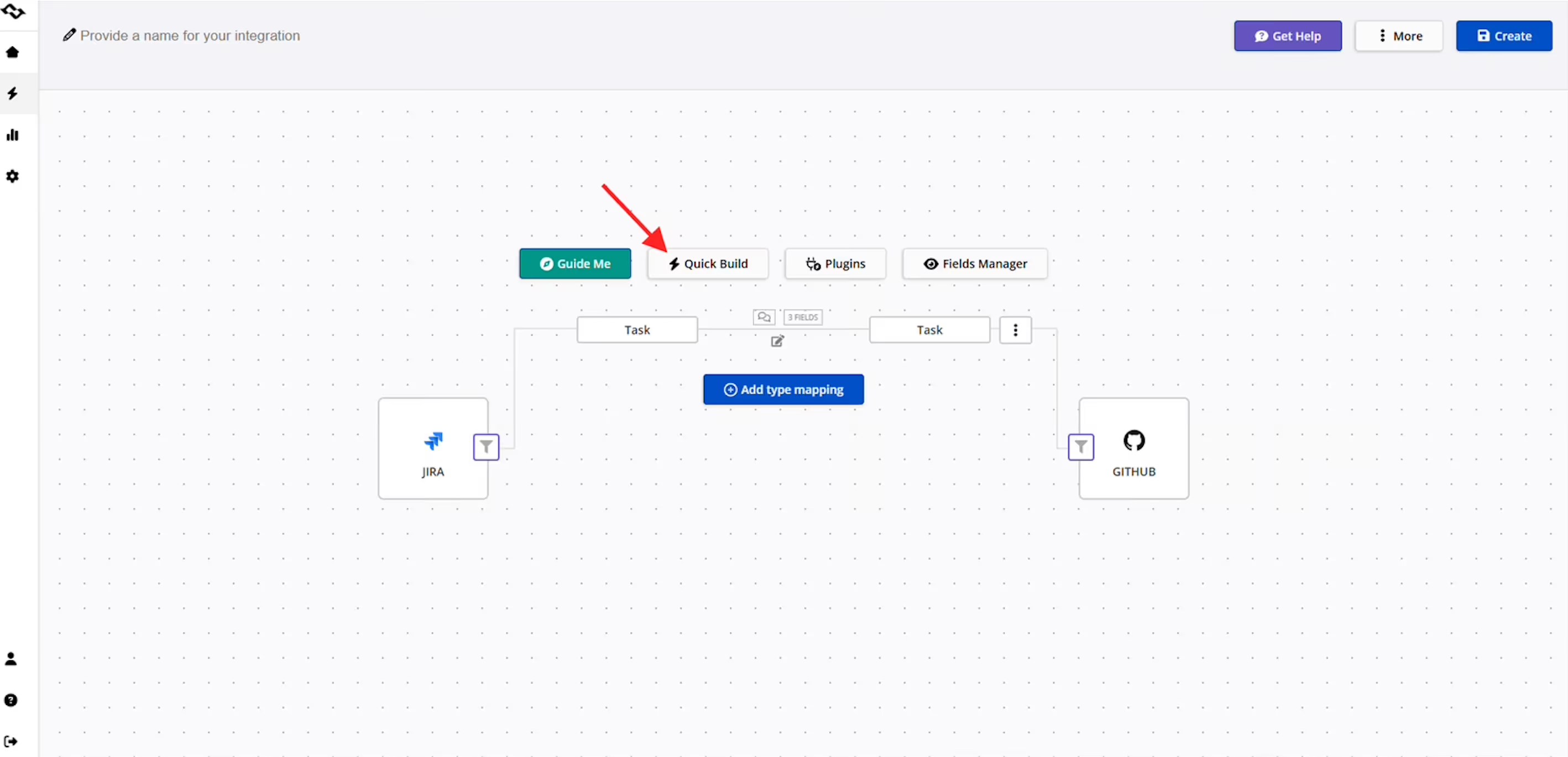
Tip: Quick Build feature can automate most of this setup for you.
6. Apply filters and sync rules
Filters help you control what is exchanged between the systems.
You can limit sync based on:
- Labels
- Item type
- Status
- Whether items are new, already synced, or all
This helps ensure your Jira board contains clean, relevant development data.
7. Test and validate the connection
Create a test issue in Jira or GitHub and confirm that commits, branches, and pull requests appear with the correct context in Jira.
Review the logs to ensure sync behavior is functioning as expected.
Once everything looks right, you can roll out the integration to more repositories or projects.
Conclusion
When you connect GitHub with Jira properly, teams gain more than just a convenience boost — they gain a clearer, more predictable and searchable development context. GitHub issues land in the right context inside Jira, which helps product managers understand progress, developers reduce manual work, and leaders see the real pace of delivery.
This alignment also helps teams move through the SDLC with fewer blockers. Workflows become more consistent, automation reduces repetitive updates, and the data shared between planning and development becomes a reliable source of truth. Whether your organization is using GitHub Cloud, GitHub Enterprise, or multiple repositories across teams, integrating these systems helps you manage complexity instead of reacting to it.
Bringing these tools together isn’t just about syncing tools — it’s about creating a unified work environment where decisions are faster, collaboration is easier, and engineering teams can focus on building rather than updating.