
A Freshservice ticket can start as a simple IT request and quickly turn into something much bigger.
An employee reports an issue that needs help from the operations team. A service request requires several follow-up tasks. An incident reveals work that should be tracked as part of an ongoing project. Freshservice is still the right place for the support team to manage the ticket and requester communication, but the people responsible for the actual project work may spend their day in Asana.
That is where an Asana Freshservice integration becomes useful. Instead of copying ticket details into Asana, sending a Slack message to another team, and later returning to Freshservice to update the status manually, the two systems can exchange the information required by both sides. A Freshservice ticket can generate a corresponding Asana task, selected fields can stay aligned, and updates from the Asana team can flow back to Freshservice.
Getint supports one-way and bidirectional sync between work-management and service-management tools without requiring coding skills for a standard setup. Its mapping interface lets you connect types, fields, statuses, comments, attachments, and supported custom fields, then decide which direction each piece of data should move. Getint is available as SaaS and On-Premise, depending on how your organization wants to deploy and manage the integration.
This Asana Freshservice integration guide looks beyond the connection itself. We will first consider where the integration helps, which teams benefit, and what data should actually move between the platforms. Then we will go through the setup directly in app.getint.io, including authentication, field mapping, required Freshservice fields, testing, and ongoing maintenance.
When a Freshservice Ticket Becomes Project Work
Freshservice and Asana solve different parts of the work lifecycle.
- Freshservice is built around service management: employees or customers submit requests, the support team evaluates them, tickets get prioritized and assigned, and agents manage service delivery from one place.
- Asana is usually closer to project execution. Teams organize tasks in an Asana project, assign ownership, manage dependencies, discuss the work, and track progress on a project board.
The disconnect appears when the same request needs both.
Imagine that an employee opens a Freshservice ticket because a new internal tool needs to be rolled out. The support team can handle access, licensing, and the original requester communication in Freshservice. But the request also involves a project team that needs to prepare documentation, coordinate stakeholders, schedule training, and manage several follow-up tasks in Asana.
Without integration, someone becomes the bridge between the two platforms.
They create a new task manually. They copy the Freshservice description and ticket priority into Asana. They add an attachment. A few days later, they check the Asana task to see whether anything has changed. Then they return to Freshservice and update the ticket. That manual process works until the number of requests increases.
The real problem is not simply duplicate manual entry. Both teams begin working with incomplete versions of the same context. The support team may see an old status in Freshservice while the Asana team has already progressed. The project team may miss a new note added to the ticket. A priority change on the service desk side may never reach the people doing the work.
Integration removes the need for one team to act as a human synchronization layer.
A workflow can instead look like:
Freshservice ticket → corresponding Asana task → project work in Asana → selected updates return to Freshservice
Each team remains in the tool that fits its role, while relevant data moves between them.

Which Teams Benefit From Connecting Asana and Freshservice?
The strongest use cases appear when Freshservice is the entry point for a request, but the work itself does not stay with the service desk. Once another team needs to take ownership, the integration becomes a way to preserve context and visibility without forcing everyone into Freshservice.
IT and Service Desk Teams
For the service desk, the main issue is usually what happens after a ticket is handed off. An agent can triage a Freshservice incident or service request, assign the correct priority, communicate with the requester, and then realize that the actual resolution depends on a project or operations team working in Asana. Without integration, that handoff often turns into a second process: recreate the task, send the details, and later chase the other team for progress.
With the systems connected, Freshservice can remain the service-management record while the related work is carried out in Asana. The support team does not need to follow a separate project board just to understand whether the request is still open, being worked on, or already resolved.
Project and Operations Teams
The Asana side has a different problem: project teams usually do not want to work from support tickets.
They need a task that fits their existing project structure, with the details required to act. A Freshservice ticket can therefore become a corresponding Asana task with the relevant description, priority, comments, attachments, and custom fields already available.
That is especially useful when service requests evolve into work that takes several days, involves multiple owners, or depends on other project tasks. Instead of treating Freshservice as another project-management tool, the team can keep execution in Asana while sharing selected progress back with the service desk.
Internal Teams Outside IT
The same pattern can apply to teams such as HR, facilities, procurement, or finance, but their workflows often look less like classic support escalation.
Take employee onboarding. Freshservice may handle requests for a laptop, software access, or account provisioning, while Asana is used to coordinate training, documentation, manager tasks, and departmental preparation. These activities belong to the same broader process, but not necessarily to the same system.
Connecting the platforms helps link those pieces without trying to force the whole onboarding workflow into either Freshservice or Asana.
Admins and Workflow Owners
For admins, the value is less about receiving another task and more about deciding where the boundary between the systems should be.
They can determine which Freshservice tickets should create Asana work, which fields are shared, whether updates should move one way or both ways, and which records should stay out of the integration entirely. That control becomes more important as the organization adds custom fields, multiple projects, different Freshservice workspaces, or additional integrations.
A well-designed setup should make the handoff less visible to users, not create another layer they have to manage manually.
Decide What Should Move Between Freshservice and Asana
Before connecting the platforms, decide what the other team actually needs.
A useful integration does not have to copy every field available through the APIs. In many cases, a small set of mappings is enough to give both sides the context they need.
A practical starting point could look like this:
Getint's Freshservice connector supports two-way mapping for fields including Assigned To, Category, Comments & Attachments, Department, Description, Group, Priority, Requester, Status, Source, Subject, Sub-category, Type, time-tracking values, and supported custom fields such as Date, Dropdown, and Single Line Text. Fields such as ID and URL are available one way.
Start With What Someone Would Otherwise Copy Manually
The easiest way to overcomplicate an integration is to map fields simply because they are available. Instead, ask what information would otherwise require manual entry.
If an Asana team needs the request name, description, requester context, priority, and status to start work, those fields are a useful foundation. A Freshservice category might also matter if it determines which Asana team handles the request. Another internal field may have no purpose outside the service desk and can stay where it is.
The same principle applies in the opposite direction. Freshservice agents probably do not need every project-management detail from the Asana board. They need the information that helps them manage the service request and communicate progress.
Custom Fields Can Preserve Business-Specific Context
Standard fields rarely capture every organization's workflow. A Freshservice team may use custom dropdowns for service category, location, business unit, or request type. An Asana project may have its own custom fields for owner, workstream, risk, or delivery stage.
Getint supports custom fields on both sides, so those values can be included when they genuinely matter to the shared workflow. Freshservice custom fields supported by the connector include Date, Dropdown, and Single Line Text, while Asana supports several custom-field types as well.
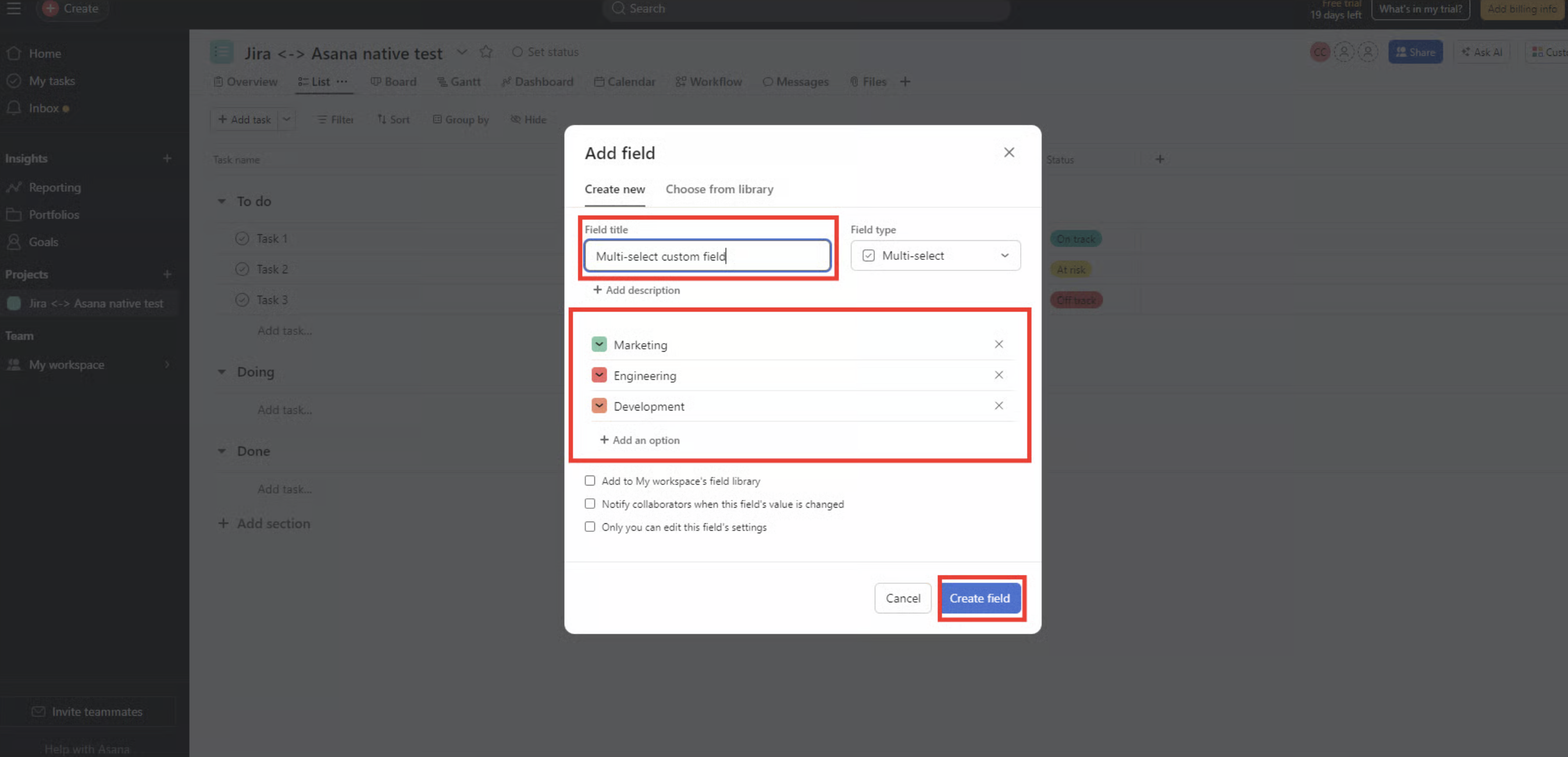
If no meaningful equivalent exists on the other side, it is usually better to create an appropriate custom field first rather than force unrelated values together.
The Statuses Do Not Need to Have the Same Names
Asana and Freshservice describe progress differently.
- A Freshservice workflow might use:
Open → Pending → Resolved → Closed
- while an Asana project uses:
To Do → In Progress → Waiting → Complete
Integration requires a clear translation then. For example:
Asana In Progress → Freshservice Pending
Getint lets you map those values and choose whether the status synchronization should work in one direction or both.
This is important because the same label can also mean different things to different teams. Map the status according to the process, not simply because two names sound similar.
One-Way Handoff or Bidirectional Sync?
One of the first workflow decisions is whether the other system only needs to receive work or whether both teams need to keep contributing to the same process.
A simple one-way workflow could be: new Freshservice ticket → new Asana task
This may be enough when Freshservice initiates the process and the Asana task is mainly a downstream action item. But consider what happens after that task is created.
The Asana team changes the status. Someone adds an Asana comment describing the resolution. A file is attached. The task gets reassigned. If the Freshservice support team needs any of those updates to manage the requester, a one-way handoff is no longer enough.
The flow becomes:
Freshservice ticket → Asana task → Asana updates → Freshservice ticket updates
Getint supports bidirectional sync, but that does not mean every mapped field needs to move both ways. You can keep one field unidirectional and another bidirectional within the same integration. The advanced configuration also lets admins combine one-way creation with bidirectional updates when that better reflects the workflow.
For example, Freshservice might remain the source for ticket priority and requester information, while status and comments move in both directions.
That type of design is usually more useful than applying one blanket synchronization rule to the whole connection.
What About the Native Freshservice Asana Connector App?
Freshservice already offers a native Asana Connector App for teams that want to connect the two platforms without adding another integration layer. Its current documentation includes five pre-built recipes covering Asana Tasks, Freshservice Service Requests, Freshservice Incidents, and Freshservice Notes. The connector also supports triggers, conditions, actions, field mapping, testing, job history, error details, and a dependency graph.
For some teams, those native recipes may cover the workflow they need.
Getint becomes relevant when the integration requires more control over field-level synchronization, custom mappings, filters, create/update behavior, centralized monitoring, multiple integrations, or a choice between SaaS and On-Premise deployment.
The decision should therefore come down to the workflow: if the native connector matches the process well, it may be enough. If the integration needs to be more configurable or become part of a broader cross-platform setup, Getint gives you more flexibility.
Before You Connect Freshservice and Asana
A few minutes of preparation can save much more time during setup.
- First, choose the Asana project that will participate in the sync. Getint's current Asana-Freshservice integration works with one Asana project per integration. If you select multiple projects, Freshservice will no longer appear as an available second app; additional projects require separate integrations.
- Then decide which Freshservice ticket type belongs in that project. Getint supports manual type mappings such as:
Asana Task ↔ Freshservice Service Request
or:
Asana Task ↔ Freshservice Incident
You should also prepare the accounts used for authentication.
- For Asana, you need a Personal Access Token and appropriate rights to the project being synchronized. Freshservice requires the instance URL and an API key. We recommend dedicated service accounts because synchronized comments and changes are attributed to the user that created the connection.
- Finally, make sure the fields you expect to map already exist in both systems. Custom fields are much easier to map when the project structure has been prepared before the integration is created.
How to Connect Asana and Freshservice Using Getint
The technical setup happens in your Getint SaaS workspace.
Step 1: Create the Integration
Open Getint and go to Workflows. Select Create Integration and choose the integration type from:
- Continuous Sync for an ongoing connection where new and updated items remain synchronized.
- Data Migration for a one-time transfer of data.
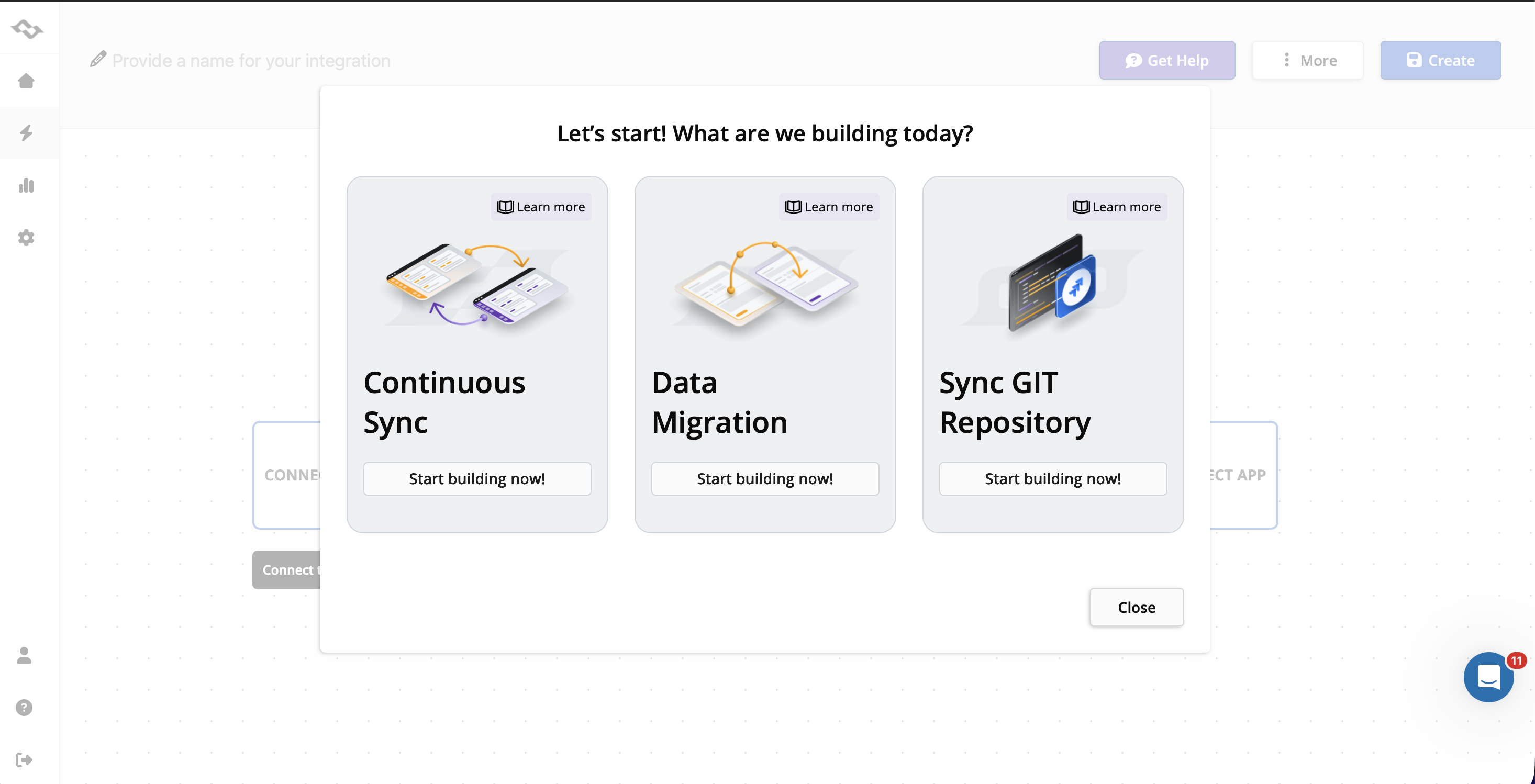
For this guide, choose Continuous Sync if you want to connect Asana with Freshservice.
Step 2: Generate an Asana Personal Access Token
- Log in to your Asana account and open Settings from your profile.
- Go to Apps, find the developer section, and open the developer console. Create a new Personal Access Token, give it a recognizable description, and copy it somewhere secure.
Asana does not show the token again after creation, so store it before closing the window.
Step 3: Generate the Freshservice API Key
- In Freshservice, open your profile and go to Profile Settings.
- Select Show API Key, complete the security check if requested, and copy the API key.
Keep in mind that resetting a Freshservice API key will also affect other applications using that same key, so an integration account can simplify credential management in larger environments.
Step 4: Connect Asana
- Back in Getint, select Connect App and choose Asana.
- Enter the Personal Access Token, then select the Asana project you want to integrate and click Connect.
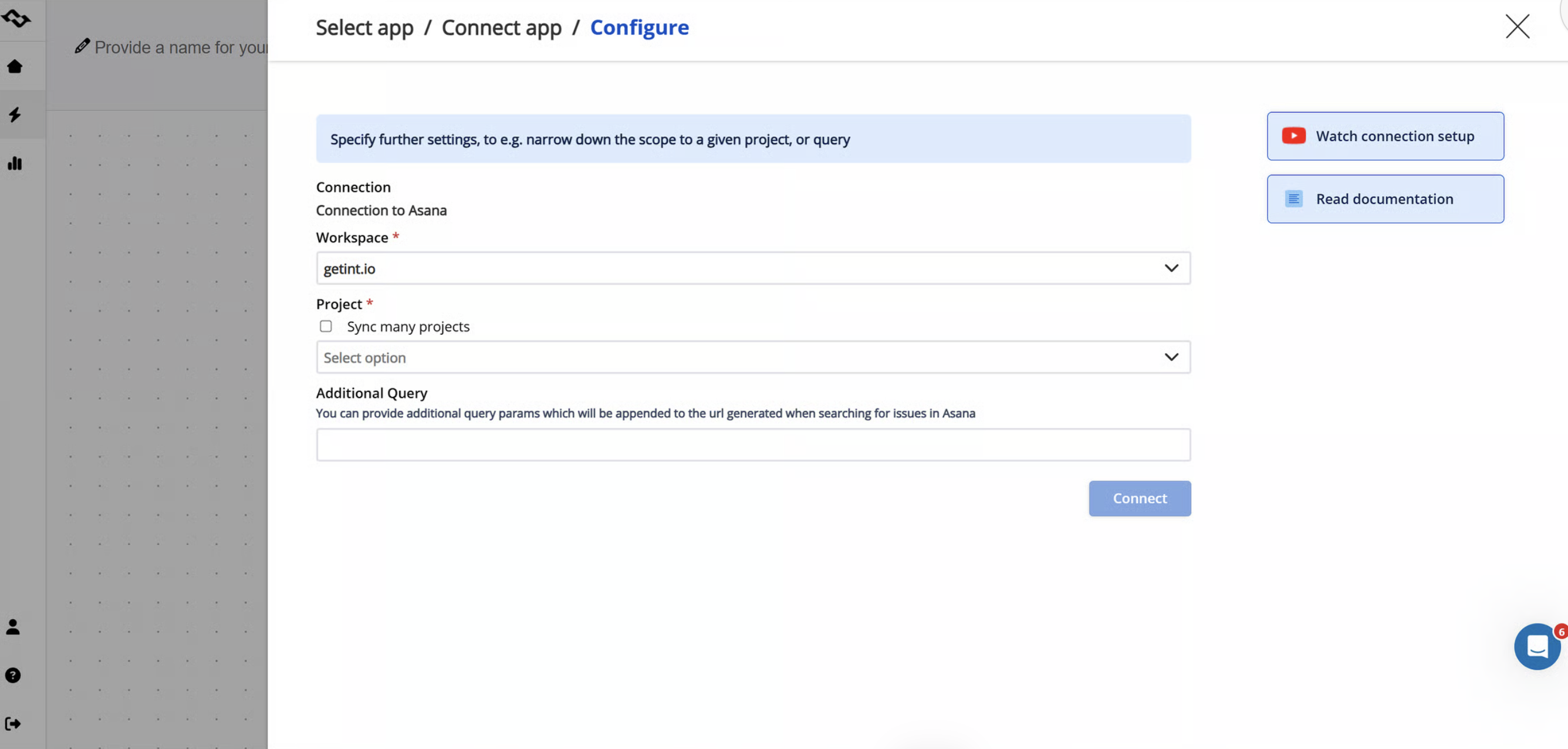
Only select one project for this integration. If several Asana projects need Freshservice connectivity, create separate integrations for them.
Step 5: Connect Freshservice
- Choose Freshservice as the other app.
- Enter the Freshservice instance URL, for example: https://yourcompany.freshservice.com
- Give the connection a recognizable name and paste the API key into the password field. Add the connection and select it to continue.
Step 6: Configure Type Mapping
- Now decide which records correspond across the two platforms.
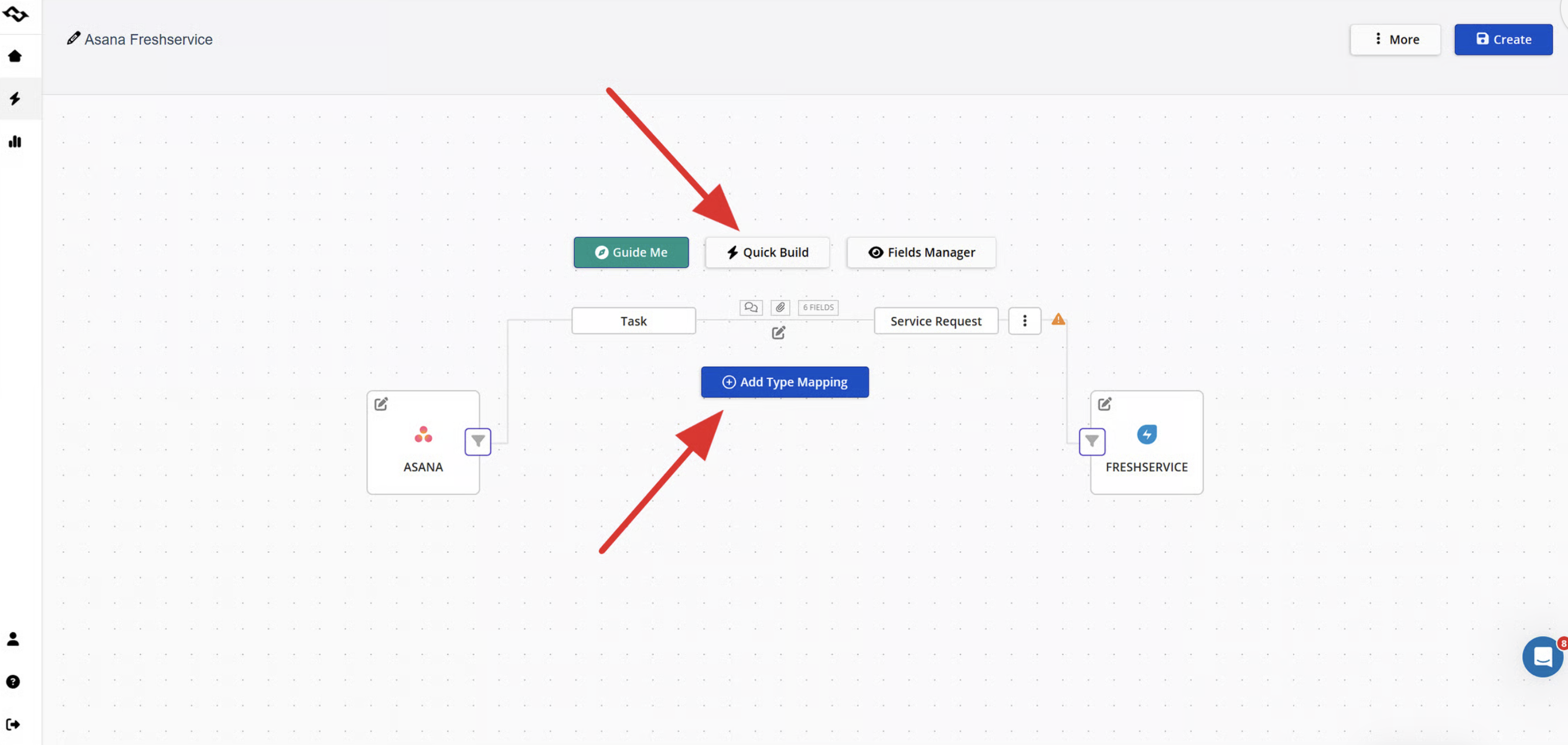
- You can use Quick Build to let Getint prepare an initial type and field mapping, or configure everything manually.
For example:
Asana Task ↔ Freshservice Service Request
or:
Asana Task ↔ Freshservice Incident
Quick Build is useful for creating an initial functional setup, but the mappings should still be reviewed against the actual workflow.
Step 7: Configure Field Mapping
- Select the fields that should move between the platforms.
Typical mappings can include:
- Title / Subject
- Description
- Assignee
- Priority
- Status
- Comments
- Attachments
- Custom fields
Freshservice requires several fields to be handled correctly when a ticket is created through the integration.
Requester must be mapped. Depending on the workflow, this can come from a corresponding user field or a fixed value such as an integration email.
Status must be mapped. Freshservice requires an appropriate default status for ticket creation. The creation value should be configured so it does not overwrite later status updates.
Priority must be mapped. It is another required Freshservice field for the integration to operate correctly.

This is one area where testing an Asana → Freshservice flow matters. An Asana task may contain plenty of project information but still fail to create a Freshservice ticket if one of the Freshservice-required values has not been supplied.
*One additional limitation is worth noting: inline images inside the Description field are not supported. If the image matters to the request, transfer it as a file attachment instead.
Step 8: Map Assignees
If work should remain assigned to corresponding people across the platforms, map Freshservice agents to Asana members. This prevents the synchronized ticket or task from arriving with the right content but the wrong owner. Getint provides dedicated assignee mapping for this purpose.
Step 9: Map Status Values
- Next, define how the Freshservice ticket lifecycle corresponds to the Asana project workflow.
For example: Asana In Progress → Freshservice Pending
- Choose the direction according to the process. Status updates can be bidirectional, or you can configure them as unidirectional when one system should control the workflow state.
Do not assume that similarly named statuses have the same business meaning. The mapping should reflect what each team actually considers equivalent.
Step 10: Configure Comments and Attachments
The Comments & Attachments section is enabled by default.
You can configure comments to move in one direction or both ways and filter them by criteria such as author or creation date. Getint also lets you customize how comments are created — for example, whether they should be public, private, or skipped.

This is especially relevant for Freshservice notes. A private note written for the support team may not belong on the Asana project board, even if other ticket updates should sync.
Attachments can also be enabled and set to move from Asana to Freshservice, Freshservice to Asana, or in both directions.
Because synced comments are attributed to the connection account, dedicated service accounts are useful when you want consistent authorship. Getint preserves the original author context in the comment footer.
Step 11: Control Creation and Update Behavior
Not every two-way integration should allow both platforms to create new records.
For example, you may want: Freshservice ticket → new Asana task
but not: new Asana task → new Freshservice ticket
while still allowing later field updates to move in both directions.
Getint's Customize create/update actions option lets you separate creation behavior from update behavior. That gives you more control than treating "two-way sync" as a single on/off setting. This is particularly useful when Freshservice is intended to remain the formal service-intake channel but both teams need to update records after the handoff.
Step 12: Filter Which Items Enter the Integration
Most organizations should not send every Freshservice ticket to Asana.
If only certain incidents require project work, use filtering to define them.
Getint supports three filter scopes:
- All — checks the condition for every item.
- New — applies the filter to new items; already synchronized items continue updating.
- Synced — applies the condition to items that already have a synchronized counterpart.
You can then select the field and value used by the condition and combine multiple conditions where needed.
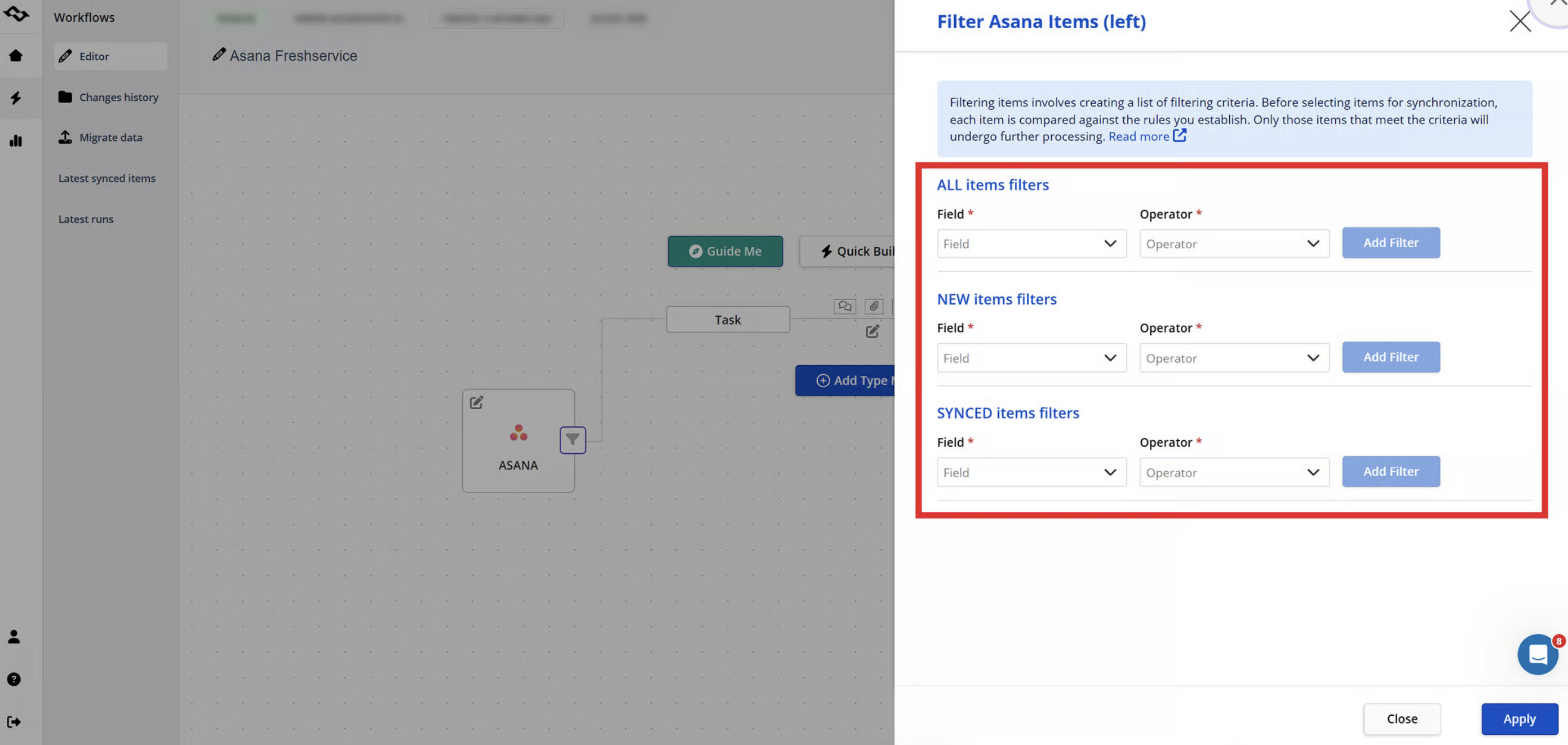
For example, a workflow might only create Asana tasks for Freshservice incidents in a particular category or priority level.
Filters help prevent the Asana project board from becoming a copy of the entire service desk.
Step 13: Save the Integration
- Review the configuration before enabling it.
Check:
- type mapping;
- required Freshservice fields;
- field directions;
- assignees;
- status mapping;
- comments and attachments;
- creation/update settings;
- filters.
- Give the integration a recognizable name and save it.
At this point, the connection is configured. The next step is to verify that it behaves as expected in both systems.
Test the Integration Before Teams Depend on It
Start with a test item that should pass the configured rules before you lean on the created workflow.
Test Freshservice → Asana
Create a new Freshservice ticket that belongs in the integration.
Then verify that the corresponding Asana task appears in the correct project and that the important task details have been transferred:
- task name;
- description;
- priority;
- status;
- assignee;
- custom fields;
- comments or attachments, where configured.
Next, update the Freshservice ticket and confirm that the existing task is updated rather than a second task being created.
Test Asana → Freshservice
- If your configuration allows Asana to create Freshservice tickets, create a new task in Asana and confirm that the corresponding Freshservice ticket is created successfully.
Pay particular attention to Requester, Status, and Priority because Freshservice requires those values.
- Then update the existing task and verify that the same Freshservice ticket receives the change.
Test Comments and Attachments Separately
Do not assume that correct field mapping means comments and files are also configured correctly. Add an Asana comment and verify how it appears in Freshservice. Add a Freshservice note and confirm whether it should appear in Asana based on your public/private settings.
Attach a file and test the direction you configured.
This is also the right time to verify the inline-image limitation: images embedded directly in Description are not supported, so attachments should be used instead.
Test Something That Should Not Sync
Finally, create an item that deliberately fails your filter. If only high-priority incidents should enter Asana, create a low-priority test ticket. Nothing should appear in the project.
This test is just as valuable as proving that ticket creation works. A reliable integration should know both what to share and what to leave alone.
Existing Data and Historical Data Need a Separate Decision
Continuous synchronization answers: What should happen to new and updated work from now on?
It does not automatically answer: What should happen to all the existing data we already have?
Getint solution separates Continuous Sync from Data Migration. Continuous Sync maintains an ongoing connection, while Data Migration is designed for a one-time transfer of existing records.
This distinction matters when Freshservice already contains historical incidents or service requests that should become Asana project work. You may decide to migrate selected existing data first and then enable continuous synchronization for future updates.
Getint's Freshservice connector does not synchronize historical change history itself. The current ticket data can be integrated according to the supported fields, but the history of previous changes is not recreated in the other platform.
Treat migration and ongoing sync as two related but separate design decisions.
How to Monitor and Maintain the Integration
Once the integration becomes part of a real service process, somebody should own it. Project structures change. Freshservice teams add custom fields. Status names evolve. Permissions change. An API key gets reset. Another Asana project needs to join the workflow.
Getint records synchronization Runs and logs so integration owners can inspect what happened when an expected update does not appear. Instead of immediately asking both teams to compare records manually, admins can check whether Getint detected the item, whether the relevant mapping or filter was applied, and whether the synchronization completed successfully.
This becomes increasingly important when an organization manages multiple integrations.
For example, the same service-management environment may eventually need separate connections for different Asana projects or other platforms. Because the current Asana-Freshservice setup syncs one Asana project per integration, additional project workflows should be created as separate integrations.
Getint also offers a Network License for organizations managing three or more instances, while the Standard License covers one Asana instance connected to one Freshservice instance. Check the exact licensing model when planning larger environment's integration.
SaaS or On-Premise Deployment
With Getint, you can run the Asana–Freshservice integration as SaaS or On-Premise with an intuitive interface. SaaS is the simpler option if you want Getint to host and maintain the platform. On-Premise is better suited to organizations that need more control over infrastructure, security, or data location.
In both cases, you configure the same core elements: mappings, sync direction, filters, and which Freshservice tickets should connect with Asana.
Final Thoughts
An Asana Freshservice integration helps teams keep service requests and project work connected without relying on manual handoffs. With Getint, you can control which tickets and tasks sync, how fields and statuses are mapped, and whether updates move one way or both ways.
Want to see how it could work for your workflow? Book a Getint demo and we’ll walk you through the setup.