
IT and operations teams usually end up in ServiceNow. Product, marketing, and business teams like Asana. Neither choice is wrong — each tool is genuinely built for how a specific team works. The trouble starts the moment something needs to cross the line between them: an incident that's really a project task, or a business initiative that needs IT provisioning before it can move.
That gap isn't a hypothetical. Asana's own research found that more than a third of workers say actions and messages get missed simply from switching between apps — and that's before accounting for the fact that most business teams have no visibility into ServiceNow at all, and most IT teams have no reason to check Asana. This guide covers why that split happens, what it actually costs teams day to day, and how to set up a working two-way sync between Asana and ServiceNow using Getint — including the parts of ServiceNow's setup.
If you're a project manager chasing visibility into ServiceNow, or a ServiceNow admin who'll be the one setting up the connection, this guide is built with your side of the work in mind.
Asana and ServiceNow platform at a Glance
Asana organizes work through tasks, projects, and portfolios, built for teams — marketing, product, operations — who need a flexible way to plan and track work across departments. ServiceNow, by contrast, is an enterprise service management platform built around structured records: incidents, change requests, and problems, governed by IT's own permission model and workflow rules. Asana optimizes for flexibility across teams; ServiceNow optimizes for control and traceability within IT.
That difference in design is exactly why the two rarely overlap on their own — and exactly why, when something needs to move between them, it usually has to move by hand.
Why the Split Happens — and What It Actually Costs Teams
IT needs ServiceNow's structured workflows, audit trail, and access controls; the rest of the organization needs Asana's flexibility to plan work that doesn't fit a rigid ITSM record. The problem is what happens at the boundary between them.
This pattern shows up often enough in IT and knowledge-management circles that it's practically its own genre of complaint: some teams simply won't participate in a shared system, defaulting instead to their own tool and keeping their information behind locked doors — and even with executive support pushing toward consolidation, the realistic expectation is still ending up with at least a few separate systems long-term, not one unified platform. That's not a failure of rollout. It's just what happens across any organization large enough to have genuinely different teams with genuinely different needs.
But what that costs in practice, day to day is:
- Invisible status. A business team has no way to see whether a request in ServiceNow has been picked up, escalated, or closed — they have to ask, and wait for someone in IT to check and reply.
- Duplicate entry. Something tracked in Asana that also needs an IT record (or vice versa) often gets typed into both systems separately, by hand, with no guarantee the two stay consistent afterward.
- Lost context at the handoff. Details captured in an Asana task — who requested it, why, what's already been tried — don't automatically travel with it into a ServiceNow record, so IT ends up asking questions that were already answered somewhere else.
- A permanent, not temporary, gap. Because each team's tool choice is legitimate, this isn't a problem that resolves once everyone "just migrates" to one platform. The tools staying separate is the normal state — which is exactly why the connection between them matters.
How Asana Tasks Map to ServiceNow Records
Before jumping into the setup steps, it's worth breaking down a few concepts the actual connection depends on — mainly, what an Asana task can correspond to on the ServiceNow side, since getting this wrong is the easiest way to end up with a sync that runs but doesn't actually match your workflow.
Asana tasks correspond most naturally to ServiceNow's structured record types, but which one depends on what the task actually represents:
- Incidents — the most common mapping target, used when an Asana task represents something broken or degraded that IT needs to investigate and resolve.
- Problems — a better fit when the Asana task tracks root-cause investigation tied to one or more incidents, rather than a single one-off issue.
- Service Requests (and the Request Items beneath them) — the right target when the task represents something requested through a service catalog, like provisioning access or new software, rather than something going wrong.
- Change Requests — used when the task represents a planned, approved change to a system or piece of configuration.
Type Mapping
Type mapping sets that correspondence explicitly for each integration. Our Asana ServiceNow integration setup docs walk through this using Task mapped to Change Request as the worked example — but that's just one configuration, not a fixed rule: the same mechanism lets you map Task to Incident, Problem, or Service Request instead, depending on what better reflects the work in a given workflow. Getint doesn't force every Asana task into a single ServiceNow record type; you define the mapping per workflow based on what each task actually is.
Field Mapping
Field mapping keeps the content aligned once the type is set — title, description, and other fields common to both platforms.
Assignee Mapping
Assignee mapping deserves its own attention, because it's a common point of friction: ServiceNow and Asana rarely use identical username or email formats, and without an explicit mapping between the two, a task can sync successfully but land on the wrong person, or nobody, on the other side. Defining that relationship once, up front, avoids a steady trickle of manual reassignments later.
What Two-Way Sync With Getint Looks Like
The value of this integration comes from what keeps working after the initial sync, not just the first connection:
- The full lifecycle stays connected. Status changes, comments, attachments, and field updates continue flowing in both directions for as long as the task and record stay linked — not just at creation.
- No-code setup throughout. Connecting accounts, mapping types and fields, and configuring sync direction are handled through Getint's UX-friendly interface, not scripts.
- Granular direction control. Comments and attachments can sync bidirectionally, one-way to Asana, one-way to ServiceNow, or be disabled entirely for a given integration — useful if your organization has data privacy rules around what should leave ServiceNow.
- Item Routing for multiple projects. If you're syncing more than one Asana project against ServiceNow, Item Routing automatically directs incoming ServiceNow records to the correct Asana project based on rules you define — for example, incidents belonging to a specific assignment group landing in a specific project — instead of maintaining a separate integration and filter set for every pairing.

Other Ways Teams Try to Connect Asana and ServiceNow
Before landing on a dedicated integration platform, it's worth knowing what the alternatives actually offer — and where each one tends to run out of road.
Custom API integration against Asana's and the ServiceNow Now Platform's own APIs gives a team maximum flexibility for enterprise workflows — nothing is off the table if you're willing to build it. The trade-off is real, ongoing developer effort: someone has to build the integration, then maintain it every time either platform changes its API, which is generally where the actual cost of this approach ends up living. It's worth calculating this.
Zapier and similar automation tools can automate a basic workflow between Asana and ServiceNow in minutes, which is genuinely useful for a single, simple trigger-action rule. Where it runs out of road is anything resembling complex workflows — multi-step field mapping, status logic with several conditions, or routing based on more than one field tends to need more structure than a simple automation rule can express.
Enterprise Security for Your Asana and ServiceNow Data
Syncing IT records into a project management tool means data that's often sensitive — internal request details, attachments, assignee information — is moving between systems continuously. That's worth addressing directly, especially for a platform like ServiceNow that many organizations chose partly for its governance model in the first place. Let's take a look how it's handled by Getint platform:
- Certified compliance. Getint is ISO 27001 and ISO 27018 certified, SOC 2 Type II audited, and GDPR compliant, independently verified through Getint's Vanta Trust Center.
- Encryption in transit and at rest. Data moving between Asana and ServiceNow is encrypted using TLS 1.2/1.3, with AES-256 encryption for data and logs at rest.
- Flexible deployment. Getint can run on-premise, as SaaS on AWS, or in a private cloud with EU or US tenants, with configurable log retention or none at all.
- Controllable access. Secure, revocable credentials and role-based access mean you decide exactly what syncs and who can manage the connection — an important point given that ServiceNow's own connection setup (below) is itself built around scoped, limited-permission access rather than admin credentials.
Find the full details on the Getint Data Security page and the Trust Center.

How to Connect Asana and ServiceNow: Step-by-Step with Getint
Worth saying upfront: ServiceNow's side of this setup takes more steps than most of the tools Getint connects to. That's not a shortcoming of the integration — it's a direct result of ServiceNow's own permission model, which is exactly the kind of governance IT teams choose the platform for.
Here's what it actually involves, so there are no surprises partway through.
Let's start by entering the Getint app.

Step 1: Generate an Asana Personal Access Token
Log in to Asana and generate a Personal Access Token from your account settings — this is the credential Getint uses to authenticate the connection.

Step 2: Create a Dedicated ServiceNow User for Getint
This is the step worth budgeting real time for. Rather than connecting with admin credentials, ServiceNow's recommended (and Getint's required) approach is a dedicated service account with narrowly scoped permissions:
- Create the user in ServiceNow under User Administration, making sure to uncheck "Password needs reset" — leaving it checked causes a misleading permissions error on Getint's side rather than a clear one.
- Create a custom role (e.g., getint) under System Security → Roles.
- Temporarily elevate to Security Admin to modify Access Control List (ACL) settings — this elevation is only needed for this setup step, not ongoing use.
- Create six ACL records granting Read access on specific tables (Dictionary Entry, Field Class, Choice, Journal Entry) with your custom role required on each.
- Assign both the ITIL role and your custom role to the new user.
It's more involved than a typical OAuth handshake, but it means the connection only ever has the specific, limited access it needs — which is generally the trade-off IT teams want when a third-party platform touches ServiceNow data.
Step 3: Connect Both Apps in Getint
With both credentials ready, connect Asana using its access token and ServiceNow using the new service account's username and password inside Getint. Select the Asana project(s) you want to sync.

Step 4: Configure Type Mapping
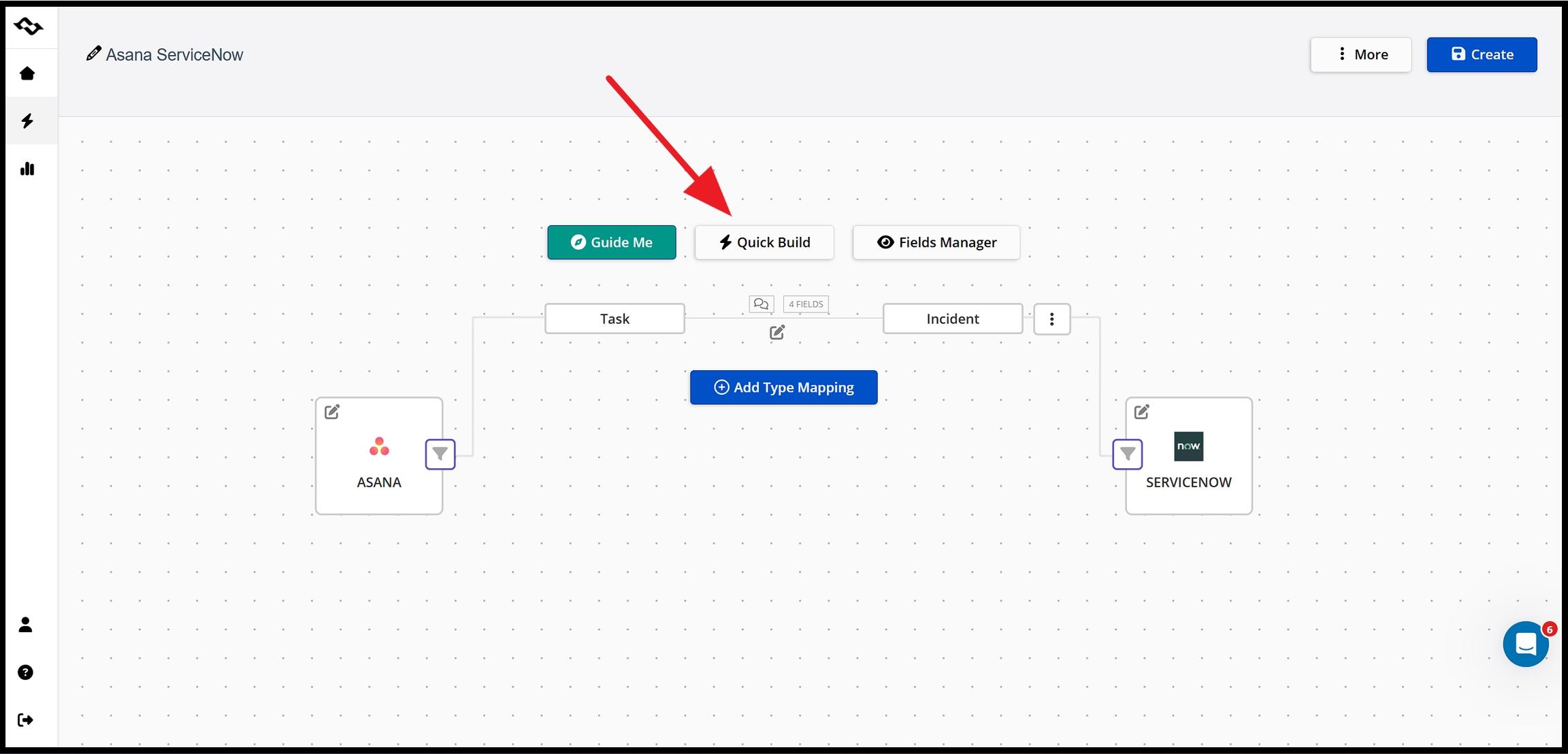
Use Quick Build to automatically align common fields and data types between the two platforms, or map manually for full control — pairing Asana's Task type with whichever ServiceNow record type fits the workflow: Incident, Problem, Service Request, or Change Request.
Step 5: Set Up Item Routing (If Syncing Multiple Projects)
If more than one Asana project is connected, define Item Routing rules so incoming ServiceNow records land in the correct project automatically, rather than needing a manual filter per project.

Step 6: Map Fields and Assignees
Review or manually map title, description, and other shared fields.
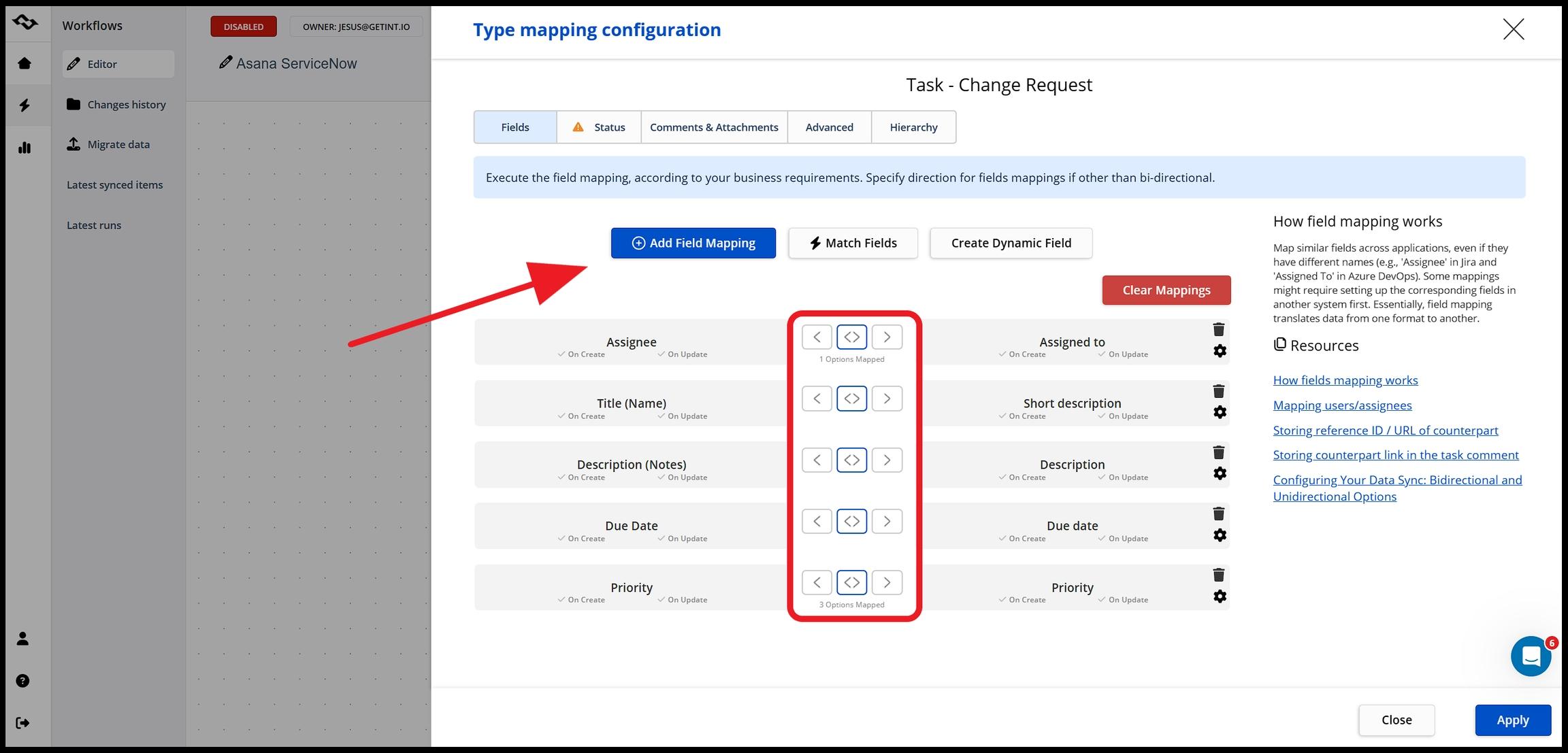
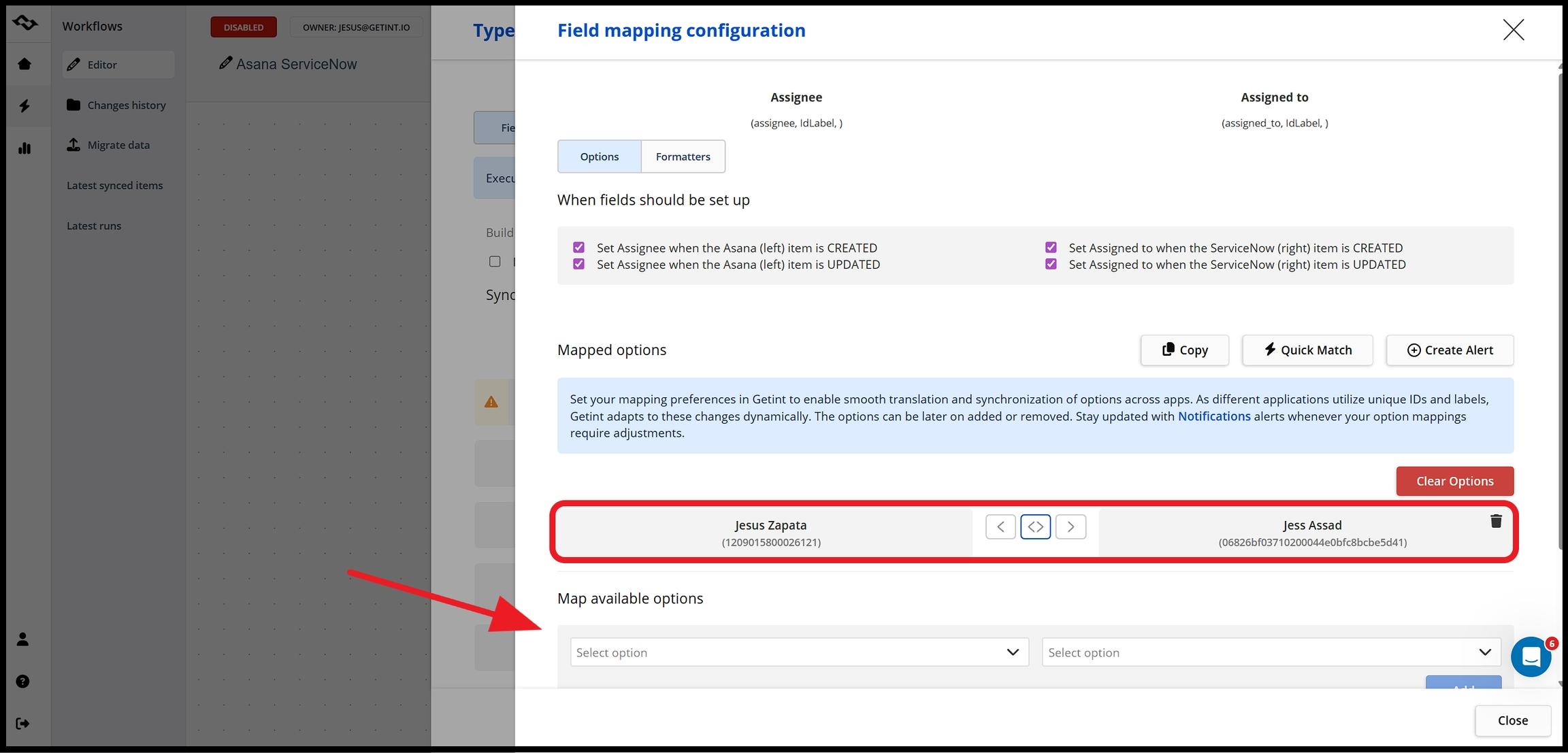
Then configure Assignee mapping to pair ServiceNow's "assigned to" values with the corresponding Asana assignees — worth doing carefully, since mismatched usernames or email formats between the two platforms are the most common cause of a task syncing to the wrong person.
Step 7: Map Statuses
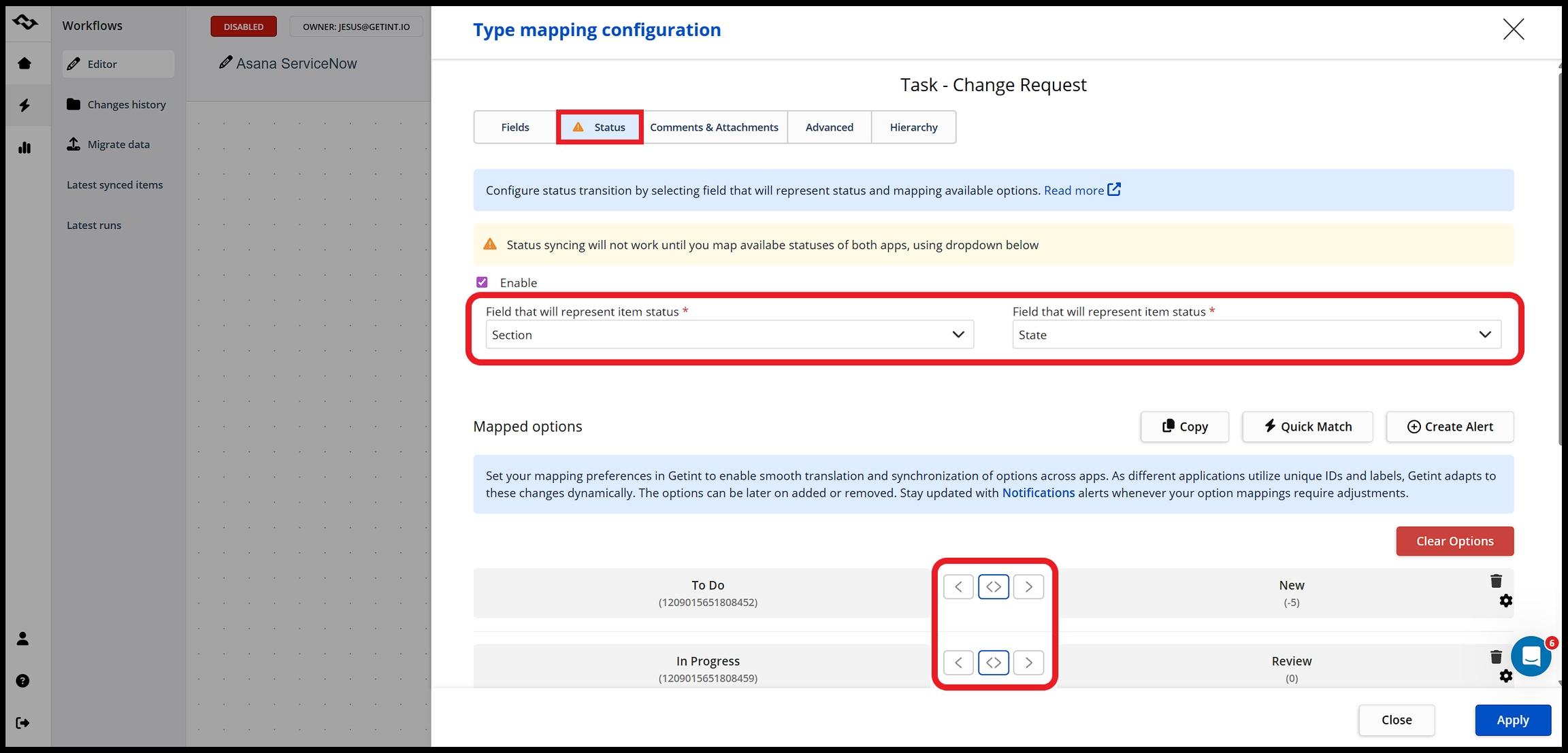
Align ServiceNow's workflow states with Asana's — for example, New ↔ To Do, Review ↔ In Progress, Closed ↔ Completed. Direction can be configured to be bidirectional or one-way, depending on which system should drive status for a given workflow.
Step 8: Configure Comments and Attachments
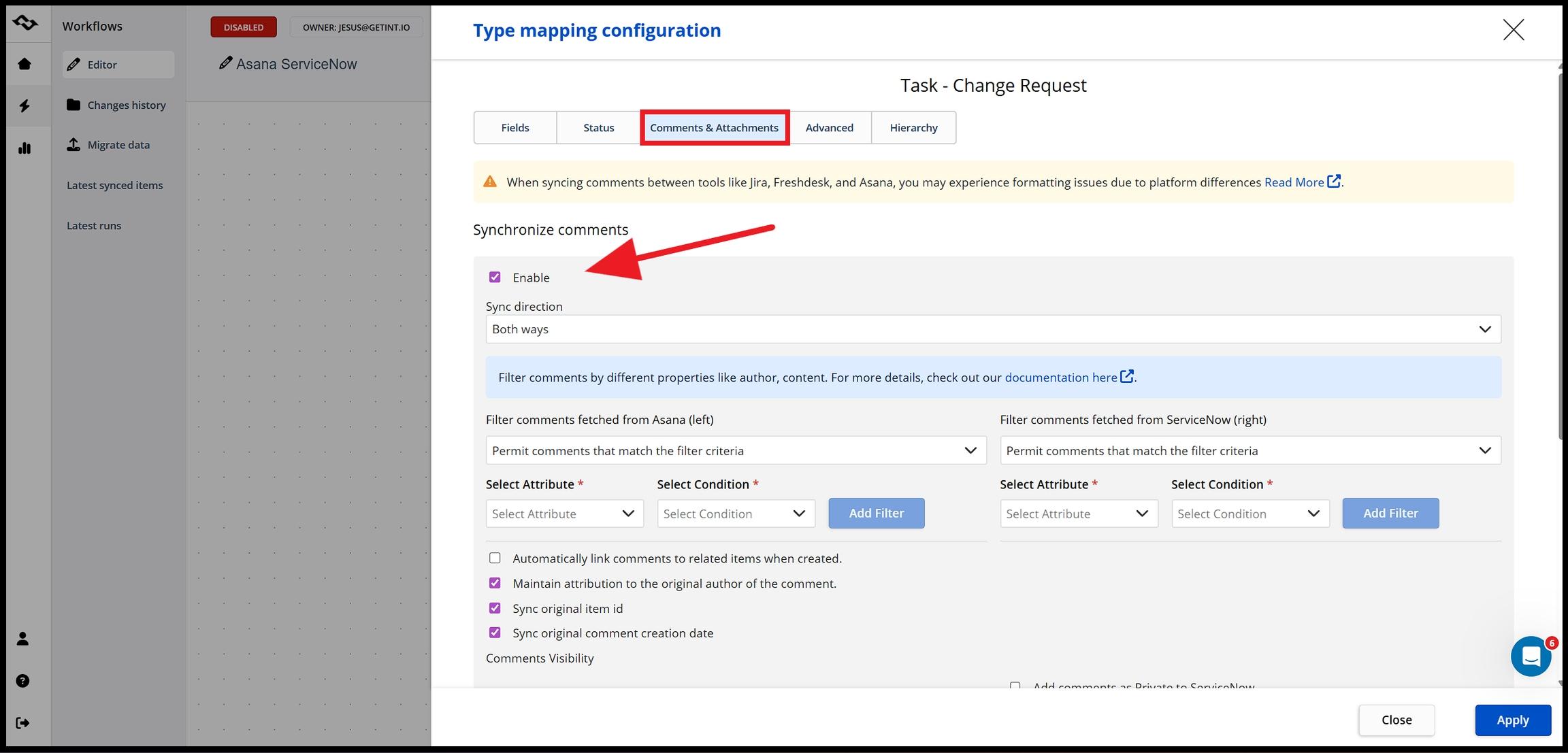
Comments and attachments sync by default but are fully configurable: bidirectional, one-way to Asana, one-way to ServiceNow, or disabled entirely if your organization's data policies call for keeping certain information out of Asana. Note that inline images aren't supported for the Description field specifically.
Step 9: Apply Filters and Item Routing Rules
Use filters to control which items sync — for instance, only ServiceNow incidents belonging to a specific assignment group, matched to a specific Asana project. Filters can apply to All, New, or already Synced items separately, giving you control over existing items versus anything created going forward.
Step 10: Test and Monitor
Create test items on both sides and confirm they sync as expected, then check Getint's logs to verify the integration is behaving correctly before rolling it out more broadly.
Real-World Use Cases
The same setup supports a few distinct patterns depending on which side of the handoff a team feels most:
Ticket Escalation into a Tracked Project Task
A ServiceNow incident that turns out to need cross-team coordination — not just an IT fix — gets a matching Asana task automatically, with the original details attached, so the business side can track it without needing ServiceNow access.
IT Request Visibility for Business Teams
A marketing or product team submits a request that needs IT provisioning. Instead of asking "any update?" over email, they can see the linked task's status update automatically as the ServiceNow record moves through IT's workflow.
Cross-Department Reporting
For organizations running multiple Asana projects against different ServiceNow assignment groups, Item Routing keeps each project fed only the incidents relevant to it — so reporting stays accurate without every project seeing every ticket.
Best Practices for Asana ServiceNow Integration
- Budget real time for the ServiceNow side of setup. The dedicated user and ACL configuration take longer than the Asana side — plan for it rather than treating both platforms as symmetrical five-minute connections.
- Get assignee mapping right before going live. Mismatched usernames are the most common source of "the sync isn't working" reports that are actually just misrouted assignments.
- Use Item Routing instead of one integration per project. If you're syncing multiple Asana projects, Item Routing scales far better than duplicating filters across separate integrations.
- Decide on comment and attachment policy deliberately. Given ServiceNow often holds sensitive request details, choose sync direction (or disable it) based on your organization's actual data policy, not the default.
- Revisit the license model if you're managing several instances. Getint's Network License is built for managing service providers or organizations running three or more instances — worth checking if you're scaling this beyond a single Asana–ServiceNow pairing.
Conclusion
Asana and ServiceNow ending up in the hands of different teams reflects two tools built for genuinely different jobs — not a failure to standardize. What actually needs solving is the gap at the boundary between them: the invisible status, the duplicate entry, the context that doesn't travel with a request when it crosses from one system to the other.
Whether you set out to integrate Asana with ServiceNow or connect a ServiceNow Asana workflow the other direction, the underlying goal is the same: give both sides the ability to see the process end to end. Getint delivers that with a two-way sync that keeps working for the life of the linked items, no-code setup, and — unlike some walkthroughs — a straight answer about what ServiceNow's own permission model actually requires on setup day.
The real value of an Asana ServiceNow integration shows up after the initial connection: once teams can finally see, in depth, how a request actually moves — a view that often identifies bottlenecks nobody had visibility into before. If your organization connects more tools across teams, Getint also supports many others like Jira and ServiceNow, ServiceNow and Salesforce, etc. using the same underlying approach.
Book a demo to discuss your integration needs, and learn about platform possibilities.