A step-by-step approach to connecting support and development teams, mapping the right information, and testing the connection before it goes live.
A critical incident rarely stays inside one team. A support analyst records the problem in ServiceNow. A developer investigates it in Jira. Then someone has to keep both tickets updated, copy the latest findings, chase status changes, and make sure the customer receives an accurate answer. The technical work may be progressing, but the information between teams is already falling behind.
Integrating ServiceNow and Jira solves the handoff problem without asking either team to abandon its preferred tool. The goal is not to duplicate every record. It is to share the information both teams need, at the moment they need it, while each system keeps doing its own job.
This guide walks through a practical Jira–ServiceNow integration using Getint solution. We will start with a single incident-to-bug workflow, choose sensible mapping rules, configure the connection, and test the cases most likely to cause trouble later. The same approach can be adapted to Jira Service Management, service requests, change requests, and more complex workflows.
What a good Jira–ServiceNow connection should do
Imagine a payments service that starts rejecting valid transactions. The service desk opens incident INC0010042 in ServiceNow, assigns it to the application support group, and confirms that a code fix is needed. A matching bug, PAY-214, appears in the development team’s Jira project. The developer can work from Jira; the service desk can keep managing the incident in ServiceNow.
When the developer changes the bug status or adds an approved technical update, the ServiceNow team can see it without asking for a separate progress email. If support discovers a new error pattern or changes the incident priority, the relevant update can reach Jira as well. This is bi-directional synchronization: selected changes can move both ways. It does not mean every field, note, or attachment must be shared.
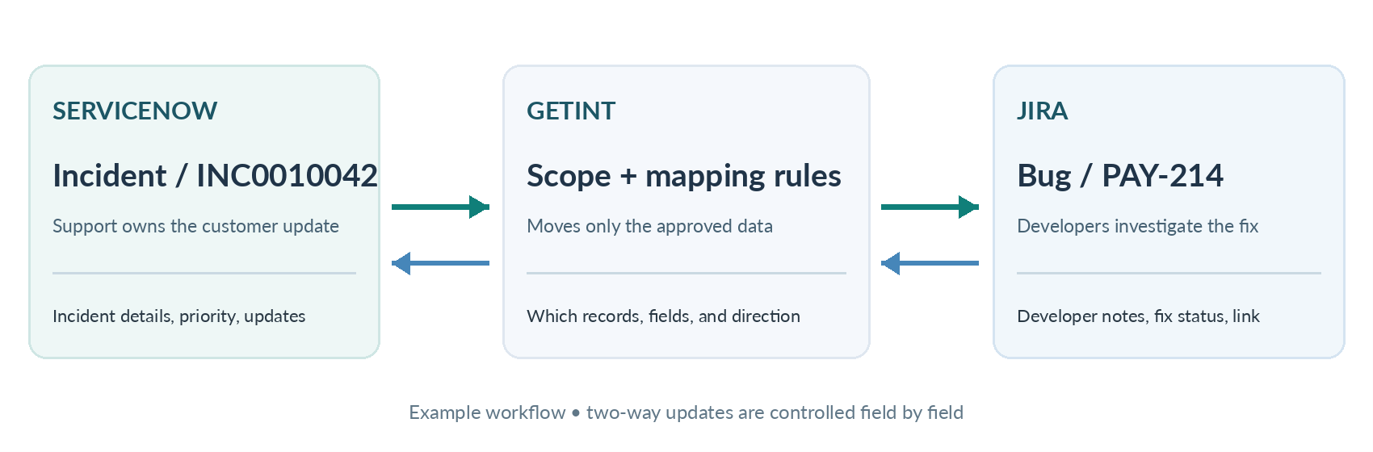
Before any setup work, decide what success looks like. In this example, one approved ServiceNow incident creates one Jira bug; the two records remain linked; priority and useful technical updates move as agreed; private customer or internal notes stay private; and the support team controls when the incident is actually closed.
Why use Getint rather than build the connection yourself?
Jira and ServiceNow both expose REST APIs, so a custom integration is possible. ServiceNow also provides integration options such as spokes for particular automation scenarios. A bespoke connection gives engineers detailed control, but it also leaves them responsible for handling authentication, error recovery, new fields, changing workflows, and the ongoing maintenance that follows.
Getint is a practical fit when the requirement is continuing ticket synchronization rather than a single scripted action. Its Jira–ServiceNow connector supports type mappings, standard and custom fields, status rules, comments, attachments, filters, and one-way or two-way movement of data. Administrators can configure common cases through the interface, with more advanced customization available where needed.
There is one important distinction: Getint is a connector, not a replacement for process design. If the two teams disagree about who can close an incident, the tool cannot make that decision for them. Write down the ownership rules first; then configure the connector to respect them.
A useful rule of thumb: Start with one record type, one project, and one assignment group. Widen the scope only after you can explain exactly how a ticket is created, updated, and closed in both systems.
Before you install anything: make five decisions
- Choose the record pair. For the first run, use ServiceNow Incident ↔ Jira Bug (or Task). Add change requests or service requests only when their process owners have agreed on the expected behavior.
- Choose the direction. Two-way updates are helpful for shared facts. Other fields should travel one way: for example, customer-facing closure information may remain under the service desk’s control.
- Choose the trigger and scope. Decide which assignment groups, Jira projects, labels, or priorities are eligible. A new integration should not sweep up unrelated incidents.
- Choose what remains private. ServiceNow work notes, customer comments, and internal Jira comments can have different audiences. Treat attachments as potentially sensitive too.
- Choose the owner of each decision. Determine who can set severity, accept a fix, reopen a ticket, and close the incident. Otherwise two valid workflows can fight over the same status.
What you need for the Jira-ServiceNow integration setup
For Jira Cloud, prepare a test project where the connection account can create and edit Bug work items. For ServiceNow, prepare an instance URL and an account with access to the records and fields you plan to synchronize. This walkthrough used a Jira Cloud test site, a ServiceNow Personal Developer Instance and a standalone Getint workspace. Review production permissions and network requirements separately.
Authentication varies by deployment and connection method. Getint’s Jira Cloud setup documentation describes a dedicated account with an API token; other Getint connection options may use OAuth. Use the method shown by your installed version. Jira Data Center has its own supported authentication and installation requirements.
The ServiceNow account deserves particular care. Getint documents required access to record tables and supporting information used for field choices, status values, and journal entries such as comments and work notes. A login may succeed while a field still fails to synchronize because the account lacks permission to that table or field. Ask a ServiceNow administrator to review the necessary roles and access controls before testing, without granting unrestricted permissions by default.
Useful references: Getint setup guide | ServiceNow account and permissions | Atlassian Marketplace listing
Step-by-step: connect ServiceNow and Jira Cloud with Getint
1. Install or launch the connector
The Atlassian Marketplace offers a Jira-embedded version of ServiceNow Integration for Jira. I installed that app, but its onboarding rejected my Gmail address. The tested workflow ran in Getint’s standalone workspace. There, open Create Integration and choose Continuous Sync to keep linked records aligned over time. Choose Data Migration for a separate historical transfer.
Use a name that will still make sense six months later, such as “ServiceNow Incidents → Payments Jira.” Separate integrations for different teams are much easier to maintain when their names explain their scope.
Screen reference • Create integration and launch screens — official product guide
2. Connect your Jira instance
In the integration editor, select Connect App, choose Jira, and select Login with Atlassian. Authorize the connection, select your Jira Cloud test site and save it. I selected the Payments Pilot project after creating it with the Bug work type enabled. Other deployment or connection options may use an API token.
Select the Jira project that will receive the work. Check that the integration account can browse the project, create your chosen issue type, update the required fields, add comments if needed, and use the workflow transitions you plan to map. A successful login is not proof that it has every project permission it needs.
3. Connect your ServiceNow instance
Choose ServiceNow as the second application and create a connection with the instance URL and dedicated integration account. Validate the connection before mapping records. If it fails, check the instance URL, account status, permissions, and authentication method. A newly created ServiceNow account that still requires a password reset can also prevent API authentication.
Keep ServiceNow access limited to what this pilot needs. Syncing incidents calls for different permissions than working with changes or a custom table. If the project expands, revisit those permissions instead of granting broad access from the start.
4. Decide which records become which
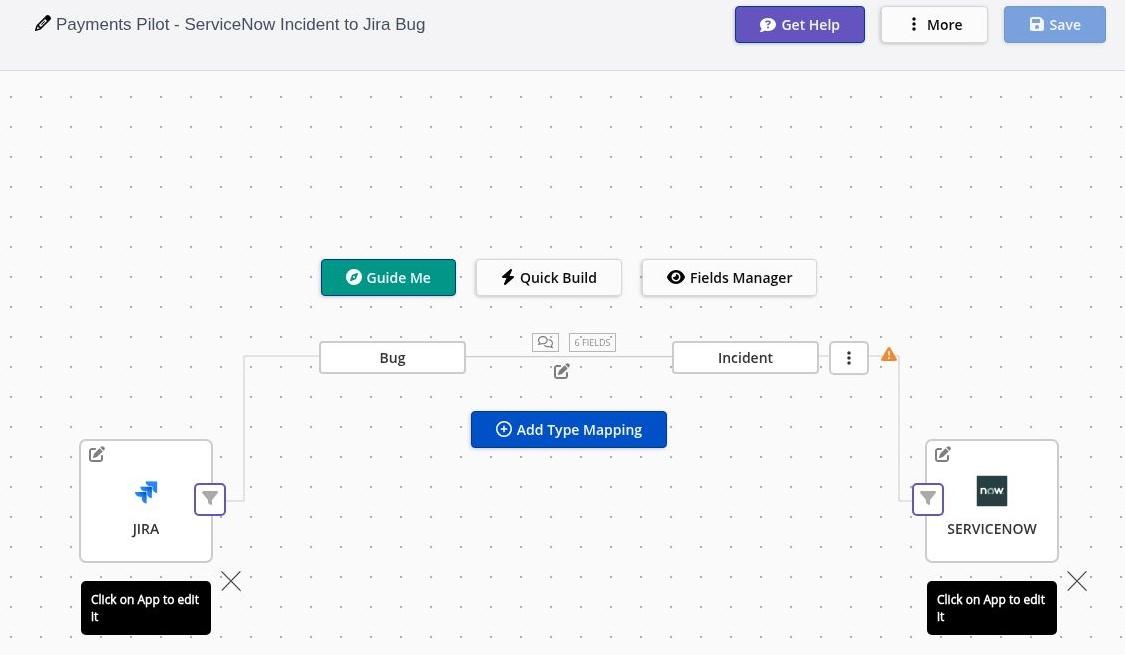
Now choose which kind of record on each side should be paired. For this guide, use ServiceNow Incident → Jira Bug in one development project. Another team might reasonably choose Incident → Task. Pick the pairing that fits the actual handoff, not simply the first matching name in the menu.
Getint offers Quick Build (marked as beta in its documentation) and manual mapping. Quick Build can suggest type and field pairs, but suggested does not mean correct. Keep only the pair needed for the pilot. If your ServiceNow record is an incident, be certain the selected Jira destination really is the Bug issue type in the intended project.
5. Map fields, not just ticket names
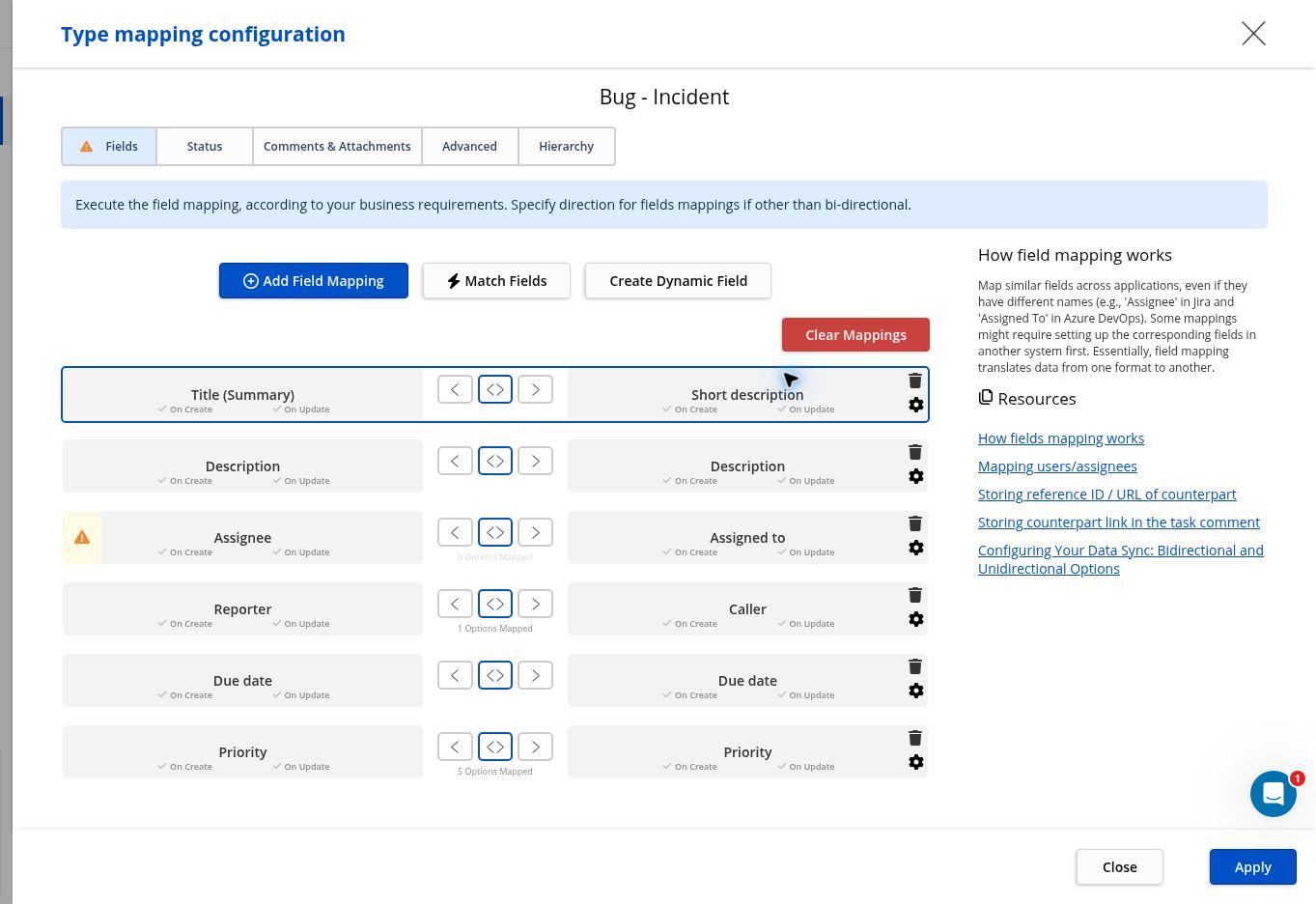
Field mapping determines what each team receives when a record is created or updated. It is the difference between “a ticket exists” and “the receiving team has enough detail to do its work.” Send the useful technical context, but not unnecessary personal information from the service desk.
Use this table to plan which fields to share and who owns them. The pilot used direct Priority mapping. The Impact and Urgency approach in the table is a design option to validate in your environment.
The Impact and Urgency approach in the table is a design option to validate in your environment.
Start with the summary and description, then decide which fields are allowed to change later. ServiceNow incident Priority is often derived from Impact and Urgency, so a Jira “High” value should not simply be written into Priority without checking how that instance calculates it. For custom fields, confirm the destination field is available to the selected Jira issue type and ServiceNow table. A missing field is often a screen or permission issue, not a connector limitation.
Two-way is not automatically better. When two teams can edit the same value, they need a rule for which change wins. Share a small number of fields in both directions and give the rest a clear owner. In the pilot, support should own the final incident outcome even when engineering marks the Jira fix as complete.
6. Map statuses to the actual workflow
ServiceNow and Jira each use their own workflow and status names. Check that the destination allows each transition you map. The pilot verified the In Progress transition. The table shows how teams can design additional transitions for production.
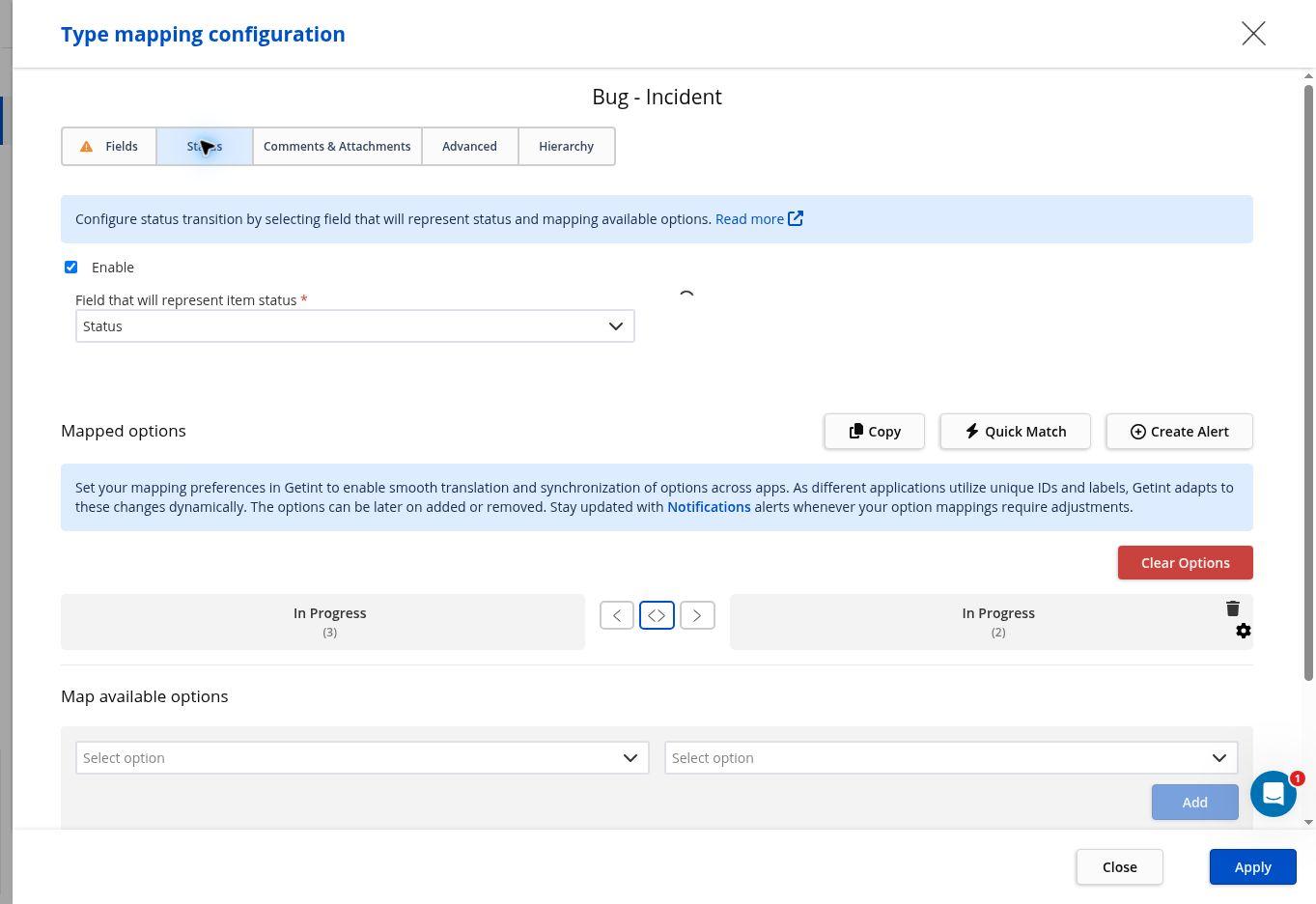
A finished Jira bug does not necessarily mean the incident can be closed. A code change may be complete while support is still checking whether payments work again. Treat developer completion as a signal for the service desk to validate the fix, not as permission to bypass the customer-facing closure process.
7. Make a conscious choice about comments and attachments
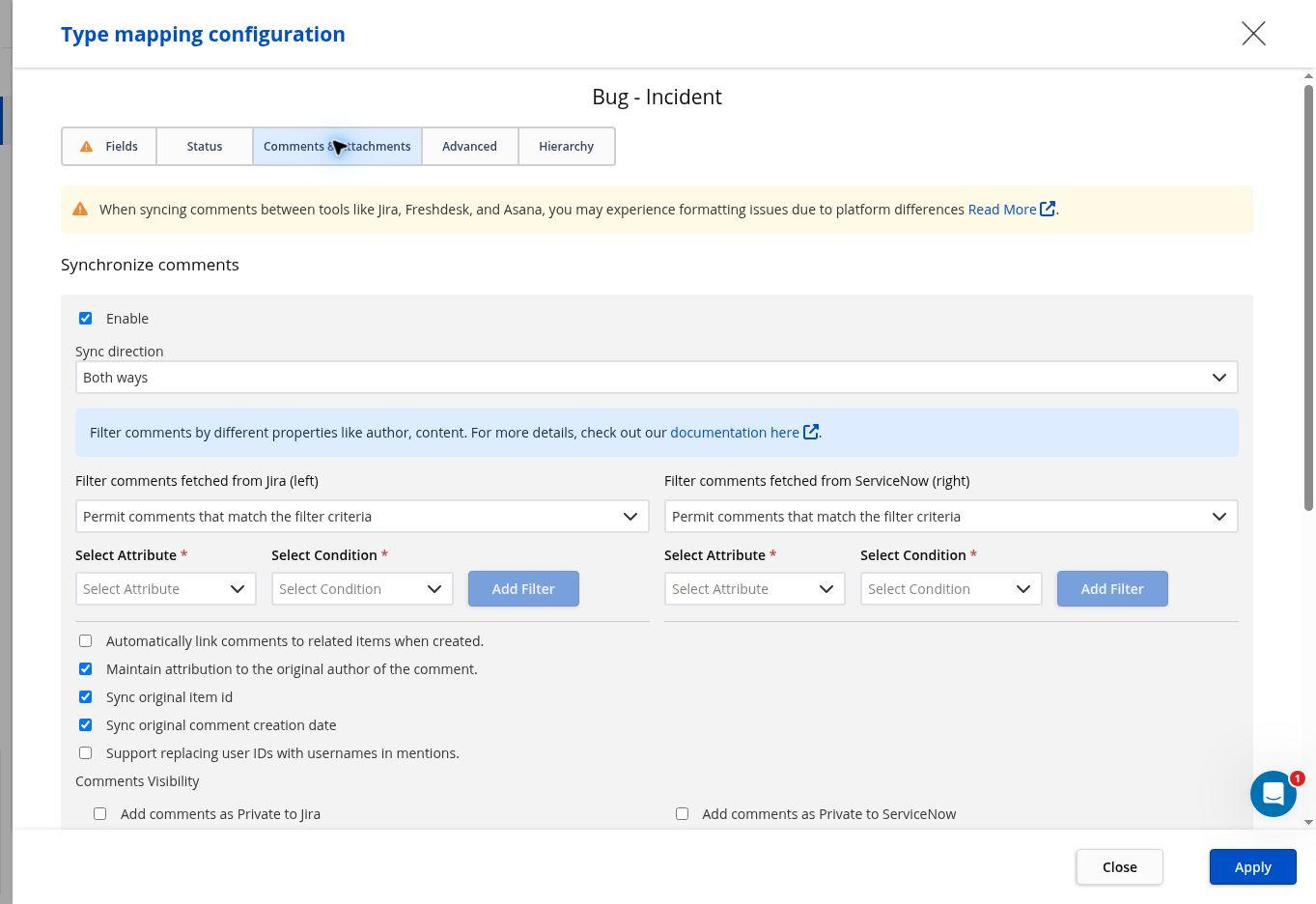
In Comments & Attachments, review which journal entries and files each system may receive. ServiceNow Additional comments may be customer-visible. Work notes are generally internal. Jira Software comments and Jira Service Management customer replies can also reach different audiences.
Under Customize comments creation, I set Jira comments to arrive as private ServiceNow work notes and set private ServiceNow notes to be skipped on the way to Jira. The pilot verified a Jira comment arriving as a Work note. Test other comment visibility cases and attachment transfer before using the workflow with customer data.
8. Filter which records qualify
This is the step that keeps a useful integration from becoming a flood of tickets. In Getint, filters can be applied to either side of the connection. Its documentation distinguishes rules for all items, newly created items, and items that have already been synchronized. Read those choices carefully: a filter that blocks new records is not necessarily intended to stop updates to records already linked.
In the pilot, I used a ServiceNow custom query to select incidents whose short description began with [PAY-PILOT]. On the Jira side, I scoped the workflow to the Payments Pilot project. I enabled updates in both directions and turned off Jira-originated incident creation.
Start narrow. If your first pilot uses a label such as sync-pilot, make sure the label or its equivalent remains available when a matching issue is created, or later updates might no longer qualify. Save the integration after changing any filters.
9. Create the Jira integration and test a controlled example
Name the integration, review the mappings, then select Create or Save. Create a fictional incident that meets the filter. The live pilot below shows the record I created and how I checked the generated Jira bug.
Compare the two records side by side. Does the summary make sense? Is the priority correct? Did the description arrive in a readable format? Does the Jira issue link back to the right incident? Change one field in Jira, then one in ServiceNow, and confirm that the approved updates move in the right direction. Repeat for comments, a non-sensitive attachment, a status transition, and a record that should be excluded.
Continuous synchronization runs on a configured interval, so a change may not appear immediately. Give each test time to complete, then check the actual run details. This helps separate a delayed check from a permissions error or an incorrect mapping.
10. Check the run history before calling the pilot complete
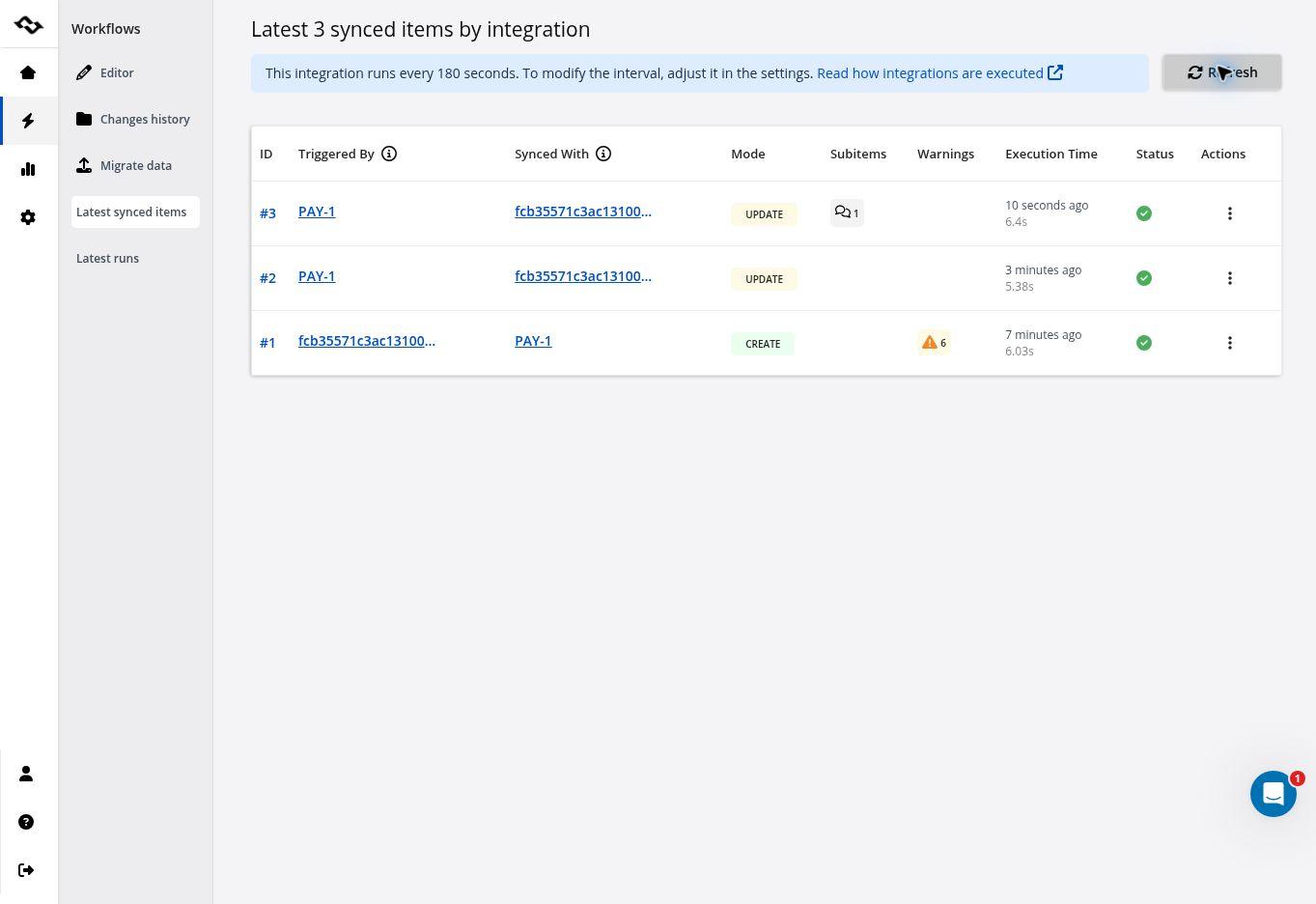
Open Getint Reporting and examine both Runs and Synced Items. A connection test proves that the systems can be reached; the run details show whether a record was created or updated, which direction it travelled and whether anything failed. Record the actual ServiceNow and Jira identifiers in your test notes. Those are the evidence a publishable walkthrough should show.
If a record repeatedly fails, Getint’s troubleshooting guide explains how to export a support package from Reporting → Synced Items for the affected item IDs. Inspect the package before sharing it, since logs and payloads may contain operational information.
Live pilot results for the payments incident
I ran this pilot in the standalone Getint workspace using fictional records in Jira Cloud and ServiceNow. The workflow selected incidents with the [PAY-PILOT] short-description prefix.
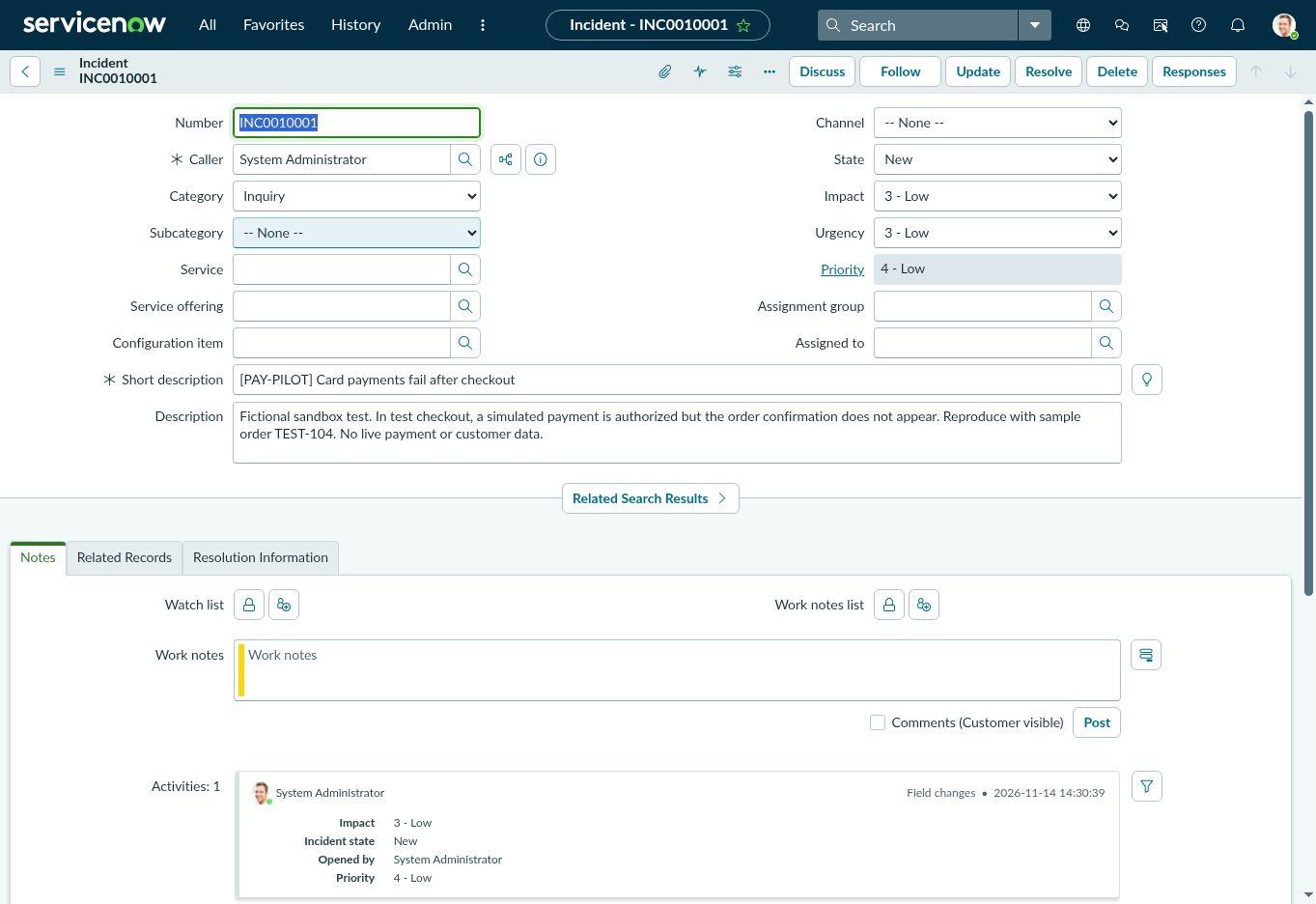
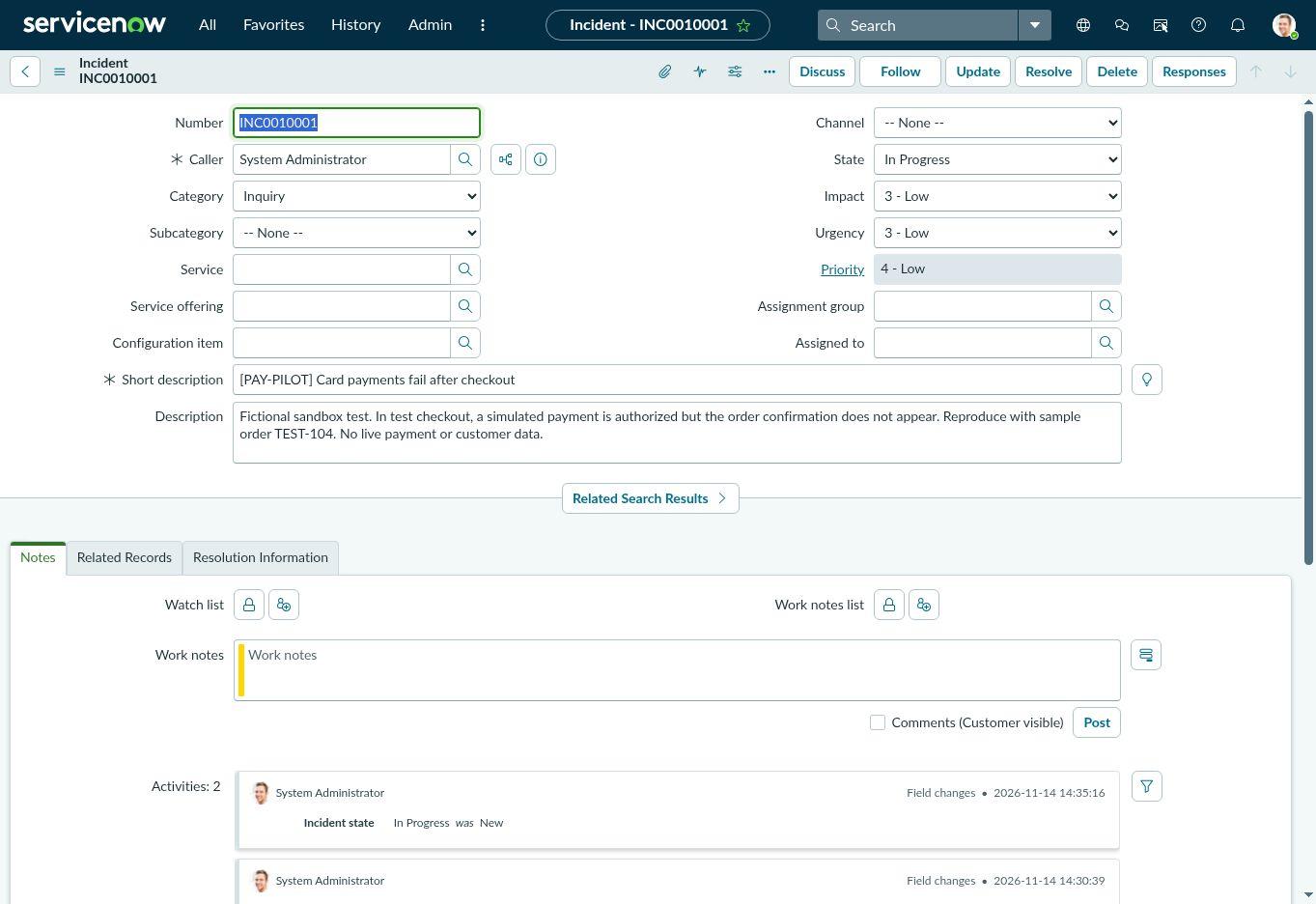
1. Create the source incident. I created ServiceNow incident INC0010001 with the short description “[PAY-PILOT] Card payments fail after checkout.” I used fictional order TEST-104 in the reproduction steps.
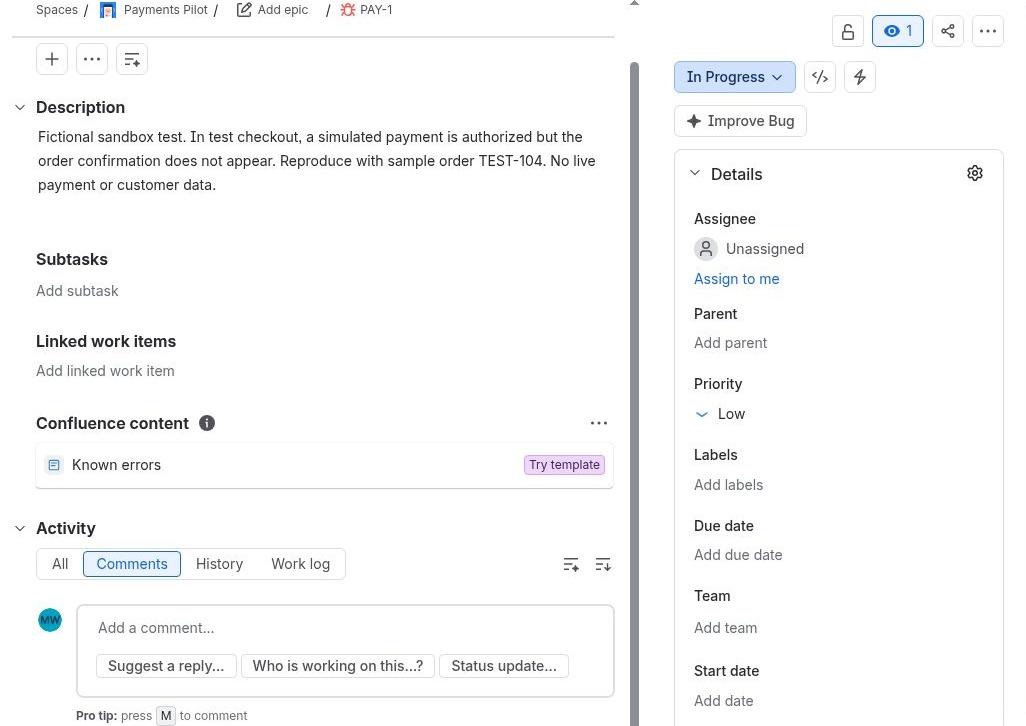
- Verify Jira bug creation. Getint created PAY-1 in the Payments Pilot Jira project. I opened the bug and confirmed that the incident’s short description and description had carried over.
- Send a status update and engineering comment from Jira to ServiceNow. I moved PAY-1 from To Do to In Progress.
After Getint ran, I reopened INC0010001 and confirmed that its state had changed from New to In Progress.
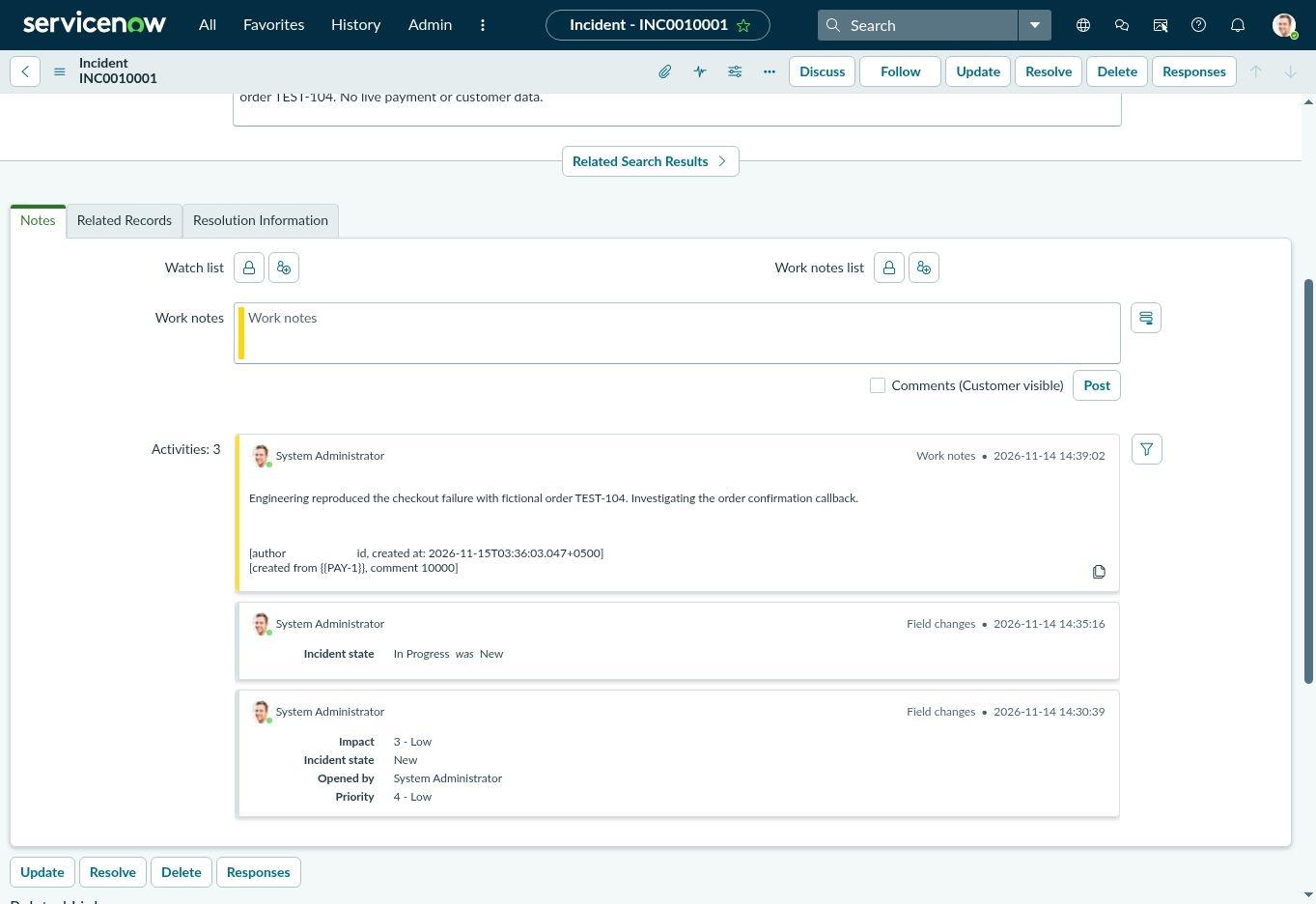
Then, I commented on PAY-1 that engineering reproduced the checkout failure with fictional order TEST-104. After the next sync, the ServiceNow activity stream showed the comment as a private Work note and identified PAY-1 as its source.
Getint’s sync history showed three events for the same record pair. The first created the Jira bug from ServiceNow. The next two processed the Jira status change and comment back to ServiceNow.
The test checklist I would use before going live
Mark each test Passed, Failed or Needs decision. Keep the two record IDs and the relevant Getint run. Before release, verify a later ServiceNow-to-Jira edit, filter exclusion, attachment transfer, and whether marking a Jira bug Done preserves the service desk’s control over incident closure.
Troubleshooting the issues you are most likely to meet
- The connection works, but no Jira issue appears
Check the mapping first: Is Incident paired with a Jira issue type that exists in the selected project? Next check the filter. The test record may be in the wrong assignment group, missing a required label, or excluded by a new-items rule. Confirm that the integration user can create the issue and that an actual change has occurred to trigger continuous sync. Review Reporting rather than retrying blindly.
- A ServiceNow permission error appears
Confirm the dedicated account is active and not waiting for a password reset. Then review access to the intended records, dictionary/choice information, journal entries, and the exact fields being mapped. Some organizations can use narrower, purpose-built ServiceNow roles rather than a broad ITIL role. The Getint permissions guide provides a useful starting point for the ServiceNow administrator.
- A custom field is missing or stays blank
Check whether the field exists on the target record type and is available on the Jira project’s relevant screens. On the ServiceNow side, verify both field-level access and that the field belongs to the table being synchronized. Also check the value format: a dropdown or reference field may require a valid option or user value rather than plain text.
- Statuses keep changing back
Look for competing automation rules or for two-way mapping of a status that the teams use differently. A Jira “Done” transition may not be equivalent to a ServiceNow “Closed” state. Simplify the mapping, set one system as the owner of final closure, and test the exact permitted transition sequence again.
- A comment arrived in the wrong place
Pause public comment syncing until the visibility rule is verified. Recheck the Customize comments creation settings, the type of ServiceNow journal entry, and the destination comment permissions. Use new test comments; do not rely on how an older imported record appears. Correct any exposure through your organization’s incident-handling process.
- Older records never appear
This may be expected. Getint’s continuous sync checks for records that have been created or changed; it does not automatically act as a historical backfill. If the goal is to move a backlog of existing incidents or Jira issues, review Getint’s migration approach separately and agree on duplicate handling, references, and the cutover plan before running it.
Security and ownership: the part worth getting right early
Write down which fields are allowed to cross the boundary, including any custom fields, comments, files, and user details. Check whether a service request might carry personal information, or whether an incident log contains credentials or customer data. Where user identities do not match across systems, use an agreed assignee mapping or fallback instead of assuming every name will resolve.
After launch, assign an owner for failed syncs and a second owner for business-rule changes. Review runs after workflow releases, project moves, new required fields, credential rotation, or ServiceNow table changes. A connector can remain technically healthy while a newly required Jira field quietly prevents issue creation.
Conclusion: Start with one dependable handoff
The best Jira–ServiceNow integration is one that lets the service desk answer the customer accurately while developers keep working in Jira. That requires more than connecting two URLs. It requires a deliberate choice of record types, sensible field and status mappings, carefully handled comments, narrow filters, and evidence that the edge cases work.
Getint gives teams a way to configure that handoff without owning a custom integration from scratch. Begin with one incident and one bug, prove that updates travel correctly, then expand carefully. The result should be fewer manual status checks and a clearer story for everyone working on the same problem.
To explore the product, start with Getint’s Jira–ServiceNow connector on the Atlassian Marketplace. For current configuration screens and permissions, use the official Jira–ServiceNow setup guide.
Documentation used for this guide
The setup labels and feature descriptions above are based on Getint’s current public documentation and the Marketplace listing. Screen layouts can change between versions and deployment types.
• Jira–ServiceNow configuration and interface reference
• Creating a dedicated ServiceNow integration user
• Troubleshooting ServiceNow permissions
• Understanding continuous sync and migration