Flow Designer makes it much easier to build automation in ServiceNow without writing everything as custom code. You can define a trigger, add actions and conditions, pass data between steps, and get an automation working relatively quickly.
That simplicity is one of the reasons teams use it. The challenge usually comes later. A flow that starts with a few simple steps can grow quickly as new requirements are added.
For example, you may start with a simple approval flow and later add record lookups, multiple conditions, notifications, integrations, error handling, and different paths for different users. At that point, the challenge is no longer just getting the flow to work. You also need to think about performance, debugging, permissions, maintainability, and what happens when something goes wrong.
In this article, I'll go through some of the Flow Designer challenges in ServiceNow that I have come across and the practices I use to avoid or troubleshoot them. This guide is mainly aimed at ServiceNow developers, administrators, process owners, and other ServiceNow professionals who are building or maintaining workflow automation.
The intention is not to say that Flow Designer should be avoided. In many cases, it is the right choice. The important thing is knowing how to use it properly and when you need to take a different approach.
What Is ServiceNow Flow Designer?
At a basic level, Flow Designer lets you build automation using a visual interface. You define a trigger, and then add the actions that should happen when that trigger occurs.
For example, a flow could start when a catalog request is submitted. It could then check some information, send the request for approval, create a task after approval, and finally notify the requester.
Instead of writing all of this as custom code, you can build the process using the Flow Designer interface.
Flows can also use data from previous steps through data pills. For example, if an earlier action returns an incident record, you can use fields from that record in a later action. Flow Designer also supports reusable components such as subflows and custom actions, which become particularly useful when the same logic is needed in multiple places.
Here is a simple example of a flow with an incident trigger followed by several actions:
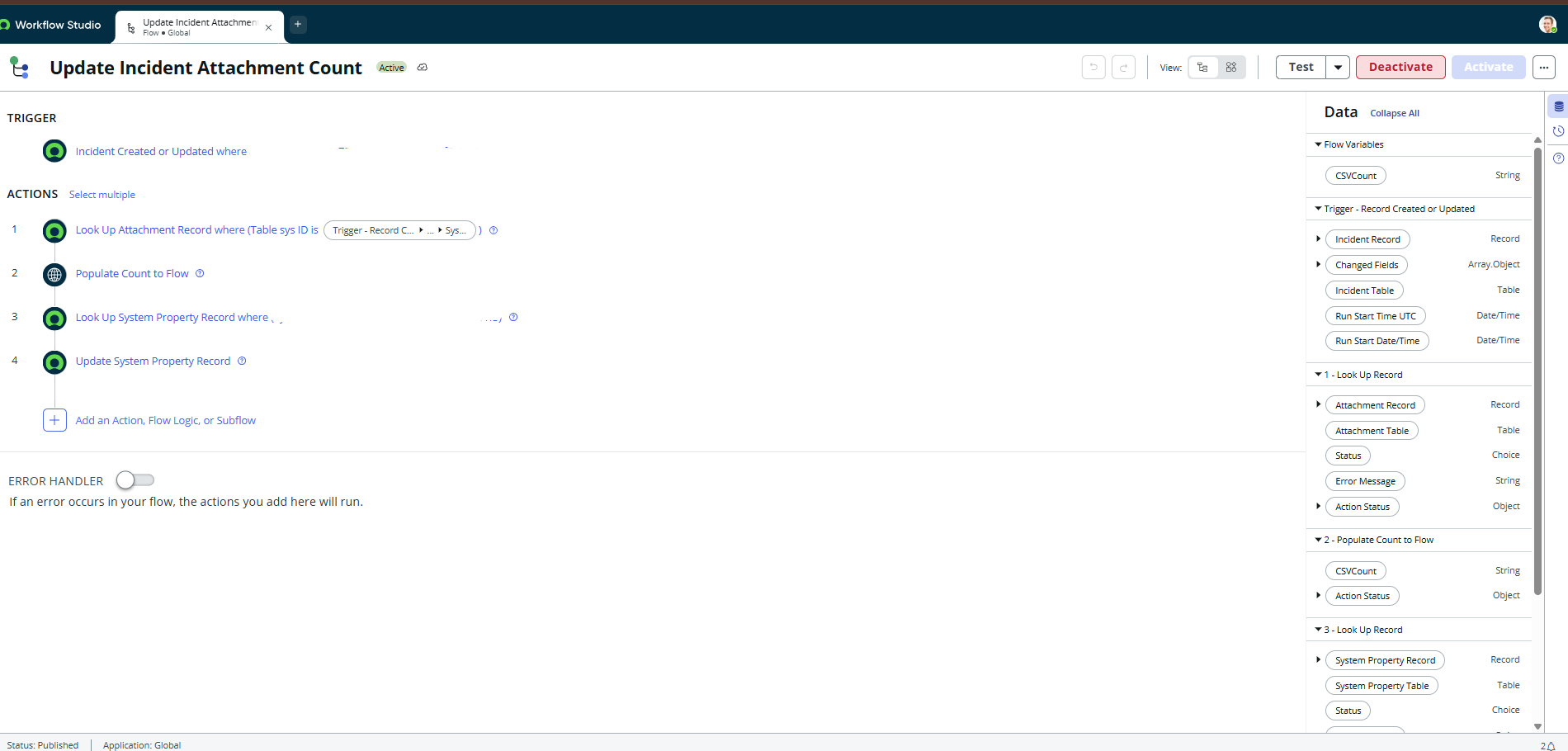
This visual approach makes automation much easier to build and understand. However, it can also be tempting to keep adding more and more steps to the same flow. That is where some of the common problems start to appear.
Common Flow Designer Challenges in ServiceNow
A flow can work perfectly when it is first created and still become difficult to maintain six months later.
As more requirements are added, developers need to pay attention to how the flow is structured, what data is being passed between steps, how many records are being queried, and how failures are handled.
Here are some of the challenges I have come across while working with Flow Designer.
1. Putting Too Much Logic into a Single Flow
One of the easiest things to do in Flow Designer is to keep adding another action to an existing flow.
You start with something simple:Request submitted → Approval → Create Task
- Then a new requirement comes in: "If the request is for this department, do something different."
- Then another: "Send a different notification."
- And another: "Call an external system."
After a while, the flow can contain a large number of actions, conditions, lookups, and branches.
There is nothing wrong with having a flow with several steps. The problem starts when the flow becomes responsible for too many different things.
A developer opening the flow later should be able to understand what the flow is doing without having to go through every single action.
Use subflows and custom actions when the logic can be reused
One approach I have found useful is breaking larger pieces of logic into subflows and custom actions.
For example, instead of putting the complete approval process directly into several different flows, you can create a subflow for that process and call it wherever it is needed. The same applies to custom actions. If you have a piece of functionality that needs to be used in more than one flow, putting it into a reusable action can save you from maintaining the same logic in multiple places.
A simple structure could look like this:
Main Flow
→ Validate Request
→ Approval Subflow
→ Create Task
→ Notification
This is much easier to follow than putting every individual operation directly into one large flow.
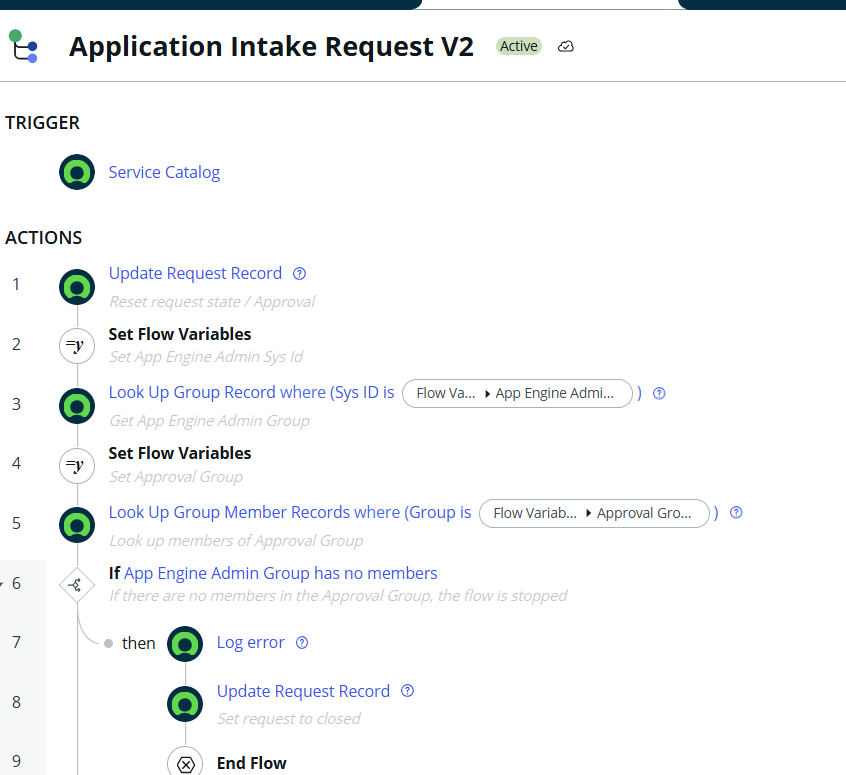
In my own work, I have used multiple subflows and custom actions to keep the main flow manageable. It also makes future changes easier because you can update the reusable component instead of changing the same logic in multiple flows.
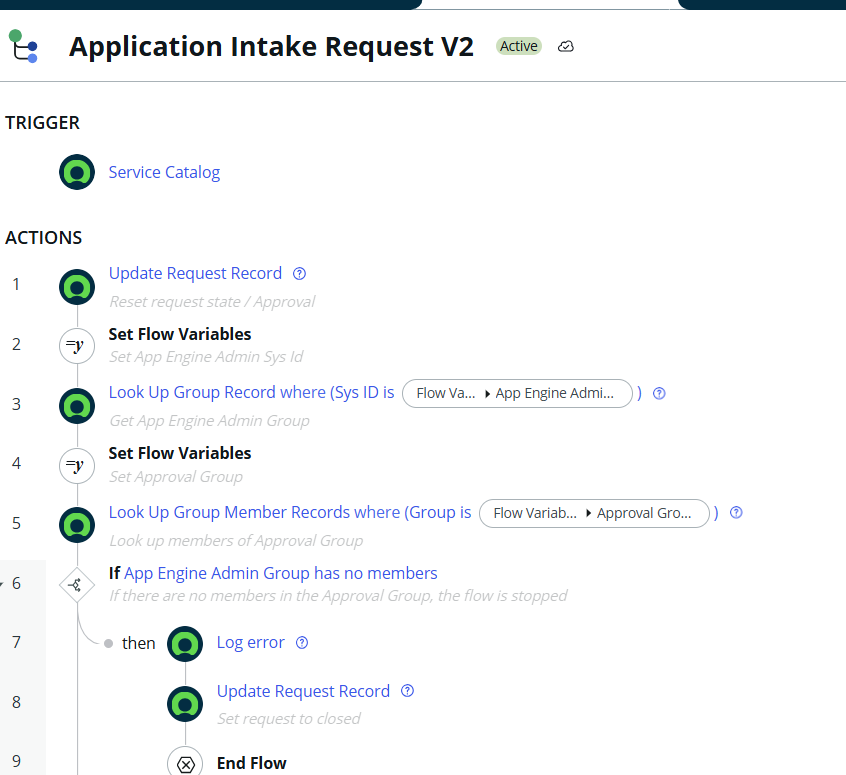
The example isn't necessarily a problem by itself. It shows how quickly a real flow can accumulate different types of logic. In custom development, separating reusable pieces into subflows or actions can keep the parent flow easier to follow.
2. Working with Data Pills and Data Types
Data pills are extremely useful in Flow Designer. They are also something that can cause problems if you don't pay attention to the type of data you are working with.
A data pill contains data produced by a trigger, action, or another part of the flow. That data can then be passed to a later action or used in a condition.
The important part is that the data has a type.
For example, the Flow Designer Data panel can show values such as:
- String
- Record
- Date/Time
- Choice
- Array/Object
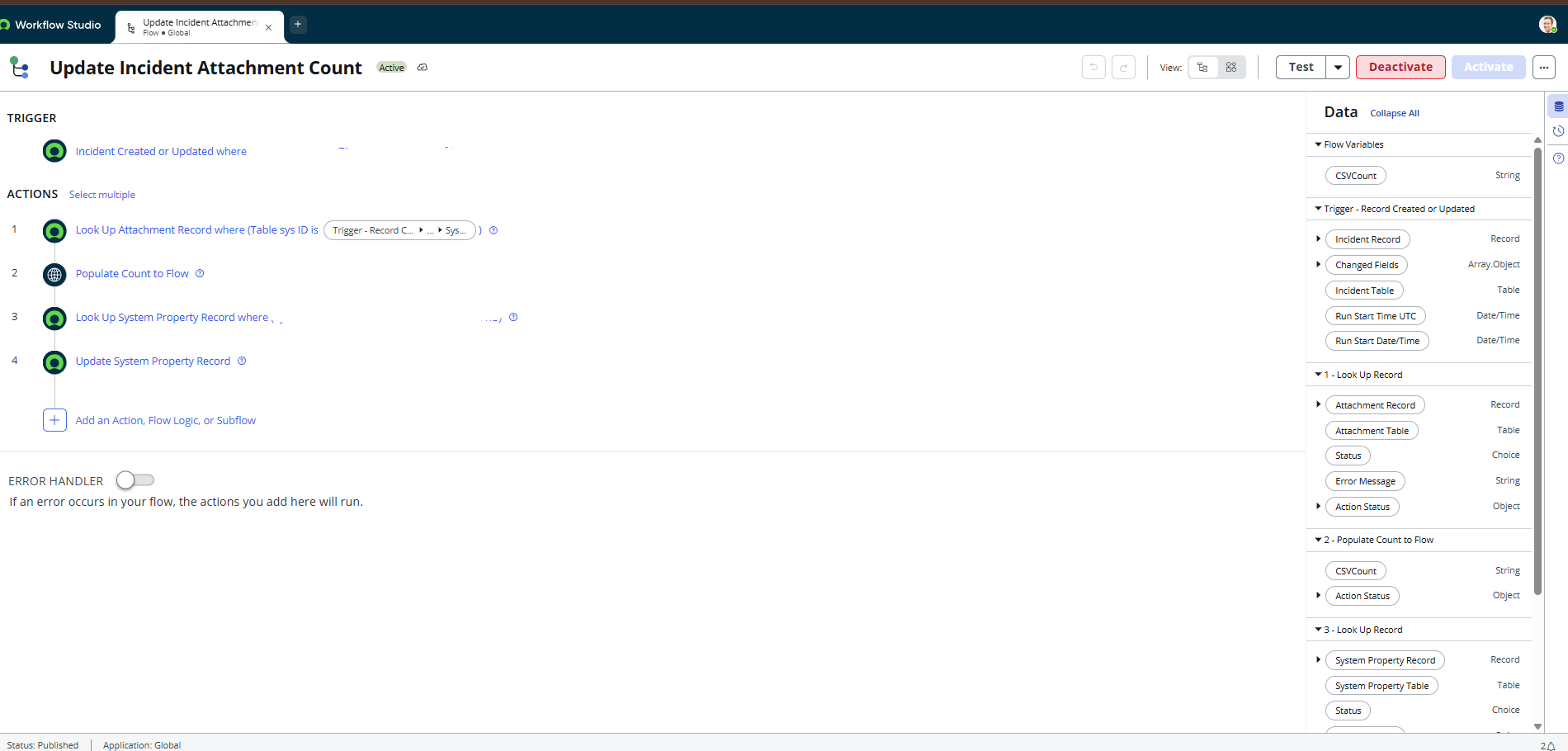
The Data panel shows the values available to the flow along with their data types. This becomes important when building conditions. I have come across a situation where an email-type variable was being used in a flow condition, but the condition was configured in a way that did not match the type of value being passed. The flow step failed because the value was not being handled in the way the action expected.
The problem wasn't really with Flow Designer itself. It was with how the value was being used.
When something like this happens, it is easy to look at the value and think, "This is just an email address, so it should work." But Flow Designer also needs to know what type of data it is dealing with and what the next step expects.
So before using a data pill in a condition or action, I normally check a few things:
- Where is the value coming from?
- What is the data type?
- What value is actually being returned?
- What does the next action expect?
- Am I comparing compatible values?
This becomes even more important in larger flows where data is passed through several actions.
A useful rule is: don't just look at the value. Look at the data type as well.
That small check can save a lot of time when troubleshooting a flow that is failing for what initially looks like no obvious reason.
3. Performance Problems from Excessive Record Lookups
Another issue that can become noticeable as a flow grows is the number of records it needs to look up.
It is very easy to add a Look Up Record or Look Up Records action whenever some information is needed. One lookup by itself is normally not a problem. The concern starts when a flow contains many lookups, especially when some of them are repeated or are being performed inside loops.
For example, a flow might start with an incident record and then perform one lookup to get another record, another lookup to get some configuration, another lookup to find a user, and then perform more lookups while processing the result. As the number of operations increases, the flow has more work to perform.
I have seen performance concerns in flows where there were too many lookup operations. In those situations, one of the first things I look at is whether every lookup is actually necessary.
Avoid looking up data that is already available
Before adding another lookup, check the data pills from the trigger and previous actions.
For example, if the incident record that triggered the flow already contains the caller, assignment group, priority, or another required value, there may be no reason to query the same information again. The same applies when an earlier action has already returned a record that can be reused by later steps.
A simple approach is:
Trigger
→ Get the required record
→ Reuse its data pills
→ Perform only the additional lookups that are actually required
ServiceNow also recommends using specific conditions to limit the records returned by Look Up Records and setting a maximum result count of 1,000 or fewer to improve performance. The more records the action needs to find and process, the more resources it can consume.
Be careful with lookups inside loops
A lookup inside a loop deserves particular attention.
If a flow processes 100 records and performs another database lookup for every record, the number of operations can grow quickly. In such cases, it is worth asking whether the data can be retrieved more efficiently or whether the flow can be redesigned.
This doesn't mean that loops or lookups should never be used. They are useful Flow Designer features. The important part is understanding how much data the flow is processing.
Practical tip: When reviewing a slow flow, don't only look at the number of actions. Look at how many times those actions actually execute and how many records each operation processes.
4. Troubleshooting Failed Flow Executions
Eventually, every developer will have a flow that doesn't behave as expected.The difficult part is not always fixing the problem. The difficult part can be finding where the problem actually occurred.
A flow might contain ten actions, and the final result may be a failure. But that doesn't necessarily mean the last action is the cause. An earlier action may have returned an unexpected value, which then caused a later action to fail.
This is where the Flow Context and execution detailsbecome very useful.
When a flow runs, ServiceNow creates a flow context record containing information about the execution, including its state and runtime values. Flow execution details can also provide information about the actions that ran and their results.
In practice, when I troubleshoot a flow, I normally start by checking the execution rather than immediately changing the flow.
A simple troubleshooting approach
1. Find the failed execution
Start by identifying the flow execution that failed.
2. Open the Flow Context
The flow context takes you into the execution details, where you can see what happened during that run.
3. Find the action that failed
Look for the first action that reported an error rather than only looking at the final result.
4. Check the inputs
Look at the values that were passed into the action. This is particularly important when data pills are involved.
5. Check the output or error message
The error may point to a configuration issue, missing data, permissions, or an external integration problem.
6. Check the execution context if required
If the flow works for one user but fails for another, permissions or execution context may be involved.
7. Reproduce the issue
Once you have an idea of the problem, test the flow again with controlled data rather than repeatedly testing it against random production records.
ServiceNow also recommends testing flows in a non-production environment so that test executions don't unintentionally modify production data.
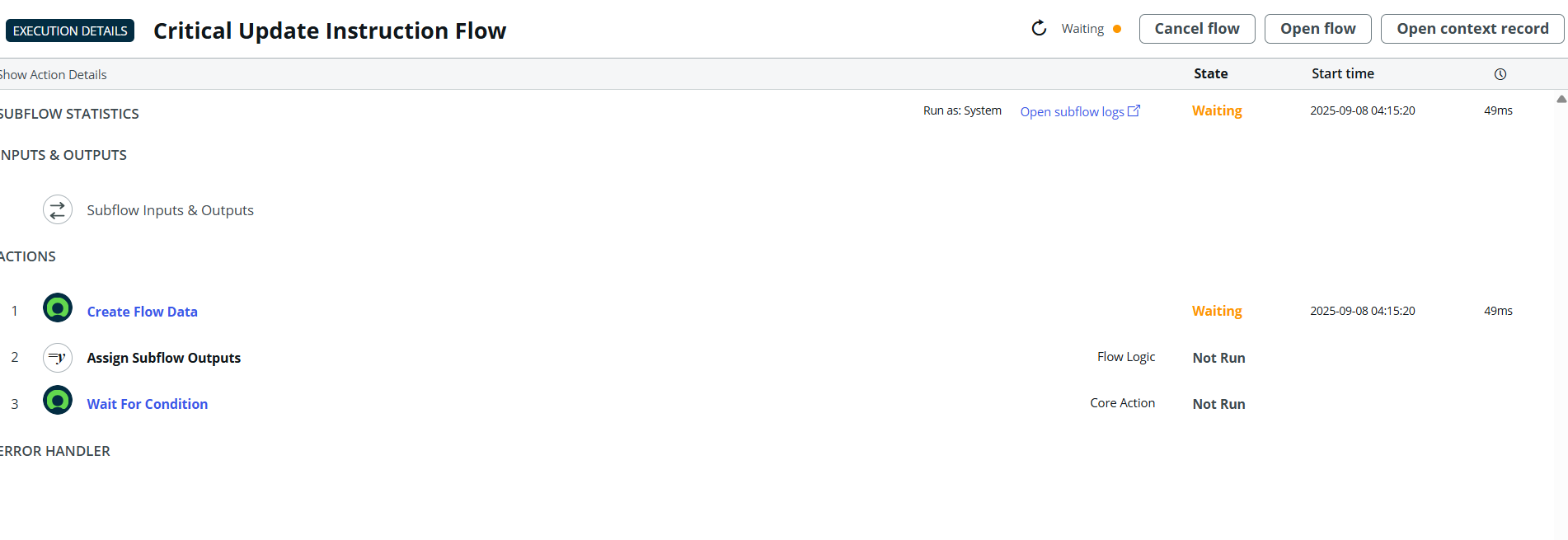
Flow execution details can help identify which part of a flow failed and what happened during the execution.
One thing that has saved me time is simply not assuming that the error message at the end of the flow tells the whole story. Start with the execution and work backwards until you find the first unexpected result.
Practical tip: When debugging a flow, follow the data from the trigger through each action. The problem is often with the value produced by an earlier step rather than the action where the error finally becomes visible.
5. Designing Meaningful Error Handling
A flow working correctly when everything goes as expected is only part of the story. You also need to decide what should happen when something fails.
Imagine a process where a request is submitted and the flow is responsible for creating the next task. If the flow fails while creating that task, what happens to the request?
If there is no error-handling strategy, the business user may simply see that something didn't happen. This is why error handling should be considered while designing the flow rather than added only after something goes wrong.
Make the failure visible
In one of my scenarios, when the main logic failed, I made sure that a Task or Incident was created so that the failure could be picked up and investigated.
The exact approach depends on the business process, but the principle is the same: a failure should lead to an actionable outcome.
Depending on the use case, that could mean:
- creating a task for the support team
- creating an incident
- notifying the responsible team
- recording useful error information
- triggering a recovery process
- retrying an operation where appropriate
ServiceNow provides a Flow Error Handler section that can run actions or subflows when a flow catches an error. The Error Status data pill can also provide information about the action that produced the error.
The important thing is not simply to catch the error. The error-handling process should help answer:
What failed, why did it fail, and what should happen next?
For example:
Flow fails
↓
Error Handler
↓
Capture error information
↓
Create Task / Incident
↓
Notify responsible team
The goal is not simply to catch the error. Someone should be able to see what happened and know what to do next.
The Error Handler can also use subflows when the recovery process itself becomes more complex. ServiceNow currently supports up to 10 items directly in an Error Handler section, while subflows can be used to keep more involved error-handling logic reusable and manageable.
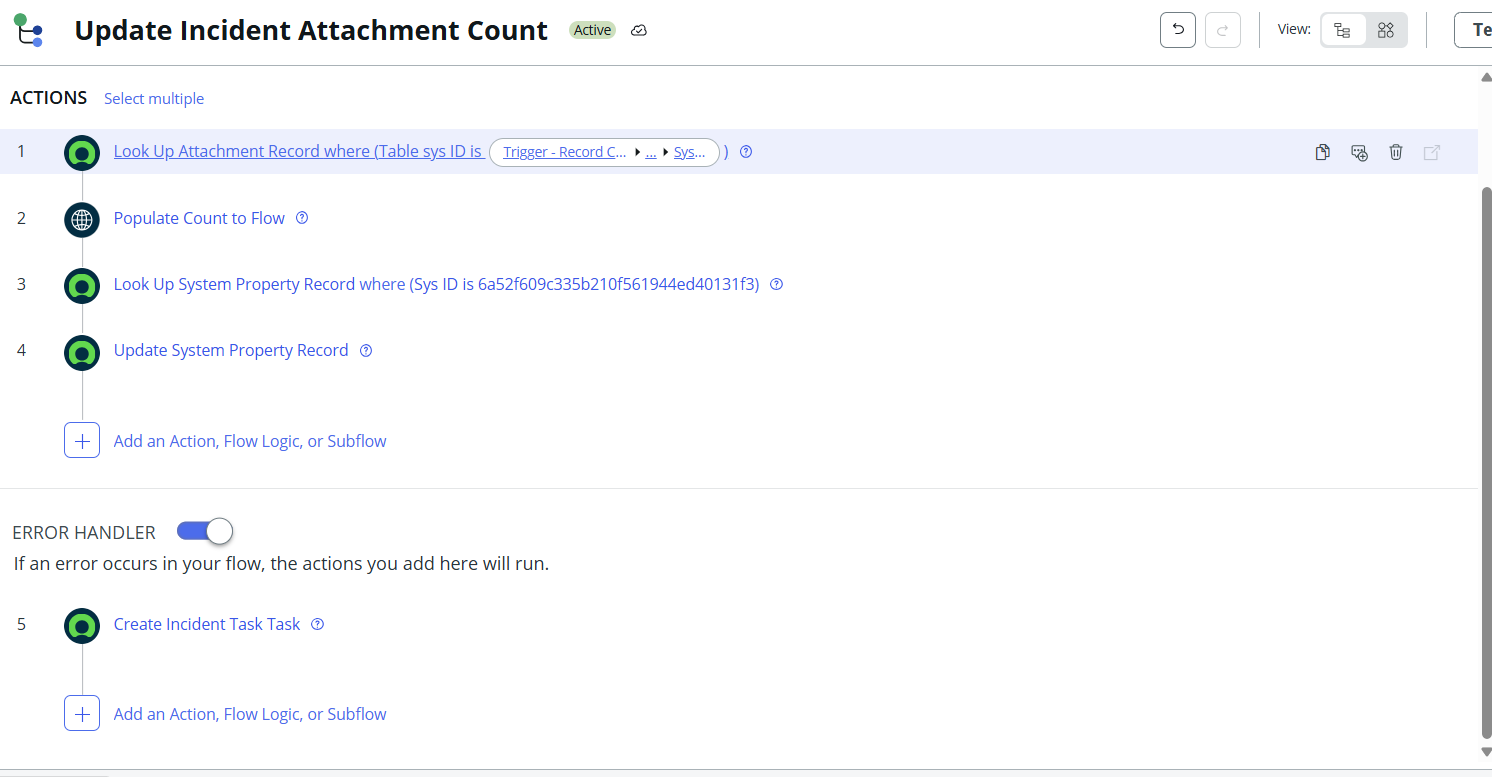
An Error Handler can be used to define what should happen when a flow encounters an error.
Practical tip: Don't design error handling only around the technical error. Think about the business impact as well. If the automation fails, someone should know what happened and have a clear next step.
6. Permissions and Execution Context
Another challenge that can be confusing is when a flow works during testing but doesn't work when a normal user triggers it.
One reason can be the execution context.
A flow can run as the System user or as the user who initiates the session. When it runs as the initiating user, the flow actions are subject to that user's access restrictions. ServiceNow also supports assigning roles to user-initiated flows when additional access is required.
This is something I have come across when working with user-initiated flows. If the user who starts the flow doesn't have the required access, an action may fail even though the same flow appears to work when tested with a more privileged account.
For example, a flow might need to read or update a record that the initiating user cannot access.
Don't use System as the automatic solution
One common reaction to a permission problem is:
"Let's run the flow as System."
That can solve certain access-related problems, but it shouldn't automatically be the first solution.
Running as System gives the flow a much higher level of access. If the actual problem is that the flow needs one specific role or that an ACL is preventing access, simply switching the entire flow to System may hide the underlying issue and give the automation more access than it actually needs.
A better approach is to first understand:
- Who is triggering the flow?
- What records does the flow need to access?
- What permissions does the initiating user have?
- Are ACLs preventing access?
- Does the flow actually need elevated access?
- Would running with specific roles be more appropriate?
ServiceNow supports Run with roles for flows configured to run as the initiating user. However, assigning roles to a flow doesn't automatically bypass all ACL requirements; the relevant table and field access rules still need to be considered.
This is especially important for flows that are triggered by a large number of users.
Practical tip: If a flow works for an administrator but fails for a normal user, don't immediately change the flow to run as System. First test the flow with a representative user and identify exactly which access requirement is causing the failure.
7. Integration Challenges
Flow Designer becomes even more useful when a business process needs to interact with another system.
ServiceNow provides several ways to build integrations, including REST-based integrations and IntegrationHub capabilities. Pre-built spokes can also simplify integrations with supported third-party applications.
But integrations introduce their own set of problems.
You now have to think about things such as:
- authentication
- API availability
- data mapping
- different field formats
- failed requests
- retries
- response handling
- synchronization
- monitoring
I have worked on a REST integration between ServiceNow and Monday.com where information submitted in Monday.com was received by ServiceNow and then used to submit a Record Producer with the required details.
The overall process looked something like:
Request submitted in Monday.com
↓
Integration/API
↓
ServiceNow receives the data
↓
Record Producer is submitted
↓
ServiceNow continues the required automation
The important part in an integration like this is not just getting the API call to work once. The flow also needs to handle what happens when the external system returns an unexpected response, required information is missing, or the external service is temporarily unavailable.
Handling large data sets with pagination
Another integration I worked on, separate from the Monday.com integration, involved retrieving a larger amount of data than could reasonably be handled in a single API request.
In that scenario, I used offset-based pagination to retrieve the data in batches.
ServiceNow REST APIs provide sysparm_limit and sysparm_offset parameters for retrieving large result sets across multiple requests. For the ServiceNow Table API, the default sysparm_limit is 10,000 records, and sysparm_offset can be used to paginate through larger result sets.
The idea is simple:
Request 1
offset = 0
↓
First batch of records
↓
Request 2
offset = next position
↓
Next batch of records
↓
Continue until there are no more records.
The exact batch size depends on the integration and API requirements. The important point is that pagination allows a large result set to be processed across multiple requests rather than trying to retrieve everything at once.
This can be especially useful when the amount of data grows over time. An integration that works with a small data set today may eventually need to process much more data.
Practical tip: When building a REST integration, check the API documentation for pagination early in the design. Look for parameters such as limit, offset, cursor, or continuation tokens. Designing for large result sets from the beginning is easier than changing the integration after it starts hitting data limits.
Native capabilities are not always the whole picture
For straightforward integrations, using ServiceNow's existing capabilities may be enough. Depending on the use case, this could involve REST APIs, IntegrationHub, or an appropriate pre-built spoke.
However, organizations with multiple platforms may eventually have more complex synchronization requirements. They may need to keep data synchronized between several systems rather than simply send information from one system to another. In these situations, managing field mappings, synchronization rules, filtering, and error handling can also become part of the integration challenge.
This is where third-party integration platforms can sometimes complement ServiceNow. Getint, for example, provides one-way and two-way synchronization between ServiceNow and other platforms, with configurable field mappings and filtering options. It can be used for integration scenarios involving tools such as Jira, Salesforce, Azure DevOps, and other supported platforms. For organizations with limited developer resources, another advantage is that Getint integrations can be configured and maintained through a no-code/low-code user-friendly interface, allowing many synchronization workflows to be managed by administrators or other non-technical team members who understand the business process, without requiring ongoing developer involvement for every change.
The important point is that there isn't one integration approach that is right for every organization. The right choice depends on the systems involved, the complexity of the integration, the amount of data being synchronized, and how the integration will be maintained over time.
Practical tip: Before building a custom integration, first check whether ServiceNow already provides the capability you need. If it does, using the existing capability can reduce development and maintenance effort. For more complex multi-system synchronization, evaluate whether a dedicated integration solution would be a better fit.
Flow Designer vs Other ServiceNow Development Approaches
Flow Designer is a great option for many automation requirements, but it doesn't mean every piece of automation should be built using Flow Designer.
This is something worth considering before starting development.
For example, a simple approval or record-based automation is usually a natural fit for Flow Designer. On the other hand, highly complex processing or logic that requires a lot of custom scripting may be easier to maintain using a Script Include or another scripting approach.
A simple way to think about it is:
This isn't a strict rule. There are cases where more than one approach can work.
The important question is not: "Can I build this in Flow Designer?" The answer to that is often yes.
A better question is: "Will Flow Designer be the most maintainable and efficient way to implement this requirement?"
For me, the low-code nature of Flow Designer is one of its biggest advantages. It makes many automations faster to build and easier for other team members to understand. But once the logic becomes too complicated, forcing everything into one visual flow can have the opposite effect.
Practical tip: Choose the tool based on the requirement, not simply because it is the newest or easiest option available.
Flow Designer Best Practices
There is no single rule that will prevent every Flow Designer problem, but a few simple practices can make a big difference.
Keep the flow focused
If a flow is responsible for too many unrelated processes, consider splitting the logic into subflows or reusable actions.
Pay attention to data types
When using data pills, check both the value and its type. This becomes especially important when configuring conditions and action inputs.
Avoid unnecessary record lookups
Before adding a Look Up Record action, check whether the required information is already available from the trigger or an earlier action.
Be careful with loops
A loop that processes a small number of records may be fine. The same design can become a problem when it starts processing hundreds or thousands of records.
Design error handling early
Think about what should happen when an action fails. Don't wait until the first production failure to decide who should be notified.
Understand execution context
Know whether the flow is running as the initiating user or System, and understand what access the flow actually requires.
Make troubleshooting easier
Use meaningful action names and keep the flow structure clear. When something fails, a developer should be able to quickly understand where to start looking.
Test more than the happy path
Don't test only the scenario where everything works.
Also test:
- missing data
- invalid values
- unexpected conditions
- permission restrictions
- integration failures
- rejected approvals
- records that don't exist
The more realistic the testing is, the fewer surprises there are later.
How to Troubleshoot a Flow Designer Problem
When a flow isn't working as expected, it can be tempting to start changing actions or conditions immediately.
A better approach is to work through the execution step by step.
One thing I find particularly useful is starting with the first unexpected result.
For example, suppose Action 5 fails. It is easy to focus entirely on Action 5. But Action 5 may have received data from Action 4, and Action 4 may have returned an unexpected value.
Following the data from one step to the next can often reveal the actual cause much faster.
ServiceNow's execution details are designed for this kind of troubleshooting. Flow context records contain the state and runtime information associated with a flow execution, and execution details can be used to inspect what happened during the run.
A good troubleshooting process is often more valuable than simply knowing where the error occurred.
Conclusion
Flow Designer can make workflow automation much easier to build, especially when the requirement fits well with its low-code approach. But as flows become more complex, developers need to think beyond simply making the automation work.
The most common challenges are often related to how the flow is designed and maintained: putting too much logic into one flow, using data pills incorrectly, performing unnecessary record lookups, troubleshooting failed executions, handling errors, dealing with permissions, and integrating with external systems.
The good news is that most of these problems can be addressed through relatively simple practices. Keep flows focused, reuse logic through subflows and actions, understand the data being passed between steps, limit unnecessary database operations, design error handling early, and understand the execution context.
Most importantly, don't assume that Flow Designer has to be used for every requirement. Choose the approach that makes the resulting automation reliable, understandable, efficient, and maintainable. That is ultimately what good workflow automation should achieve.