
Software development teams rarely work just inside a single platform. Many of them manage source code in GitHub repositories while planning, tracking, and delivering work through Azure DevOps. In theory, a GitHub Azure DevOps integration should be straightforward. In practice, teams often run into broken workflows, missing traceability, permission issues, and inconsistent delivery pipelines long before they ever reach a stable setup.
This guide walks through the real problems developers face before integration, explains the main native ways to connect GitHub and Azure DevOps, and then shows how to build a more flexible, reliable integration with Getint that supports seamless collaboration across repositories, work items, and deployment pipelines.

Why teams struggle before integrating GitHub with Azure DevOps
Most integration challenges don't start with tools — they start with workflow gaps.
Code changes are disconnected from work items
Developers push GitHub commits, open pull requests, configure GitHub Actions, and create GitHub releases, but product managers and stakeholders track progress in Azure Boards. Without a clear connection, work items, user stories, and delivery status quickly drift out of sync.
Teams end up asking:
- Which commit delivered this user story?
- Which pull request fixed this bug?
- Is this Azure DevOps Boards item actually done?
Multiple systems create “split truth”
GitHub becomes the source of truth for:
- source code in GitHub repos
- pull requests
- CI workflows in GitHub Actions
- build outputs stored as GitHub artifacts
- security features like GitHub Advanced Security
- productivity tools like GitHub Copilot in the IDE
Azure DevOps becomes the source of truth for:
- Azure Boards and Azure DevOps Boards work items
- planning, reporting, and dashboards per Azure DevOps project
- Azure Pipelines, continuous integration, and continuous delivery
- release pipelines and build artifacts
Without integration, teams duplicate updates, manually link requests, or stop trusting reporting altogether.
Permissions and access block integration early
Many GitHub Azure DevOps integrations fail before they start because of:
- incorrect repository access
- missing organization access
- misconfigured GitHub credentials or GitHub account credentials
- unclear ownership across Azure DevOps organizations and GitHub organizations
- confusion over multiple organizations across both platforms
This becomes even more complex when working with GitHub Enterprise, GitHub Enterprise Server, or multiple GitHub Enterprise repositories.
What teams actually need from a GitHub Azure DevOps integration
Before choosing tools, it's critical to define what “integration” means for your team. Most companies need to go with the pattern that suits their stack or budget.
1. Link Azure Boards work items with GitHub activity
Teams want to:
- link GitHub commits to work items
- connect GitHub pull requests to Azure Boards
- show development status directly in an Azure Boards project
- keep work items and user stories in sync with real code changes
This is where Azure Boards GitHub integration is commonly used.
2. Run CI/CD pipelines using GitHub repositories
Many teams store source code in GitHub but run:
- continuous integration
- continuous delivery
- deployment tasks and release pipelines
inside Azure DevOps Services using Azure Pipelines.
3. Maintain granular control at scale
As organizations grow, they need:
- consistent integration behavior across multiple organizations
- controlled access and permissions
- predictable authentication using service accounts
- stable behavior across selected repositories and projects
- more granular control over what flows where
Native integrations help, but they don't always scale cleanly or provide the flexibility teams need.

Azure Boards GitHub integration: linking work items and code
A common starting point is Azure Boards GitHub integration, which focuses on traceability rather than full data synchronization.
What Azure Boards GitHub integration does
Azure Boards can connect to a GitHub repository and allow teams to:
- link GitHub commits to Azure Boards work items
- connect pull requests, branches, and GitHub issues
- reference work items directly from commit messages
- surface development status on Azure DevOps Boards
Developers typically link items using a reference pattern (for example, including a work item ID in a commit message or pull request title).
To enable this, you install the Azure Boards app (Azure Boards application) in your GitHub account or organization and authorize it to access selected repositories with the right permissions.

Supported setups
This integration works with:
- GitHub repositories
- GitHub Enterprise Server repositories
- Azure DevOps Services and supported versions of Azure DevOps Server
You can connect both public and private repositories as long as the Azure Boards app has the required repository access and organization access.
For many teams, this solves basic visibility problems — but it relies heavily on consistent developer behavior.
Common limitations
- No enforcement of naming conventions
- Limited visibility across multiple organizations
- No control over sync logic or filtering
- Traceability depends on developers remembering to link work items
- No full bi-directional synchronization of all fields or comments
Azure Pipelines with GitHub: CI/CD and deployment workflows
When teams want to automate builds and deployments, they often connect GitHub repositories to Azure Pipelines.
Typical pipeline workflow
A standard setup looks like this:
- Connect a GitHub repository to Azure DevOps.
- Configure a service connection.
- Create pipelines triggered by commits or pull requests.
- Produce build artifacts and run deployment tasks.
- Manage release pipelines for continuous delivery.
In practice, this usually means:
- In your Azure DevOps project, go to Pipelines and Select Create pipeline.
- Choose GitHub as the source and Choose connect or Select GitHub connections to create a new connection.
- Sign in with your GitHub account, review permissions, and choose the selected repositories you want Azure Pipelines to access.
- Once the connection is in place, you can create pipelines with GitHub as the source, run builds on every GitHub commit or pull request, publish build artifacts, and wire them into release pipelines.
This approach works well when:
- GitHub is used only for source code
- Azure DevOps owns CI/CD and release management
Where teams get stuck
Common friction points include:
- Managing permissions across GitHub users and Azure DevOps users
- Deciding between Azure Pipelines and GitHub Actions
- Handling pipelines across multiple repositories and organizations
- Maintaining consistent configuration across projects
- Keeping build status badges and deployment state aligned with actual work items
Teams that already rely on GitHub Actions for continuous integration often keep Actions for build and test while using Azure DevOps Services mainly for Azure Boards and releases. Others prefer to keep everything in Azure DevOps and only use GitHub as the code host. Your GitHub Azure DevOps integration should reflect which system owns CI, CD, and deployment tasks to avoid duplicated pipelines and mismatched status information.
When native integration is not enough
Native GitHub Azure DevOps integration options work well for simple setups. Problems appear when teams need:
- more granular control over what gets linked or synced
- consistent behavior across multiple Azure DevOps organizations
- enterprise-grade authentication and governance
- predictable results without relying on manual discipline
- two-way synchronization of planning data and work items between GitHub and Azure DevOps
This is where an integration platform like Getint becomes valuable.
GitHub Azure DevOps integration with Getint: step by step guide
Getint is an integration platform that allows you to connect GitHub and Azure DevOps with configurable, two-way synchronization. Instead of relying only on lightweight links (like native Azure Boards GitHub integration), you can synchronize issues, work items, comments, and statuses between GitHub and Azure DevOps with more control.
Below we described a practical GitHub Azure DevOps integration steps with Getint.
Step 1: Plan your integration scope
Before you configure anything, decide:
- Which GitHub repositories or GitHub Enterprise Server repositories are in scope?
- Which Azure DevOps organizations and Azure DevOps projects do you need to connect?
- Do you want to sync:
- GitHub issues ↔ Azure Boards work items?
- comments?
- assignees and other fields?
- Do you also want to track GitHub commit and GitHub pull request links next to Azure Boards items?
Be as explicit as possible. Clear scope helps you configure mappings and permissions correctly from the start.
Step 2: Prepare accounts, permissions, and tokens
For a stable integration, use dedicated service-like accounts on both platforms.
GitHub side
- Choose or create a dedicated GitHub account for integration (or use an app-based setup).
- Ensure it has:
- repository access to the selected repositories you want to integrate
- access to github issues, pull requests, and the repo's metadata
- Generate a Personal Access Token (PAT) for this user account:
- go to Settings → Developer settings → Personal access tokens
- generate a token with the required scopes (typically repo + issues + read:org)
- treat this PAT as your GitHub account credentials for Getint
Azure DevOps side
- Use a dedicated user in the right Azure DevOps organizations.
- Ensure it has access to:
- the target Azure DevOps project
- Azure Boards (and optionally Azure Repos or Azure Pipelines, if needed)
- Generate a Personal Access Token (PAT):
- in Azure DevOps, go to your profile → Personal access tokens
- click New token, choose the organization and expiration
- give it appropriate scopes (usually Work Items (read/write); add Code or Pipelines if needed for extended scenarios)
These tokens will be used in Getint to establish secure service connections to both systems.
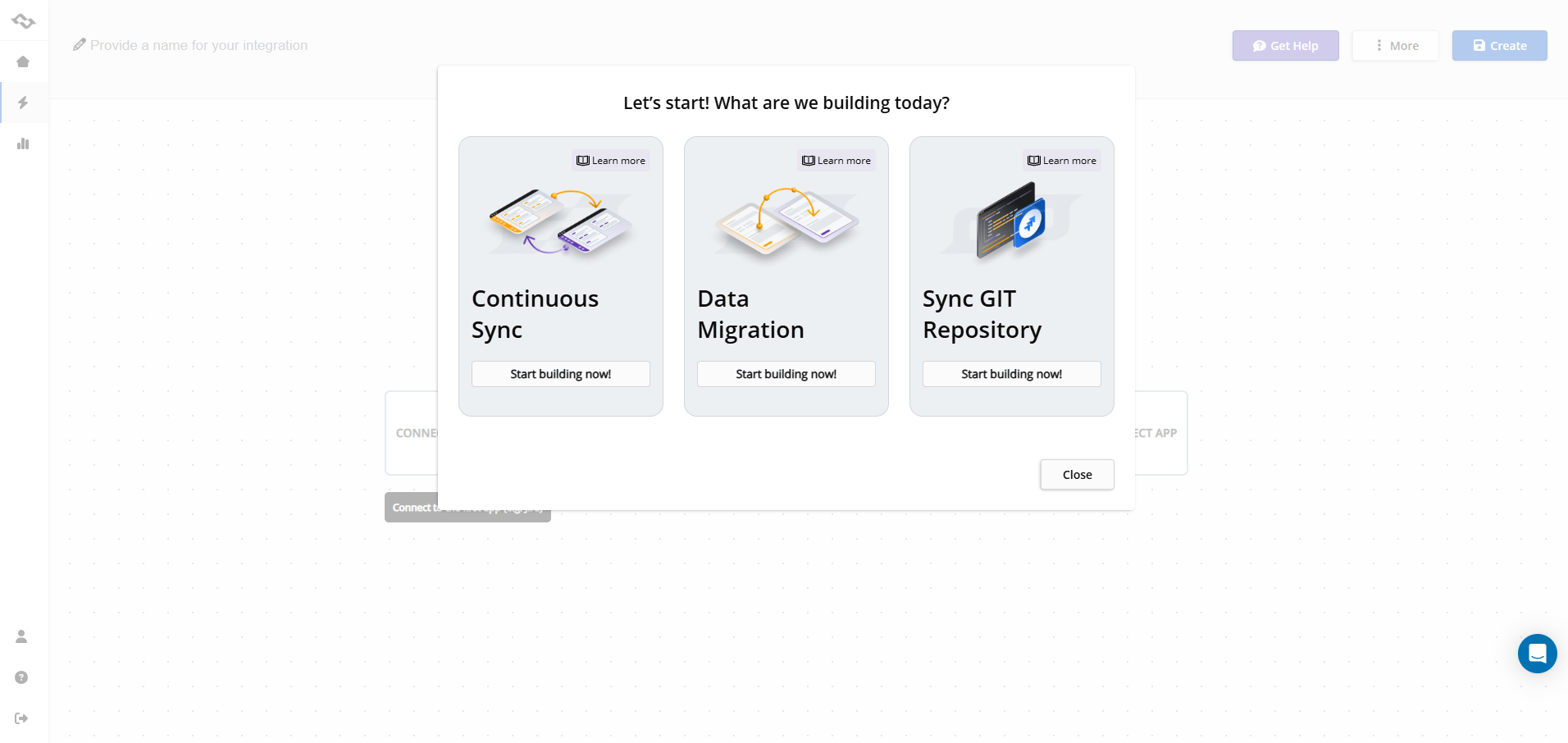
Step 3: Access Getint and create a new integration
- Sign in to Getint app.

- Click Create Integration.
- Choose Continuous Sync if you want an ongoing two-way integration.
Step 4: Connect GitHub in Getint
- In the integration builder, click Select App and choose GitHub.
- Choose Create new connection.
- Enter:
- a descriptive name for the connection (for example, GitHub – Org A)
- your GitHub instance details if required (for GitHub Enterprise Server, provide the server URL)
- Paste the GitHub PAT into the token/API key field and save.
- Once the connection is created, select:
- the GitHub account / organization
- the GitHub repository (or multiple repositories) you want to integrate
Getint will now be able to read and write issues and related data for those repositories, according to the configuration you define.

Step 5: Connect Azure DevOps in Getint
- In the same integration, click Select App on the other side and choose Azure DevOps.
- Choose Create new connection.
- Enter:
- the Azure DevOps organization URL
- a name for the connection (for example, ADO – Org A)
- your email (or username) for clarity
- the Azure DevOps PAT you created earlier
- Click Connect / Add.
- Once connected, select:
- the Azure DevOps organization
- the Azure DevOps project you want to synchronize (and, if needed, the appropriate Azure Boards project or “database”/team)
Now Getint has authenticated and authorized access on both sides.
Step 6: Map types (GitHub issues ↔ Azure Boards work items)
With connections in place, you define how items correspond between GitHub and Azure DevOps.
- Open the Type Mapping (or Map Types) section in Getint.
- Decide which entities you want to sync:
- GitHub issues ↔ Azure DevOps work items (e.g., Task, Bug, User Story)
- Create mappings such as:
- GitHub Issue ↔ Azure DevOps Task
- GitHub Issue ↔ Azure DevOps Bug
- GitHub Issue ↔ Azure DevOps User Story
This tells Getint which items on each side should be treated as equivalent in the integration.
Step 7: Map fields, assignees, and statuses
Next, configure how individual fields and lifecycle states are synchronized.
Field mapping
In the Field Mapping section:
- Map core fields:
- title ↔ Title
- description ↔ Description
- Map additional fields as needed, such as:
- labels/tags
- priority or severity
- custom fields that your teams rely on
This ensures that when fields change in GitHub or Azure DevOps, the integration updates the corresponding fields on the other side.
Assignee mapping
To keep task ownership aligned:
- Use the assignee mapping option to map GitHub users to Azure DevOps users.
- If available, align them by email address or username.
- This way, when a GitHub issue is assigned to someone, the corresponding Azure DevOps work item reflects the same person (and vice versa, if configured).
Status mapping
In the Status Mapping section:
- Map GitHub issue states (Open, Closed) to Azure DevOps work item states (New, Active, Resolved, Closed, etc.).
- For example:
- GitHub Open → Azure DevOps New or Active
- GitHub Closed → Azure DevOps Closed or Done
This keeps lifecycle states consistent across both tools and helps ensure user stories and work items show the same progress everywhere.
Step 8: Configure comments, links, and traceability
To bring context into both systems, configure comments and linking behavior.
Comments
- Enable comment synchronization if you want conversations to appear in both tools.
- Optionally use filters so only relevant comments sync (for example by author or containing a specific pattern).
- Decide whether comments should be public/private where such concepts exist.
Linking commits and pull requests
Depending on your setup and licenses, you can:
- use Getint to enrich Azure DevOps work items with references to GitHub commits and GitHub pull requests
- or combine Getint's item synchronization with:
- native Azure Boards GitHub integration for traceability
- or external git connectors for deeper commit/branch sync
The goal is to make it easy to link GitHub commits and pull requests to the right Azure Boards items with more granular control than manual linking.
Step 9: Apply filtering and access control
You rarely want to sync everything.
Use Getint's filtering and project settings to:
- include only specific repositories or specific Azure DevOps Boards teams
- limit sync to issues matching particular labels, states, or prefixes
- avoid syncing internal or security-sensitive items
This helps maintain security, performance, and granular control over what you integrate.
You can also restrict which users or teams have access to change the integration to reduce the risk of misconfiguration.
Step 10: Test, observe, and refine
Before you rely on the integration in production:
- Use a test GitHub repository and a test Azure DevOps project.
- Create a few GitHub issues and see how they appear in Azure Boards:
- verify titles, descriptions, and mapped fields
- verify assignees are mapped correctly
- move items through different statuses and check both sides
- Open pull requests and push code changes:
- ensure any configured links or references behave as expected
- Check logs and integration status in Getint:
- verify there are no errors due to missing permissions or invalid tokens
- refine filters or mappings based on what you see
Once everything looks stable, extend the integration to more projects, repositories, and multiple organizations as needed.
Troubleshooting GitHub Azure DevOps integration issues
Integration fails during setup
Common causes include:
- invalid or expired GitHub or Azure DevOps PATs
- insufficient repository access or organization access
- wrong Azure DevOps organization URL
- blocked service connection in Azure DevOps
- missing permissions for the integration user account
Double-check tokens, scopes, and which GitHub repositories / Azure DevOps projects the integration account can see.
Items are not syncing as expected
If GitHub issues or Azure Boards items are not appearing where expected:
- verify that the items' types are part of your type mapping
- confirm that filters are not excluding them
- check that you selected the correct repositories and projects
- confirm that any required fields (for example, title, project) are set correctly
Links to commits and pull requests are missing
If GitHub commits or pull requests are not being associated with work items:
- enforce and document commit message and PR conventions (e.g., including the Azure DevOps ID)
- confirm that the right GitHub connection or integration is in place to track code activity
- check whether commit/PR linking is configured in Getint or via native Azure Boards GitHub integration
Choosing the right approach for GitHub Continuous Integration
There is no single best integration solution — only the right one for your workflow:
- Azure Boards GitHub integration works well for basic traceability between GitHub and Azure Boards using commit and PR links.
- Azure Pipelines with GitHub is ideal when Azure DevOps should own CI/CD, using GitHub only as the source code host.
- GitHub Azure DevOps integration with Getint is best when you need:
- robust, two-way synchronization of issues and work items
- control over fields, comments, and statuses
- granular control over what is synced and how
- flexibility across multiple organizations, environments, and projects
The key is to start with real developer problems — not tooling — and design your GitHub Azure DevOps integration so that repositories, boards, pipelines, and work items stay aligned without breaking established developer workflows.
Teams looking to bridge their development and project management workflows can benefit from a dedicated Jira Azure DevOps integration or Azure DevOps Asana integration that synchronizes issues, work items, and statuses automatically. Getint's Jira-Azure DevOps connector supports bidirectional sync with field mapping, filters, and no-code setup.