
For most software teams, Jira is the central place for planning and project management, while Git platforms such as GitHub, GitLab, and Azure DevOps are where code lives. If there is no proper Git Jira integration, Jira boards show work items moving across columns, but there is no transparent link to actual git commits, git branches, or pull requests.
A dedicated git integration for Jira solves this problem. By connecting git repository activity to Jira work item keys, you make development progress visible inside Jira, while developers can stay in their preferred tools with less context switching.
This guide explains how to integrate Jira to your Git providers using the Git Integration for Jira (DevOps, GitHub, GitLab) app by Getint. It focuses on the main concepts, setup flow, and best practices.
.png)
Why connect Git and Jira?
Jira excels at organizing work: backlogs, roadmaps, projects, and boards. Git platforms are built for code: repositories, branches, and code review.
Without an integration between Git and Jira:
- Jira work items are often updated manually and lag behind real development work.
- Developers push commits and open pull requests, but Jira users can't see that activity without switching tools.
- Product and project managers spend time asking for updates instead of looking at clear signals of progress.
- There is limited traceability from a Jira work item to the commits and changes that implemented it.
With a solid integration:
- Commits, branches, and pull requests are linked to Jira issue keys.
- The Jira work item view shows a development panel with relevant activity from connected repositories.
- Automation rules can update work status when code is pushed, reviewed, or merged.
- Teams reduce context switching because Jira becomes a reliable window into what is happening in GitHub, GitLab, or Azure DevOps.
In short, connecting Git and Jira lets everyone share the same view of work status and development progress.
What is Git Integration for Jira (DevOps, GitHub, GitLab)
The Getint integration app is focused on bringing development information from your git repositories into Jira Cloud. It is designed for teams that want a dedicated integration that connects Jira with Git repositories in a structured and controlled way, rather than relying on fragmented multi-tool synchronization.
Getint Git Integration for Jira lets you:
- Integrate GitLab, GitHub, and Azure DevOps with Jira Cloud.
- Work with GitHub Cloud and GitHub Enterprise Cloud or GitHub Enterprise Server.
- Connect and manage multiple Git repositories in Jira Cloud.
- Sync git commits, git branches, and pull requests into Jira work items.
- Associate repositories with the right Jira projects, so only relevant development activity appears on a given Jira board.
- Use detailed logs for every sync execution to monitor and troubleshoot the integration.
In practice, this means Jira users see development progress in one place, while developers continue to work in their preferred developer tools.
Real-World Use Cases for Git Integration with Jira Cloud
The need for Git–Jira integration typically emerges when planning in Jira becomes disconnected from development activity in Git repositories. While tools may vary, the operational challenges are often the same: limited visibility, duplicated updates, and unnecessary context switching.
Below are the most common scenarios where integrating GitHub, GitLab, or Azure DevOps with Jira instance delivers measurable value.
Clearer Sprint Visibility and Status Validation
During sprint reviews, teams often rely on manual updates to explain whether implementation has actually started or been completed. A work item may be marked "In Progress," but stakeholders cannot immediately see whether commits exist or pull requests have been merged.
By linking Git activity to Jira work item keys, development signals become visible directly in the Development Panel. Product managers and stakeholders can verify progress without switching tools or requesting status updates, resulting in more transparent sprint reporting and fewer clarification meetings.
Enterprise Governance and Controlled Repository Access
Organizations running GitHub Enterprise Server or GitLab self-managed environments frequently operate under strict governance and compliance rules. They need visibility into development progress without exposing sensitive repositories or compromising security.
Git Integration for Jira allows teams to connect specific repositories to selected Jira projects, maintaining controlled access while aligning engineering work with project tracking. This structured visibility supports both governance and operational transparency.
Azure DevOps for Code, Jira for Planning
In many organizations, Azure DevOps manages repositories and pipelines, while Jira Cloud remains the primary tool for backlog management and sprint planning. Without integration, teams often duplicate tracking or manually synchronize statuses across systems.
Connecting Azure DevOps repositories with Jira Cloud centralizes planning in Jira while surfacing real development activity within work items. This reduces fragmentation and clarifies which system represents the authoritative view of work progress.
Multi-Repository and Microservice Environments
Modern applications frequently span multiple repositories. A single Jira work item may require coordinated changes across backend services, frontend applications, and infrastructure code.
By associating multiple repositories with a Jira project, all relevant commits and pull requests appear within the same work item. This aggregated visibility improves traceability and reduces the risk of incomplete or uncoordinated changes.
Reducing Context Switching Across Roles
Developers prefer working in Git platforms, while product and project managers operate primarily in Jira. Without integration, both groups switch tools to understand status and implementation details.
Git Integration for Jira creates the possibility for developers to continue working in Git while Jira users gain structured visibility into development progress. When combined with automation rules, Git activity can also trigger workflow updates, reducing manual status changes and improving cross-team alignment.
Strengthening Traceability and Audit Readiness
For teams operating in regulated or audit-driven environments, traceability between planning artifacts and implemented code is essential.
Linking commits and pull requests to Jira work item keys creates a clear, reviewable path from requirement to implementation. This strengthens accountability and simplifies internal reporting or compliance verification processes.
Integration setup with Getint
The steps below outline a setup flow using third-party app like Getint. If your screens look slightly different, check the latest documentation for the app, but the overall process remains similar.
Remember that Getint lets you sync repos, branches, commits, and pull requests - however changes can't be submitted from Jira to the Git repository - synchronization of repos information is one-way from the Git connector to Jira.
Step 1: Install Git Connector for Jira
- Go to the Atlassian Marketplace.
- Search for Git integration for Jira (DevOps, GitHub, GitLab).

- Install the app in your Jira Cloud instance.
- Open it from Apps → Git Connector for Jira.
This installs the required integration framework. Without it, Git integrations cannot be created.
Step 2: Create a New Integration
- Inside the app, go to Integrations.
- Click Create Integration.
- Choose Sync GIT Repository.

- Select which app you need to integrate by clicking the Connect App button.
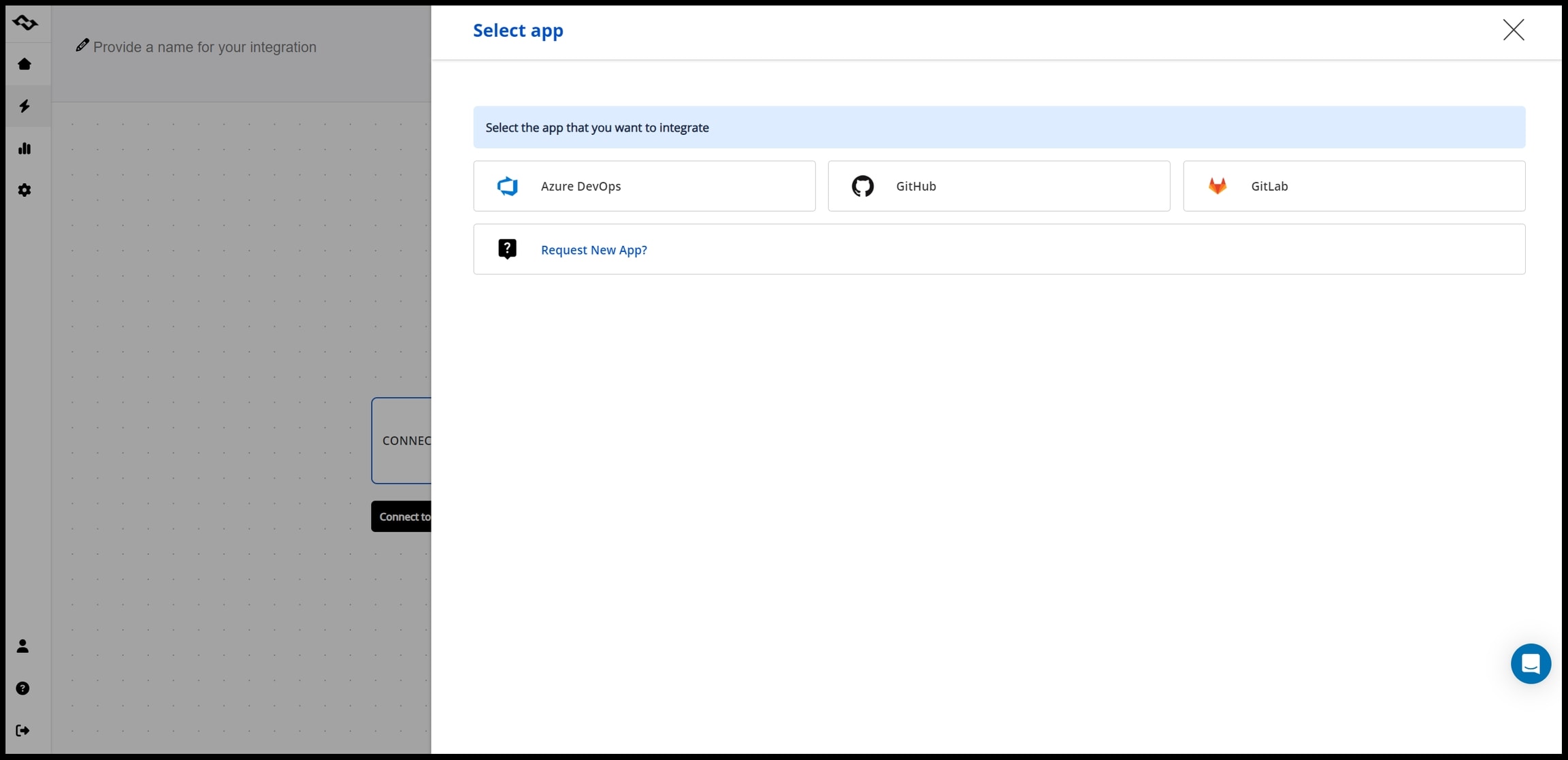
- Taking GitLab as an example, we proceed with selecting new connection (the process is the same for other connectors).

Step 3: Connect Jira Cloud (OAuth Required)
Git integrations require an authenticated Jira connection via OAuth.
- Click Connect App.
- Select Jira.
- Choose Create New.
- Enter your Jira Cloud URL.
- Configure and authorize Jira OAuth (admin permissions needed).

Git repository integrations require a Jira OAuth connection to authorize secure communication between Jira Cloud and the Git provider.
Once completed, your Jira connection will appear in the connection dropdown.
Step 4: Set the Integration Scope (Projects)
By default, connected repositories will sync development visibility to all Jira projects.
If you want to limit visibility:
- Uncheck the default option
- Select specific Jira projects where development data should appear
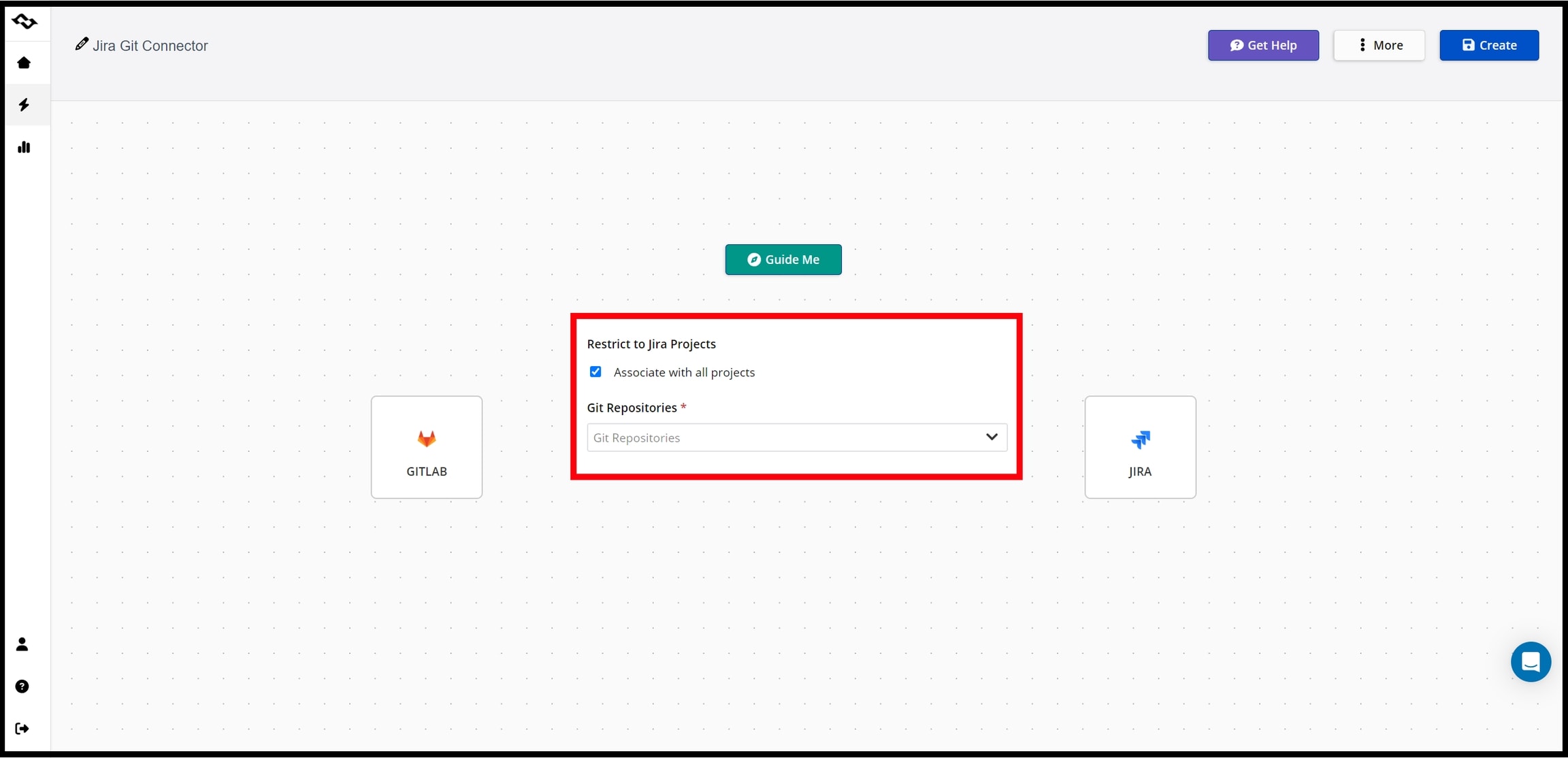
This allows you to avoid clutter and respect team boundaries.
Step 5: Select Repositories
Next, choose the repositories you want to include in the integration.
Best practice is to start with a subset of repositories relevant to the selected Jira projects instead of syncing everything. This keeps the Development Panel focused and avoids noise.
Step 6: Name and Create Integration
Give your integration a clear, descriptive name (e.g., "GitLab → Jira") and click Create.
This finalizes the setup and starts indexing development activity from your connected Git providers.
Step 7: Verify Development Activity
To confirm the integration is working:
- Use a Jira work item key (e.g., PROJ-123) when creating a branch.
- Make a commit in a connected repository that includes the work item key in the message.
- Push the change.
- Open the corresponding Jira work item.
If configured correctly:
- The Development field shows the branch and commit.
- Pull requests tied to the work item key appear as expected.
If the Development field isn't visible, it may be because:
- Your project template doesn't include the Development field
- The work item layout needs modification
Adjust the layout or template to enable it.
How Git Activity Appears in Jira Cloud
Git Integration for Jira links activity from your repositories to work items using Jira keys. When a commit message, branch name, or pull request title contains a valid key, the app associates that activity with the matching item in Jira Cloud.
Connected projects display a Development Panel within each work item that lists related commits, branches, and pull requests from the associated repositories. Users can open a work item, review what has happened in the code, and click through to GitHub, GitLab, or Azure DevOps when more detail is needed.
On boards and in sprints, this linked development activity provides immediate context. Teams can quickly identify which work items have active code changes, which are under review, and which have already been merged.
Using Automation and Smart Commits
Visibility is valuable, but many teams want Git events to influence Jira workflows.
Combined with Jira automation and structured commit patterns, Git Integration for Jira can support workflows such as:
- Adding comments to work items based on commit messages.
- Logging time through structured markers.
- Moving work items to "In Review" when a related pull request is opened.
- Transitioning work items when pull requests are merged into a main branch.
For example:
git commit -m "AUTH-234 Adjust token expiry #comment Updated refresh logic #time 2h"
Here, AUTH-234 links the commit to the correct Jira work item, while additional markers can be interpreted by automation rules depending on configuration.
Git activity becomes not just visible, but operational.
Best Practices for a Healthy Git–Jira Integration
Once the integration is live, consistent habits ensure long-term reliability.
Make Jira Keys Part of Everyday Development
Adopt clear conventions:
- Every branch related to a work item includes the Jira key.
- Every relevant commit references the key.
- Every pull request title clearly includes the key.
This simple discipline drives most of the integration's value.
Integrate the Right Repositories
Connect only repositories relevant to a given Jira project. Avoid adding experimental or unrelated repositories that create noise without business value.
Take Security and Permissions Seriously
Use dedicated integration or service accounts rather than personal user accounts. Scope personal access tokens to the minimum required permissions and rotate them regularly.
For self-hosted platforms, involve security and infrastructure teams to ensure safe API communication with Jira Cloud.
Start Small and Scale Gradually
Instead of integrating everything at once, begin with one Jira project and a few repositories. Validate how development activity appears in work items and on boards, then expand gradually across teams.
Monitor Integration Logs
Git Integration for Jira provides detailed execution logs. Reviewing them helps detect authentication issues, renamed repositories, or performance changes as the number of connected projects grows.
When to Use Git Integration for Jira vs the Broader Getint Platform
Git Integration for Jira is ideal when you want a focused Git–Jira connection for Jira Cloud. It ensures that commits, branches, and pull requests from GitHub, GitLab, or Azure DevOps are visible inside Jira work items with reduced context switching.
The broader Getint platform becomes relevant when you need more advanced cross-tool synchronization, bi-directional work item sync between Jira and other systems, complex field mappings, or compliance-heavy migration scenarios.
A common path is to start with Git–Jira integration for visibility and then expand into broader system integrations as collaboration evolves.
Summary
Connecting Jira with GitLab, ADO or GitHub repository with Getint creates a shared, accurate view of work status and development progress. With integration app, you can link Jira projects to selected repositories from GitHub, GitLab, Azure DevOps, and related enterprise editions.
Once configured, the integration brings commits, branches, and pull requests into the Jira work item view so that each item reflects not only its workflow status but also the underlying code changes that delivered it. When teams adopt consistent key usage and thoughtful repository mapping, Jira app becomes more than a planning tool — it becomes a reliable representation of real development activity.
Teams looking to bridge their development and project management workflows can benefit from a dedicated Jira Azure DevOps integration that synchronizes issues, work items, and statuses automatically. Getint's Jira-Azure DevOps connector supports bidirectional sync with field mapping, filters, and no-code setup.