Why integrate Salesforce and ServiceNow?
Salesforce and ServiceNow often run side by side in the same company. Salesforce holds the customer side: accounts, contacts, opportunities and cases. ServiceNow runs the work behind it: incidents, requests, changes and the workflows and SLAs around them. Sooner or later, information has to move between the two.
That can be a customer issue that IT or operations has to fix, an escalation that needs an engineer, account data that both sides rely on, or a change that a key customer needs to hear about. Without an integration, people copy details by hand, updates get lost, and each team sees only half the story.
I work with ServiceNow every day as a presales consultant, mostly on ITSM and ITOM. A question I hear often is how ServiceNow can work with the tools other teams already use, and Salesforce comes up more than most. Both platforms are great at their jobs, and each team is comfortable in its own. Nobody wants to switch tools, so moving everyone to one platform isn't the answer. The real problem is the gap between them.
A seamless ServiceNow Salesforce integration closes that gap. Done well, it gives you three things:
- A record created on one side can create or update a record on the other, with the full context already captured.
- Updates flow in both directions, so statuses, priorities and comments stay in sync.
- Each team keeps working in its own tool, with no extra logins and no copy and paste.
This guide is for ServiceNow and Salesforce admins, ITSM specialists, and teams responsible for connecting customer-facing operations with IT workflows.
I'll show you how I set up a bidirectional sync using Getint, a no-code integration platform. To keep it concrete, I used one common example: a customer reports that the office printer keeps jamming, the case is logged in Salesforce, and the people who can fix it work in ServiceNow. So I mapped Salesforce cases to ServiceNow incidents and tested everything on free developer instances of both platforms. The same approach works for other records and use cases. I'll also share what surprised me along the way. Some of those surprises had nothing to do with the tool and everything to do with how ServiceNow works, which is exactly the kind of thing you only learn by doing it.
Here's the setup I ended up with, at a glance:

Why use Getint for a ServiceNow Salesforce integration
Creating a record in another system is the easy part. Keeping records in step in both directions, comments included, is the hard part. That's the job Getint does, and here's what stood out in my test.
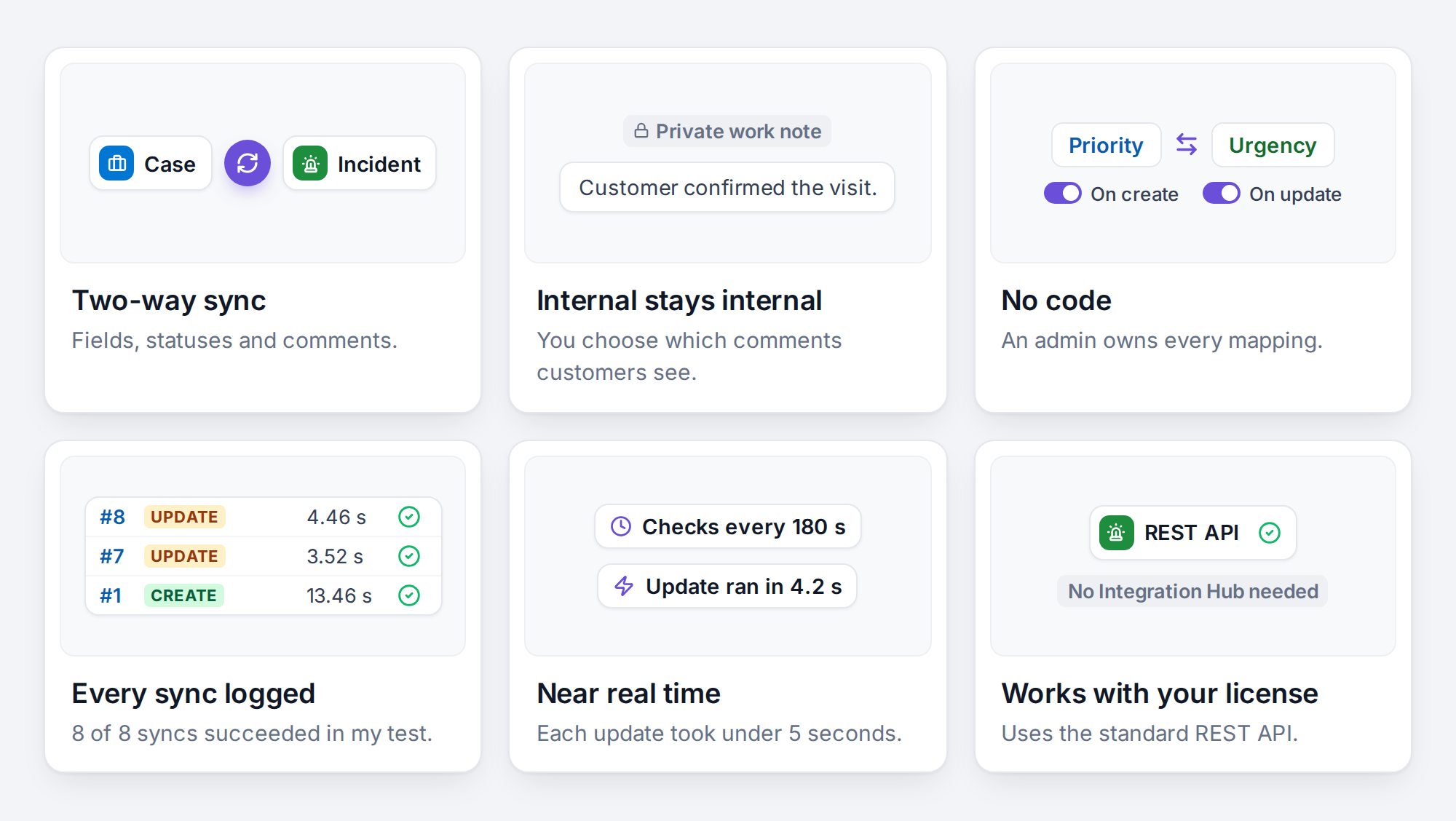
- Two-way sync, built in. Fields, statuses and comments stay in step in both directions. You configure it; you don't build it.
- You control what customers see. You decide, per direction, which comments the customer can see and which stay internal.
- No code, owned by admins. Mappings live in one screen. When requirements change, an admin edits a mapping, with no development work.
- A log you can actually read. Every sync shows its direction, duration and result, so you can trace any change.
- Near real time. Getint checks for changes every 180 seconds by default, and every update in my test ran in under five seconds.
- Works with your current ServiceNow license. Getint uses ServiceNow's standard REST API, so this setup needs no Integration Hub subscription.
And because the same platform connects ServiceNow with tools like Jira, Azure DevOps and Zendesk, your next integration doesn't start from scratch.
Before you start: what you need on each side
You need three things: a ServiceNow instance, a Salesforce org with API access, and a Getint workspace. For testing, the free versions are enough. I used a ServiceNow Personal Developer Instance and a Salesforce Developer Edition org.
A quick note on Salesforce editions: according to Getint's Salesforce guide, API access is on by default in Enterprise, Unlimited, Performance and Developer editions. In Group, Essentials and Professional it's off by default, so check that first.
ServiceNow: a dedicated integration user
Getint logs in to ServiceNow as a user, so create one just for the integration instead of reusing your own admin account. A dedicated user keeps the audit trail clean and lets you control exactly which permissions Getint has.
- Create a user, for example getint.integration, and set a password.
- Untick Password needs reset. Getint's documentation warns that otherwise the connection fails with a misleading permissions error.
- Create a custom role, for example getint.
- Elevate to security_admin and create six read ACLs that require that role:
- Give the user the itil role and your custom role.
Why these tables? Getint needs to read ServiceNow's field definitions, field types, choice lists and journal entries (comments and work notes) to build the mappings. The ACLs are read only, so the integration user can look at that metadata but never change it. That's least privilege in practice, and your security team will thank you for it.
If you later see "401 User is not authenticated" even though the password is right, don't panic. I explain that one in the lessons section, because it cost me some time.
Salesforce: an External Client App
On the Salesforce side, Getint doesn't use a username and password. It uses a client ID and client secret from an External Client App, the newer generation of what many admins know as a connected app.
- Go to Setup, open External Client App Manager and create a new app.
- Turn on OAuth and add a callback URL. Salesforce requires one, but this flow never uses it, so any valid https URL works. I used https://login.salesforce.com/services/oauth2/callback, a common placeholder.
- Add the OAuth scope Manage user data via APIs (api).
- Enable Client Credentials Flow, and turn off the other security options.
- Under the app's OAuth policies, set the Run As user. Every change Getint makes in Salesforce will appear under this user.
- Copy the Consumer Key (your client ID) and the Consumer Secret (your client secret).
With the client credentials flow, Getint exchanges the client ID and secret for an OAuth token, so no user password is stored anywhere. Give a new app a few minutes before you test the connection.
Getint: a workspace
Sign up at app.getint.io, create a workspace and choose the apps you want to connect. That's all for prerequisites.
Security at a glance
- ServiceNow access: a dedicated integration user with itil, your custom role and read-only ACLs. No admin rights.
- Salesforce access: OAuth client credentials, so no user password is stored.
- API logins: only the integration user needs snc_basic_auth_api_access. Use OAuth in production where you can.
- Comment visibility: you decide, per direction, which comments the customer can see.
- Audit trail: every sync is logged with its direction, time and result, and synced comments keep their original author and time.
Step by step: setting up the Salesforce ServiceNow integration in Getint
Once the prerequisites are in place, the Getint part is quick. Here's the setup in the order I did it.
Step 1: Create the integration
In your workspace, open Workflows (the lightning bolt icon), click Create Integration and choose Continuous Sync. Continuous sync keeps records aligned for as long as the integration runs. The other option, Data Migration, is a one-time move of existing records, which is useful when a company switches tools.
Give the integration a clear name, like "Salesforce ↔ ServiceNow". It sounds minor, but once you have several integrations, you'll thank yourself.
Step 2: Connect Salesforce
Click Connect App, choose Salesforce and create a new connection. Enter your org URL (the my.salesforce.com address), then the client ID and client secret.
Getint also gives you an optional SOQL filter here. Leave it empty to sync everything, or use it to limit the sync, for example to escalated cases only. In a real project, I'd start with a filter, so the first go-live touches a small, predictable set of records.
Step 3: Connect ServiceNow
Do the same for ServiceNow: your instance URL, then the integration user's username and password. I used basic authentication for this test.
Connections are saved in your workspace, so you can reuse them in other integrations without entering the credentials again.

Step 4: Map Salesforce cases to ServiceNow incidents
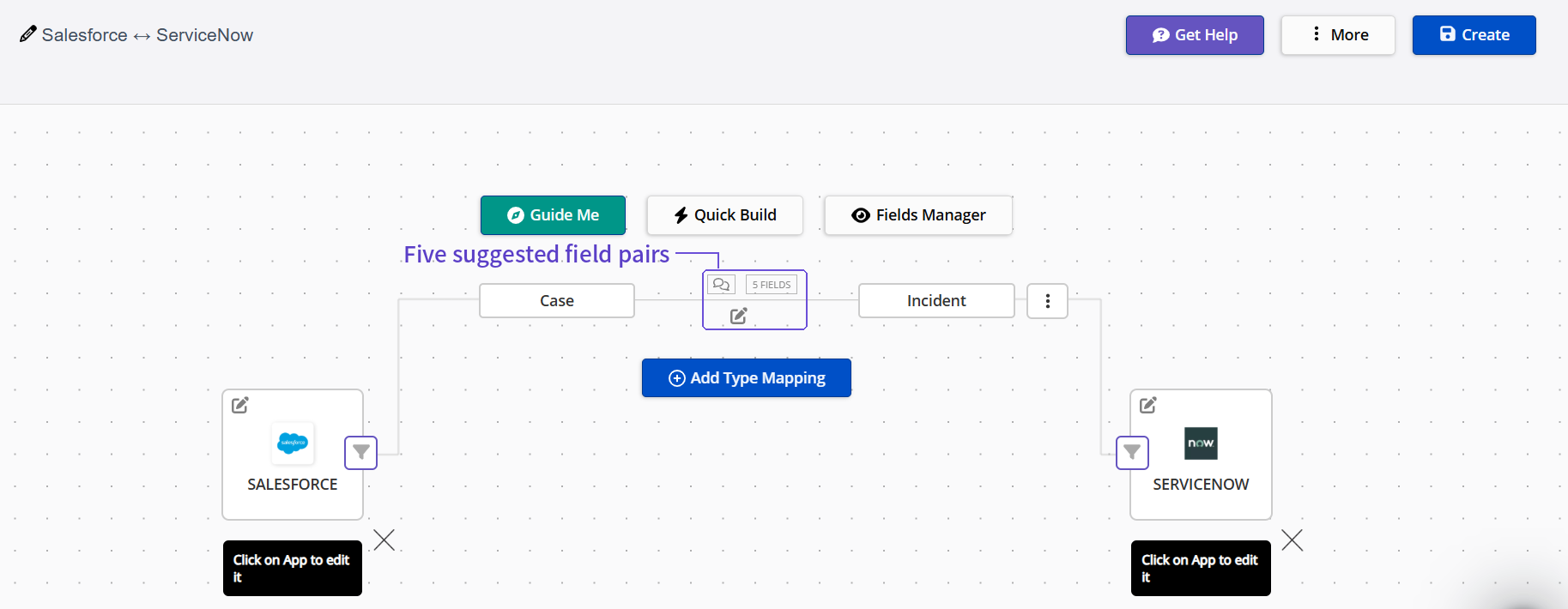
Click Start With Mapping Types and pair the record types. I mapped the Salesforce Case object to the ServiceNow Incident table, because both mean "a customer has a problem". Getint's guide shows other pairs as well, such as Salesforce accounts with ServiceNow tasks.
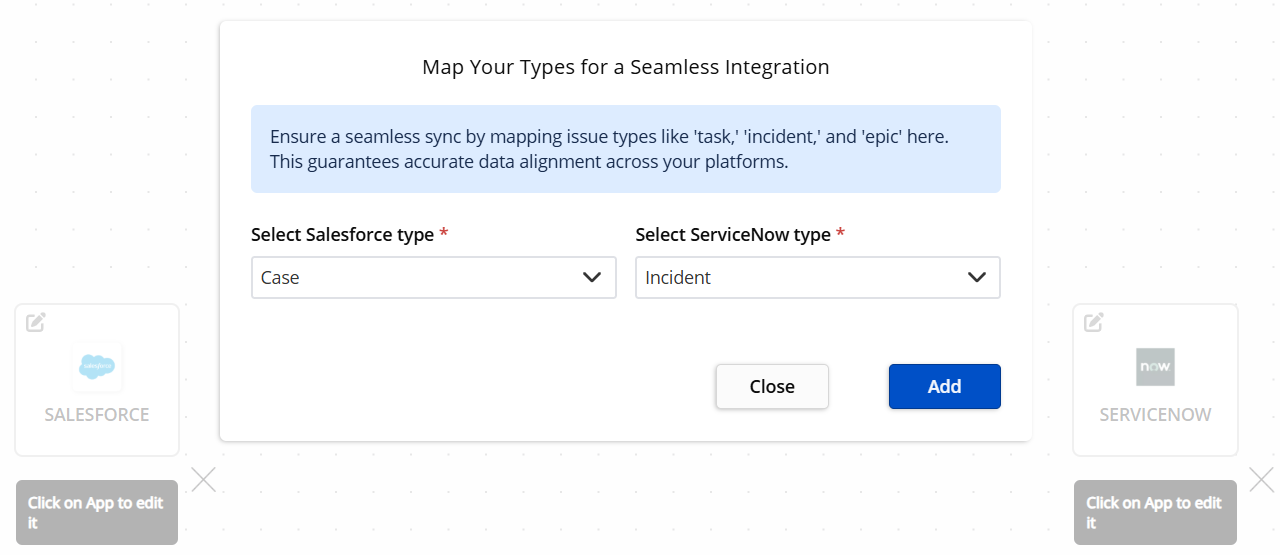
After you click Add, the mapping appears between the two apps. See the small 5 FIELDS badge on the link? Getint had already suggested five field pairs, which brings us to the most important step.
Step 5: Map the fields
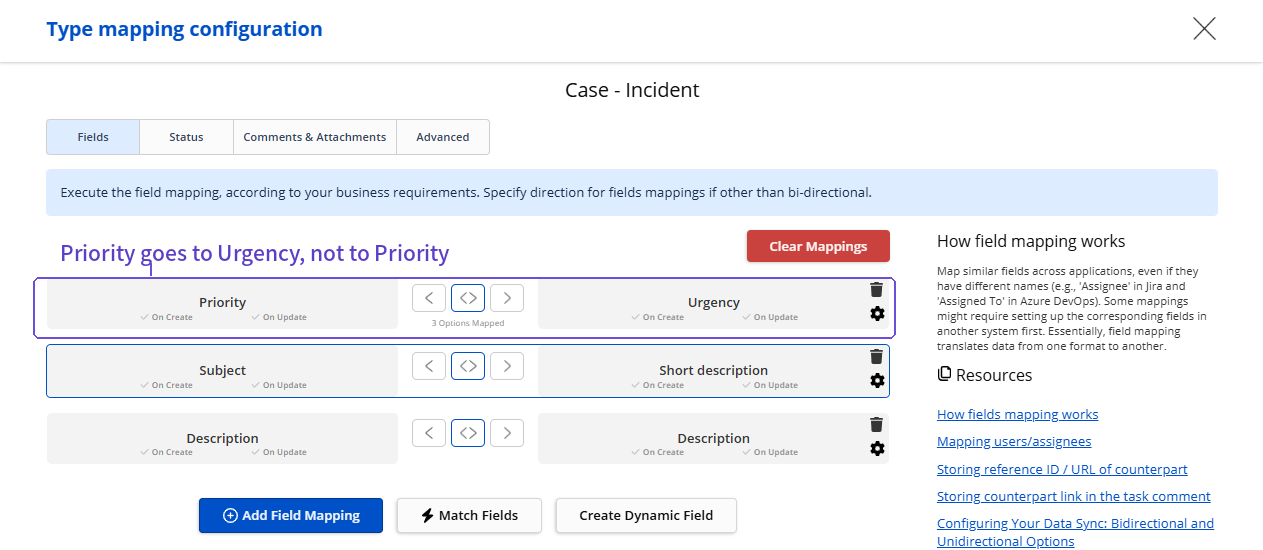
Open the mapping with the pencil icon. Getint matched five fields automatically. I kept two, changed one and removed two:
I removed the automatic Company and Closed pairs. They matched by name, but not by meaning. More on that, and on why Priority goes to Urgency, in the lessons section.
For choice fields like Priority, click the gear icon and map each option:
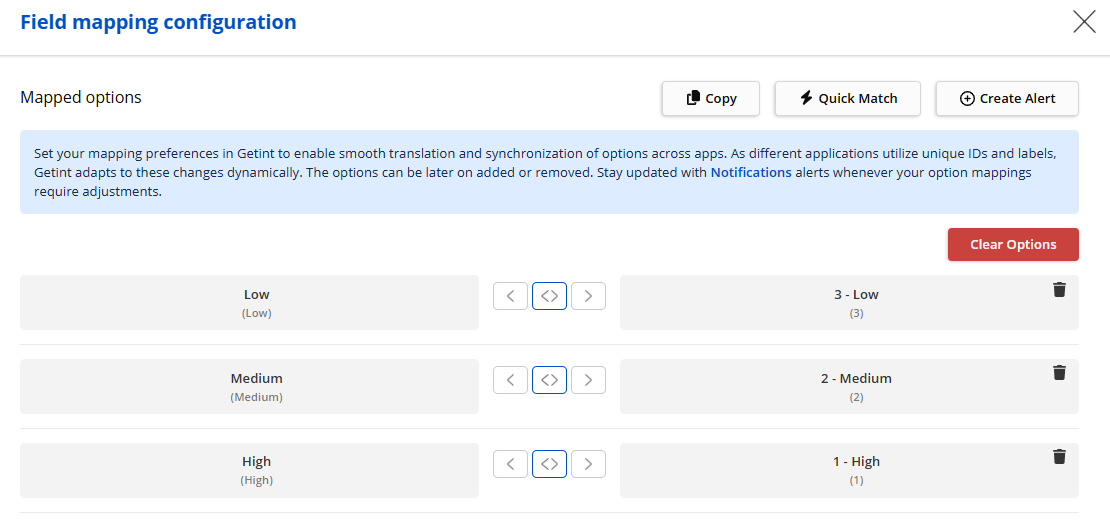
One more check: make sure On Create and On Update are ticked on both sides of every row. On my first try, the Urgency side wasn't ticked, and my priority update never reached ServiceNow.
Step 6: Map the statuses
On the Status tab, choose the field that represents status on each side (Status in Salesforce, State in ServiceNow) and map the values:

One ITIL detail to think about: in ServiceNow, incidents are usually Resolved first and closed later. "Resolved" isn't in this mapping, so decide what Salesforce should show at that stage before you go live.
Step 7: Set up comment sync
On the Comments & Attachments tab, enable comment sync in both directions. Then scroll to Customize comments creation. This is where you decide whether a comment lands as public or private on the other side. My final setup:
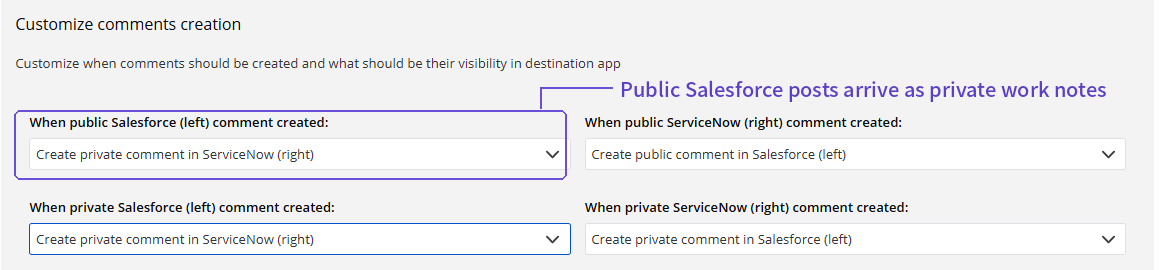
The first row matters most. I explain why in the lessons section.
Step 8: Save and let it run
Click Create (or Save when you edit it later) and check that the integration shows as Enabled. By default, Getint checks both systems for changes every 180 seconds, and you can change the interval in the settings.
Testing the sync end to end
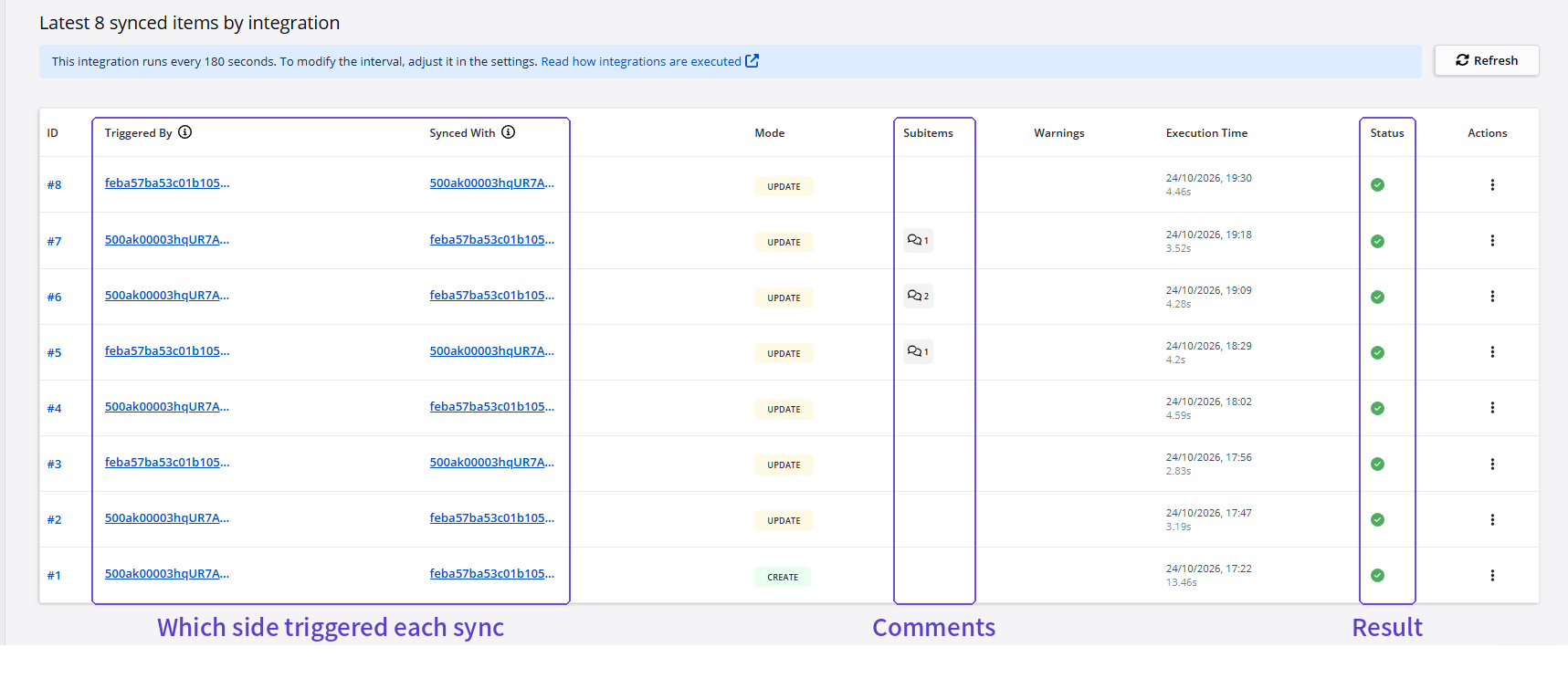
I ran five tests on one record: a Salesforce case called "Test 1: Printer not working". Here's the whole run at a glance, straight from Getint's log, followed by each test in detail.

Test 1: A new Salesforce case creates a ServiceNow incident
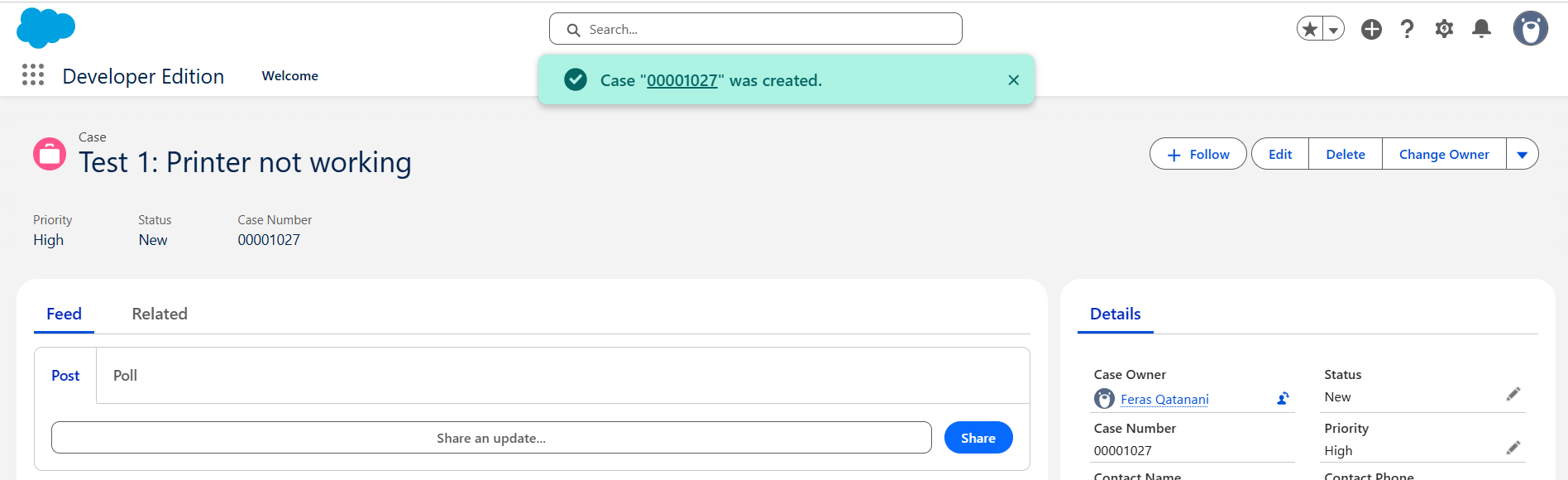
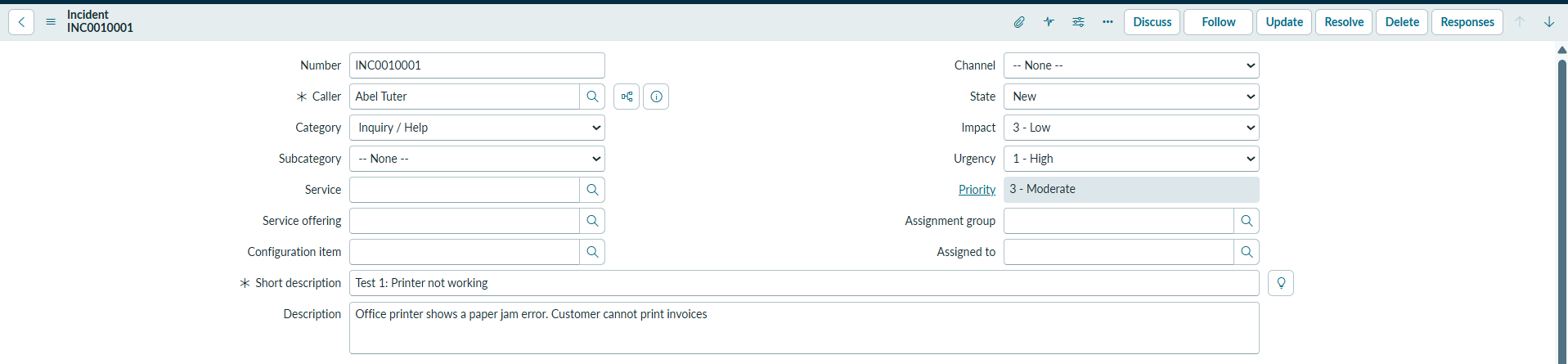
I created case 00001027 with priority High. Within a few minutes, ServiceNow had a new incident, INC0010001, opened by the Getint integration user, with the subject and description copied over.
Test 2: Priority changes reach ServiceNow
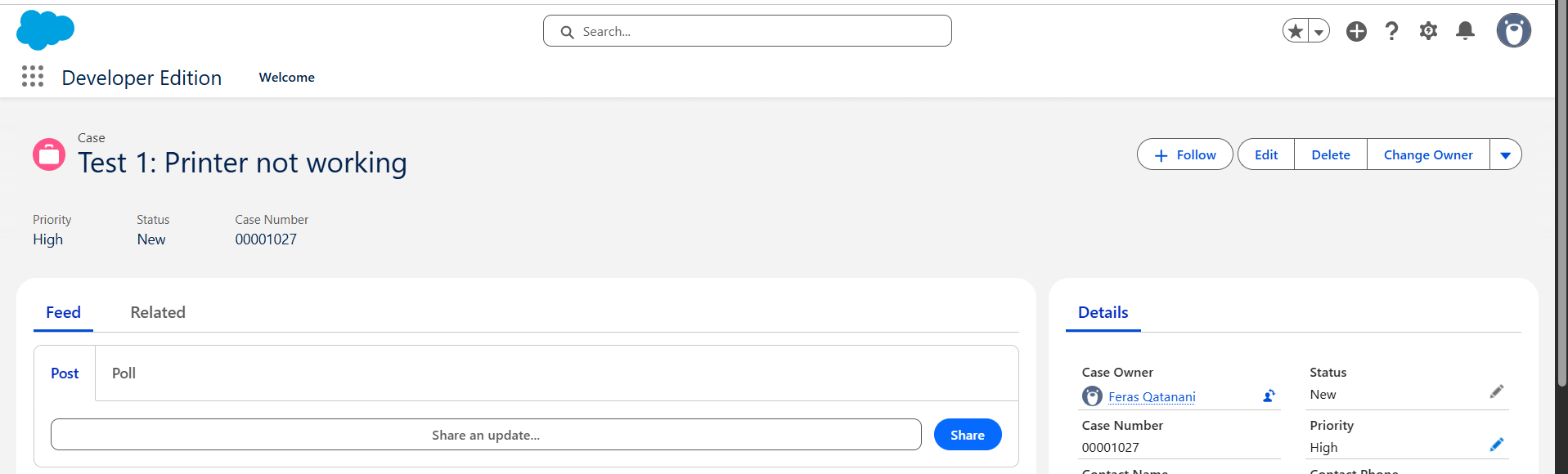
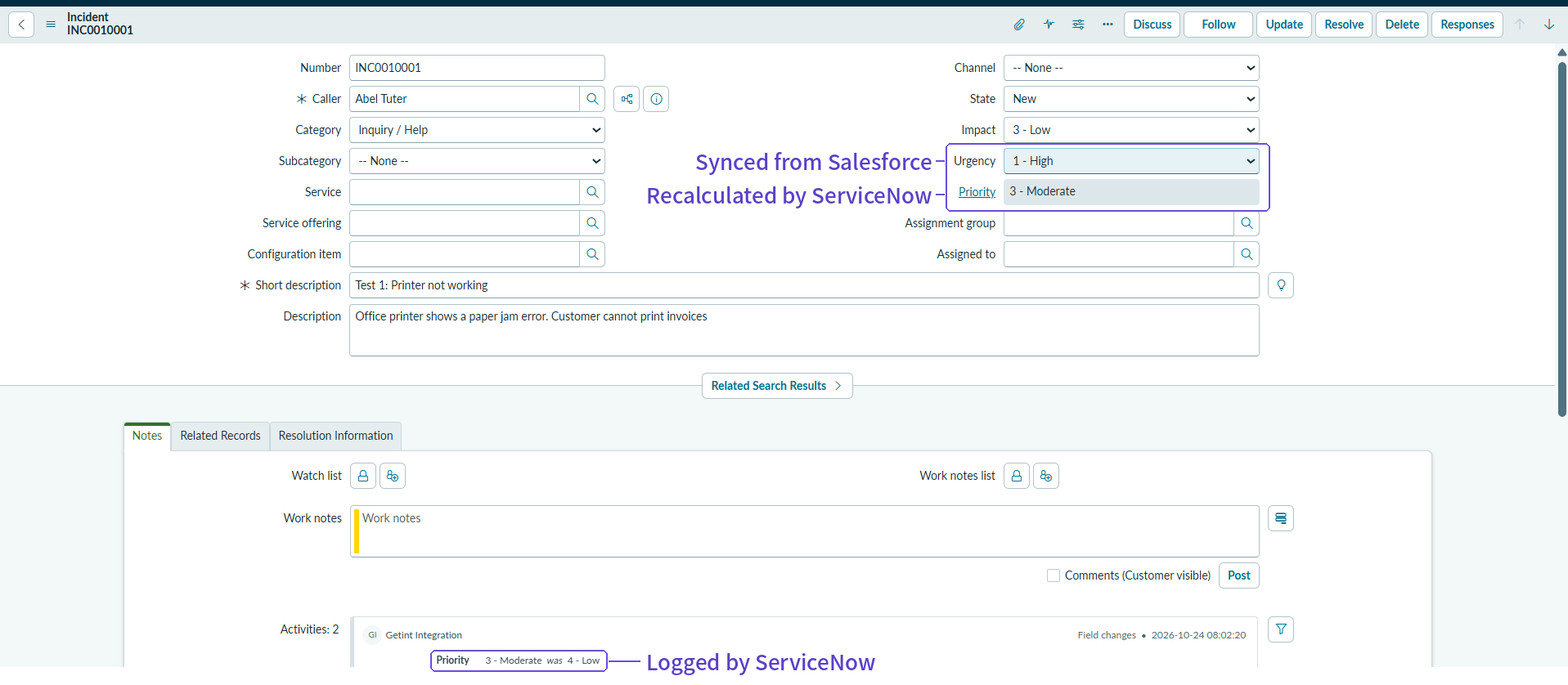
After switching the mapping to Urgency, I changed the priority on the case. With the case set to High, the incident's Urgency changed to 1 - High, and ServiceNow recalculated the Priority on its own to 3 - Moderate, because Impact was still 3 - Low. The activity log shows it clearly: "Priority 3 - Moderate was 4 - Low".
Test 3: A ServiceNow work note reaches Salesforce
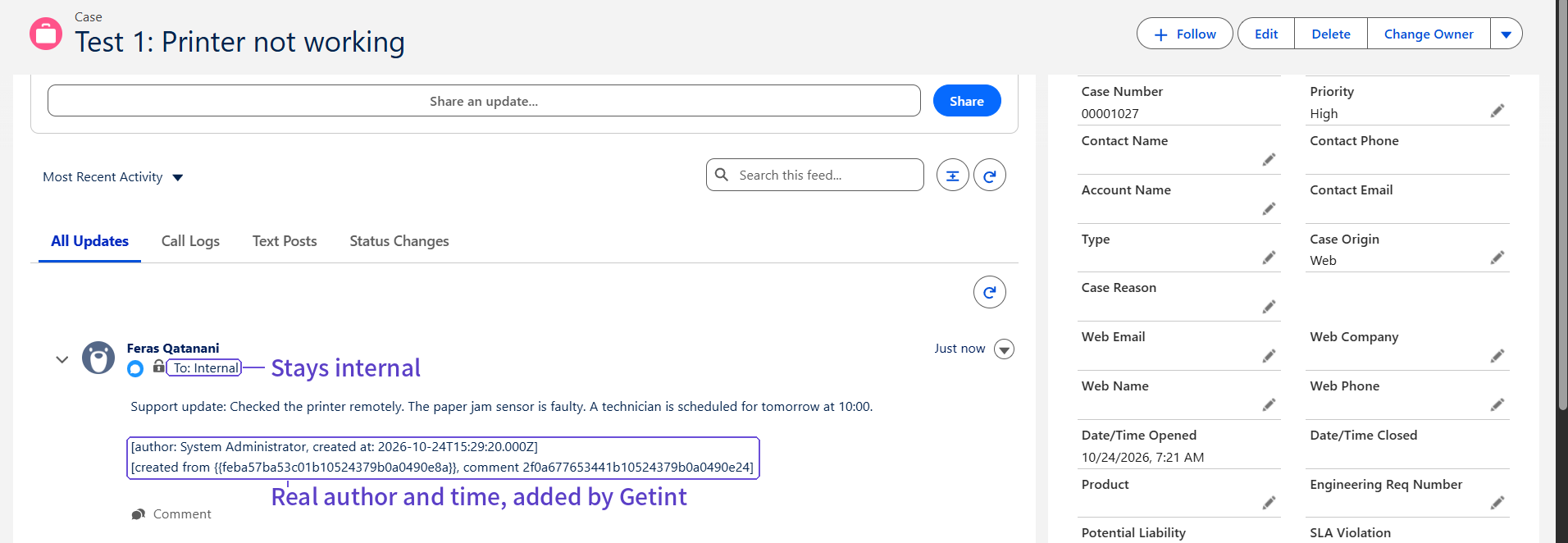
I added a work note on the incident: "Support update: Checked the printer remotely. The paper jam sensor is faulty. A technician is scheduled for tomorrow at 10:00." It appeared in the Salesforce case feed as an internal post. Getint added the original author and time in a short footer, which is handy for traceability.

Test 4: A Salesforce post reaches ServiceNow
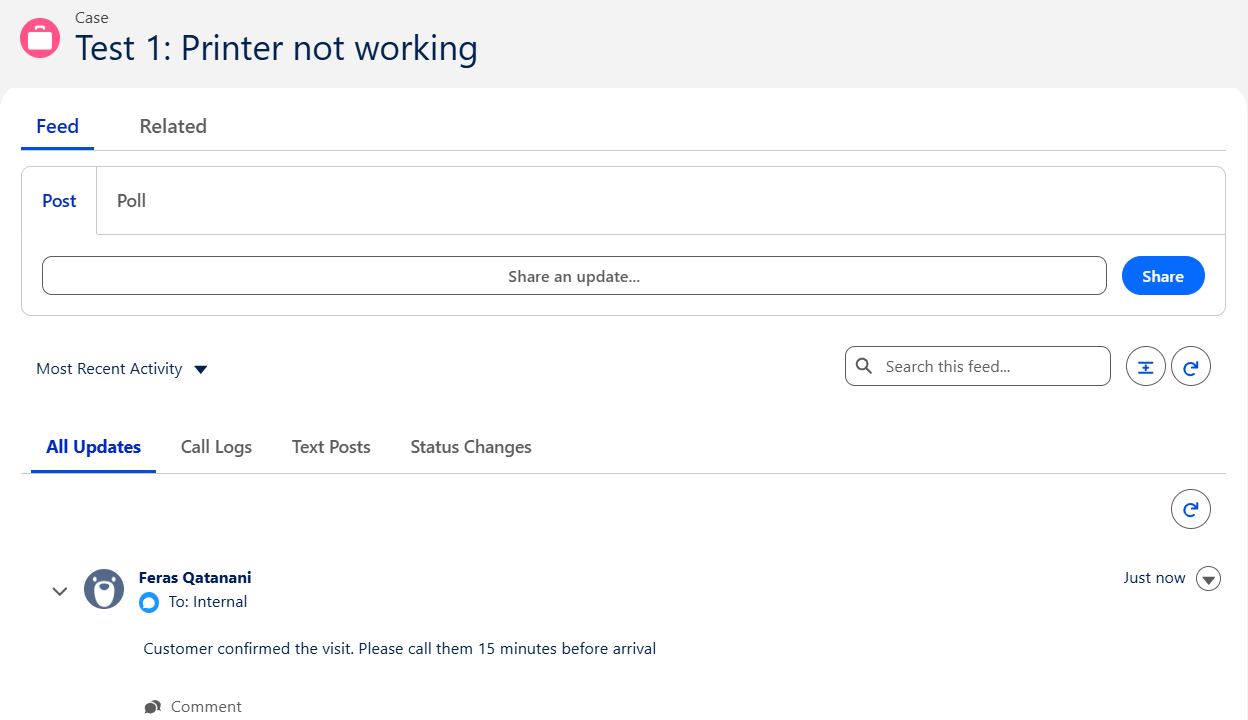
From the case, I posted: "Customer confirmed the visit. Please call them 15 minutes before arrival." It arrived on the incident as a private work note, which is exactly where a support engineer would look for it.

Test 5: Status changes flow back to Salesforce
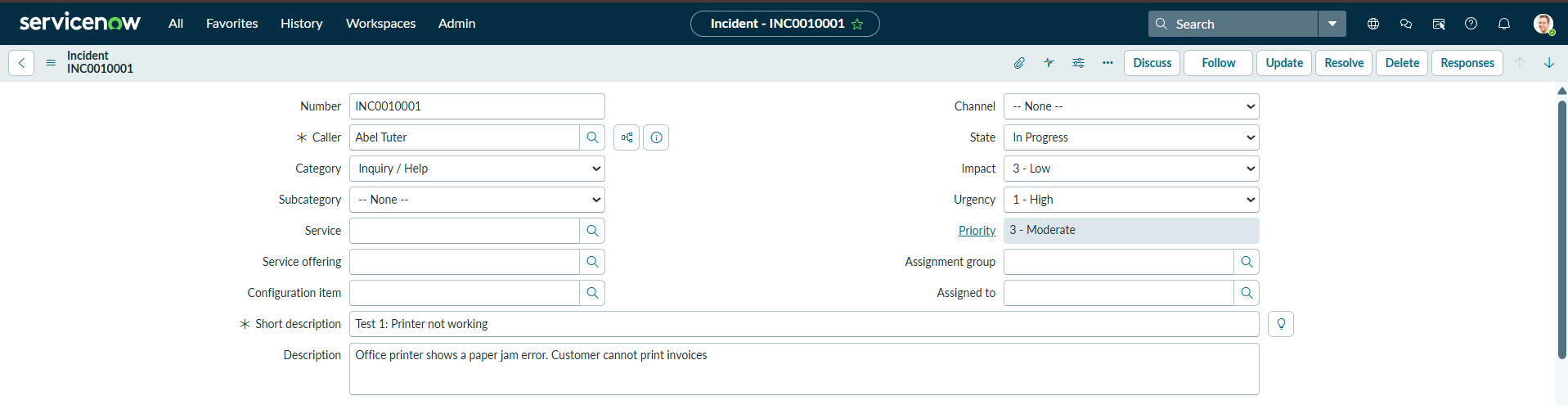
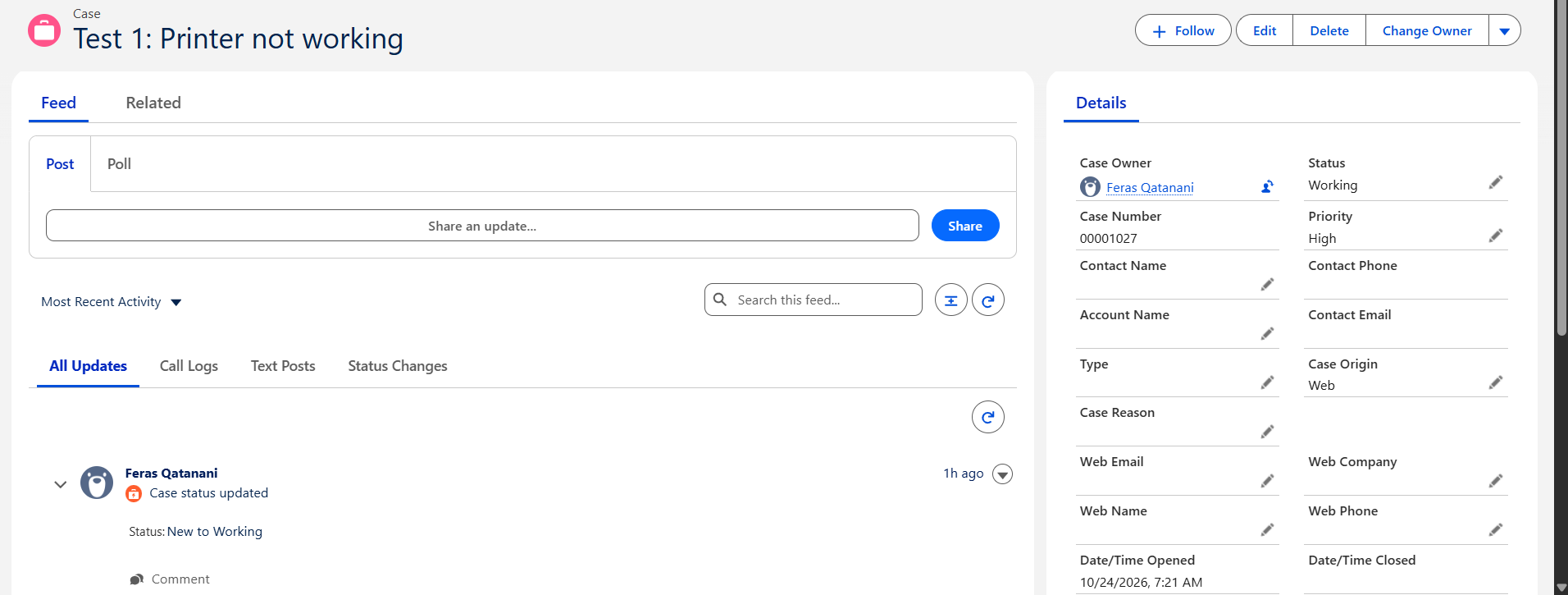
On the incident, I changed the State to In Progress. A few minutes later, the Salesforce case showed Working, and the case feed logged "Status: New to Working".
The audit trail
Getint's Latest synced items page lists every sync with its direction, mode, duration and result. My eight syncs were all green: one create and seven updates. The updates took under five seconds each, and synced comments show up as sub-items. If something ever goes wrong, this is the first place to look.
Lessons from a ServiceNow consultant: what surprised me
The setup itself was straightforward. The interesting part was everything that didn't behave the way I first expected. Most of these lessons are about ServiceNow and Salesforce themselves, so they're worth knowing before any go-live.
1. The 401 error that had nothing to do with my password
My first ServiceNow connection failed with "401, User is not authenticated". The strange part: I could log in to the instance with the same username and password in my browser. The cause is a newer ServiceNow security feature, the basic authentication restriction, which can block API calls that use a username and password even when the UI login works. The fix is to give the integration user the snc_basic_auth_api_access role, or to make it a web service access only account. In production, I'd go one step further and use OAuth wherever you can.
2. In ServiceNow, priority is calculated, not set
The suggested mapping paired Salesforce Priority with ServiceNow Priority. Anyone who works with ServiceNow will spot the problem: Priority is calculated from Impact and Urgency, so writing to it directly doesn't stick. In my test, a High case arrived as a 4 - Low incident. That matters more than it sounds, because priority drives SLAs, and my test incident had already picked up a two-day resolution SLA. Map Salesforce Priority to Urgency, and decide how Impact gets set, either with a sensible default or from another Salesforce field.
3. Mandatory on the form isn't mandatory for the API
Getint created the incident without a Caller, even though Caller is mandatory on the incident form. That's standard ServiceNow behavior: UI policies and form-level mandatory flags only apply on the form, and only a data policy can enforce a field for API calls too. The caller in my screenshots, Abel Tuter (a demo user), is one I added by hand later, because the form won't save without one. Plan for it: set a default caller, or map the Salesforce contact to the Caller field. If you enforce Caller with a data policy, map it first, so incidents can still be created.
4. Review every automatic field match
Auto-matching saves time, but it matches by name. It paired Salesforce's read-only "Closed" checkbox with ServiceNow's "Closed" date, and it mapped Company to a ServiceNow reference field. Neither made sense. Treat the suggestions as a first draft, not the final answer.
5. "Public" in Salesforce can mean "customer-visible" in ServiceNow
This is the one I almost missed. With the default settings, a normal post on the case, written by the sales rep for colleagues, arrived in ServiceNow as an additional comment. That field is visible to the customer, and it can trigger an email to the caller. Changing the setting so public Salesforce comments become private work notes fixed it. Decide this before go-live, not after a customer reads an internal note.

6. Choose your Run As user on purpose
Every update Getint makes in Salesforce appears under the Run As user of the External Client App. In my test, that was me, so ServiceNow work notes looked as if I had written them. Getint does add the real author in a footer, but for production, create a dedicated integration user with a clear name.
7. Check special characters
The apostrophe in "I've" arrived in ServiceNow as '. It's a small formatting detail, and Getint's own screen warns that formatting can differ between platforms. Still, test a few typical messages from your team before go-live.
8. Near real time, not instant
By default, Getint checks for changes every 180 seconds, and each sync took only a few seconds. For sales and support handoffs, that's plenty. If you need tighter timing, adjust the interval, and set expectations with users either way.
On a real project, I'd check comment visibility first, because that's the mistake a customer actually sees.
Troubleshooting: symptoms, causes and fixes
If something doesn't sync the way you expect, start here. Most of these came straight from my own testing.
Go-live checklist
Before you switch this on for real users, run through this list. Every item comes from something I either hit or nearly missed during testing.
- A dedicated ServiceNow integration user with itil, your custom role and the read-only ACLs
- API access confirmed: snc_basic_auth_api_access, a web service access only account, or OAuth
- A dedicated Salesforce Run As user with a clear name, like "ServiceNow Integration"
- Salesforce Priority mapped to ServiceNow Urgency, with a plan for Impact
- A default Caller, or a contact mapping, for incidents created from Salesforce
- Comment visibility mapped, with public Salesforce posts landing as private work notes
- Statuses mapped, including what Salesforce shows while an incident is Resolved
- A SOQL filter, so the first go-live syncs a small, predictable set of cases
- Every direction tested: create, field updates, comments both ways and status
- Sync interval agreed with both teams, and someone named to check the Getint logs
What each team gets from the integration
For the sales team, the biggest win is confidence. When a customer calls, the rep opens the case and sees that a technician is booked for tomorrow at 10:00, without pinging anyone. That's what better customer experiences look like in practice: fewer "let me check and get back to you" moments.
For the support team, the incident arrives in ServiceNow with the subject, description and urgency already filled in, so it goes straight into their normal process: assignment, SLAs and reporting. They never have to leave ServiceNow.
For IT, the integration is configuration, not code. Mappings live in one place, every sync is logged, and the integration user only has the permissions it needs. When requirements change, an admin adjusts a mapping instead of starting a development project.
Conclusion
Connecting Salesforce and ServiceNow isn't the hard part. Getting the details right is where the value is. Getint handled the plumbing well: no code, clear mappings, two-way comments and a log I could actually read. The decisions that mattered most were ServiceNow decisions: urgency versus priority, mandatory fields, and which comments a customer should see.
If you're planning this for your team, my advice is simple. Start with one mapping, cases to incidents. Sync a small, filtered set of records. Test every direction, including comments. Then expand once both teams trust what they see.