Sales and support teams often work with the same customers from very different perspectives. Sales reps manage accounts, opportunities, and customer relationships in Salesforce, while support agents handle questions, incidents, and ongoing support interactions in Zendesk.
The challenge appears when important customer data stays within those separate systems.
Salesforce research shows how widespread this problem can become. Data and analytics leaders estimate that 19% of their company’s data is siloed, inaccessible, or otherwise unusable, while the average enterprise uses 897 applications and only 29% are connected. When customer information, support history, and sales conversations are spread across different platforms, getting the full context behind an account can require additional searches, messages between teams, or manual updates.
A Salesforce Zendesk integration can connect these workflows without requiring sales and support teams to abandon the tools they already use. Relevant Salesforce data can become available to support teams, while Zendesk ticket data can give sales teams greater visibility into ongoing customer issues.
In this guide, we’ll look at how Zendesk Salesforce integration works, what data you may want to synchronize, one-way and bi-directional sync options, native integration capabilities, and when a third-party integration platform may make more sense. We’ll also walk through how to connect Salesforce and Zendesk with Getint and what to consider before moving the integration into production.
What Is Zendesk Salesforce Integration?
A Salesforce Zendesk integration connects the two platforms so that selected information can move between sales and customer support workflows.
- Salesforce typically acts as the CRM, holding information such as accounts, contacts, opportunities, cases, and other customer data used throughout the sales process.
- Zendesk Support focuses on customer service workflows, where support agents manage tickets, conversations, requests, and issue resolution.
Connecting those tools makes it possible to share relevant context between those environments.
For example, a support agent working on a Zendesk ticket may need account information from Salesforce to understand who the customer is and their relationship with the company. At the same time, a sales rep may want visibility into recent support tickets before contacting an important account.
The exact data flow depends on how the integration is configured. Some integrations provide visibility into information stored in the other platform. Others synchronize records and fields from one system to another or maintain a bi-directional sync in which mapped information can be updated across both systems.
This distinction matters. Before connecting the platforms, teams should determine which information needs to move, which system owns it, and whether updates should travel in one or both directions.
Salesforce and Zendesk Support Different Parts of the Customer Journey
Salesforce and Zendesk can contain information about the same customer without serving the same purpose.
A sales team may use Salesforce CRM to manage the commercial relationship, track opportunities, maintain account information, and record sales conversations. The support team may use Zendesk to manage incoming requests, investigate problems, communicate with customers, and maintain their support history.
That creates two valuable but different views of the customer.
The goal of integration is to decide which parts of those views should be shared.
A support agent probably does not need every field stored on a Salesforce account. Likewise, a sales rep may not need every internal detail of a support interaction. A successful cross-tool integration provides the information each team needs while avoiding unnecessary data synchronization.
That makes field mapping, sync rules, and data ownership important decisions early in the project.

Why Integrate Salesforce and Zendesk?
When Salesforce and Zendesk operate independently, support and sales teams can end up with different pieces of the customer story. Connecting the two systems helps make relevant customer, sales, and support data available where teams already work.
More Customer Context: Support agents can access relevant Salesforce customer and account information while handling support requests, while sales reps gain visibility into support interactions that may affect an account. This creates a more complete customer view without requiring teams to constantly switch platforms.
Less Manual Work: Data synchronization reduces the need to copy customer information, ticket details, statuses, and other shared data manually between the two systems. Defined sync rules also help keep mapped information consistent as records change.
Better Sales and Support Collaboration: Sales teams can stay informed about important customer issues, while support teams can use relevant CRM context when assisting customers. Both teams retain their existing workflows while sharing the information needed for smoother handoffs.
More Informed Customer Interactions: A sales rep preparing for a renewal can see relevant support history, while a support agent can understand the wider customer relationship before responding. That additional context can help teams provide more personalized support and avoid asking customers for information the company already has.
Consistent Data Visibility: Connecting Salesforce and Zendesk gives teams a clearer view of customer activity across the two platforms. Instead of maintaining disconnected or duplicate records manually, organizations can define which data should be shared, where it should be maintained, and how updates should flow.
Common Salesforce Zendesk Integration Use Cases
The right setup depends on where information currently gets stuck between sales and support. Here are some practical ways teams can connect the two systems.
1. Give Sales Reps Visibility Into Support Activity
Before a renewal or account review, a sales rep may need to know whether the customer has unresolved Zendesk tickets. Sharing details such as ticket status, priority, subject, and recent support activity gives sales teams that context without requiring them to work in Zendesk.
2. Bring Salesforce Customer Context Into Zendesk
Support agents may need CRM information to understand who they are helping. Relevant Salesforce account and customer data can provide context such as the associated account, contact details, or other fields important to the support process.
This keeps the support interaction in Zendesk while making useful Salesforce information available to the agent.
3. Connect Zendesk Tickets and Salesforce Cases
When both systems participate in the service process, a Zendesk ticket may need to correspond with a Salesforce Case.
This requires more than simply copying a record. Teams need to decide which tickets should be connected, how fields and statuses map, which system owns particular values, and whether updates should flow one way or in both directions.
4. Coordinate Escalations Between both Sales and Support
Suppose a support agent identifies an issue that needs attention from the account team. Instead of sending the ticket details by email or asking someone to recreate the information in Salesforce, relevant customer and support data can move through the integration.
The same principle works in reverse when information from Salesforce needs to reach the support team.
5. Keep Customer Data Consistent Across Both Systems
Customer details change over time. Without data synchronization, Salesforce and Zendesk can end up holding different information about the same customer.
Defined mappings and sync rules help teams control which customer data should stay aligned while avoiding unnecessary duplicate records.
What Data Can Be Synced Between Zendesk and Salesforce?
Before you decide to integrate Zendesk data with Salesforce app, let's start with a simple question:
What information does someone in the other system actually need to do their job?
The answer may include:
- customer and account information,
- ticket or case identifiers,
- subjects and descriptions,
- ticket or case status,
- priority,
- selected standard and custom fields,
- relevant comments or conversation data,
- assignment information,
- references to related records,
- and other customer or support data required by the workflow.
The exact possibilities depend on the integration method and the objects supported by it. From there, each field should have an owner. If a customer's account information is maintained in Salesforce, for example, Salesforce may remain the source of truth for those values while Zendesk receives the information it needs. Other data may legitimately need to be updated from either platform.
This is where the distinction between one-way and bi-directional sync becomes important.
One-Way vs Bi-Directional Data Synchronization
The direction of synchronization should follow the workflow rather than being applied uniformly to every field.
With one-way synchronization, information moves from one system to the other without changes being sent back. For example, Salesforce may remain the source of truth for account information while Zendesk receives the customer data that support agents need.
The opposite direction can make sense for support data. If Salesforce users only need visibility into information created and managed in Zendesk, selected ticket data could flow from Zendesk to Salesforce.
A bi-directional sync becomes useful when both teams need to update information and those changes should be reflected across the two platforms. For example, a mapped status or priority could be updated from either side, depending on how the workflow is designed.
This does not mean every field needs two-way synchronization. A single integration can combine different directions:
This field-level approach helps prevent conflicting updates and makes ownership clearer. With Getint, mappings can be configured as one-way or two-way, and individual fields within an integration can use different synchronization directions.
Before enabling bi-directional synchronization, however, decide what should happen if the same information changes in both systems. Clear ownership and mapping rules become increasingly important as the workflow grows more complex.
Ways to Integrate Salesforce and Zendesk
There are several ways to connect Salesforce and Zendesk. The right approach depends on the data you need to exchange, how much control you need over synchronization, and how closely the two workflows need to interact.
The main options are the native Zendesk for Salesforce integration, a custom integration built using APIs, or a third-party integration platform.
Native Zendesk for Salesforce Integration
Zendesk offers its own Salesforce integration for organizations that want to connect customer support and CRM workflows without introducing another integration platform.
Key capabilities include:
- Display Salesforce data to support agents in Zendesk.
- View, create, and edit Zendesk tickets from Salesforce.
- Sync Salesforce Accounts to Zendesk Organizations.
- Sync Salesforce Contacts or Leads to Zendesk Users.
- Sync Zendesk tickets to Salesforce Cases.
- Configure filters, matching criteria, and field mappings for supported data synchronization.
The important detail is that these capabilities don't all use the same synchronization model. For example, standard Salesforce data sync is one-way from Salesforce to Zendesk, while ticket sync sends Zendesk tickets to Salesforce Cases. So the native integration shouldn't be described simply as a one-way Salesforce Zendesk integration.
For many organizations, these predefined data flows may be enough. Before choosing another approach, check whether the supported objects, sync directions, field mappings, and available configuration match the workflow you actually need.
Custom Salesforce Zendesk Integration Using APIs
Organizations can also build a custom integration using the Salesforce and Zendesk APIs. This gives development teams greater control over what data moves between the two systems, when synchronization occurs, and how custom business logic is handled.
The trade-off is ownership. A custom integration needs to be designed, developed, tested, monitored, and maintained internally. Teams also need to account for authentication, API access and API limits, error handling, changing fields or workflows, and future API updates.
This approach can make sense when an organization has highly specific requirements and the developer support and resources to maintain custom code over time.
When Is a Third-Party Salesforce Zendesk Integration Worth Considering?
The case for a third-party integration becomes stronger when the workflow moves beyond the synchronization patterns provided by the native integration.
When You Need Flexible Bi-Directional Synchronization
One of the first questions is whether both platforms need to exchange updates.
Zendesk's Salesforce data sync moves supported Salesforce data to Zendesk, while its ticket sync sends Zendesk tickets to Salesforce Cases. These features solve specific directional use cases.
A different approach may be needed when teams require bi-directional sync for mapped records or fields and expect updates made in either system to propagate according to defined rules.
With Getint, synchronization direction can be configured at the field level. Some information can remain one-way while other mapped fields can be synchronized in both directions.
This is useful when Salesforce and Zendesk remain active parts of the same business process rather than one system primarily providing context to the other.
When You Need More Control Over Mapping and Sync Rules
Standard mappings may be sufficient for relatively straightforward workflows. More complex environments can require additional control over how values correspond between the two systems.
Salesforce and Zendesk may use different field structures, statuses, naming conventions, or custom fields for the same business process. In those cases, teams need to determine how information should be translated rather than simply copied.
A third-party integration can be useful when the workflow requires more configurable field mapping, custom field mappings, conditions, transformations, or sync rules.
This is particularly important when the two teams intentionally use different workflows. Salesforce and Zendesk do not need identical statuses or field structures to exchange useful information.
When You Need a Different Data Model
Native integrations are usually designed around defined relationships between the applications.
For example, Zendesk's standard Salesforce data synchronization supports relationships such as Salesforce Accounts to Zendesk Organizations and Salesforce Contacts or Leads to Zendesk Users. Ticket synchronization connects Zendesk Tickets with Salesforce Cases.
If your integration requirements extend beyond the supported native relationships, check whether the objects and mappings you need are available before committing to an approach.
This area deserves particular attention because Zendesk continues to expand its native integration capabilities, including support for Salesforce custom object synchronization. Always evaluate the current native functionality against your actual data model rather than assuming that a third-party tool is required.
When Salesforce and Zendesk Are Part of a Larger Workflow
Sometimes Salesforce and Zendesk are only two parts of the process.
A customer issue might begin in Zendesk, require information from Salesforce, and eventually need technical work from a development or IT team working in Jira, Azure DevOps, or ServiceNow.
In this type of environment, maintaining separate point-to-point integrations for every handoff can become difficult to manage.
A broader integration platform can connect multiple systems while allowing each team to continue working in its preferred tool. Instead of designing the Salesforce Zendesk integration in isolation, teams can consider how customer, support, development, and service management data should move across the wider workflow, all of these without coding knowledge.
That becomes particularly relevant for organizations where support and sales teams are only the first two groups involved in resolving a customer request.
How to Integrate Salesforce and Zendesk With Getint
Once you know which Salesforce and Zendesk data should be shared, the setup in Getint follows a straightforward path: connect both systems, define what should correspond between them, configure the fields and synchronization rules, and test the resulting workflow.
1. Get Salesforce and Zendesk Ready
Start with access, because the two connectors authenticate differently.
Salesforce: Getint uses OAuth. Prepare the Salesforce connection and authorize access to the instance you want to integrate. For a production integration, a dedicated integration/service account is preferable to tying the connection to an individual employee.
Zendesk: In Zendesk Admin Center → Apps and integrations → Zendesk API, enable token access and generate an API token. You'll use it together with your Zendesk credentials when creating the connection in Getint.
2. Bring Both Connections Into Getint
Create a new integration and select Salesforce and Zendesk.
On the Salesforce side, choose the Salesforce instance and complete authorization. For Zendesk, enter the instance URL and authenticate the connection with the prepared API token.
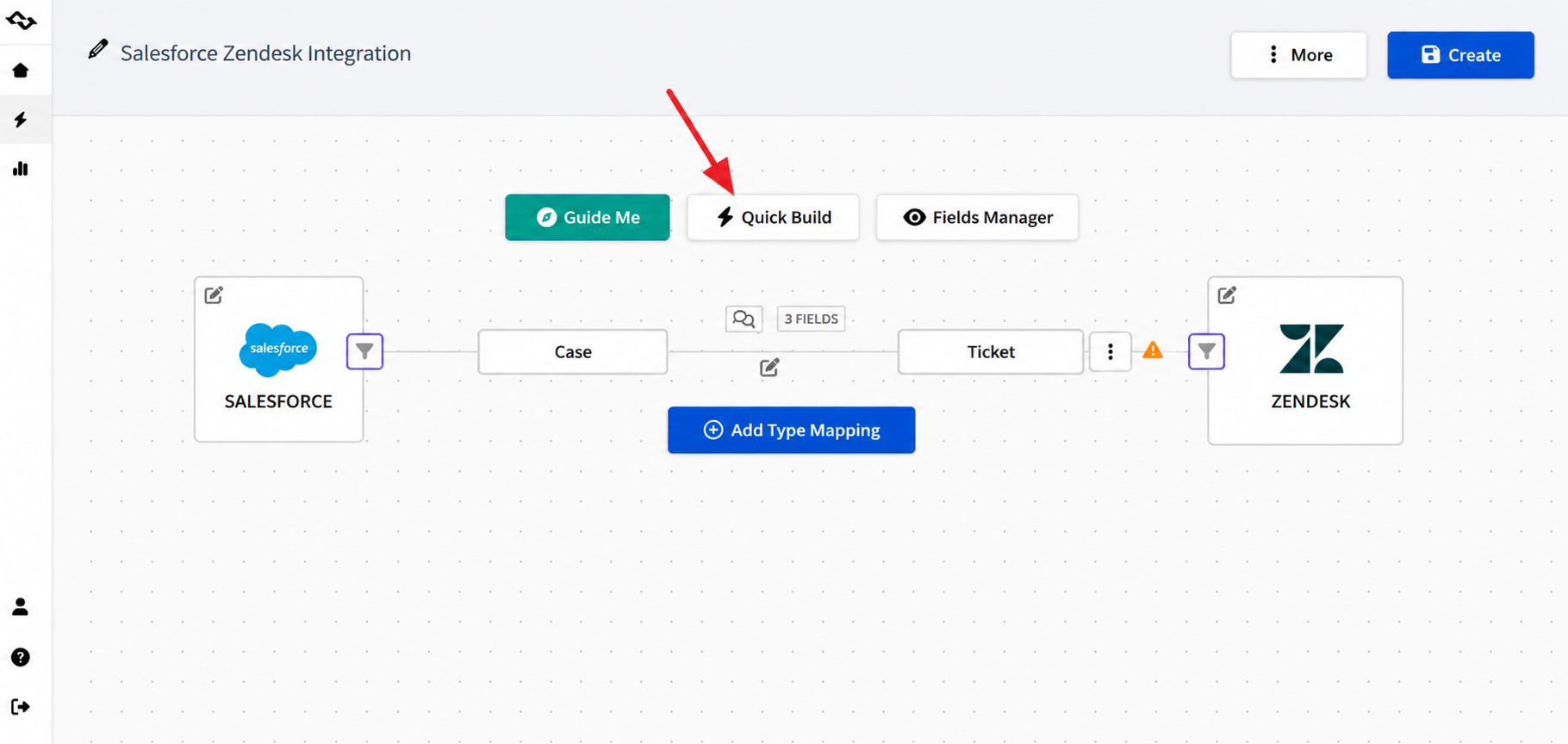
Once both connections are available, the more interesting part starts: deciding how the two data models should meet. You can use Quick Build option to streamline the process.
3. Decide What Corresponds to What
Salesforce and Zendesk organize work differently, so don't start by mapping every available field.
First, pair the records involved in your use case. For example, a support workflow might connect a Zendesk ticket with a Salesforce Case, while customer context could involve Salesforce Account or Contact information.
Then move down to the fields. A Case and a ticket may both have a status, description, priority, assignee, and custom information, but those values don't necessarily use the same names or structures.
This is where you build the actual field mapping in Getint.
4. Choose What Travels in Each Direction
Each mapping case could act differently. You might want Salesforce-owned customer information to flow Salesforce → Zendesk, while support updates move Zendesk → Salesforce. Fields that both teams actively maintain can be configured for bi-directional sync.
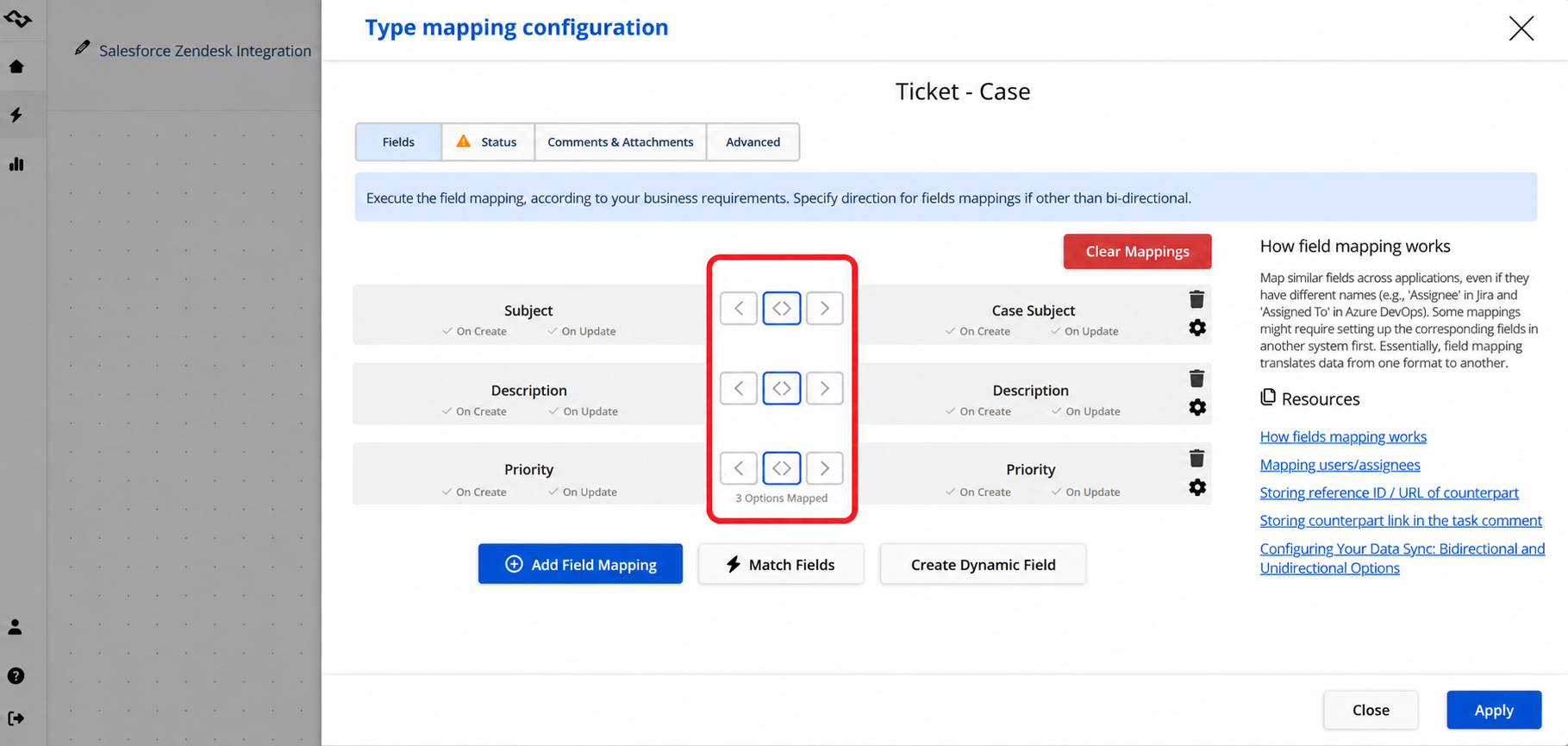
That field-level control is useful when Salesforce and Zendesk need to stay connected without forcing sales and support teams into identical processes.
5. Add Rules Only Where the Workflow Needs Them
If only certain records should cross systems, narrow the integration accordingly rather than synchronizing everything.
Conditions and transformations can be used to control the data flow and adapt values where the two platforms structure information differently. This is especially useful when the integration should react only to particular types of Cases or tickets, priorities, statuses, or other business criteria.
6. Test the Workflow as a Real User Would
Instead of checking only whether a record appears on the other side, run through an actual scenario.
Create or update a representative record. Change a mapped field. Move it to another status. Add information from the other system. If the configuration is bi-directional, make sure the return update behaves as intended too.
Then check the integration activity and logs in Getint. A failed synchronization can be inspected and retried rather than leaving teams to discover missing data later.
Once those scenarios behave as expected, the integration is ready to move from configuration to everyday use.
Best Practices When Integrating Zendesk and Salesforce CRM
Whether you use the native integration or a third-party solution, a few decisions made before setup can prevent problems later.
Define data ownership: Decide whether Salesforce, Zendesk, or both systems can update each mapped value. Clear ownership becomes especially important with bi-directional sync.
Start with the data teams actually need: Avoid synchronizing every available field. Map the customer information, ticket data, and support context that contribute to the workflow.
Map workflows, not just fields: Salesforce Cases and Zendesk tickets may use different statuses and processes. Define how those differences should translate between the two systems.
Plan for existing and duplicate records: Decide how records will be matched and what should happen when corresponding customer or ticket data already exists.
Test before production: Use representative records and test creation, updates, field mappings, status changes, permissions, and failure scenarios. If you use the native integration, Zendesk recommends testing with Salesforce and Zendesk sandbox environments before connecting production systems.
Monitor the integration: A successful initial test does not guarantee that every future update will synchronize correctly. API limits, permission changes, modified fields, and unexpected data can affect an integration over time.
Security Considerations for Salesforce Zendesk Integration
A Salesforce Zendesk integration moves customer and support data between two business-critical systems, so security should be part of the integration design from the beginning.
Start with access. The accounts used for the integration should have only the permissions required for the intended workflow. This is particularly important for admin access and when a Salesforce administrator is preparing credentials or permissions for the connection. A dedicated integration or service account also makes access easier to manage without tying the integration to an individual employee.
The same principle applies to data. Map only the Salesforce objects, Zendesk records, and fields that teams actually need. Restricting unnecessary data flows reduces exposure and makes the integration easier to understand and maintain.
Getint supports both SaaS and On-Premise deployment. For its SaaS environment, Getint documents encryption in transit and at rest, role-based access controls, and security monitoring. Getint also maintains ISO/IEC 27001, ISO/IEC 27018, SOC 2 Type II, and GDPR compliance measures.

Before production, perform thorough testing with representative records and confirm that permissions, mappings, sync directions, and conditions behave as intended. Integration logs and monitoring can then help teams identify synchronization errors without relying on users to discover missing updates themselves.
Final Thoughts: Connecting Salesforce and Zendesk Around the Customer
Salesforce and Zendesk often serve different teams, but those teams are working with the same customer.
A well-planned Salesforce Zendesk integration gives sales access to relevant support context and support access to useful CRM data while allowing both teams to continue working in their preferred platforms.
The right approach depends on your team's workflow. Zendesk's native Salesforce integration already covers several common scenarios. When teams need more flexible synchronization, custom mappings, bi-directional data flows, or connections extending beyond Salesforce and Zendesk, a third-party integration platform may be worth considering.
With Getint, teams can configure Salesforce and Zendesk synchronization around their own workflows, including field mappings and one-way or two-way data flows.
Want to see how your Salesforce and Zendesk workflow could work with Getint? Book a demo with our integration expert and we'll walk through your requirements.