Notion to Jira migration transforms your flexible Notion database into a structured Jira project. While Notion excels as a unified workspace for notes and brainstorming, Jira Cloud (or Jira Service Management) becomes essential for software teams needing custom fields, field mapping, workflows, and synchronization with dev tools. Getint makes importing data seamless — preserving Notion pages, tasks, status, priority, date field, multi-select values, files, and comments as Jira work items.
This guide combines practical steps with structural insights — explaining why Notion-to-Jira isn't just "copy-paste." Using Getint Atlassian Marketplace app, migrate without data loss or manual CSV cleanup.
Download FREE: Software Migration Plan Template
.avif)
Why Teams Migrate from Notion to Jira Cloud or JSM
Notion starts as your team's creative hub — Notion database for roadmaps, Notion page wikis, and collaborative docs. Non-technical teams love its dropdown menu, multi-select tags, and visual layouts.
Growth triggers the switch:
- Technical teams need Jira work items with custom fields, fix version tracking, and bug workflows
- Project management tool requirements evolve to sprint planning, time spent logging, and Jira Service Management ticketing
- Sync data demands with GitHub, CI/CD, or Azure DevOps
- Permissions and security scale beyond Notion's workspace limits
Manual alternatives fail:
- CSV export/import loses files, comments, user assignments, and rich text
- No field mapping for Notion database properties to Jira fields
- Progress tracking breaks across two platforms
How Notion and Jira Structure Data Differently
One of the most common reasons migrations fail is underestimating how differently Notion and Jira model data.
Notion stores information loosely. Pages live inside flexible databases, and properties such as status, priority, users, or tags are optional. A single Notion database can mix tasks, bugs, and ideas, often with inconsistent status values.
Jira enforces structure by design. Every Jira project contains defined work item types, workflows, and Jira fields. Each Jira work item follows explicit rules for transitions, priorities, fix versions, and time tracking.
This structural gap explains why Notion to Jira migration is not a copy-paste operation and why sync-first migration is generally more reliable than one-time imports.
Migration Approaches: Direct vs Sync-First
Direct imports can work for small, static datasets but offer limited validation and no way to handle parallel work. Any misconfigured field mapping or workflow usually requires cleanup inside Jira.
A sync-first migration treats migration as a temporary synchronization process. Jira work items are created from Notion pages while teams continue working. Field mappings and workflows can be adjusted before Jira fully takes over as the system of record.
This is the model Getint is designed around.
Challenges of Notion to Jira Migration
Even with good preparation, migrating from Notion to Jira introduces challenges that stem from the structural differences between the two platforms.
Migrating between tools isn’t just about moving Notion pages into Jira work items. Common challenges include:
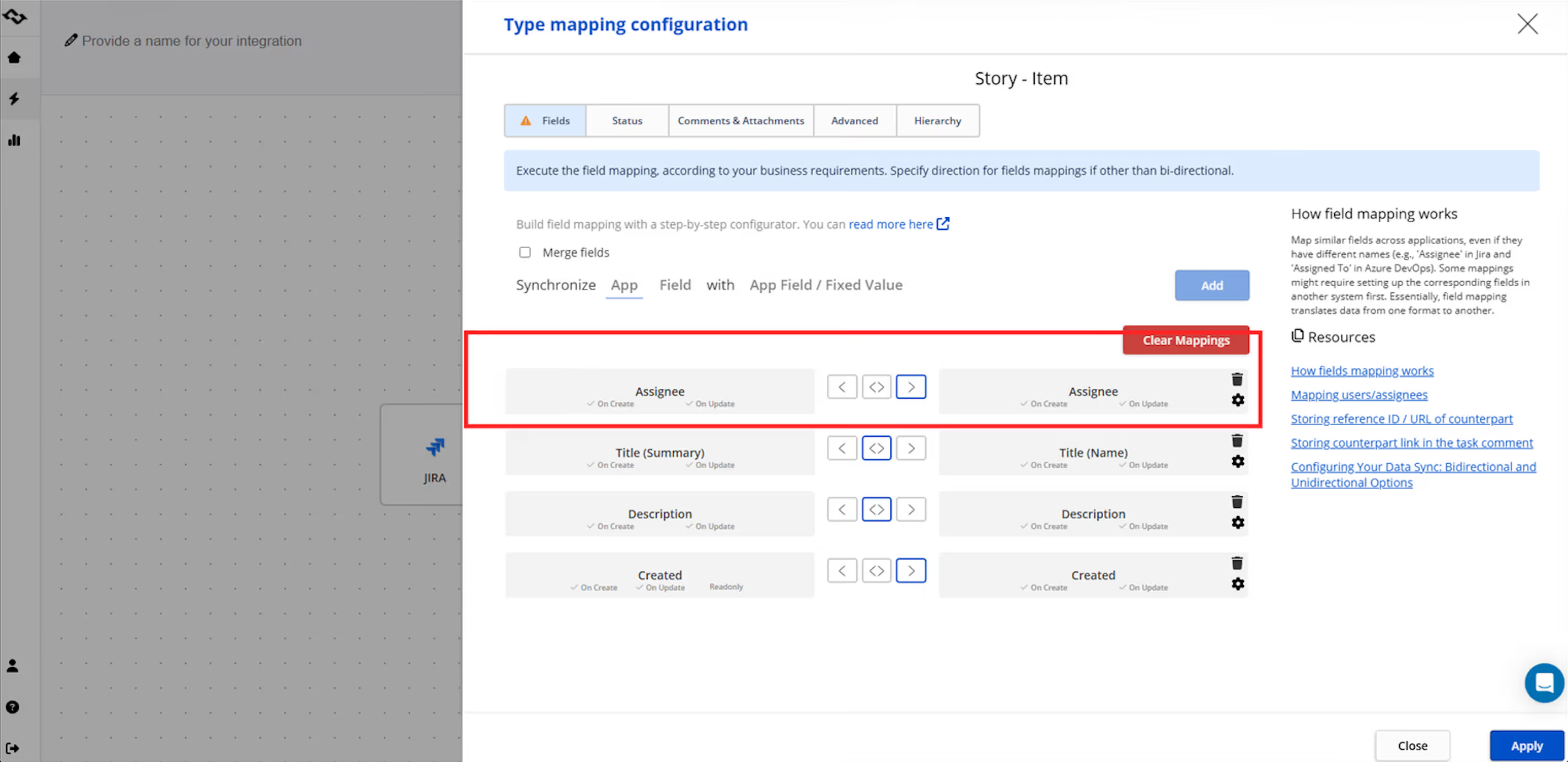
- Schema and Field Mapping – Translating flexible Notion database properties into Jira system fields and custom fields without losing meaning.
- Statuses and Workflows – Mapping simple Notion status dropdowns to Jira workflows with enforced transitions.
- Users and Ownership – Aligning Notion users with Jira accounts, assignees, and permission schemes.
- Attachments and Content – Preserving files, rich text, and page content as Jira attachments and descriptions.
- Parallel Work – Managing ongoing updates in Notion while Jira is being prepared, without data drift.
These challenges explain why reliable migrations require iteration, validation, and controlled synchronization rather than a single import.

What Data Can Be Migrated from Notion to Jira Project
With proper configuration, a Notion to Jira migration can include:
- Notion pages converted into Jira work items
- Notion databases mapped to Jira projects
- Status properties mapped to Jira workflows
- Priority fields mapped to Jira priorities
- User fields mapped to assignees or reporters
- Date fields mapped to due dates
- Multi-select and dropdown key fields mapped to labels or other fields
- Files migrated as Jira attachments
- Page content migrated into issue descriptions
Field mappings can be adjusted during migration without restarting the process.
Pre-Migration Preparation Checklist
In Notion:
- Identify active databases representing current work
- Normalize status and priority values
- Archive outdated or irrelevant pages
In Jira:
- Create the target Jira project
- Configure workflows that reflect real processes
- Add required custom fields
- Verify user permissions and access
Migration also requires secure access to both platforms. Getint uses token-based authentication and respects existing permissions without storing passwords.
How Getint Handles Notion to Jira Migration
Getint transforms Notion to Jira migration into a guided process. Integrate Jira instance with Notion workspace with API tokens, map properties to Jira site fields, test with example data, then sync Jira to Notion or vice versa on the level you need.

Key advantages of the connection:
- Preserves 100% data: Tasks, status, priority, description, files
- No-code field mapping: Notion database → Jira work item types
- Test migrations before full import
- Ongoing sync for hybrid Jira and Notion teams
- Enterprise security: SOC 2 Type II, ISO 27001 & ISO 27018, GDPR, Atlassian Gold Marketplace partner participant

Getint's Notion to Jira Migration: Step by Step
1. Setup and Preparation (5 min)
Prerequisites:
- Jira Cloud account with admin access
- Notion workspace owner access
- API token from Notion (Settings → Integrations)
Connect systems:
- Install Getint Notion Integration for Jira Cloud from Atlassian Marketplace
- Getint dashboard → New Migration → Notion to Jira Cloud
- Connect Notion workspace (paste API token)

- Connect Jira site (OAuth, select project name)
- Select Notion database(s) / Notion page(s)
2. Field Mapping (Core Configuration)
3. Test Migration (Validate First)
Run dry-run on 10-50 tasks to verify Jira work item creation, custom fields, permissions, files.
4. Full Migration Execution
Real-time dashboard tracks progress with pause/resume and 48hr rollback.
5. Post-Migration Sync (Hybrid Option)
Bi-directional sync keeps Jira Notion integration aligned during transition.
Real-World Success: Persona Service (Notion Integration with Jira)
Persona Service (German HR provider, 800K+ users) syncs Notion databases with Jira Cloud projects:
Challenge: Business teams in Notion, IT/dev in Jira. Manual copying caused duplication.
Getint delivered:
- Synced database: tasks, comments, custom fields bi-directionally
- No extra licenses — runs from Jira side
- 5-minute pilot via visual UI
- Support fixed mapping issues in 2 minutes
“It’s robust, fast, and easy to maintain. Your team was professional, friendly, and found a fix in under two minutes." - Tiziano Bruno, Salesforce Consultant & AI/Tech Strategy Lead at Persona Service
Best Practices for Success
1. Audit First: Document Every Notion Database Property
Before migration, create a complete inventory of your Notion databases. Each property (text, date field, multi-select, dropdown menu, users, files) must map to a Jira field.
Practical audit checklist:
- Title → Jira Summary (auto)
- Status (To Do, In Progress, Done) → Jira Status
- Priority (High, Medium, Low) → Jira Priority
- Assignee (People field) → Jira Assignee
- Tags (Multi-select) → Jira Labels
- Due Date → Jira Due Date
- Files → Jira Attachments
- Notes (Rich text) → Jira Description
Why it matters: Missing custom fields or unmapped multi-select values create incomplete Jira work items. Export your Notion database to CSV first to see all properties.
2. Start Small: Test One Database Before Full Workspace
Don't migrate your entire Notion workspace at once. Pick your most critical database (e.g., "Current Sprint Tasks") for the pilot.
Test migration scope:
- 50-100 active tasks only
- One Jira project
- Core fields only (status, priority, assignee, description)
- Skip historical/archived items initially
Success criteria:
- All test Jira work items created correctly
- Custom field values populated
- Files attached properly
- User assignments correct
- Status transitions work
3. Standardize: Clean Status and Priority Values Pre-Migration
Notion allows freeform status values ("WIP", "In progress", "Working on it"). Jira requires exact matches to your workflow.
Before migration:
Notion Status Values:
- "In progress"
- "Working..."
- "Dev Review"
Map to Jira Cloud Workflow:
- "In Progress"
- "In Review"
- "Ready for QA"
Pro tip: Use Notion's database properties to bulk-update inconsistent values. Create a temporary "Migration Status" property to stage the cleanup.
4. Train Teams: Jira Fields ≠ Notion Properties
Jira Cloud fields have different behaviors than Notion properties:
Quick training session (15 mins):
- Show Jira work item view vs Notion page
- Demo status transitions (not dropdowns)
- Practice creating work items from templates
- Cover bulk operations (labels, assignees)
5. Enable Sync: Hybrid Access During Transition
Don't cut off Notion immediately. Use Getint's bi-directional sync for 2-4 weeks during transition.
Hybrid workflow:
Week 1-2:
- Marketing stays in Notion (roadmaps, planning)
- Engineering moves to Jira (execution)
- Sync keeps both aligned
Week 3-4:
- Reduce Notion updates gradually
- Train stakeholders on Jira dashboards
- Monitor sync health daily
Gradual sunset:
Phase 1: Sync all active work items
Phase 2: Sync read-only for stakeholders
Phase 3: Disable sync, archive Notion databases
Sync monitoring checklist:
Daily checks:
- New Jira work items appear in Notion
- Status changes sync both ways
- No duplicate work items
- Comments flow correctly
Conclusion: Migrate Jira and Notion Without Breaking Your Workflow
A successful Notion to Jira migration isn't about speed — it's about control. Getint's sync-first approach lets you validate mappings, test with live data, and transition gradually while teams stay productive across both platforms.
Instead of a risky one-time CSV import, you get:
- 100% data preservation across custom fields, files, and relationships
- Real-time validation before going live
- Hybrid sync option for gradual adoption
- Rollback safety if needed
For Jira Cloud teams ready to scale from Notion's creative flexibility to Jira's execution power, Getint eliminates the technical debt of manual migration. Your Notion databases become structured Jira projects without losing context, history, or team trust.