Salesforce HubSpot integration is often presented as a straightforward way to align marketing automation with customer relationship management. In reality, integrating HubSpot and Salesforce requires careful alignment of two different data architectures, object models, and governance rules.
When the integration between these two platforms is implemented without architectural consideration, organizations experience duplicate records, sync errors, lifecycle stage conflicts, and reporting inconsistencies between marketing and sales teams. These problems rarely appear immediately after setup. They surface gradually as Salesforce customization dives deeper and marketing automation becomes more complex.
This guide evaluates three integration approaches to consider:
- Native HubSpot–Salesforce integration
- Direct API-based integration
- Third-party integration platforms
Our goal is not to promote one solution blindly, but to clarify when each method is appropriate and when structured integration becomes necessary to preserve Salesforce real time data integrity.

Why Integrate HubSpot with Salesforce?
HubSpot and Salesforce serve different but complementary roles.
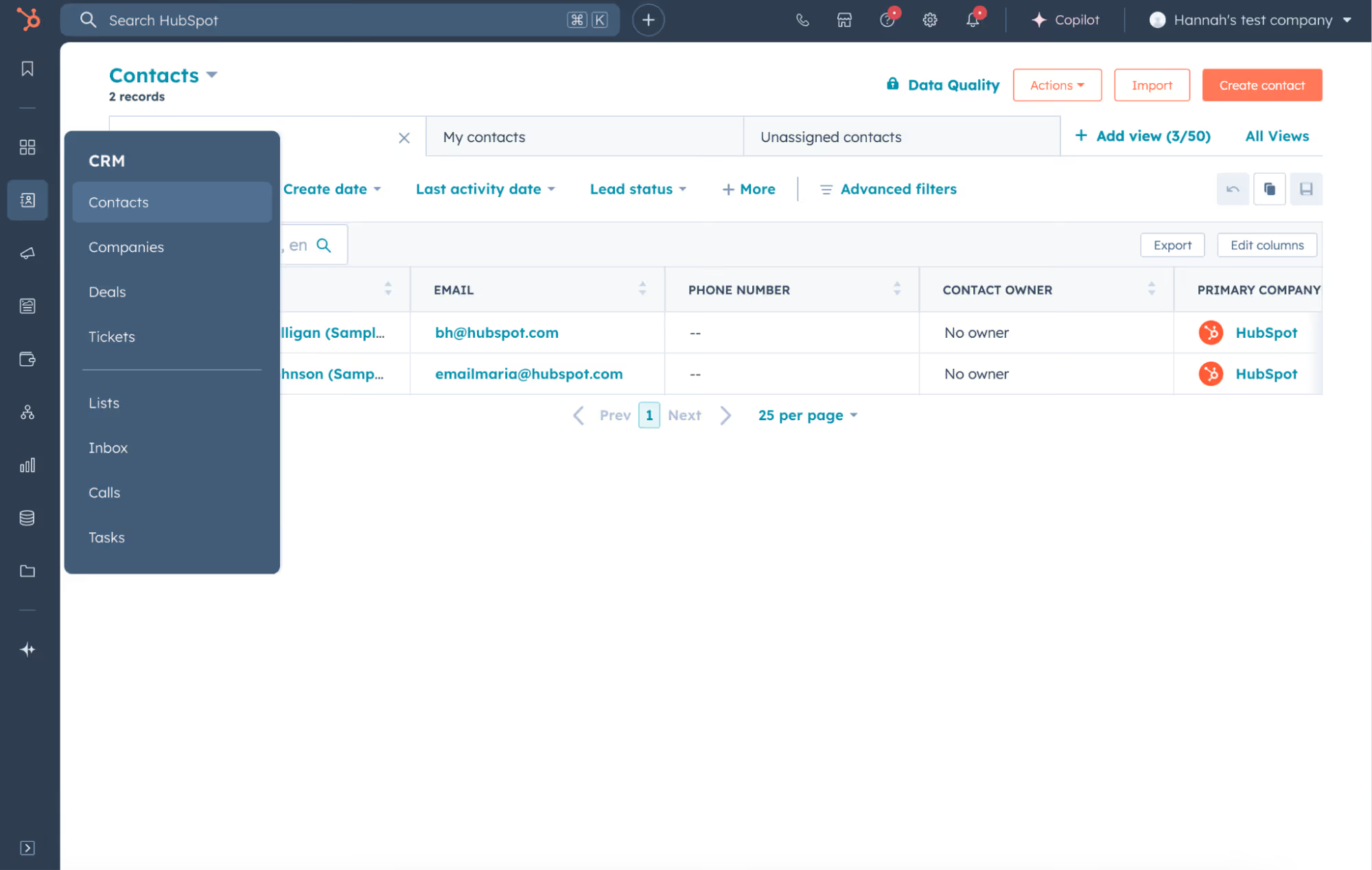
HubSpot is a customer platform made up of six main “Hubs” (Marketing, Sales, Service, Content, Operations, and Commerce). In practice, it’s often used as a marketing automation platform to generate and nurture leads, manage lifecycle stage progression, and track engagement across campaigns, but it can also support sales and service processes depending on which Hubs a company uses.
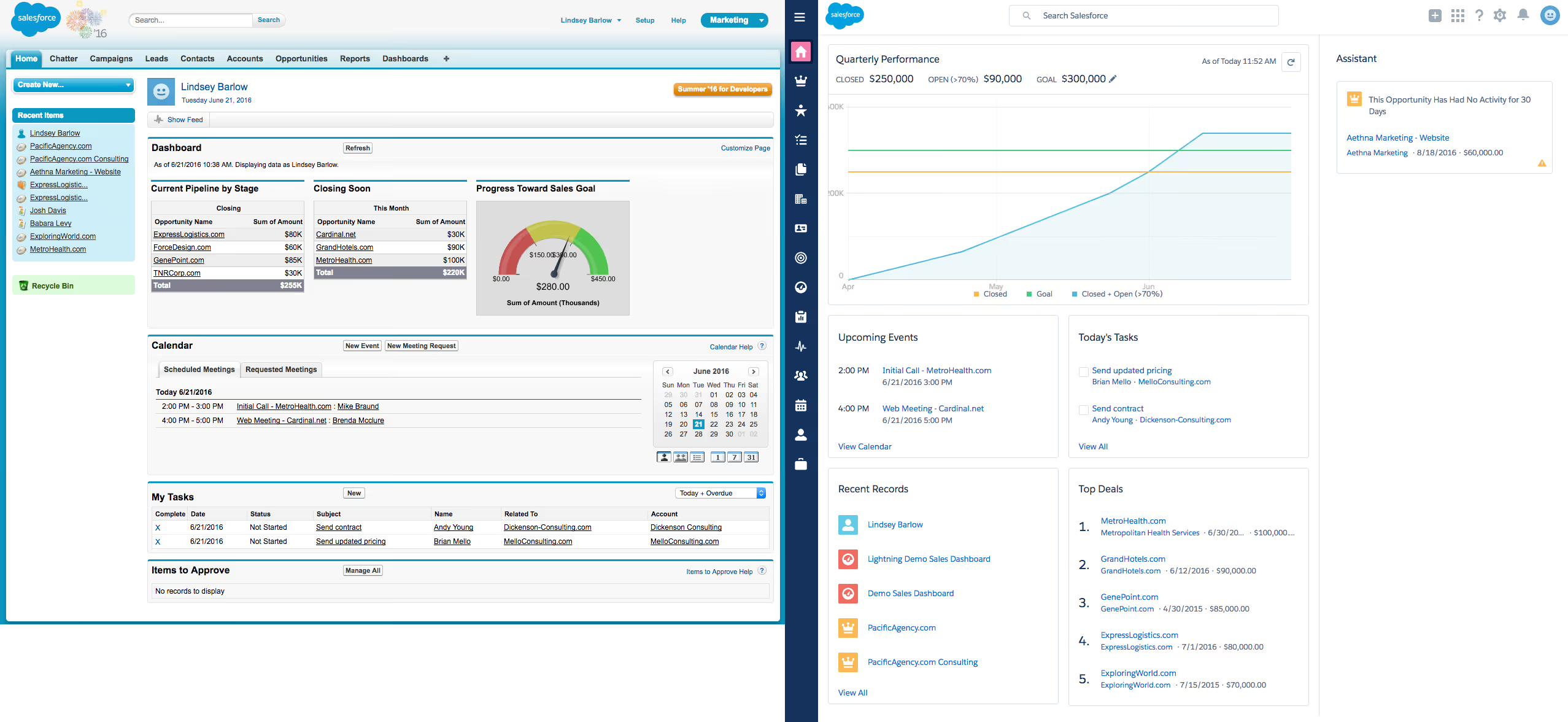
Salesforce, by contrast, typically functions as the system of record for customer relationship management and revenue operations. It’s where teams manage leads, existing contacts, accounts, opportunities, forecasting, and the governance rules that keep Salesforce data consistent across the organization.
And because these platforms are designed with different priorities, data becomes fragmented when they operate independently. Integrating HubSpot and Salesforce ensures that lead generation, qualification, handoffs, and pipeline updates function as one connected process rather than disconnected work across two systems. There are several reasons why many teams choose moving forward to connecting those applications.
- Marketing and Sales Alignment
Marketing teams generate leads in HubSpot. Sales reps work in Salesforce. Without integration, new leads may be exported manually, transferred via spreadsheets, or entered twice. This introduces delays and inconsistencies.
A properly configured Salesforce HubSpot integration ensures that when marketing generates leads, corresponding Salesforce leads or contact records are created automatically. This reduces manual work and ensures the sales team operates on current data.
- Lifecycle Visibility Across Teams
Marketing automation platforms track lifecycle stage progression, while Salesforce tracks lead status and opportunity stages. Without synchronization, marketing teams lack visibility into closed won deals, and sales teams lack context about campaign engagement.
Integrating HubSpot and Salesforce ensures lifecycle stage updates and pipeline movements reflect across two systems, supporting more accurate reporting.
- Centralized Customer Relationship Management
Salesforce is often treated as the authoritative system for customer relationship management and revenue tracking. HubSpot contains valuable behavioral and campaign data.
Integration ensures that Salesforce data reflects marketing engagement history, and marketing systems reflect sales outcomes. This alignment strengthens forecasting, attribution, and customer experience continuity.
This strategic motivation explains why integration matters. The next section examines why implementation becomes technically complex.
- Understanding the Architectural Challenge
Salesforce HubSpot integration connects two systems that were designed with different structural assumptions.
Salesforce Data Architecture
Salesforce environments are rarely static. Over time, organizations modify:
- Contact and lead object structures
- Required Salesforce fields
- Page layouts
- Validation rules
- Salesforce data types (picklists, lookups, formulas)
- Custom objects
- Account hierarchies
- Permission models
In mature environments, Salesforce data architecture reflects years of process refinement. Required fields may be enforced to maintain reporting accuracy. Validation rules may prevent records from being saved unless certain criteria are met. Custom objects may be deeply integrated into revenue workflows.
An integration that does not respect these structures can generate sync errors or incomplete records.
HubSpot Data Types
HubSpot organizes data around HubSpot contacts, companies, deals, HubSpot properties, lifecycle stage, inclusion lists, and marketing automation workflows.
HubSpot assumes lifecycle stage progression is central to marketing automation. Salesforce separates lifecycle-related data across lead status and opportunity stage.
When integrating both tools, structural differences appear in:
- Lead-to-contact conversion logic
- Lifecycle stage updates
- Ownership assignment
- Required Salesforce fields
- Custom object relationships
Integration therefore requires alignment at the object and field level, not just API connectivity.

1. Native HubSpot Salesforce Integration
HubSpot provides a built-in Salesforce integration through connected apps and configurable sync settings.
What Native Integration Supports
The native option allows synchronization between HubSpot contacts and Salesforce contacts, as well as HubSpot leads and Salesforce leads. It supports company-to-account mapping and basic deal-to-opportunity synchronization.
Administrators can configure field mappings between HubSpot properties and Salesforce fields and define inclusion lists to control which contacts sync. Sync settings allow some control over record creation and updates. For organizations with limited Salesforce customization, this setup can reduce manual work and improve marketing alignment quickly.
However, as Salesforce environments evolve, the constraints of native integration become more apparent, and leads to technical debt.
Where Native Integration Becomes Restrictive
Native integration is optimized for common CRM setups. As customization increases, limitations surface.
- Limited Support for Custom Objects
Custom objects are common in mature Salesforce environments. They may represent subscriptions, contracts, renewals, or industry-specific compliance data.
The native integration primarily supports standard objects. When business processes depend on custom objects, synchronization becomes partial or unsupported. Teams may attempt to replicate custom object information in standard fields, introducing duplication and long-term maintenance challenges.
- Duplicate Records and Lead Conversion Conflicts
Duplicate records are among the most persistent issues in HubSpot and Salesforce integration.
Salesforce distinguishes between leads and contacts. HubSpot does not maintain the same separation. If sync settings are not configured carefully, the integration may create duplicate lead or contact records when the same email address exists in different object states.
Over time, duplicate records distort reporting, complicate pipeline visibility, and reduce trust in CRM data.
Preventing duplicates requires carefully defined matching logic beyond simple email comparison.
- Lifecycle Stage and Field Mapping Conflicts
HubSpot lifecycle stage updates often occur automatically through marketing automation workflows. Salesforce lead status and opportunity stage updates may be governed by validation rules.
If both systems attempt to update related fields simultaneously, sync errors occur. In some cases, Salesforce rejects updates because required fields are missing. In others, marketing updates overwrite sales-owned data.
Native integration allows basic field mappings but limited conditional logic for resolving conflicts.
- Limited Error Transparency
When sync errors occur due to validation rules, permission restrictions, or incompatible data types, native dashboards may provide only summary-level notifications.
In complex environments, administrators must investigate within Salesforce to identify the root cause. This increases operational overhead.
2. Direct API-Based Integration
Direct API integration uses Salesforce and HubSpot APIs to build custom synchronization logic.
This method allows full control over data handling, including custom objects sync and complex field mappings. Organizations can define granular sync rules and update logic programmatically.
However, API-based integration requires ongoing maintenance. Internal developers must monitor API changes, manage authentication updates, and maintain documentation. If ownership changes or documentation becomes outdated, integration stability can suffer.
API integration offers flexibility but shifts long-term responsibility to internal teams.
3. Third-Party Integration Platforms
Third-party integration platforms introduce a highly customizable synchronization layer between HubSpot and Salesforce. Unlike native connectors or fully custom API builds, these platforms are designed to handle object relationships, field mappings, and update logic in a controlled way.
Organizations typically move to this approach when integration must support more than basic lead and contact sync. Common requirements include two-way synchronization, support for custom objects, granular sync rules, and clearer visibility into sync errors.
In complex Salesforce environments, it is often necessary to define:
- Which system has update priority
- How duplicate records are prevented
- How lifecycle stage updates are handled
- Which objects and fields are included or excluded
- How required Salesforce fields and validation rules are respected
Without this level of control, integration can gradually introduce chaos.
Getint as a Structured Integration Layer
Getint is built to support controlled, two-way synchronization between systems like Salesforce and HubSpot while adapting to existing Salesforce data architecture.
It allows administrators to configure object-level mappings, field-level rules, selective synchronization, and update priorities without requiring code and custom API development. Because integration involves sensitive customer and revenue data, security is equally important. Getint is SOC 2 Type II certified, ISO 27001, ISO 27018 and GDPR compliant — verified by Vanta.

For organizations evaluating Salesforce HubSpot integration at scale, compliance and operational stability are as critical as synchronization logic itself.
Comparing Integration Approaches
Choosing the right integration method depends on governance requirements and internal technical resources.
The decision should reflect long-term CRM governance rather than short-term convenience.
How to Integrate Salesforce and HubSpot Using Getint
Getint as an integration platform is purpose-built to work with complex Salesforce environments. Below, you can find quick, and simplified step-by-step tips how to start with integration settings to automatically sync what you really want.
Step‑by‑Step Setup Guide
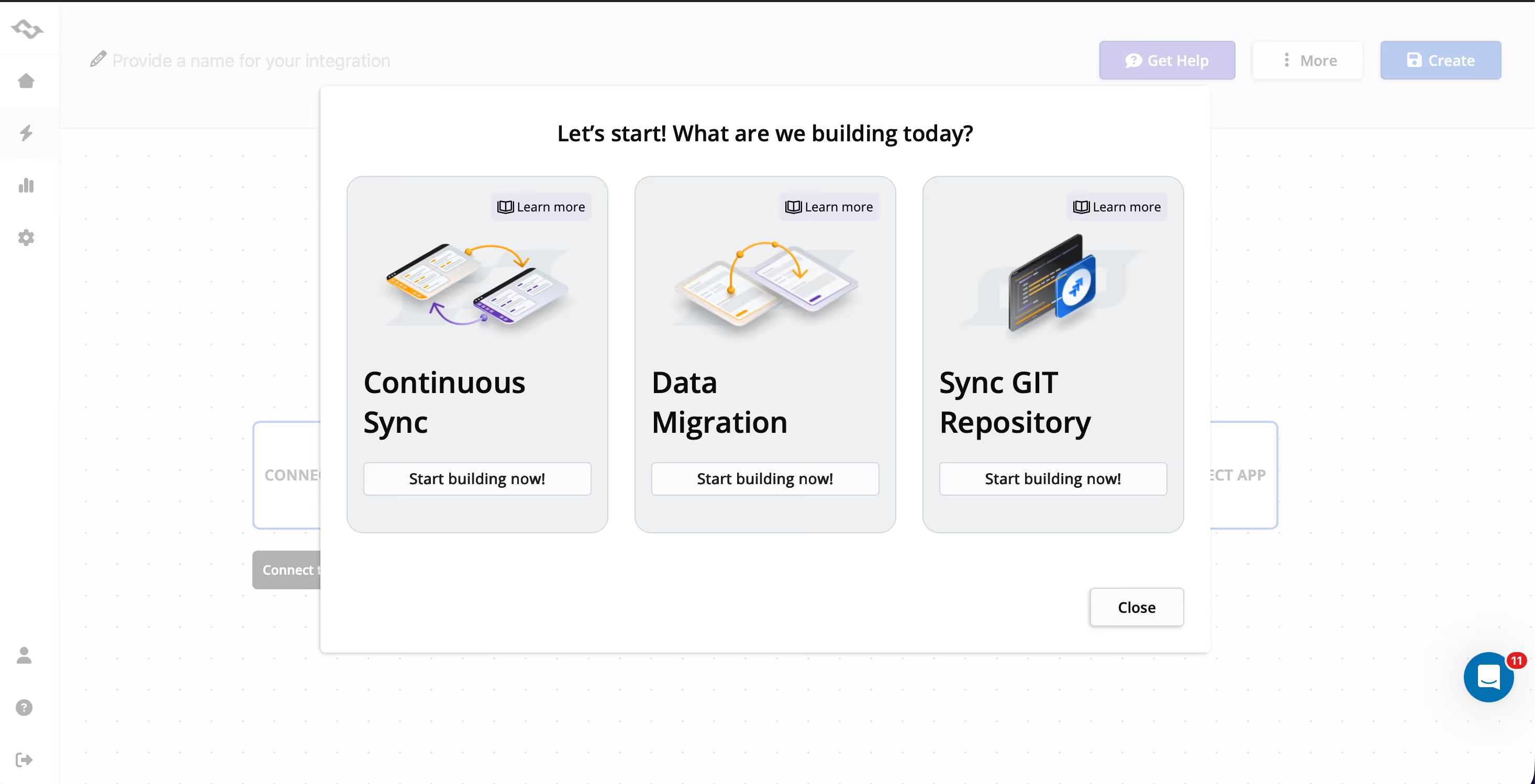
- Access Getint and Create the Integration
- Head to Getint app.
- Go to Integrations and click Create integration for an ongoing sync, or Migration if you only want to transfer existing data once.
- Connect to Salesforce
- Select Salesforce as one side of the integration.
- Click Create new to add a connection.
- Enter your Salesforce instance URL and authenticate with a user that has API access and read/write permissions for the objects you want to sync (Leads, Contacts, Accounts, Opportunities, custom objects).
- Connect to HubSpot
- Select HubSpot as the second app.
- Click Create new connection.
- Use the personal access token created according to the Connections guide and click save to confirm the connection.
- Select Objects and Define Sync Direction
- Choose which objects you want to synchronize, for example:
- Salesforce: Leads, Contacts, Accounts, Opportunities, key custom objects.
- HubSpot: Contacts, Companies, Deals (and optionally other objects, depending on your setup).
- For each object pair, define whether the sync is:
- One‑way (e.g., HubSpot → Salesforce or Salesforce → HubSpot), or
- Two‑way (bi‑directional).
- Decide which system is the system of record for key lifecycle and status fields.
- Choose which objects you want to synchronize, for example:
- Type Mapping
- In Type mapping, select which object types should be linked, for example:
- Salesforce Lead ↔ HubSpot Contact
- Salesforce Account ↔ HubSpot Company
- Salesforce Opportunity ↔ HubSpot Deal
- Add mappings for any important custom objects that must participate in the sync.
- In Type mapping, select which object types should be linked, for example:
- Field Mapping
- Go to Field mapping for each mapped type.
- Map core identification and routing fields (email, name, owner/assignee, account/company).
- Map lifecycle and pipeline fields (lead status, opportunity stage ↔ HubSpot lifecycle stage, deal stage).
- Ensure all required Salesforce fields and picklists have valid values to avoid sync errors.
- You can use Quick Build (where available) as a starting point, then review and adjust the mappings.
- Comments (Optional)
- In Comments, enable synchronization of comments/notes if you want activity context to be shared between Salesforce and HubSpot.
- Optionally filter which comments sync based on attributes such as author or creation date.
- Statuses and Lifecycle Mapping
- In Statuses mapping, map Salesforce statuses/stages to the appropriate HubSpot fields, for example:
- Lead Status ↔ a HubSpot lifecycle or status property.
- Opportunity Stage ↔ HubSpot Deal Stage.
- Make sure each mapped type uses the correct HubSpot status field so that transitions are reflected properly in both systems.
- In Statuses mapping, map Salesforce statuses/stages to the appropriate HubSpot fields, for example:
- Filtering
- Use the filter icon near each app in the integration to control which records are included.
- Choose whether filtering applies to:
- All items
- New items (only new records created via the integration)
- Synced items (only already‑linked records)
- Filter by fields such as lifecycle stage, owner, account status, or other criteria to avoid syncing unnecessary data.
- Name, Save, and Test the Integration
- Give the integration a clear name and click Create / Save.
- Create test records in Salesforce and HubSpot to verify:
- Correct object creation and updates
- Proper lifecycle and status synchronization
- Expected behavior of comments and filters
- Check the integration’s reporting/logs to confirm that syncs complete successfully.
By following these steps, you can configure a stable Salesforce–HubSpot integration in Getint that respects your existing Salesforce architecture while keeping marketing and CRM data in sync.
Best Practices When Connecting HubSpot and Salesforce
Successful Salesforce HubSpot integration depends not only on technical configuration but also on governance discipline.
- Define System of Record Clearly
Determine which system owns which fields. For example, lifecycle stage may be owned by marketing, while opportunity stage remains controlled by sales. Clear ownership reduces conflict.
- Avoid Over-Synchronization
Synchronizing every field in both directions increases conflict risk. Limit two-way updates to fields that require alignment.
- Audit Field Mappings Periodically
Salesforce environments evolve. New required fields or updated validation rules can disrupt integration. Periodic review prevents unexpected sync failures.
- Monitor Duplicate Patterns
Even with defined matching logic, business process changes can introduce duplicate records. Regular monitoring ensures CRM cleanliness.
- Document Integration Logic
Clear documentation protects operational continuity and reduces risk if team members change.
Conclusion
Salesforce HubSpot integration is not simply about connecting one platform with another. It is about preserving Salesforce data architecture while enabling marketing and sales teams to operate on synchronized, reliable information.
The appropriate integration approach depends on customization depth, governance maturity, and internal technical resources.
For small businesses needing standard CRM setups, native integration may suffice. For highly customized environments requiring long-term reliability and granular control, structured integration platforms offering no-code advanced setup like Getint provide stronger alignment and maintainability.