Product and development teams rarely work from the same tool. In many organizations, Azure DevOps runs the engineering side — work items, sprints, repos, and pipelines — while ClickUp handles product planning, roadmaps, and cross-functional task management. Both tools are excellent at what they do. The problem starts the moment work needs to move between them.
Without a structured connection, project or product managers end up retyping ClickUp tasks as Azure DevOps work items, developers report status changes manually, and stakeholders chase updates across two systems that were never meant to talk to each other. As teams and backlogs grow, this manual bridge becomes a full-time, thankless job.
This guide walks through why teams connect Azure DevOps and ClickUp, how automation differs from real two way sync, and how to set up a reliable Azure DevOps ClickUp integration across your Azure DevOps projects using Getint — an integration platform built for field mapping, type mapping, and multi-project sync.
Azure DevOps and ClickUp at a Glance
Azure DevOps tracks work through epics, features, user stories, bugs, and tasks in Azure Boards, tied directly to source control, builds, and releases — it's the system of record for how software actually gets built.
ClickUp, by contrast, organizes work in a simple hierarchy — a workspace contains spaces, spaces contain folders, folders contain lists, and each ClickUp list holds the actual tasks — making it the go-to for product, marketing, and operations teams who want a lighter, more visual way to plan than a dev-first tool typically offers.
In practice, the two usually land on opposite sides of the same organization: Azure DevOps is where the work gets built, ClickUp is where it gets planned.
Why Azure DevOps and ClickUp Integration Matters
Once product and engineering teams settle into their preferred tools, the gap between planning and delivery becomes obvious fast. Product managers define initiatives and tasks in ClickUp. Developers pick up work, but track its actual progress in Azure DevOps.
Without integration, neither side has a reliable, real-time view of the other. A ClickUp task might say "in progress" long after the corresponding Azure DevOps work item is done, blocked, or reassigned. Someone has to manually reconcile the two, usually a project manager stuck copying status updates between tabs.
Connecting Azure DevOps and ClickUp removes that manual bridge, keeping both a product view and a delivery view accurate without asking either team to change how they work.
Common Challenges When Azure DevOps and ClickUp Are Not Connected
Teams typically run into the same set of problems before deciding to integrate:
- Duplicate work item creation. A product manager creates a task in ClickUp, then asks a developer to recreate it as a work item in Azure DevOps — introducing delay and possibility for the details to drift.
- Inconsistent statuses. A ClickUp task can show "In Progress" while the linked Azure DevOps item is already resolved, closed, or blocked, quietly eroding trust in reporting.
- Fragmented communication. Comments and context pile up in ClickUp while technical discussion happens in Azure DevOps threads, so nobody has the full picture in one place.
- Manual reconciliation at scale. As the number of projects grows, so does the time someone spends just keeping both tools roughly aligned.
None of this is a failure of either tool. It's simply what happens when two systems run in parallel without a synchronization layer between them.

Native Automation vs. Structured Two-Way Sync
Both Azure DevOps and ClickUp expose APIs and webhooks, so it's technically possible to script basic automation between them — for example, triggering a new ClickUp task whenever an Azure DevOps work item is created.
This kind of setup can work for very simple, one-time actions. But it typically stops there.
Trigger-based automation reacts to a single event and then disengages. Once the initial task or work item is created, ongoing changes — a status update, a reassignment, a new comment, a modified custom field — usually don't propagate back and forth. Someone still has to keep both records aligned by hand as work evolves.
Structured 2-way synchronization works differently. Instead of reacting to isolated triggers, it maintains continuous alignment across the lifecycle of a task or work item:
- Status changes stay consistent in both directions
- Field updates propagate automatically
- Comments and attachments sync instead of living in a single tool
- Existing records are updated rather than duplicated
This is the difference between "connected once" and "actually in sync."
How Azure DevOps Work Items Map to ClickUp Tasks
A dependable integration comes down to how cleanly the two systems' objects map to each other.
Azure DevOps organizes work through epics, features, user stories, bugs, and tasks. ClickUp organizes work through tasks, subtasks, and custom fields inside lists and folders. For synchronization to hold up, these structures need explicit mapping rather than a rough approximation.
Field mapping keeps the basics consistent: work item titles become task names, descriptions carry over, status values align, and comments sync with formatting preserved. Without this, a synced task quickly loses the context that made it useful in the first place.
Type mapping governs how different Azure DevOps item types route into ClickUp. A bug might need to land in a different ClickUp list than a user story or a feature request. In more advanced setups, an Azure DevOps epic can map to a parent ClickUp task, with individual work items syncing as subtasks beneath it — giving product managers rollup visibility without leaving ClickUp.
Enterprise Security for Your Azure DevOps and ClickUp Data
Syncing work items and tasks between two platforms means sensitive project data — descriptions, comments, attachments, custom fields — is moving between systems continuously, not just once. For teams in regulated industries or larger organizations, that's usually the first question before rollout: is the integration itself secure?
Getint's platform is built around that requirement rather than treating it as an add-on:
- Certified compliance. Getint is ISO 27001 and ISO 27018 certified, SOC 2 Type II audited, and GDPR compliant, with these certifications independently verified through Getint's Vanta Trust Center.
- Encryption in transit and at rest. Data moving between Azure DevOps and ClickUp is encrypted using TLS 1.2/1.3, while data and logs at rest use AES-256 encryption with managed keys.
- Flexible deployment for data residency needs. Depending on your organization's requirements, Getint can run fully on-premise behind your firewall, as SaaS on AWS, or in a private cloud with EU or US tenants, with configurable log retention from 1 to 14 days — or disabled entirely.
- Granular, controllable access. Secure, revocable API keys and role-based access control mean you decide exactly what data syncs and who can manage the connection, without exposing broader infrastructure.
- Proactive security practices. Ongoing bug bounty programs and regular third-party audits back the certifications, rather than compliance being a one-time checkbox.

Full details on Getint's security architecture are available on the Getint Data Security page, alongside live certification status in the Trust Center.
How to Connect Azure DevOps and ClickUp: Step-by-Step with Getint
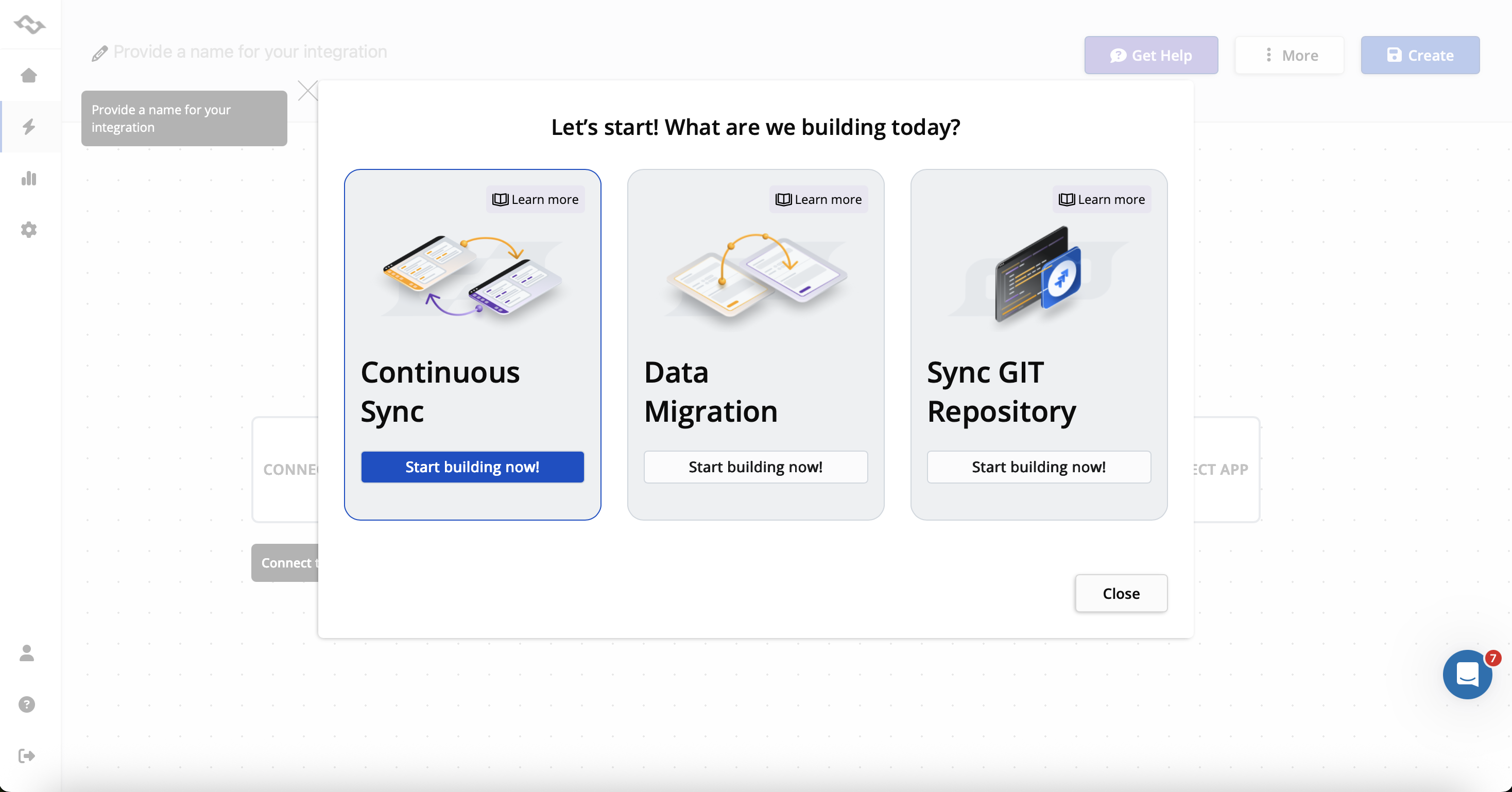
Here's how to configure the integration in Getint, from account setup to a live two-way sync.
Step 1: Generate an Azure DevOps Personal Access Token
To connect Azure DevOps, you'll need a Personal Access Token (PAT) with the right scopes:
- Log in to your Azure DevOps organization and open User Settings.
- Select Personal Access Tokens from the sidebar and click New Token.
- Set an expiration date and select these scopes: Work Items (Read & Write), Project and Team (Read & Write), Graph (Read — needed for accurate user data), and Code (Read, only if you also plan to sync repositories).
- Click Create, then copy and store the token securely — you'll enter it as the password when you configure the Azure DevOps connection in Getint.
Step 2: Connect ClickUp with an API Token
Connecting ClickUp is simpler and takes under a minute:
- Log in to ClickUp. In ClickUp 3.0, click your avatar in the upper-right corner, choose Settings, then Apps in the sidebar (ClickUp 2.0 users click their avatar and select Apps directly).
- Find the API Token section and click Generate.
- Copy the token — this is what you'll paste into Getint's ClickUp connection setup.
Step 3: Connect Both Accounts in Getint
Inside Getint, create a new integration and select Azure DevOps and ClickUp as the two apps. Enter your Azure DevOps organization URL and PAT, then your ClickUp API token. At this point no data syncs yet — you're only establishing the accounts and connections.
Step 4: Choose Your Azure DevOps Project and ClickUp Location
Once both connections are authenticated, select the specific Azure DevOps project you want to sync, then choose the matching workspace, space, folder, and list on the ClickUp side. This location is where synced tasks will actually be created and updated.
Step 5: Choose the Synchronization Direction
Decide how data should flow between the two platforms:
- ClickUp → Azure DevOps (product requests or approved tasks becoming development work items)
- Azure DevOps → ClickUp (delivery progress becoming visible to product and business teams)
- Two-way sync for selected fields and statuses
This choice sets which platform is the source of truth for each type of entry, so it's worth agreeing on with both teams before moving further.
Step 6: Map Work Item Types and Fields
Use Getint's Quick Build feature to automatically match common Azure DevOps work item types — such as Bug, User Story, or Feature — to a corresponding ClickUp task type, or set the mapping manually.
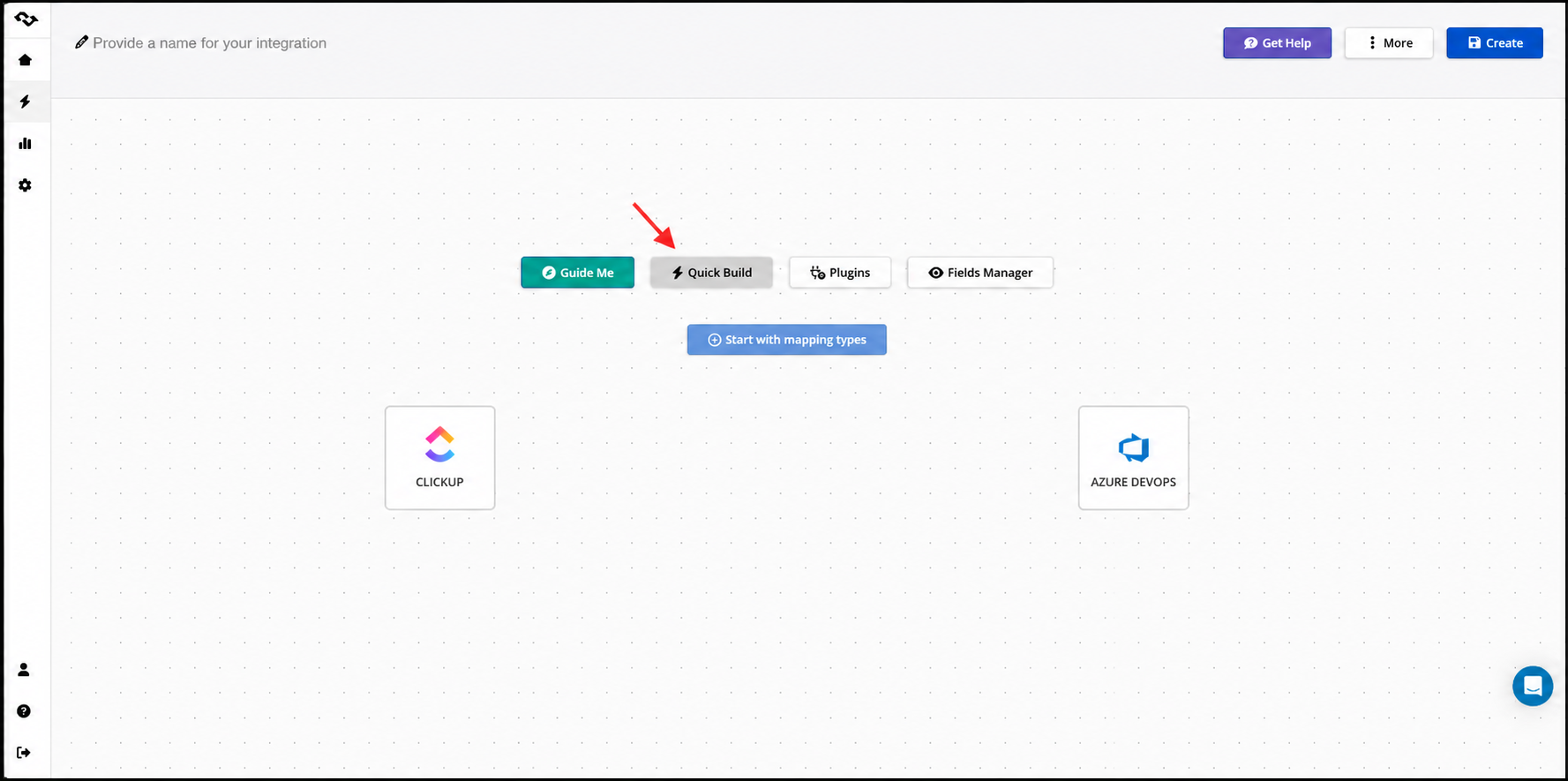
From there, map the fields that matter:
- Azure User Story to the ClickUp task name
- Description and Assignee (ClickUp's Person field type)
- custom fields on both sides — including date fields, checkboxes, and dropdowns — matched by value where the field types align
Only map what both teams actually use. Fields left unmapped simply won't sync, which keeps the setup clean.
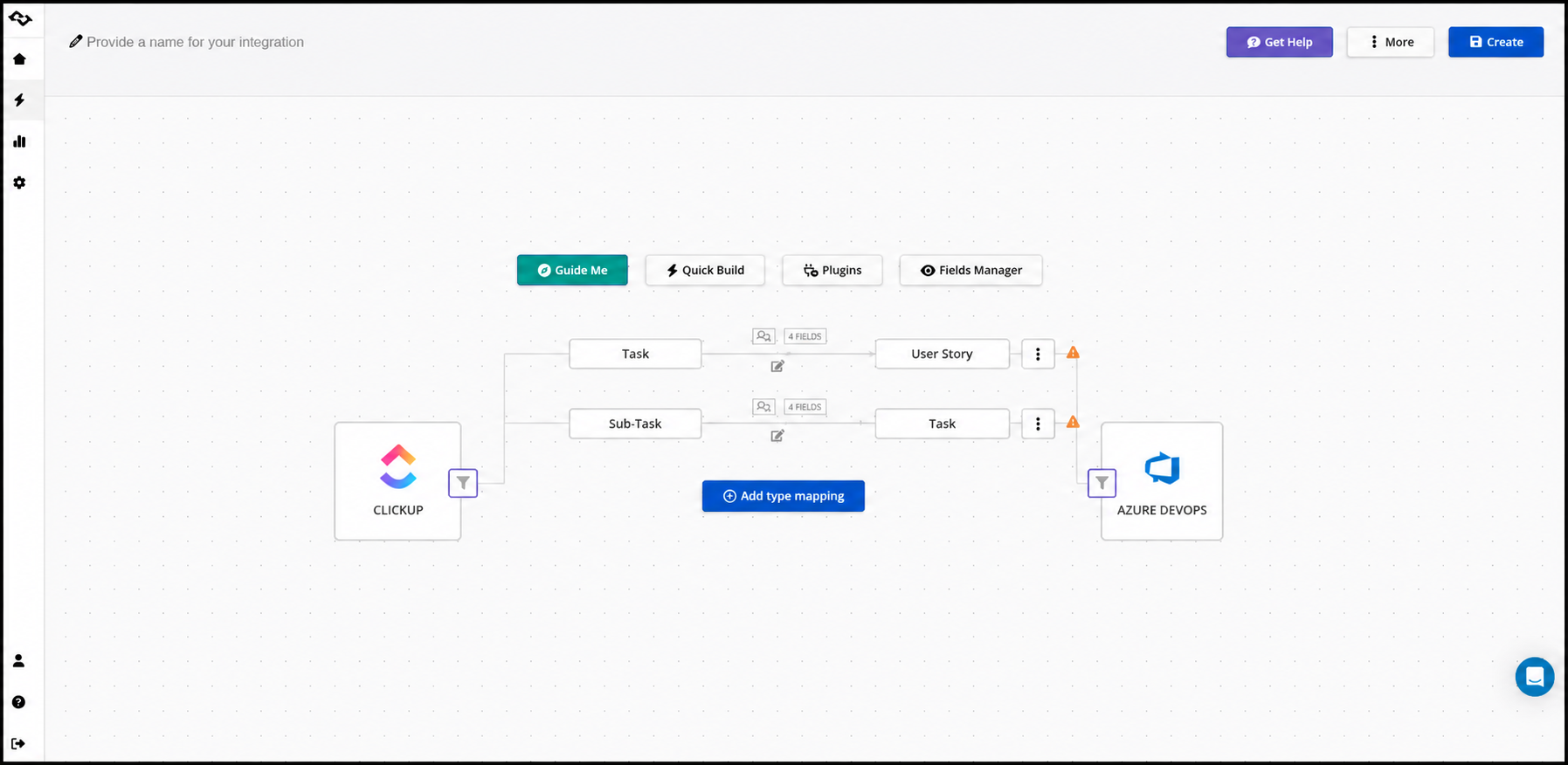
Step 7: Map Statuses
Enable status mapping and match each Azure DevOps state (New, Active, Resolved, Closed) to its ClickUp equivalent. This is what keeps a task's status trustworthy on both sides instead of drifting out of sync after the first update.

Step 8: Configure Comments and Attachments
Turn on comment and attachment sync if your teams collaborate through them. You can set comments to sync as public or private and choose whether attachments carry over automatically — so a comment message posted on an Azure DevOps work item shows up on the linked ClickUp task without anyone copying it over by hand. This is one of the details teams most want to automate first, since manual comment copying is where context usually gets lost.
Step 9: Apply Filters, Then Test
Add filters so only relevant items sync — for example, only tickets tagged "Approved" or work items of a specific type. You can apply filters to All, New, or already Synced items separately. Once configured, name and save the integration, create a couple of sample tasks on each side, and check the sync logs to confirm everything updates as expected.
Step 10: Duplicate the Setup to Scale
Managing more than one Azure DevOps project or ClickUp space? Rather than rebuilding everything from scratch, use the Duplicate option on an existing integration and simply swap in the new project and list. This is the fastest way to roll the same mapping out across multiple teams or organizations.
A Known Limitation Worth Planning For
Like most integration platforms, Getint does not automatically sync deletions — if a work item is deleted in Azure DevOps, the linked ClickUp task isn't removed automatically, and vice versa. The recommended workaround is to create a dedicated "Deleted" status or label on each platform, apply it to anything you want removed, and periodically clean up flagged items manually.
It's a small extra step, but worth knowing about before you rely on either tool as the single source of truth for what still exists.
Real-World Use Cases
Product planning in ClickUp, delivery in Azure DevOps. This is the most common pattern: product managers define initiatives and roadmap items in ClickUp, while engineering breaks approved work into features and user stories in Azure DevOps. With sync in place, status changes and comments flow between both without anyone acting as a manual go-between.
Cross-department reporting. In agencies and larger organizations, business or client-facing teams often live in ClickUp, while the delivery team works entirely inside Azure DevOps. A structured integration means status reporting doesn't depend on someone compiling updates from two tools before every stakeholder meeting. And because ClickUp offers multiple project views — including List, Board, Gantt, and Calendar views — the same synced data can be checked as a simple task list by one team and as a timeline or calendar by another, without anyone re-entering it twice.
Azure DevOps Project Manager Perspective
In our recent guest post article prepared by Project/Product Manager — Vasil Buraliev, he went through configuring the Azure DevOps–ClickUp integration in Getint himself — a setup that took about 10 minutes — and got bidirectional sync running across statuses, comments, and attachments, with comments created in Azure DevOps appearing on the corresponding ClickUp list item almost in real time.
His broader takeaway: standardizing every team on one tool sounds tidy in a planning meeting, but in real delivery work, keeping each team in the tool it already knows — and syncing the data between them — is usually the more realistic path.
Click below to read the full guide on Azure DevOps Project Management Challenges
Best Practices for Azure DevOps ClickUp Integration
- Integrate workflows, not entire platforms. Sync the specific work item types and ClickUp lists where collaboration actually happens, rather than mirroring every backlog in full.
- Keep ownership clear. Product and business teams own planning in ClickUp; developers own execution in Azure DevOps. Clear ownership avoids conflicting updates.
- Map only what supports collaboration. Titles, descriptions, key custom fields, and meaningful status changes matter. Syncing every field rarely adds value and adds maintenance overhead.
- Respect each tool's structure. Don't force ClickUp's flexible task model to behave exactly like Azure Boards, or vice versa — integration should bridge the two, not flatten their differences.
- Monitor sync runs regularly. Visibility into sync logs and errors is what makes teams actually trust — and rely on — the integration instead of quietly maintaining shadow spreadsheets.
Conclusion
A well-built Azure DevOps ClickUp integration isn't about forcing product and engineering teams onto a single platform. It's about giving both sides an accurate, current view of the same work — without creating duplicates or asking anyone to give up the tool that fits their role.
When Azure DevOps work items and ClickUp tasks stay synchronized, project managers stop acting as the manual link between systems, status reporting becomes trustworthy, and both teams spend more time delivering and less time reconciling two versions of the truth. Whether you frame it as an Azure DevOps and ClickUp integration or a ClickUp and Azure DevOps integration, the underlying goal is the same: one accurate record of work processes, visible from either tool. Getint makes that connection possible with no-code setup, flexible field and type mapping, and support for multiple projects and workspaces as your integration needs grow.
Teams managing delivery across more than two tools can also explore Getint's Jira Azure DevOps integration or Asana Azure DevOps integration to extend the same synchronization logic across their full stack.