Azure DevOps and Zendesk can be connected with a two-way sync that automatically creates and updates linked work items and tickets as either side changes, without support agents or developers re-entering the same information twice. Whether you're setting up an Azure DevOps Zendesk integration or a Zendesk Azure DevOps integration in the other direction, the mechanism is the same: a seamless integration that keeps data moving both Azure DevOps and Zendesk-side records in sync.
This guide covers why teams integrate Azure DevOps and Zendesk, what actually maps between a Zendesk ticket and an Azure DevOps work item, and how to set up the integration between Zendesk and Azure DevOps with Getint end to end — including sync direction, filtering, and the setup steps for both platforms. It's dedicated to support agents and support team leads who need visibility into development work without living inside Azure DevOps, and for product managers and developers who are tired of translating bug reports by hand. If your support and development teams currently coordinate through Slack messages, forwarded emails, or someone manually copying ticket details into a work item, this is the gap that costs the most time without anyone quite noticing it.

Azure DevOps and Zendesk at a Glance
Azure DevOps is Microsoft's platform for planning and tracking software work — bugs, tasks, user stories, and features managed through Azure Boards as part of a broader project management workflow. If your organization already has an existing Azure DevOps setup, you might know the platform by an older name: it was called Visual Studio Team Services (VSTS) before Microsoft's 2018 rebrand. It's also worth distinguishing between Azure DevOps Services (the cloud-hosted version most teams use today) and Azure DevOps Server (the self-hosted, on-premise option, formerly Team Foundation Server) — the integration setup differs slightly depending on which one your organization runs.
Zendesk is a customer support and ticket management platform built around tickets — customer issues, requests, and questions tracked from first contact through resolution. It's where support agents live all day, and it has essentially no native visibility into what's happening on the engineering side once an issue gets escalated.
The Real Cost of Disconnected Support and Dev Tools
When a customer issue turns out to be a real bug, it has to cross from Zendesk into Azure DevOps somehow. Without an integration, that usually means a support agent manually creating a new work item and retyping the ticket details into it — a small task individually, but one that adds up to real manual data entry across a support team handling dozens of escalations a week.
The costs compound from there:
- Duplicate data entry. The same issue gets typed twice — once as a ticket, once as a work item — with no guarantee the two stay consistent as either one gets updated. A structured sync is built specifically to reduce errors like this.
- No visibility for the support agent. Once a work item is created, the support agent has no way to check its status without asking a developer directly, which usually means manual communication over Slack or email instead of better communication built directly into both tools.
- Lost context at the handoff. Reproduction steps, customer details, and prior conversation history often don't make the trip from the ticket to the work item, so developers end up asking questions support already answered — and related tickets referencing the same root issue rarely get connected to each other either.
- Slower resolution, worse customer experience. Every manual step in this chain adds delay — and the business impact shows up as slower response times on exactly the tickets that already needed the most attention.
None of this is a failure by either team. It's just what happens when a support platform and a development platform have no structured connection between them.

How Zendesk Tickets Map to Azure DevOps Work Items
Type Mapping
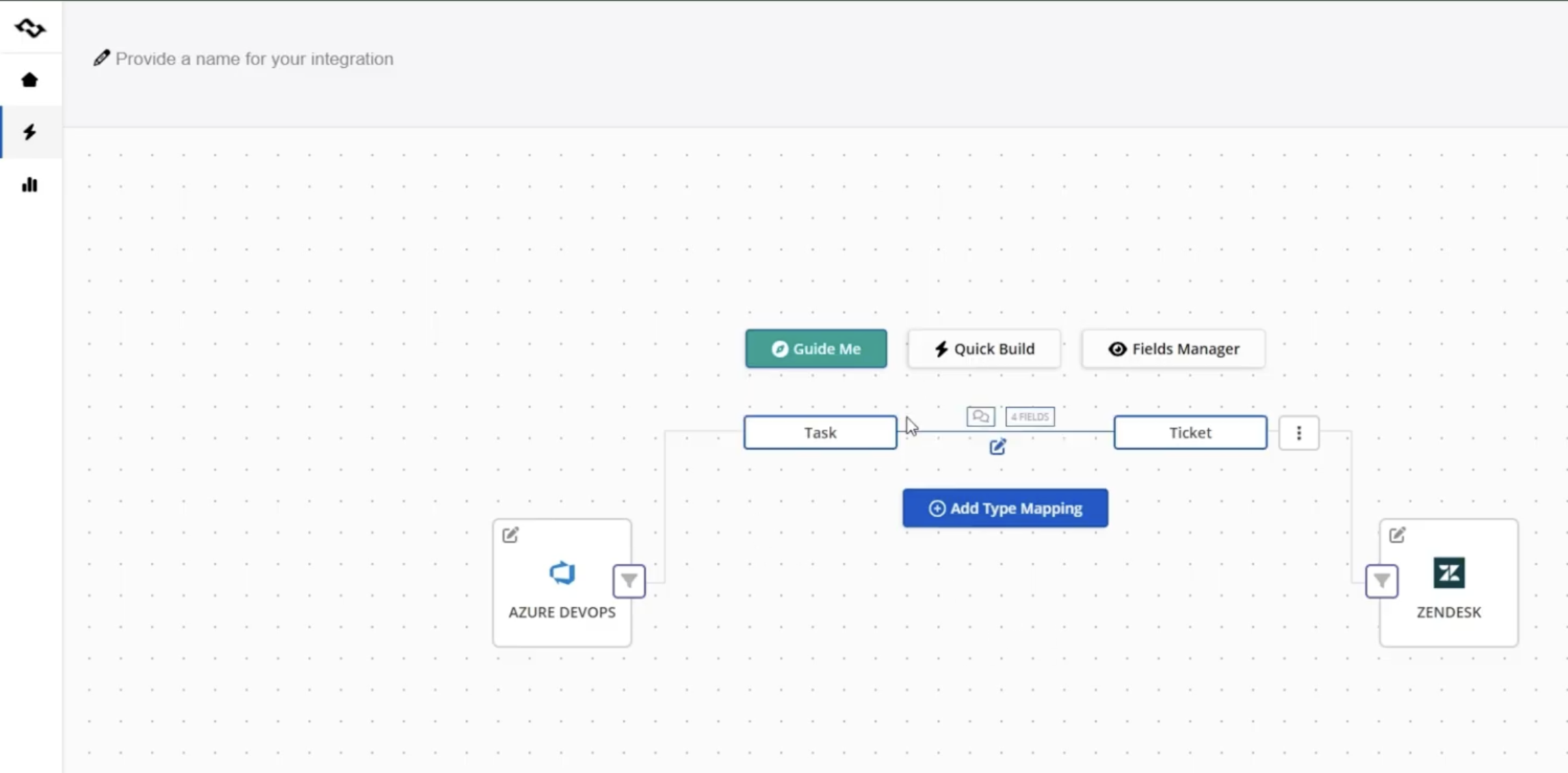
The most common pairing is straightforward: a Zendesk Ticket maps to an Azure DevOps Task, though you can map to Bug, User Story, or another work item type instead, depending on what a given ticket actually represents. Getint's Quick Build feature sets this up automatically as a starting point, or you can define it manually for full control.
Field Mapping
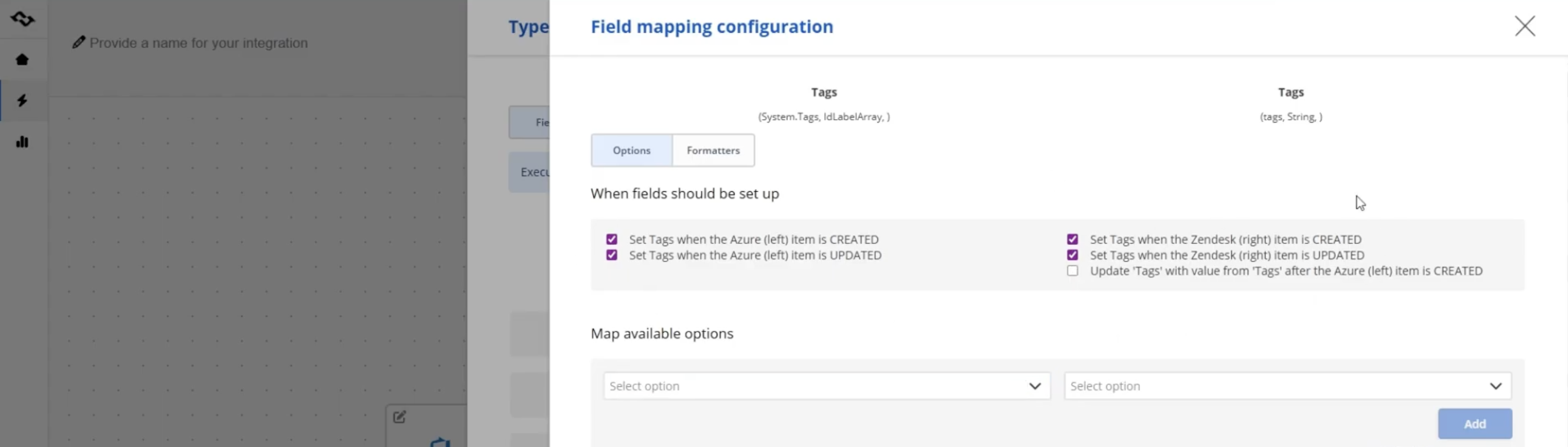
Once the type mapping is set, Getint aligns the fields that carry the actual content — ticket subject to work item title, description, priority, and tags are commonly mapped by default, with the option to add custom fields on either side. Each field mapping can flow in both directions, or just one, depending on which system should be the source of truth for that particular value.
Status Mapping
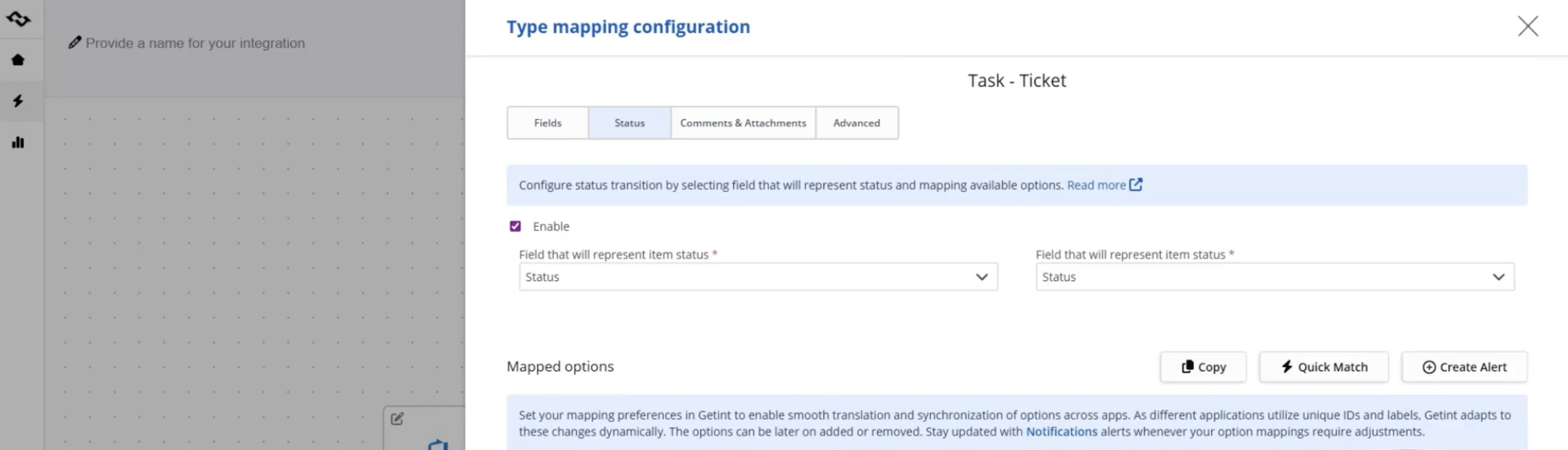
Zendesk and Azure DevOps rarely use identical status names, so status mapping lets you pair them explicitly — for example, Azure DevOps' To Do might map to Zendesk's New, and Done to Closed. Where Zendesk has more granular statuses than Azure DevOps accounts for (Open, Pending, On-hold, and so on), several can map to the same target status on the other side, so nothing is left unmapped just because the two systems don't have a clean one-to-one correspondence.
Assignee Mapping
Assignee mapping pairs a Zendesk agent with their corresponding Azure DevOps user, so a synced item lands with the right person rather than nobody. This is worth setting up explicitly rather than skipping — mismatched usernames or email formats between the two platforms are the most common reason a sync technically works but assigns to the wrong person.
Sync Direction, Filters, and Sync Rules: Built for a Specific Workflow
Not every team wants everything flowing both ways, and Getint's configuration is built around that. A few things worth knowing:
- Sync direction is configurable per field, not just globally. You can have ticket status flow bidirectionally while keeping certain custom fields one-way only — useful if, say, priority should be set by support but never overwritten by a developer's changes.
- Comments and attachments support three logic flows: bidirectional, one-way to Zendesk, or one-way to Azure DevOps — or disabled entirely if your organization has data privacy rules about what should leave one platform for the other.
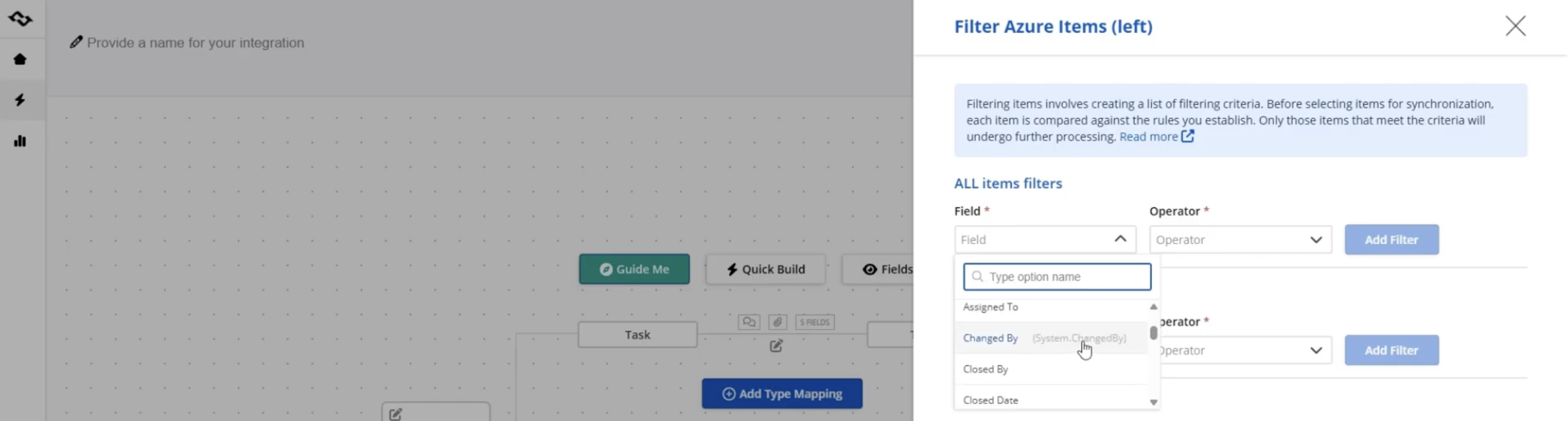
- Filters scope the sync to a specific workflow rather than your whole instance. You can restrict synchronization to items matching a tag, a field value, or another condition — for example, only tickets tagged "escalate" get a corresponding work item, rather than every new Zendesk ticket triggering one.
- Filters apply separately to All, New, or already-Synced items, so you can adjust rules going forward without disrupting items already linked.
The result is a sync rule set that matches how your specific teams actually work, rather than a fixed, one-size-fits-all connection.
Enterprise Security for Your Azure DevOps and Zendesk Data
Syncing customer information between a support platform and a development tracker means ticket content — descriptions, attachments, customer details — is moving between systems continuously. That's worth addressing directly:
- Certified compliance. Getint is ISO 27001 and ISO 27018 certified, SOC 2 Type II audited, and GDPR compliant, independently verified through Getint's Vanta Trust Center.
- Encryption in transit and at rest. Data moving between Azure DevOps and Zendesk is encrypted using TLS 1.2/1.3, with AES-256 encryption for data and logs at rest.
- Flexible deployment. Getint can run on-premise, as SaaS on AWS, or in a private cloud with EU or US tenants, with configurable log retention or none at all.
- Controllable, scoped access. Secure, revocable API keys and personal access tokens mean you decide exactly what syncs and who can manage the connection, rather than relying on broad admin credentials.
Full details are on the Getint Data Security page and the Trust Center.

What Getint Integration Actually Does
Before walking through the setup, here's the short version of what a working Azure DevOps Zendesk integration gives you:
- A new Zendesk ticket can automatically create a corresponding Azure DevOps work item, and vice versa — this is what eliminates duplicate data entry for the same issue.
- Status changes on either side sync automatically — closing a work item can close the linked ticket, or just update its status, depending on how you configure it.
- Comments and attachments carry over as automated notifications, so complete context isn't lost when an issue moves from a support agent to a developer.
- Custom fields, assignees, and tags map according to rules you define, matching field values on both sides rather than a fixed default.
- Filters and sync rules mean only the tickets and work items you actually want connected get synced — not your entire backlog.
Among the integration tools available for connecting these two platforms, this is the shortest path to eliminating manual re-entry between a Zendesk-based support team and an Azure DevOps-based engineering team.
Worth noting: this isn't an Azure DevOps integration app installed inside your Zendesk ticket sidebar with its own buttons and popups — Getint's Azure DevOps app connection works in the background via each platform's API, syncing data automatically rather than requiring an agent to click through a widget for every ticket.
How to Integrate Azure DevOps to Zendesk: Step-by-Step with Getint
Step 1: Generate an Azure DevOps Personal Access Token
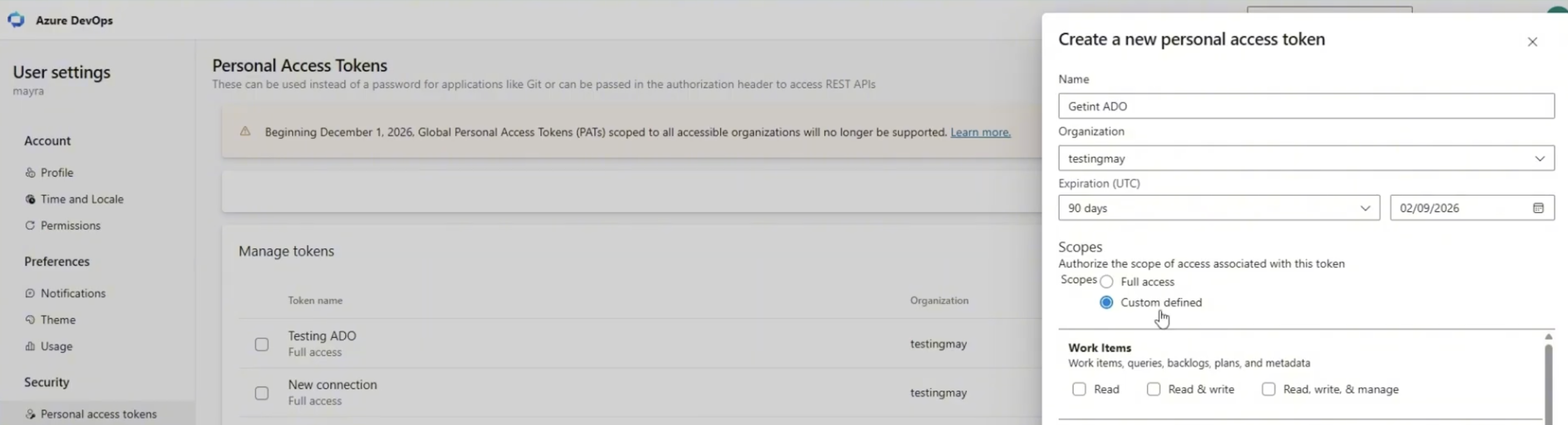
In Azure DevOps, open Personal Access Tokens from your account menu and create a new token. Give it a name and an expiration date, then select the scopes you'll need for this setup — Work Items, Project and Team, and others depending on what you're syncing.
Step 2: Generate a Zendesk API Token
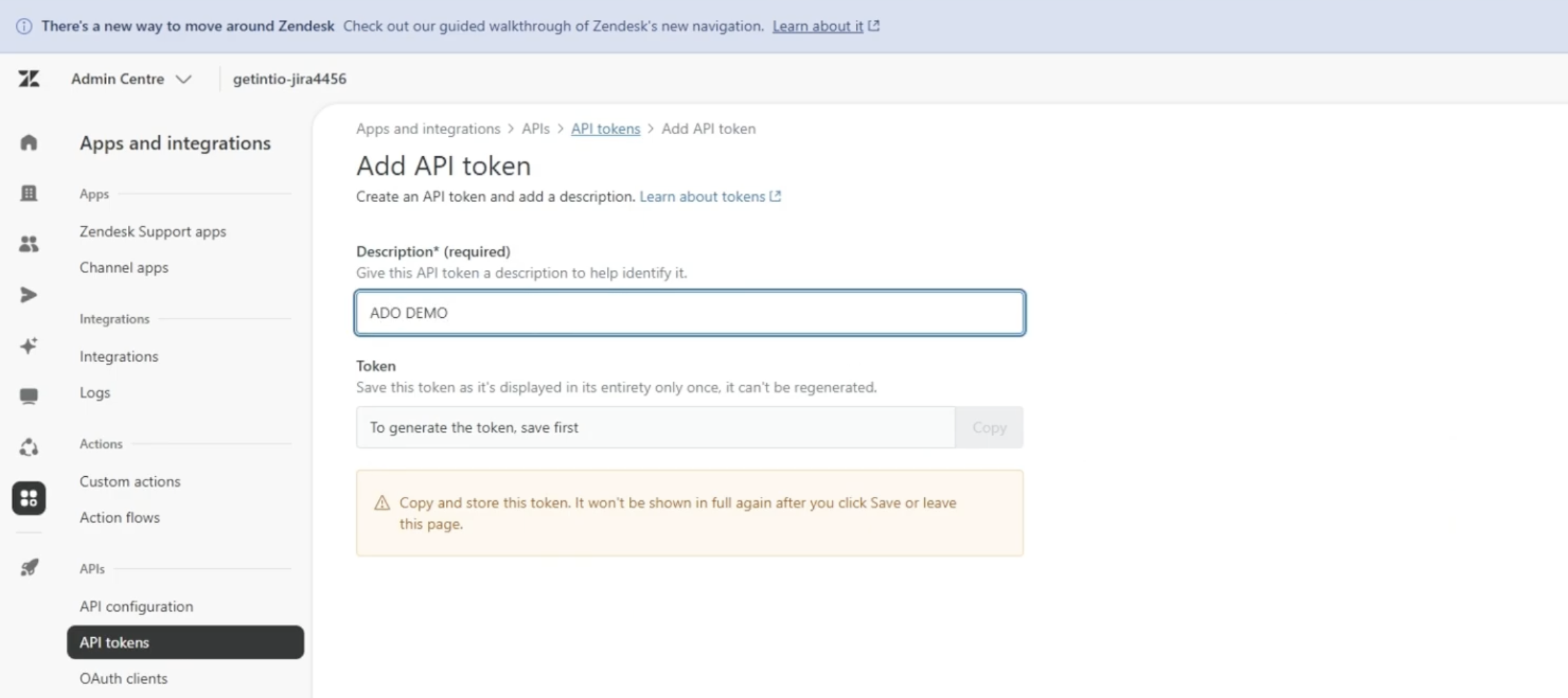
In Zendesk, go to Admin Center → Apps and integrations → API tokens, and add a new API token. Give it a name, save it, and copy the token — this is what authenticates the Zendesk side of the connection.
Step 3: Connect Both Apps in Getint
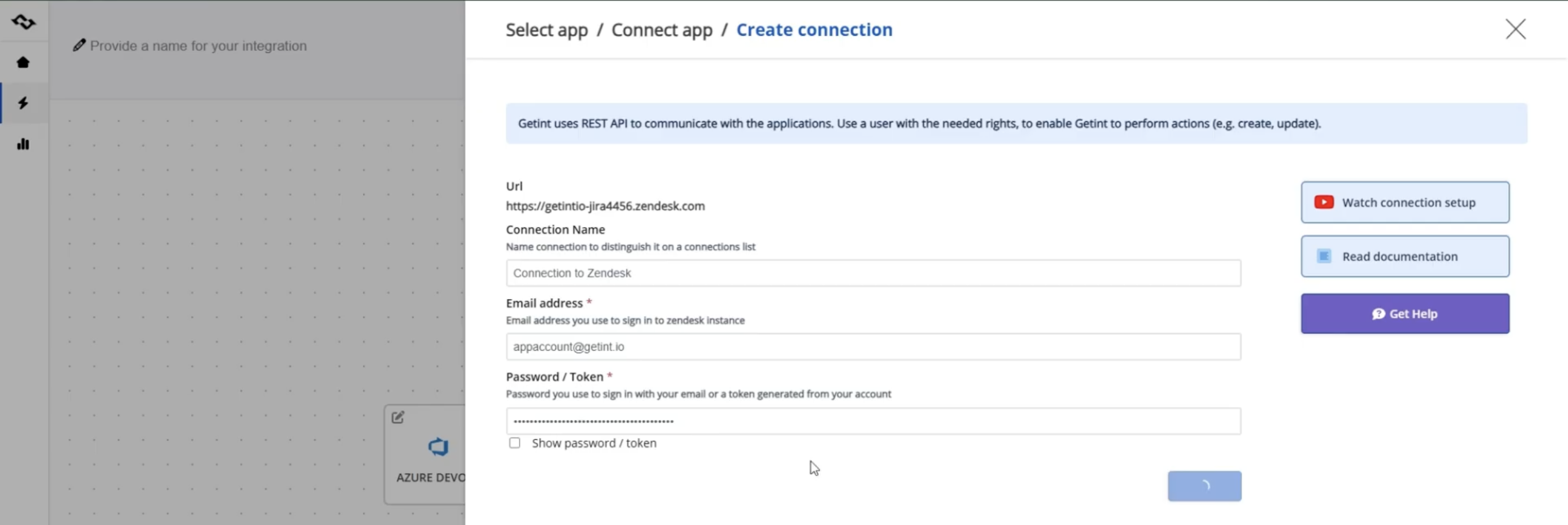
Paste your Azure DevOps organization URL and personal access token to integrate Azure DevOps with Getint, then do the same for Zendesk using your Zendesk instance URL, account email, and API token to integrate Zendesk on the other side. Select the specific one of your Azure DevOps projects and Zendesk organization you want to sync.
Step 4: Configure Type Mapping
Use Quick Build to automatically match Zendesk Ticket to Azure DevOps Task (or another type), or map manually if you want a different pairing. Quick Build will also pull in a starting set of field mappings — title, description, priority, and tags are typically matched automatically.
Step 5: Review and Extend Field Mappings
Check the auto-mapped fields, adjust direction where needed, and add custom fields using Add field mapping if there's additional data you want to carry across — assignee-to-assignee mapping included, which requires matching each Zendesk agent to their Azure DevOps counterpart individually.
Step 6: Map Statuses
Set up status mapping between the two systems' workflow states, handling any many-to-one cases where Zendesk's statuses are more granular than Azure DevOps' — or the other way around, depending on your setup.
Step 7: Configure Comments and Attachments
Choose whether comments and attachments sync bidirectionally or in a single direction, and apply any filters on which comments should sync — by author, content, or creation date, for example.
Step 8: Apply Filters and Sync Rules
Before saving, decide whether you want every ticket and work item syncing, or only a subset. A common pattern is filtering by tag — for instance, only Zendesk tickets tagged "sync" or "escalate" create a corresponding Azure DevOps work item, keeping your backlog free of tickets that never needed engineering involvement.
Step 9: Name and Save the Integration
Once your mappings and filters are set, give the integration a name and save it to go live.
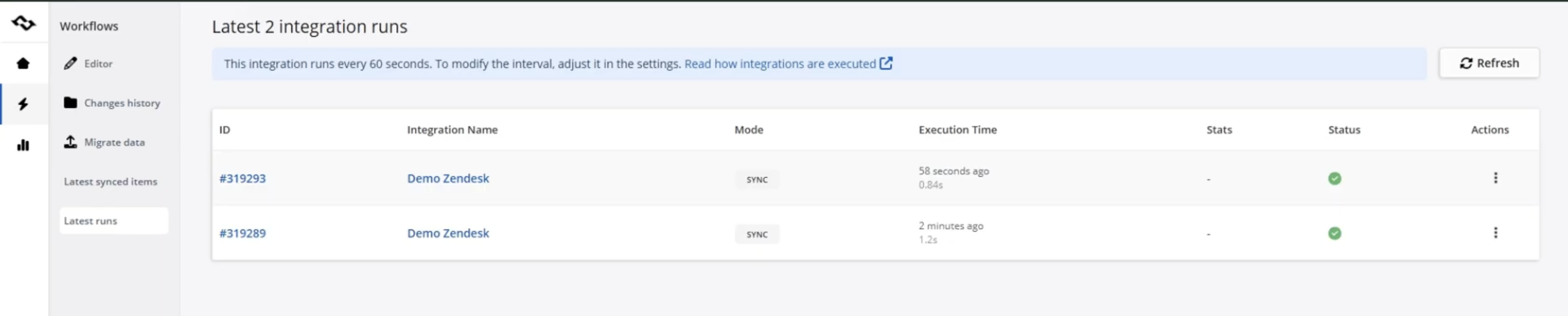
Step 10: Test and Monitor
Create a test ticket or work item on either side and confirm it syncs as expected. Getint's on-premise deployment runs sync checks roughly every minute; the SaaS version runs roughly every 3 minutes. Check the run logs to confirm items are syncing correctly — each run shows the triggering item, its synced counterpart, and whether the action was a create or an update.
Real-World Use Cases
1. Customer Issue Escalation Into a Work Item
A support agent identifies a ticket as a genuine bug rather than a how-to question, and the integration automatically creates a corresponding work item with the ticket's details and history attached — or, if an existing work item already covers the same issue, the ticket can be linked to it instead of creating a duplicate. Either way, agents can easily create the connection without manual re-entry, and the original Zendesk ticket number stays referenceable from the corresponding work items on the Azure DevOps side.
2. A Unified View for Support and Development Teams
Instead of pinging a developer to ask about a current Zendesk ticket's status, a support agent can see the linked work item's status update directly in Zendesk as development progresses — turning "let me check and get back to you" into an answer they already have. This applies just as well to new Zendesk tickets created after the integration goes live as it does to ongoing ones.
3. Cross-Team Reporting and Better Collaboration
For support and development teams reporting on the same set of customer-facing issues, having tickets and work items linked and status-synced means both sides are working from the same numbers, rather than reconciling two separate views of the same backlog before every meeting.
Best Practices for Azure DevOps Zendesk Integration
- Use tags to scope the sync deliberately. Not every ticket needs a work item — filtering by a tag like "escalate" keeps the connection focused on genuine cross-team issues.
- Set assignee mapping up front. It's a common source of "the sync isn't working" reports that are actually just a mismatched username, easy to avoid by mapping it explicitly during setup.
- Decide status mapping direction deliberately. If Zendesk should always reflect development status but developers shouldn't have tickets reopening their closed work items, one-way status sync is usually the safer default.
- Review field mappings for anything Zendesk-specific. Custom fields unique to your Zendesk setup won't map anywhere useful unless a corresponding field exists (or is created) on the Azure DevOps side.
- Check the sync logs periodically, not just during initial setup — this is the fastest way to catch a filter or mapping issue before it affects a real customer-facing ticket.
Conclusion
Support and development teams ending up on different platforms is the normal outcome of two tools built for genuinely different jobs — Zendesk for customer-facing conversations, Azure DevOps for tracking the work itself. What actually needs solving is the handoff between them: the duplicate data entry, the manual status checks, the context that doesn't travel with an issue when it moves from one system to the other.
Getint closes that gap with a two-way sync between Zendesk tickets and Azure DevOps work items, configurable sync direction and filtering, and no-code setup on both sides — whether the flow you need is mostly Azure DevOps to Zendesk, mostly Zendesk to Azure DevOps, or genuinely bidirectional. Connecting Zendesk to Azure DevOps this way means a support agent checking on a current ticket, or a Zendesk based team reviewing what's open, always has an accurate answer instead of a guess. If your organization needs to connect more tools across teams, Getint also supports Jira and Zendesk, Azure DevOps and Salesforce, and many more connections using the same underlying approach.