Airtable is widely used for organizing projects, managing databases, tracking sales activity, and coordinating work across departments. Its flexible tables, multiple views, and customizable interfaces make it useful for teams that need more structure than traditional spreadsheets.
However, Airtable rarely operates alone in companies. Development teams might manage bug reports in Jira, sales teams work in Salesforce, and operations teams rely on other supporting, external tools like Slack, Google Drive, and Google Calendar. Without integrations, keeping information aligned across these platforms means manual updates, duplicated records, and unnecessary context switching.
Airtable integrations help connect these systems, automate workflows, and synchronize data without requiring everyone to work in the same application. But the available methods differ considerably. Some provide simple notifications, others import external data, and more advanced solutions support ongoing bi-directional synchronization.
In this guide, we'll compare the main Airtable integration methods, explore the best tools for different business needs, and explain how to choose an approach based on your workflows, technical resources, and data requirements.

What Are Airtable Integrations?
Airtable integrations connect Airtable bases with external applications, databases, and services to exchange information or automate specific actions. They allow teams to reduce manual data entry while keeping important records accessible across different systems.
For example, integrating Airtable with other apps can help you:
- Connect project management tools: Keep project progress, tasks, and status updates aligned between Airtable and platforms such as Jira.
- Improve team collaboration: Automatically send Slack notifications when records are created, deadlines change, or approvals are required.
- Automate sales workflows: Import customer data from Salesforce to support reporting, planning, and account management.
- Connect spreadsheets and documents: Move information between Airtable, Google Sheets, and Google Drive without repeated manual exports.
- Centralize reporting: Transfer Airtable data to analytics platforms such as Snowflake for more advanced queries and dashboards.
- Manage incoming requests: Connect forms to Airtable records so submissions can enter existing operational workflows.
The functionality depends on the integration method. A simple automation may create a new Airtable record when an external event occurs, while a dedicated synchronization platform can keep corresponding records updated across both applications.
This distinction becomes particularly important when multiple teams need to edit the same information from different tools.
Airtable Integration Methods Compared
Airtable provides several built-in integration capabilities, but third-party tools and custom development extend what teams can achieve.
The six main approaches are native automations, Airtable Sync, third-party automation platforms, dedicated synchronization tools, custom API integrations, and manual imports.
1. Native Airtable Automations and Built-In Connectors
Airtable Automations provide a no-code method for automating repetitive tasks directly inside a base.
The setup works through triggers and actions. A trigger identifies an event, such as a newly created record or a change in status. An action determines what happens next.
For example, operations teams can create an automation that sends a Slack message when a project record moves to "Ready for Review." Another automation might create a Google Calendar event when a meeting record receives a confirmed date.
Airtable also provides built-in connectors for supported communication and productivity tools. This makes native integrations useful when teams need relatively simple functionality without introducing another automation platform.
Best for: Notifications, task reminders, approvals, and straightforward workflows involving a limited number of apps.
Consideration: Automations run when their configured conditions are met. They don't automatically maintain complete two-way synchronization between databases.
2. Airtable Sync Integrations
Airtable Sync allows users to bring information from supported external data sources directly into their Airtable bases. Available connectors include Google Calendar, Google Drive, GitHub, Jira Cloud, Salesforce, and Zendesk, although access depends on the Airtable subscription.
For example, a project manager can import Jira work item information into an Airtable table and create multiple views for different stakeholders. This makes reporting easier without requiring everyone to access Jira.
However, Airtable's external sync integrations are one-way. Updates travel from the external application into Airtable, but changes to synced fields in Airtable aren't written back to the original system.
Airtable also supports two-way syncing between Airtable bases on eligible plans. This is useful for internal collaboration, but it should not be confused with bidirectional synchronization between Airtable and an external application.
Best for: Centralized reporting, read-only operational dashboards, and combining information from different platforms.
Consideration: External connectors have plan restrictions, and synchronization frequency varies by integration.
3. Third-Party Automation Platforms
Automation platforms such as Zapier and Make provide pre-built connections between Airtable and thousands of other applications. They allow users to create workflows without developing a custom integration from scratch.
A common example involves collecting information from a HubSpot form, creating an Airtable record, and notifying a team through Slack. More advanced workflows might transform data, apply conditions, or update records across several applications.
These platforms offer considerable flexibility, particularly when the goal is to connect multiple tools within a single business process.
However, configuring reliable two-way synchronization often requires additional logic for identifying matching records, handling conflicting changes, and avoiding duplicate updates.
4. Dedicated Two-Way Integration Platforms
Dedicated synchronization platforms focus on maintaining consistent data between supported applications. This approach is particularly useful when two departments need to work in separate tools but share responsibility for the same project or process.
For example, a company might use Airtable for product planning while its development teams use Jira. Both teams need access to project information, but they manage different parts of the workflow.
A dedicated integration platform such as Getint can connect Jira and Airtable with configurable field mapping, filtering, and one-way or two-way synchronization.

Instead of building separate automation rules for every possible change, teams configure which records and fields should be synchronized.
Best for: Cross-functional project management, operational workflows, and scenarios requiring ongoing bidirectional data exchange.
5. Custom Integrations Using Airtable API and Webhooks
Organizations with specialized requirements can build their own integrations using the Airtable API.
- Airtable's Web API follows REST semantics and uses JSON for data exchange. Developers can use it to query, create, update, and delete records programmatically.
- Airtable also provides a Webhooks API that allows external systems to react to changes in records or views. Custom integrations can run on external infrastructure and communicate directly with internal applications or other databases.
- For teams requiring additional functionality, Airtable offers scripting capabilities and the Blocks SDK for developing custom extensions. These can support specialized interfaces and workflows within Airtable.
This approach gives development teams extensive control over integration behavior, authentication, data transformation, and error handling.
Consideration: The trade-off is ongoing maintenance. API changes, access permissions, rate limits, and synchronization errors become the responsibility of the development team.
6. CSV Import and Export
Not every workflow requires a continuous integration. Airtable supports importing data from spreadsheets and CSV files, including importing information into an existing table. Users can also export Airtable views as CSV files for external reporting or data transfers.
For example, an operations team might import monthly sales reports from another system or export project data for financial analysis.
This method is straightforward and avoids the need for additional integration software.
However, changes made after importing data won't automatically appear in the original source. CSV transfers are therefore better suited to occasional updates, historical data imports, and one-time projects.
Best Airtable Integrations and Tools for Different Workflows
The best Airtable integration depends on what a team wants to accomplish. Some tools are designed for notifications and basic automation, while others manage complex data synchronization or analytics. Let's compare the most relevant options.
1. Getint: For Airtable Two-Way Synchronization with Jira, Azure DevOps, Salesforce, ServiceNow, GitHub, Freshdesk, and more
When business and development teams use different applications, project updates can become difficult to coordinate.
Consider a product team managing feature requests in Airtable while developers track implementation and bug reports in Jira. Product managers need visibility into development progress, and engineers need access to the requirements collected by business teams.
With a basic one-way integration, information can flow from Jira into Airtable. But when product managers update records in Airtable, those changes aren't automatically transferred back to Jira.

Getint addresses this requirement through configurable two-way synchronization between Airtable and many other business systems (including Jira, Salesforce, Azure DevOps, ServiceNow, GitLab, Asana, HubSpot, etc).
Basing on our already used example, teams can configure the integration to:
- Synchronize relevant Airtable records with Jira work items.
- Map corresponding fields between the two applications.
- Configure how selected information flows between systems.
- Filter which records or Jira work items should be included.
- Monitor synchronization activity through reporting and logs.
- Support ongoing integration or data migration projects.
Getint supports Jira Cloud and Jira Data Center environments, with SaaS and On-Premise deployment options for organizations with different security and infrastructure requirements.
The configuration allows teams to keep working in their preferred applications while sharing the information necessary for collaboration.
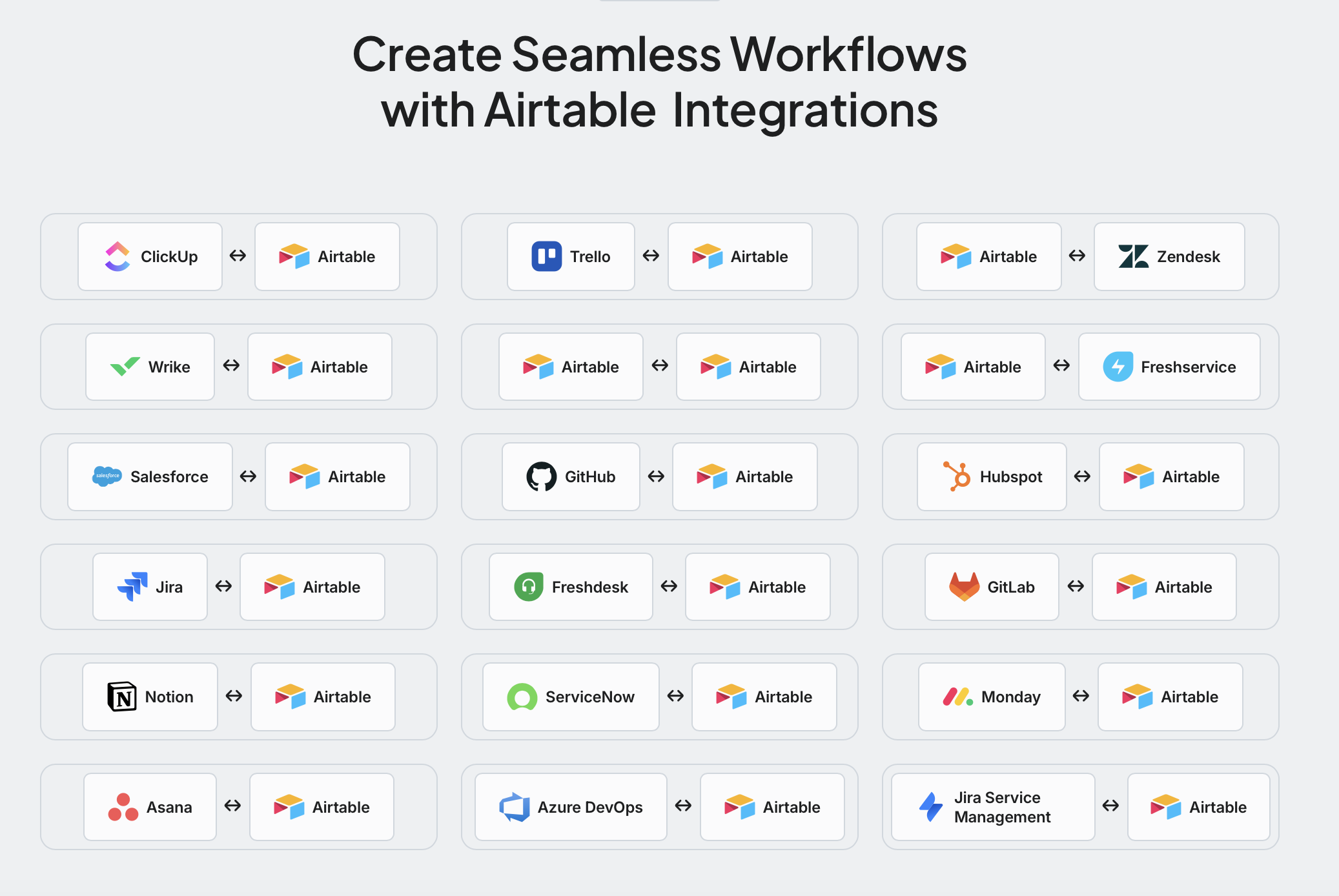
Best for: Product managers, software development teams, operations teams, and enterprises that need coordinated Jira and Airtable workflows, or Airtable connections with other business applications.
Implementation note: Verify the available fields and record types against your teams' requirements before implementing more complex workflows.
Jump in to our setup documentation guide for more details around Jira-Airtable connector.
2. Zapier: Connecting Airtable with Popular Business Apps
Zapier is a no-code automation platform that connects Airtable with a wide range of third-party tools.
Its workflows, called Zaps, follow a trigger-and-action structure. An event in one application starts a predefined action in another.
For example, marketing teams can automatically create Airtable records when someone submits a form. Sales teams can connect CRM activity with an Airtable tracking database, while support teams can send notifications whenever new information requires attention. Zapier is particularly accessible to non-technical teams because many common workflows can be configured through pre-built integrations.
Best for: Simple cross-app automation, lead management, notifications, and repetitive administrative tasks.
Consideration: More complex processes can require multiple actions, filters, and additional usage allowances. Teams should evaluate task-based pricing as workflow volumes increase.
3. Make: For Multi-Step Airtable Automation
Make provides a visual workflow builder that allows teams to connect Airtable with other systems and create more elaborate automation scenarios. Unlike basic trigger-action workflows, Make supports branching logic, data transformation, filtering, and multi-step operations.
For example, a marketing department can manage its content calendar in Airtable and use Make to coordinate several activities:
- Detect when an Airtable record reaches an approved status.
- Retrieve the relevant content and metadata.
- Send the information to an AI or content generation service.
- Create or update content in another application.
- Update the original Airtable record with the result.
Make also supports workflows involving document generation. Teams can use Airtable records to populate templates, create PDFs, and send completed files to clients.
Best for: Content operations, marketing automation, document generation, and multi-application workflows requiring conditional logic.
Consideration: Complex scenarios require careful configuration, especially when several applications can modify the same records.
4. Slack: For Team Communication and Notifications
Airtable's Slack integration helps teams communicate about changes in their databases without constantly checking individual Airtable views. Using native Airtable Automations, users can configure Slack messages based on specific events or conditions.
For example:
- A new customer request triggers a notification in the support channel.
- A project status changes to "Blocked," alerting the responsible team.
- An approval request is sent to the appropriate stakeholder.
- A deadline approaches and a reminder is delivered automatically.
Airtable supports sending Slack messages, including actionable messages for supported workflows.
Best for: Team collaboration, status notifications, approval processes, and operational communication.
5. Google Calendar and Google Drive: For Scheduling and Document Management
Google Workspace integrations help teams connect Airtable records with calendars, documents, and shared files.
- Google Calendar is useful when Airtable manages events, appointments, or project milestones. Teams can create calendar events using Airtable Automations or bring calendar information into Airtable through its external sync connector.
For example, recruiting teams can create interview appointments when candidate records reach a particular status.
- Google Drive supports another common requirement: keeping project documentation accessible from an Airtable workspace.
Airtable's Google Drive integration can import file information into a table, including document names, links, file types, and modification dates. Teams can organize this information through Airtable views and connect it to their operational records.
These integrations are particularly useful for operations teams managing projects that involve schedules, documentation, and collaboration across departments.
6. Google Sheets: For Spreadsheet-Based Reporting
Many organizations use Airtable alongside Google Sheets rather than replacing spreadsheets completely.
Airtable provides structured records and customizable workflows, while Google Sheets remains useful for familiar spreadsheet calculations, sharing, and reporting.
Teams can import Google Sheets data into Airtable or use Airtable Automations to append rows to a spreadsheet.
There is an important limitation: Airtable's native Google Sheets import is a one-time transfer, not a continuous two-way sync.
If both applications need to remain synchronized as records change, a third-party integration platform or a custom API workflow is necessary.
Best for: Reporting, spreadsheet collaboration, periodic data transfers, and connecting Airtable with existing Google Workspace processes.
7. GitHub: For Development Visibility
Airtable provides native external sync integrations for GitHub Issues and GitHub Pull Requests. These connectors allow teams to bring development information into Airtable and organize it through customized views.
For example, a product manager can track bug reports and pull request activity alongside release planning information, without needing to navigate different GitHub repositories.
This can make Airtable a useful reporting layer for stakeholders who need visibility into software development but don't manage source code directly.
However, native GitHub sync is one-way, meaning changes made in the connected Airtable table won't update the original GitHub records.
8. Salesforce: For Connecting Sales and Operations Data
Integrating Airtable with Salesforce helps teams combine customer information with operational planning.
For example, a sales department might maintain opportunities and accounts in Salesforce while a delivery team uses Airtable to manage onboarding projects.
Airtable offers a native Salesforce Sync integration on Business and Enterprise Scale plans. It allows users to bring Salesforce report data into Airtable, where it can support other tables and workflows.
However, similarly to GitHub native connection with Airtable, this option is a one-way sync. Updates made to synced Salesforce fields in Airtable don't change the corresponding records in Salesforce.
Organizations that need to send information in both directions can explore third-party automation platforms or custom integrations, depending on their requirements.
Best for: Customer reporting, sales operations, account planning, and connecting CRM information with project workflows.
9. Typeform: For Collecting Structured Information
Airtable includes built-in forms, making it possible to collect information directly into a base without additional tools. For organizations that require specialized surveys or more extensive form experiences, Typeform provides another option.
Its Airtable integration can transfer submissions into Airtable records, allowing teams to connect incoming information with existing workflows.
For example, a company might collect customer feedback through Typeform, organize responses in Airtable, and use automation rules to assign follow-up tasks.
Airtable also provides a Typeform extension for importing submissions from existing forms.
Best for: Customer feedback, research surveys, intake processes, and structured data collection.
10. Snowflake and Data Integration Platforms: For Advanced Analytics
As Airtable databases grow, organizations may need to combine their records with other enterprise data sources for reporting and analytics.
Snowflake provides a cloud data platform for storing and querying information across different systems.
With an appropriate data integration tool, organizations can transfer Airtable data into Snowflake, combine it with information from other applications, and create analytical datasets for business intelligence.
Platforms such as Estuary can support this type of data pipeline, helping teams move information between operational systems and analytical environments.
For example, an operations department might combine project information from Airtable with financial and customer data stored elsewhere to monitor profitability, delivery performance, or resource allocation.
Best for: Enterprise reporting, data pipelines, centralized analytics, and workflows requiring large-scale data processing.
How to Set Up a Two-Way Jira–Airtable Integration with Getint
For teams that want to move beyond basic automations, it's useful to understand how a dedicated synchronization setup works.
Here's a simplified example of connecting Airtable with Jira using Getint.
Step 1: Install and open Getint
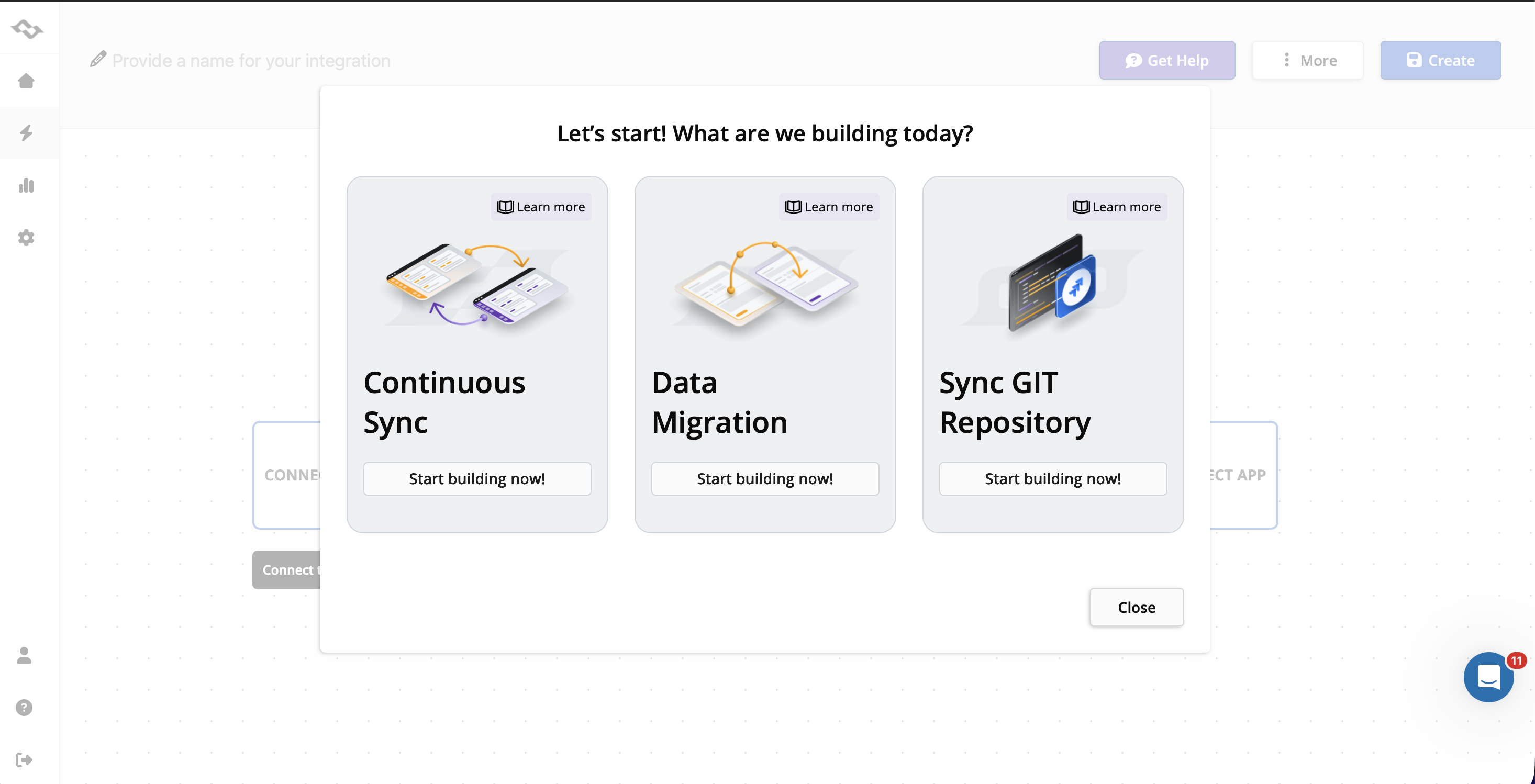
- Access the Getint application for Jira–Airtable integration through the Atlassian Marketplace. Open the application from your Jira environment and select Continuous Sync to create an ongoing integration.
- If you're transferring historical data instead, Getint also provides a separate Migration option.
Step 2: Connect your Jira instance
- Create a connection to Jira using the instance URL and appropriate authentication credentials.

- Select the Jira project containing the work items you want to synchronize.
Step 3: Connect Airtable
- Prepare your Airtable base and the table that will participate in the integration.
- Create the required Airtable access token with the appropriate permissions.
Important note: Every Airtable table included in integration needs to contain a Last Modified Time field. Getint app relies on that field for changes detection. It's why the table without it will not sync.

- Next, authorize the Airtable connection and select the relevant workspace and table.
Step 4: Configure type and field mapping
- Specify how Jira work items correspond to records in Airtable.
For example, a Jira work item summary might correspond to an Airtable task name, while other supported fields can represent project status or additional task information.
- Field mapping is particularly important when the two applications use different data structures.

Step 5: Configure filtering and synchronization behavior
- Decide which records should participate in the integration.
Getint provides filtering options to control the scope of synchronization, including conditions for new and already synchronized items.
This helps prevent unrelated records from being transferred between applications.

Step 6: Test and monitor the integration
- Create a test record and verify how it appears in the connected system. Then update the corresponding data and check that the integration behaves as expected.
Getint provides reporting and logs to help administrators review synchronization activity and investigate errors.
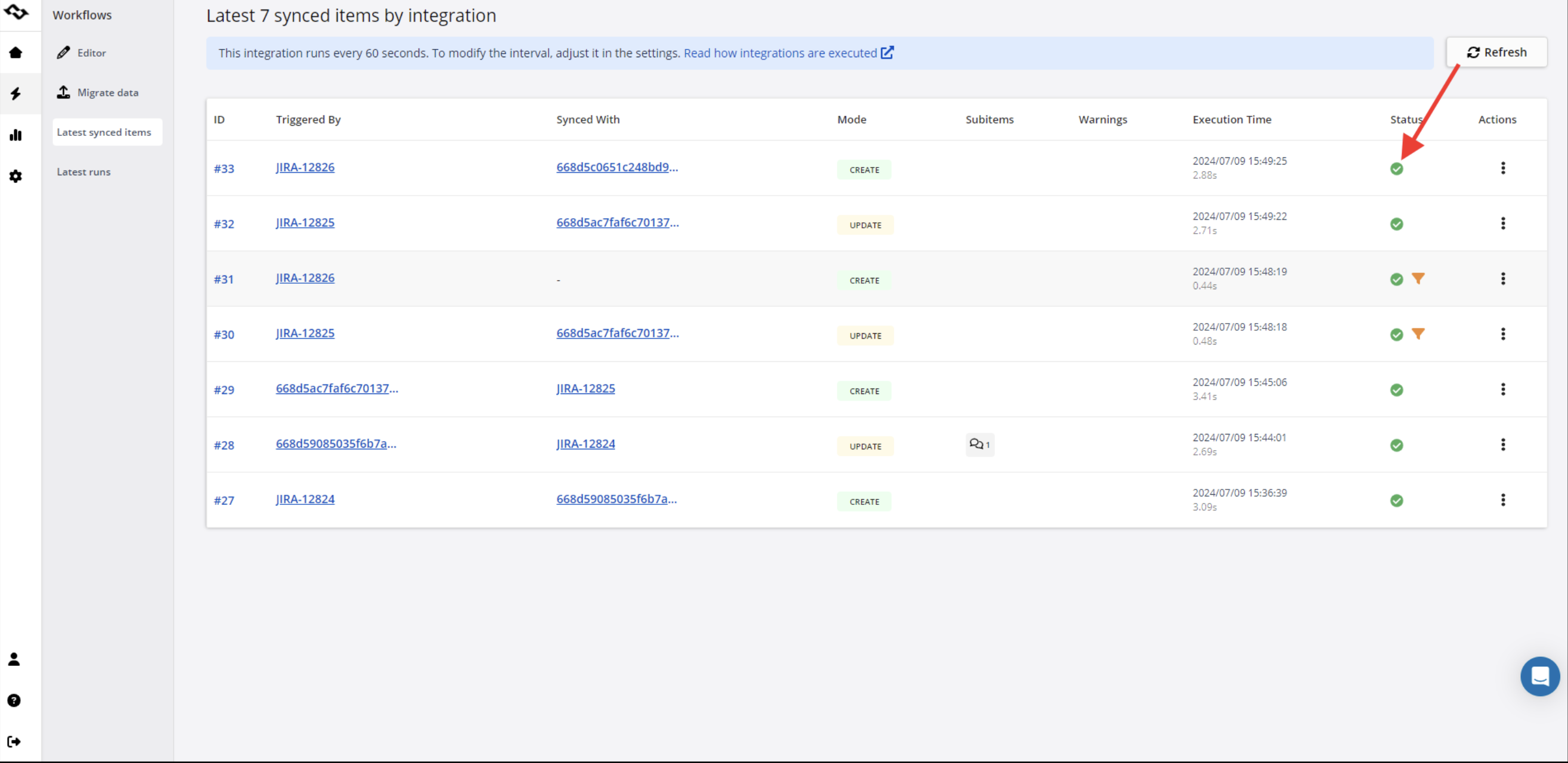
Once the workflow has been validated, the integration can support ongoing collaboration between Jira and Airtable.
*For detailed instructions, see the Getint Jira–Airtable integration documentation.
How to Choose the Right Airtable Integration Method
Before connecting Airtable to another tool, identify what information should move between the applications and who needs to update it.
The following questions can help you narrow down the available options.
Do You Need One-Way or Two-Way Synchronization?
If Airtable serves primarily as a reporting database, one-way data import may be sufficient. For example, bringing GitHub activity into Airtable allows product managers to monitor development progress without changing the original records.
When two teams need to update shared information from different applications, bi-directional synchronization becomes more important.
This is particularly relevant for collaboration between development teams and business departments using Jira and Airtable.
How Complex Is Your Workflow?
Simple processes, such as creating a Google Calendar event or sending a Slack notification, are often well suited to Airtable Automations. Multi-step workflows involving several tools, conditional actions, and data transformations may justify using Make or Zapier.
Ongoing synchronization between operational systems requires additional consideration, including field mapping, record matching, and update behavior.
How Important Are Security and Data Governance?
Enterprise teams should assess where integration data is processed, how access is controlled, and which permissions are required. For example, Getint offers SaaS and fully On-Premise deployment options for organizations that need more control over their integration infrastructure.
Getint also maintains security and compliance certifications, including ISO/IEC 27001, ISO/IEC 27018, and SOC 2 Type II.
Regardless of the integration method, administrators should review API credentials, access permissions, and data handling requirements before enabling production workflows.
What Happens as Data Volume Increases?
Integration usage affects performance, costs, and reliability. Airtable's Web API has a rate limit of five requests per second per base. The Free plan also includes a monthly API call allowance, while paid plans have different usage limits.
Organizations using several Airtable bases, multiple integrations, or frequent updates should evaluate these constraints before scaling their workflows.
It's also worth reviewing how the integration handles errors, repeated requests, and changes to existing records. Monitoring and retry mechanisms become especially valuable when synchronization supports business-critical processes.
Common Airtable Integration Challenges
Even a straightforward integration can become difficult to maintain if teams overlook the underlying data structure. Here are four areas worth addressing during implementation:
- Duplicate records
When an integration creates records without checking whether they already exist, the same task or customer may appear multiple times. Record identifiers and matching rules help maintain data accuracy.
- Mismatched field types
Airtable fields don't always match their counterparts in other systems. For example, an Airtable single-select field might need to correspond to a Jira workflow status. Field mapping should account for differences in available values and required fields.
- Synchronization conflicts
When users update corresponding records in two applications, the integration needs a defined way to handle conflicting changes. Depending on the tool, this may involve update timestamps, directional rules, or other conflict-resolution logic.
- Unexpected automation behavior
Automations can fail because of insufficient permissions, expired credentials, API limits, or conditions that no longer match the data.
Testing with a small set of records, reviewing logs, and documenting the intended workflow will make these problems easier to identify.
Final Thoughts: Which Airtable Integration Is Best?
Airtable offers several ways to connect databases, automate workflows, and share information with other applications.
For simple notifications and repetitive tasks, native Airtable Automations are often enough. Zapier and Make provide broader automation capabilities, while Airtable Sync works well when external information needs to be available for reporting.
When teams need ongoing two-way synchronization between Jira and Airtable, Getint offers a dedicated approach with configurable mapping, filtering, and monitoring.
The most effective choice depends on the applications involved, the direction of data exchange, and how frequently information needs to be updated.
Want to connect Jira and Airtable without manual updates?
Book a short Getint demo to discuss your integration requirements and explore the available synchronization options.