
Organizations increasingly operate across multiple Jira environments — sometimes intentionally, sometimes by accident, and often because their teams outgrow the constraints of a single Jira system. As teams expand globally, work with external partners, migrate from Data Center to Cloud, or restructure through mergers and acquisitions, it becomes common to see several separate Jira instances coexisting within one company.
This shift creates a new operational challenge: how to link two Jira instances so teams can collaborate as if they shared one environment — while still keeping their autonomy, security boundaries, and configuration choices.
This guide covers why organizations end up with multiple Jira systems, what it really means to sync Jira work items between them, the available methods for connecting instances, how synchronization works behind the scenes, and where integration platforms such as Getint fit into the picture. It concludes with a practical setup guide you can follow to sync multiple Jira instances securely and reliably.
Why Organizations Run Multiple Jira Instances
Large organizations rarely remain on a single Jira environment forever. Multiple Jira instances usually emerge after years of growth, operational shifts, and technology evolution — and in many cases, it’s a strategic decision rather than an accidental one.
- Autonomy
Different departments move at different speeds and require their own configurations. A cybersecurity team might enforce strict workflows and permissions, while a product team prefers a flexible and simple Jira setup. Keeping these groups in separate, two instances lets each team manage processes without friction.
- Cost management
On Jira Cloud, even a small number of added users can bump an instance into a higher pricing tier. Splitting large organizations across several Jira instances can help manage licensing expenses — especially when some teams don’t require full platform access to every Atlassian product.
- Scalability
Extremely large Jira systems tend to slow down under heavy load. Dividing them into multiple environments helps maintain performance and ensures teams are not held back by an overloaded instance. In some enterprises, this is part of a broader strategy of federating Jira, where multiple Jira systems are deliberately used instead of one monolith.
- Compliance and security
Some teams handle sensitive, regulated, or confidential data. Isolating those work items in a dedicated Jira instance — sometimes even a Jira on premise or hardened Data Center deployment — ensures the right protective boundaries remain intact.
- Mergers and acquisitions
Each company usually brings its own Jira setup. Rather than forcing an immediate, risky migration, organizations maintain separate Jira instances while planning a longer-term strategy — making cross-instance synchronization essential.
- Hybrid cloud transformations
When a business gradually moves from Jira Data Center to Jira Cloud, both environments may operate in parallel for months or years. During that time, multiple projects and multiple Jira instances must still share data and stay aligned.
No matter the origin story, the result is the same — several Jira instances that must somehow collaborate.
What It Means to Connect Two Jira Instances
Connecting multiple instances isn’t about pointing one system to another. It’s about making them work together so teams can stay aligned without duplicating effort and without losing control over their own configuration.
At its core, linking means enabling Jira environments to synchronize Jira work items. This includes sharing and updating:
- summaries, descriptions, and core fields
- custom fields
- statuses and transitions
- comments (internal or public)
- attachments
- work logs
- parent and sub-task relationships
- change history (where supported)
It could be one-directional synchronization — pushing updates from one Jira instance to another — or bi-directional synchronization, keeping both systems aligned continuously.
A key principle in multi-instance setups is decentralized integration. Each Jira instance applies its own rules, mapping decisions, and visibility restrictions. This means one team may receive simplified work item data while another receives richer detail, depending on their policies and integration needs.
In practice, linking Jira environments allows teams to remain independent in how they configure Jira Software, Jira Service Management, or Jira Work Management — yet connected in how they collaborate on shared work.

Challenges of Working Across Separate Jira Environments
Teams quickly discover that separate Jira instances create real-world friction. The problems are predictable — and they compound as work scales.
Different workflows
Teams rarely share identical workflows. One Jira instance may use a simple “To Do — In Progress — Done” flow, while another has multiple review and approval stages. This creates challenges such as:
- status mismatch
- incomplete transitions
- ambiguous progress when syncing Jira work items
Mapping statuses becomes unavoidable.
Custom field mismatch
Two teams may track the same concept — severity, environment, risk — but represent it differently. Common mismatches include:
- different field types (text vs select list)
- different naming conventions
- different validation rules
Without field transformation, data becomes inconsistent across systems.
Comment visibility and data sensitivity
Internal discussions cannot always be shared with external partners or other business units. Teams need to decide:
- which comments sync
- which remain internal
- whether attachments should cross instance boundaries
This requires deliberate configuration to avoid accidental exposure.
Cloud vs Data Center differences
Jira Cloud and Jira Data Center do not behave the same way. Key differences include:
- API endpoints
- authentication models
- available add-ons and plugins
- event handling
- rate limits
These variations make manual or script-mode synchronization difficult to maintain across hosting types.
Scaling problems
When teams manually copy Jira work items or rely on ad-hoc messaging, issues accumulate:
- duplicated effort
- missing updates
- outdated statuses
- diverging timelines
As volume increases, manual synchronization simply can’t keep pace, especially across large Jira systems with multiple development projects.
Ways to Link Two Jira Instances
There are several approaches to enabling Jira-to-Jira connectivity. Each has strengths — but not all are suitable for cross-team collaboration or complex project management scenarios.
Manual export and import
CSV or JSON exports help with one-time migrations or initial population. This method relies on exporting Jira work items from one instance and importing them into another. It is useful for initial migration steps or when you need to transfer a limited set of existing issues.
However, export/import does not create an ongoing link. Once work items are imported:
- changes do not sync back
- comments, attachments, and work logs are often incomplete
- updates must be repeated manually
It’s a tactical solution — not a sustainable integration.
Native Jira capabilities
Jira includes tools such as automation rules, webhooks, and REST API endpoints that can trigger actions across instances. This enables simple integrations — for example, creating a corresponding Jira work item in another system when one is created.
Native tools work best for lightweight, one-directional interactions, but they fall short when you need:
- two-way synchronization
- status and workflow alignment
- attachment or work log transfer
- robust conflict handling
They also require ongoing maintenance as workflows evolve. Features like Jira Query Language (JQL) help refine conditions, but native options still don’t cover full Jira-to-Jira sync on their own.
Custom integrations using the Jira REST API
Some organizations opt to build their own synchronization logic. This approach offers the highest level of customization and supports scenarios that standard tools may not cover — for example, connecting Jira with other systems like Azure DevOps.
But custom integrations are expensive to maintain, since developers must build and manage:
- field mappings
- conflict resolution
- retry queues and rate limit handling
- authentication for Cloud vs Data Center and Jira on premise setups
- transformations when workflows change
Over time, the integration becomes another product that needs its own roadmap and support.
Integration apps
The most robust and scalable method is using third-party integration apps which are often available on the Atlassian Marketplace. These tools are designed specifically to handle the complexity of syncing multiple Jira instances, including Cloud-to-Cloud, Cloud-to-Data Center, and Data Center-to-Data Center setups.
Apps such as Getint’s Jira–Jira integration provide:
- two-way synchronization
- field and status mapping
- selective sync rules based on JQL or conditions
- attachment, comment, and work-log transfer
- decentralized control (each instance defines its own rules)
Because these tools absorb the complexity, they free teams — including every dev team and service team — to collaborate naturally while keeping their Jira environments independent.
To make the differences clearer at a glance, here is a quick summary of the main approaches to linking two Jira instances:
Comparison of Methods to Link Two Jira Instances
How Synchronization Works Behind the Scenes
Even though integration tools differ in how they implement synchronization, most Jira-to-Jira syncs follow a similar logical flow. Understanding this flow helps teams design better sync rules and troubleshoot issues when they arise. It also explains why linking two Jira instances can work reliably across different hosting types and configurations.
Detecting changes
Synchronization begins when a Jira work item is created or updated. Integration tools listen for specific events — such as a status transition, a new comment, or an updated field — and check the change against defined sync rules. Only work items that meet these conditions enter the synchronization process.
Preparing and transforming data
Before sending data to the other instance, the integration tool prepares the payload. This often includes:
- mapping statuses to the appropriate workflow state
- transforming custom fields into compatible formats
- filtering out internal comments or sensitive data
- applying JQL-based sync rules to decide what to include
This transformation step ensures that each Jira instance — whether acting as source or destination instance — receives data in a structure it can understand.
Sending updates to the destination Jira instance
Once prepared, the update is transmitted securely between systems. Cloud-to-Cloud and Cloud-to-Data Center connections may use different authentication models, but the goal is the same — transfer the relevant fields, comments, attachments, and metadata reliably so other Jira instances stay aligned.
Applying the update on the receiving side
After the data arrives, the destination Jira instance applies its own rules. This is where decentralized integration becomes important. Each side independently decides:
- how incoming statuses map to its workflow
- which fields should update
- whether comments should remain internal
- how attachments or work logs are handled
Because both sides maintain independent control, teams aren’t forced into identical configurations.
Handling conflicts
Two-way synchronization introduces the possibility of conflicting updates. For example, two teams may update the same field around the same time. Integration tools resolve this through predefined logic:
- timestamps
- priority rules
- field-level conflict settings
A clear conflict strategy keeps work items aligned without unexpected overwrites.
Use Cases Where Linking Jira Instances Becomes Essential
Multi-instance synchronization isn’t just a technical solution — it supports real collaboration scenarios that appear naturally as organizations scale.
Cross-company work with vendors or partners
Many organizations collaborate with suppliers, agencies, or clients who maintain their own Jira environments. Some still refer to their support portal as Jira Service Desk or Jira Service. Instead of granting external access or duplicating work manually, syncing Jira work items allows both sides to:
- exchange updates securely
- maintain independent workflows
- track shared progress without exposing internal projects
It reduces friction and protects data boundaries while enabling continuous collaboration.
Distributed development across multiple Jira systems
Large development initiatives often span several teams, business units, or geographic regions. These teams may work in autonomous Jira instances but contribute toward the same product or delivery stream. Synchronizing Jira work items helps everyone stay aligned by:
- surfacing dependencies
- coordinating releases
- ensuring that each dev team sees real progress
This is especially useful when product and engineering live in separate systems or when multiple development projects run in parallel.
JSM to engineering handoff
Service teams often escalate incidents or requests to engineering. When Jira Service Management and Jira Software sit in different instances, syncing becomes essential. It ensures:
- service teams can track progress without chasing updates
- engineers work in their own environment
- customers receive accurate and timely status information
This removes manual copying and prevents work items from diverging.
Mergers, acquisitions, or organizational restructuring
When companies combine, they rarely consolidate Jira immediately. Teams must continue delivering work while systems remain separate. Linking Jira instances helps bridge the gap during:
- transition periods
- phased migrations
- parallel operations
It keeps work items aligned while teams adapt to a future unified environment.
Hybrid Cloud — Data Center coexistence
Many organizations migrate from Data Center to Cloud gradually. During this period, both environments stay active. Synchronization ensures neither side falls behind by keeping work items consistent until migration is complete and there is only one Jira instance left in day-to-day use.
How Synchronization Works Behind the Scenes
Even though integration tools differ in how they implement synchronization, most Jira-to-Jira syncs follow a similar logical flow. Understanding this flow helps teams design better sync rules and troubleshoot issues when they arise. It also explains why linking two Jira instances can work reliably across different hosting types and configurations.
Detecting changes
Synchronization begins when a Jira work item is created or updated. Integration tools listen for specific events — such as a status transition, a new comment, or an updated field — and check the change against defined sync rules.
Only work items that meet these conditions enter the synchronization process.
Preparing and transforming data
Before sending data to the other instance, the integration tool prepares the payload.
This often includes:
- mapping statuses to the appropriate workflow state
- transforming custom fields into compatible formats
- filtering out internal comments or sensitive data
- applying JQL-based sync rules to decide what to include
This transformation step ensures that each Jira instance receives data in a structure it can understand.
Sending updates to the destination Jira instance
Once prepared, the update is transmitted securely between systems. Cloud-to-Cloud and Cloud-to-Data Center connections may use different authentication models, but the goal is the same — transfer the relevant fields, comments, attachments, and metadata reliably.
Applying the update on the receiving side
After the data arrives, the destination Jira instance applies its own rules.
This is where decentralized integration becomes important.
Each side independently decides:
- how incoming statuses map to its workflow
- which fields should update
- whether comments should remain internal
- how attachments or work logs are handled
Because both sides maintain control, teams aren’t forced into identical configurations.
Handling conflicts
Two-way synchronization introduces the possibility of conflicting updates. For example, two teams may update the same field around the same time. Integration tools resolve this through predefined logic:
- timestamps
- priority rules
- field-level conflict settings
A clear conflict strategy keeps work items aligned without unexpected overwrites.
Quick Setup Guide — How to Link Two Jira Instances Using Getint
Once an organization decides to synchronize Jira work items across two Jira environments, the next step is configuring a reliable connection. Below is a streamlined setup guide that follows the workflow used in Getint Jira–Jira integration. While a few steps may be different depending on your current deployment, we support syncing items from Jira Software (Cloud and Service Management), and Jira Data Center.
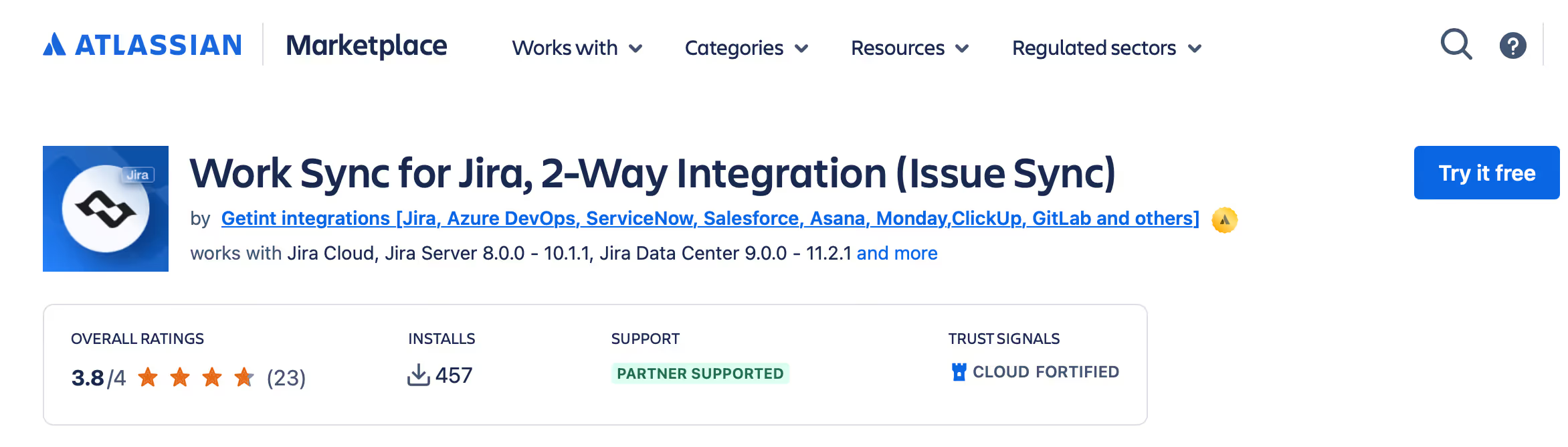
Install the Getint app
Begin by installing the Getint app on both Jira instances.
A connection requires the app to be present in each environment — whether both are Jira Cloud, both are Data Center, or part of a hybrid setup.
Create a Jira–Jira connection
From the Getint interface, select the option to create a new connection. This connection defines how instances will communicate. To sync issue types, choose continuous sync. Each side will authenticate separately, ensuring secure access.
For more information about tokens, visit our documentation.

Choose the projects and work item types to sync
Select the projects from each Jira instance that will participate in the synchronization. Then map Jira work item types — for example, Bug ↔ Bug, or Story ↔ User Story.
This ensures the right categories of work appear in both environments.

Define your sync rules
Sync rules determine which Jira work items should be included in the synchronization.
Teams often use criteria such as:
- labels
- priorities
- statuses
- JQL conditions
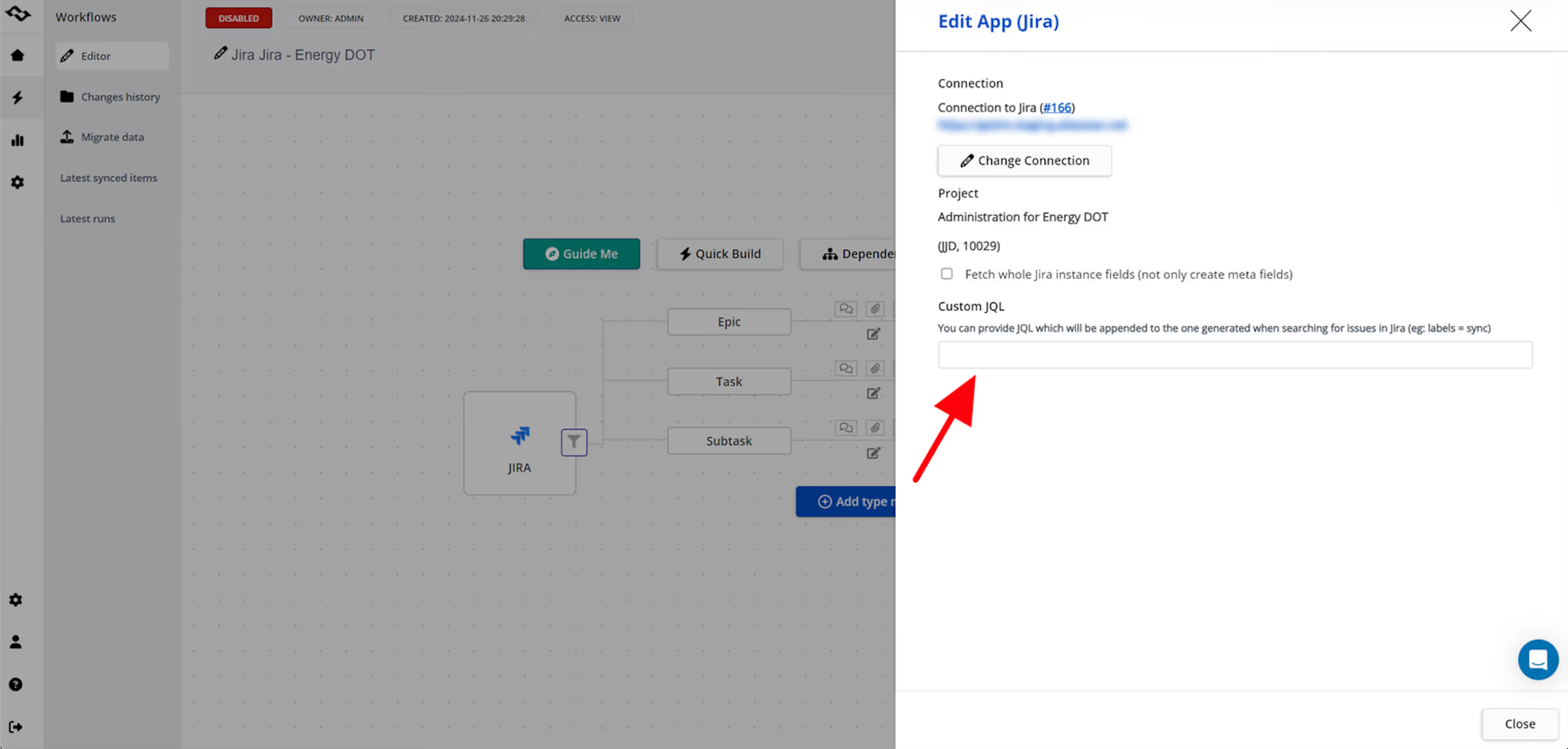
For example, you may decide to sync only customer-related work items or only items in a particular stage of development.
Map fields and statuses
Next, map the fields that should stay aligned between the two Jira instances. This includes:
- summary and description
- custom fields
- priority
- components or labels
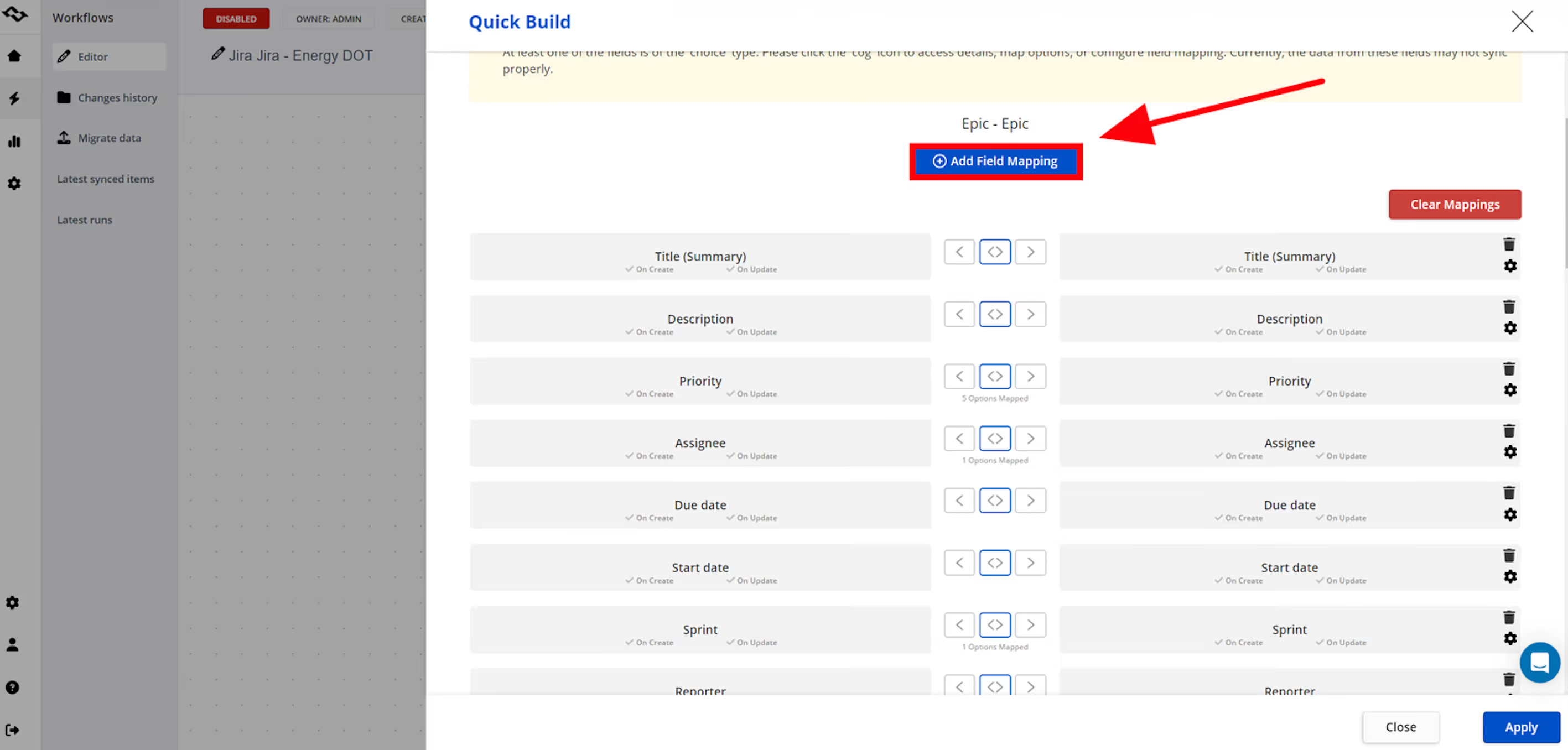
Status mapping aligns different workflows so that a transition on one side reflects a meaningful state on the other.
Configure comments, attachments, and work logs
Teams often choose whether to sync:
- public comments
- internal comments
- attachments
- work logs
This is particularly important when working with vendors or clients where certain information must remain internal.
Test and validate the synchronization
Finally, create a test Jira work item and confirm that it appears in the linked instance. Add comments, attachments, and updates to ensure synchronization works end-to-end.
Once validated, your connection is ready for production use.
Best Practices for Operating a Multi-Instance Jira Sync
A Jira-to-Jira integration works best when teams treat it as part of their operational process, not just a technical setup. As workflows evolve, sync rules, mappings, and visibility settings should evolve with them. A few practical habits help maintain a stable, predictable synchronization over time.
Keep workflows understandable
Workflows do not need to be identical across Jira instances, but they should be clear enough that status mapping makes sense to both sides. If one instance uses very granular steps and the other uses broader workflow states, define mappings that preserve meaning — not just structure.
Use selective synchronization instead of syncing everything
Sync rules powered by JQL or condition-based filters ensure only relevant Jira work items cross system boundaries. This maintains data quality and prevents clutter in both environments. Selective sync also improves performance and reduces confusion for teams reviewing work.
Review sync rules and mappings periodically
Teams change, workflows mature, and new custom fields appear. Periodic reviews — even quarterly — help ensure that mappings still reflect how work actually flows today. Small adjustments early prevent larger alignment issues later.
Respect data sensitivity
Some information is not meant to leave the originating instance. Internal comments, security-related details, or confidential attachments should be filtered or restricted. Integration tools provide granular controls — use them intentionally to avoid accidental exposure.
Test changes in a controlled environment
Before modifying sync rules or workflow mappings in production, test them using a sandbox connection or a dedicated test project. This minimizes the risk of unexpected status flips or data inconsistencies.
Communicate how the integration works
Even though the integration runs behind the scenes, teams benefit from understanding what syncs, when it syncs, and what remains internal. A short shared document or onboarding guide helps everyone use the integration confidently.
Conclusion
Operating multiple Jira instances has become normal these days. Teams adopt separate Jira environments for autonomy, cost management, security, compliance, or simply because they evolve at different speeds. Whether these instances exist temporarily — as in a cloud migration or merger — or permanently as part of organizational structure, work must still move smoothly between them.
Integrating multiple Jira instances provides a reliable way to share Jira issues (work items), keep stakeholders aligned, and maintain visibility across distributed teams. Instead of forcing every group into identical workflows or a single monolithic setup, synchronization allows each side to remain independent while still collaborating effectively.
Organizations can choose from several integration approaches, but long-term, scalable synchronization often requires dedicated tools designed for multi-instance environments. Integration app like Getint helps teams build secure, flexible connections across Jira Cloud, Jira Data Center, or hybrid environments, enabling a consistent flow of updates without disrupting how teams prefer to work.
With thoughtful sync rules, clear mappings, and periodic reviews, a Jira-to-Jira integration becomes a powerful bridge — allowing teams, departments, and even companies to operate as one, regardless of how many Jira instances they use behind the scenes.