When teams integrate Jira and Azure DevOps, one of the most complex challenges is workflow mapping. Aligning Jira workflows with Azure DevOps states is not just about matching names, it requires a structured approach to mapping, synchronization rules, and data consistency across different systems.
A poorly configured Jira Azure DevOps integration quickly becomes error prone. Status updates bounce between tools, data integrity breaks, and development teams lose real time visibility into development progress.
This guide explains how to design Jira workflow mapping for Azure DevOps using Getint app available on Atlassian Marketplace, including how to map statuses, configure bidirectional sync, and avoid common flaws when integrating multiple tools in a development environment.

Why Jira Workflow Mapping Azure DevOps Matters
Both Atlassian Jira and Microsoft Azure DevOps are widely used in software development and project management, but they follow different workflow models:
- Jira allows highly customizable workflows with complex transitions
- Azure DevOps uses predefined states to manage Azure DevOps work items
When you integrate Jira and Azure DevOps, these differences impact:
- status updates and real time status visibility
- data synchronization between systems
- how user stories, bugs, and work items move across tools
- reporting consistency for project managers and product managers
Without proper mapping:
- Jira work items and Azure DevOps bug escalations fall out of sync
- duplicate work items appear
- teams working in two tools are no longer on the same page
For many organizations working across multiple Jira projects and Azure DevOps boards, workflow mapping becomes the foundation of reliable integration.
Handling Differences Between Jira and Azure DevOps
When integrating Jira and Azure DevOps, the challenge is aligning systems that operate differently. Differences in workflows, field structures, and permissions directly impact how Azure DevOps exchange the data with Jira.
Instead of forcing both tools into the same model or running migration of data, the goal is to design mapping and synchronization rules that keep data consistent in cross-tool model.
- Understanding data models and terminology
Jira and ADO use similar concepts but define them differently. Jira organizes work as work items within customizable workflows, while Azure DevOps also uses work items but manages them through predefined states and boards.
In addition, Azure DevOps is tightly integrated with development processes, including repositories, pull requests, and CI/CD pipelines, while Jira focuses more on project management and workflow flexibility, integrating with development tools externally.
Even basic fields differ in naming and structure, such as Summary in Jira and Title in Azure DevOps, or Assignee and Assigned To. Without clear field mapping, these differences quickly lead to inconsistent data synchronization and mismatched values across systems.
- Aligning custom fields across systems
Custom fields often require additional setup. Jira allows extensive customization, while Azure DevOps applies more structure. To maintain data integrity, important fields should exist on both sides, even if that means creating matching fields or simplifying existing ones.
- Adapting workflow and status structures
Jira workflows are usually more detailed than those in Azure DevOps. Instead of forcing one-to-one mapping, it is more effective to use many-to-one mapping, allowing multiple Jira statuses to align with a single Azure DevOps state while preserving workflow logic.
- Managing transitions and permissions
Jira enforces transitions and permissions, while Azure DevOps is more flexible. This can lead to failed updates if a status change sent from Azure DevOps is not allowed in Jira. Ensuring that mapped statuses are reachable and workflows support integration is essential for stable synchronization.
- Handling read-only fields and sync limitations
Some fields cannot be updated via integration. In these cases, it is better to define one-way synchronization rules rather than forcing full bidirectional sync. This avoids unnecessary errors.
- Designing for stability instead of symmetry
Trying to make Jira and Azure DevOps identical often leads to unstable integrations. A more effective approach is to simplify mapping, control synchronization rules, and accept structural differences between systems.
Note: Consistency across tools matters more than perfect alignment.

How Status Mapping Works in Jira Azure DevOps Integration
In Getint Azure DevOps connector, status mapping is part of a configuration that includes:
- field mapping
- synchronization rules
- sync direction (one-way or two-way sync)
Status mapping defines how Jira statuses translate to Azure DevOps states and vice versa.
*The connector works for Jira Cloud, Server, DC, and Jira Service Management.

Because Azure DevOps has fewer states than Jira, mapping often requires consolidation and careful planning.
By default, data sync in Getint can be bidirectional, but you can control how data flows between the Jira side and Azure DevOps side using rules and settings.
Standard Jira Workflow Mapping to Azure DevOps
A typical baseline mapping between Jira and Azure DevOps looks like this:
| Jira Status | Azure DevOps State (Agile) | Azure DevOps State (Scrum) | Azure DevOps State (CMMI) |
|---|---|---|---|
| To Do | New | New | Proposed |
| In Progress | Active | Committed | Active |
| In Review | Active | Committed | Resolved |
| Done | Closed | Done | Closed |
| Reopened | Active | Committed | Active |
This mapping helps align development progress across tools, but it is rarely sufficient for real-world complex workflows.
Mapping Complex Workflows (Many-to-One and One-to-Many)
In real-world Jira Azure DevOps connection scenarios, workflows are rarely symmetrical. Jira projects often include detailed stages like testing, code review, or validation, while Azure DevOps uses simplified states.
To align these differences, Getint supports many-to-one (N→1) mapping, allowing multiple Jira statuses to map to a single Azure DevOps state.
Example: Many-to-One Mapping
| Jira Statuses | Azure DevOps State |
|---|---|
| To Do, Ready, Open | New |
| In Progress, Code Review, Testing | Active |
| Done, Completed | Closed |
This approach is essential when connecting Azure DevOps with Jira because it:
- reduces complexity on the Azure DevOps side
- aligns reporting across different systems
- avoids sync failures caused by unmapped statuses
How to Configure Status Mapping in Getint
To map statuses in Getint:
- Open your integration configuration
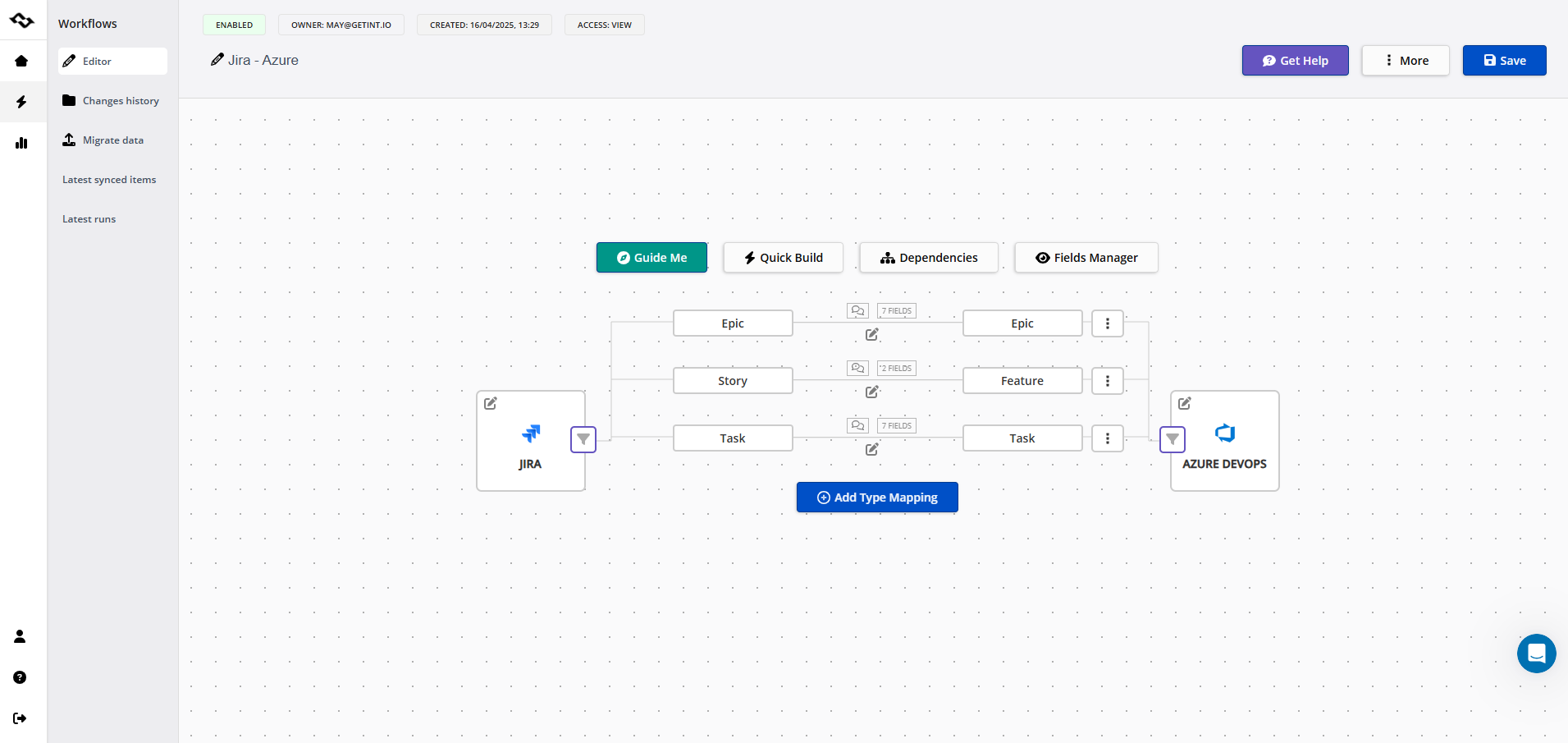
- Go to the Status Mapping section
- Select a Jira status from the Jira side
- Assign a corresponding Azure DevOps state
- Add more Jira statuses to the same target where needed
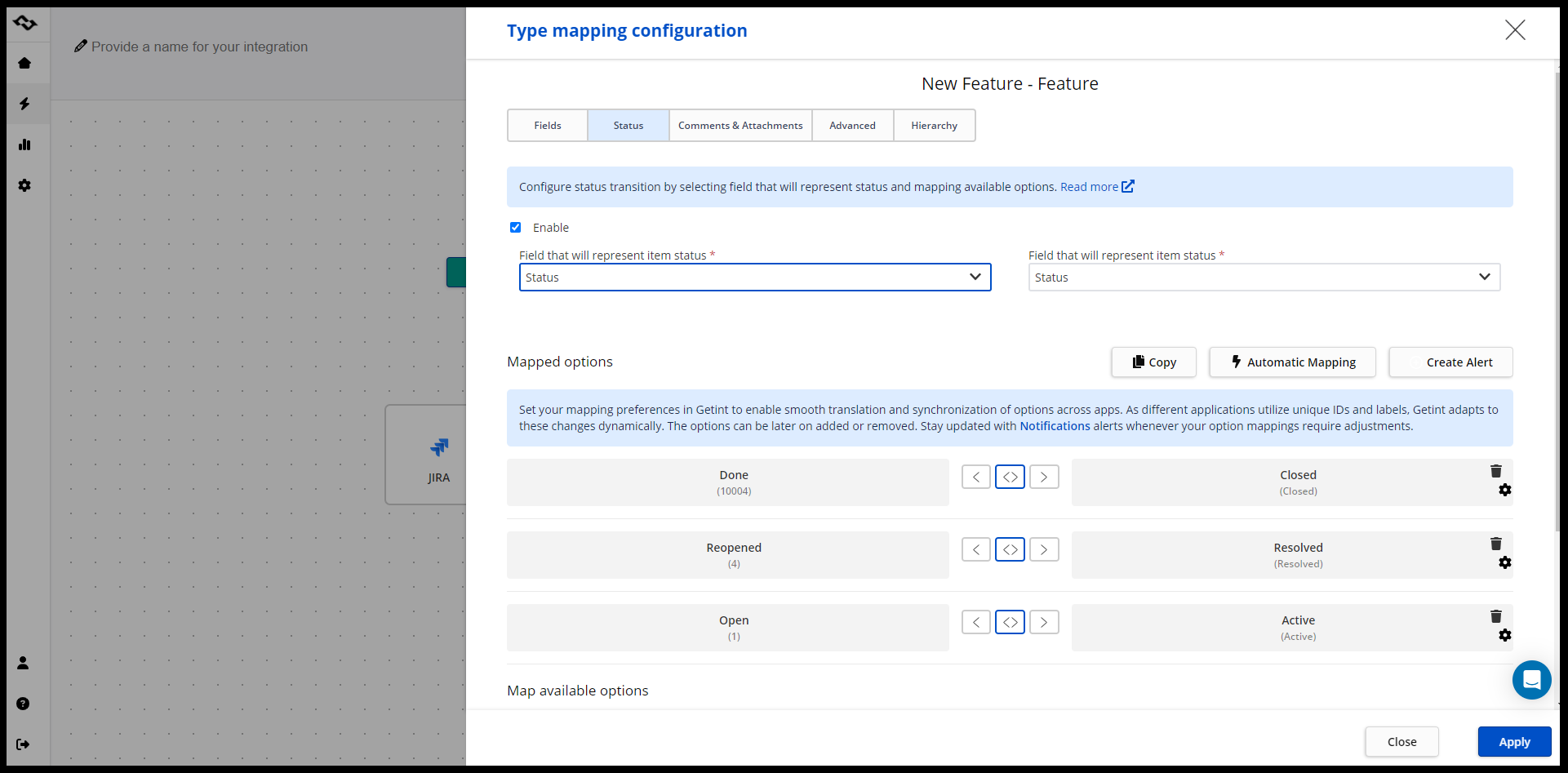
This configuration ensures consistent data communication.
Default Status Behavior in Bidirectional Sync
When bidirectional sync is enabled, mapping must remain predictable.
Getint enables a key mechanism:
- the first mapped Jira status becomes the default
- when Azure DevOps sends updates back, Jira uses this default status
Example:
| Jira Statuses (Mapped) | Azure DevOps State | Default Jira Status |
|---|---|---|
| In Progress, Code Review | Active | In Progress |
This ensures consistent reverse synchronization and prevents ambiguity in status updates.
Important Mapping Constraints
When configuring status mapping, a few rules help ensure stable synchronization:
- Each Jira status should be mapped only once to avoid conflicting updates. While many-to-one mapping is often used to simplify complex workflows, it is not required.
- Status changes must also be accepted by the target system. If workflows or transitions do not allow the update, synchronization will fail even when mapping is correct.
Ignoring these constraints can lead to sync errors, status conflicts, and inconsistent updates.
Where One-to-Many Mapping Fits In
While many-to-one mapping is the recommended approach, one-to-many scenarios can appear in reverse sync.
Example:
- Azure DevOps Active → Jira In Progress or Code Review
This creates ambiguity. To handle it:
- define a default Jira status
- control synchronization rules
- avoid automatic reverse mapping
Note: Stable integrations rely on controlled mapping rather than mirrored workflows.
Field Mapping in Jira Azure DevOps Integration
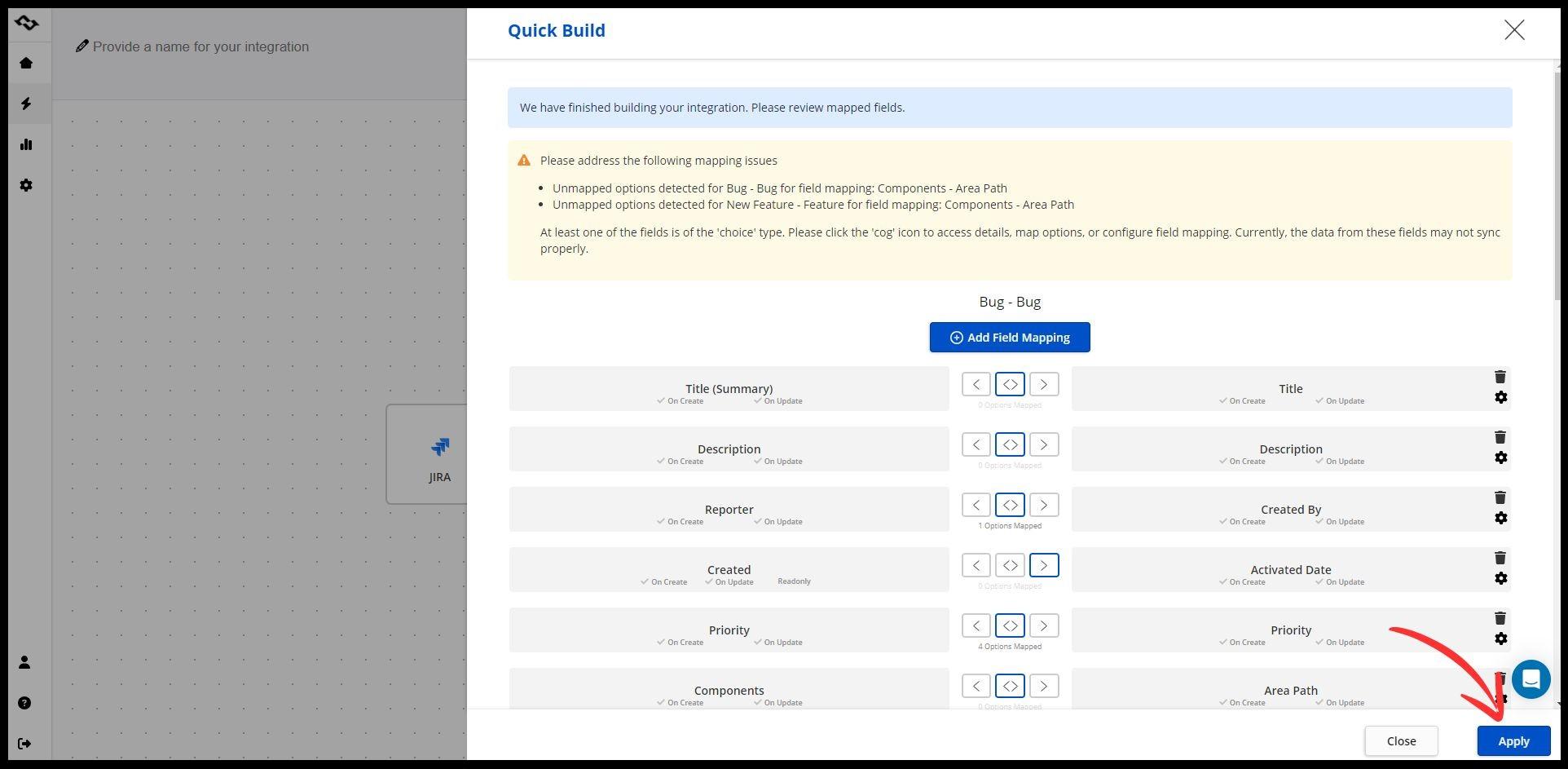
Field mapping is the foundation of any Jira Azure DevOps integration. It defines how data is exchanged between Jira work items and Azure DevOps work items, ensuring both systems stay aligned throughout the development lifecycle.
Without proper field mapping, even correctly mapped statuses will not guarantee reliable synchronization. Data may be incomplete or inconsistent across tools.
Mapping Standard and Custom Fields
Jira and Azure DevOps use different field structures. Standard fields like Summary and Title must be aligned, while custom fields often require additional configuration to ensure consistent data exchange.
Field Mapping and Sync Rules
Field mapping works together with synchronization rules to define how updates flow between systems. Depending on the setup, updates can be one-way or bidirectional.
Why Field Mapping Matters for Data Integrity
Accurate field mapping ensures both systems reflect the same development progress. It prevents data loss, improves reporting, and reduces reliance on manual updates.
Bidirectional Sync vs One-Way Sync
Getint allows you to control sync direction when you integrate Jira with Azure DevOps.
One-way sync
- data flows from one system to another
- one system acts as the source of truth
- reduces risk of human error
Two-way sync
- both systems update each other
- provides real time status updates
- requires precise synchronization rules
Choosing the correct model depends on your development environment and how teams use Jira and Azure DevOps.
Decision Tree: Choosing the Right Sync Model
START
│
├── Are teams actively working in both Jira and Azure DevOps?
│ ├── NO → Use one-way sync
│ └── YES
│
├── Are workflows aligned across both tools?
│ ├── NO → Use one-way sync
│ └── YES
│
├── Is real time visibility required?
│ ├── NO → One-way sync
│ └── YES
│
├── Can you map statuses without ambiguity?
│ ├── NO → One-way sync
│ └── YES
│
└── Use bidirectional connection with:
- defined default statuses
- clear synchronization rules
- controlled data sync
Workflow Transitions and Permissions
Jira workflows depend on transitions, which must be correctly configured for synchronization to work.
When integrating Jira and Azure DevOps:
- Jira statuses must be reachable via transitions
- permissions must allow status updates
- service accounts must have access to perform transitions
Without proper configuration, synchronization fails even if mapping is correct.
Best practice is to design workflows that allow flexible transitions when integrating multiple tools.
Common Pitfalls in Azure DevOps and Jira Integration
Even when integration is technically correct, workflow and status mapping issues can lead to instability. Most problems arise from how synchronization is configured rather than from the tools themselves.
- Status bouncing
Status bouncing occurs when Jira and Azure DevOps continuously overwrite each other’s status updates. This is common in bidirectional synchronization setups without proper control rules or default status logic.
- Unresolved vs Done mismatch
In Jira, a work item can move to Done without a resolution being properly set. Azure DevOps, however, often requires a clear state and reason. This mismatch leads to inconsistencies where items appear completed in one system but not in the other.
- Closed–reopened loops
Reopen scenarios are particularly sensitive. For example, a Jira work item marked as Reopened may map to Active in Azure DevOps, which then syncs back to Jira as In Progress instead of Reopened. This creates loops where the issue never stabilizes in a final state.
Note: Most of these pitfalls can be avoided by carefully defining mapping rules, aligning workflows, and controlling synchronization direction.
Best Practices for Azure DevOps Jira Integration
A stable integration requires deliberate configuration.
- map statuses based on real workflows
- use many-to-one mapping to reduce complexity
- define clear synchronization direction
- test integration with real scenarios
- monitor and adjust over time
Case Study: Paradox Integrate Azure DevOps with Jira Using Getint Platform
A good example of a successful Jira Azure DevOps integration comes from Paradox, a company that needed to connect product and engineering teams working in different systems without the need for switching tools.

In their setup:
- product managers worked with Jira tickets, managing user stories and requirements
- devs used Azure functions to handle implementation, bugs, and technical workflows
The challenge was ensuring both teams stayed aligned avoiding duplication or manual updating data.
Using Getint integration platform:
- Jira work items were synchronized with Azure DevOps work items
- status updates were mapped to reflect development progress accurately
- field mapping ensured that key data such as ownership, priorities, and descriptions remained consistent
Conclusion
Mapping Jira workflows to Azure DevOps is a critical part of building a reliable integration. By combining status mapping, field mapping, and well-defined synchronization rules, teams can ensure consistent data exchange and maintain alignment across systems.
With the right setup built in such an integration like Getint, Jira and Azure DevOps can function as a unified platform, supporting efficient project management and near real time data translation across development teams.
Teams looking to bridge their development and project management workflows can benefit from a dedicated Jira Azure DevOps integration that synchronizes issues, work items, and statuses automatically. Getint’s Jira-Azure DevOps connector supports bidirectional sync with field mapping, filters, and no-code setup.