A support agent opens Freshdesk and sees an urgent ticket from a customer. The ticket explains the issue, but the agent may not know that the customer is approaching a renewal, who owns the account in Salesforce, or whether the sales team is already involved.
At the same time, the account manager sees the opportunity, contacts, and account history in Salesforce, but may have no idea that the customer has opened several spport tickets.
Both teams work with the same customer. They simply see different parts of the relationship.
A Freshdesk Salesforce integration connects those two views. It can make important support activity visible in Salesforce, bring relevant CRM context into Freshdesk, reduce manual data entry, and keep selected information synchronized as it changes.
This guide explains how that connection can work, what data is worth sharing, common integration options, and how to set up Freshdesk and Salesforce synchronization with Getint.
Where Freshdesk and Salesforce Become Disconnected
Freshdesk and Salesforce often work in organization for different reasons.
- Freshdesk may be the main help desk, supporting core ticketing, shared inboxes, canned responses, a knowledge base, self-service, collision detection, and AI features such as Freddy AI Copilot or Freddy AI Agent.
- Salesforce may already sit at the center of the commercial side of the business. Sales teams manage accounts, opportunities, and customer relationships in Sales Cloud, while other departments may use Salesforce Service Cloud, Marketing Cloud, Data Cloud, or other parts of the Salesforce ecosystem.
The problem appears when a business process crosses the boundary between the two systems.
The point of the seamless integration is therefore not simply to copy records but to decide what each team needs to know from the other system and when.
But Salesforce Already Has Service Cloud. Why Keep Freshdesk?
Salesforce Service Cloud already offers case management, omni-channel routing, knowledge articles, self-service, automation, and AI capabilities through Agentforce Service.
For some companies, moving support entirely into Service Cloud makes sense. For others, Freshdesk is already the preferred support environment, especially where the team has established ticketing workflows, web forms, a knowledge base, Freddy AI features, or simply stronger user adoption.
Salesforce can remain the central CRM while Freshdesk handles customer support.
This setup is also common in larger organizations where different business units use different platforms, acquired teams keep their existing tools, or external support teams operate separately from the internal sales organization. In those cases, the real challenge is keeping Freshdesk and Salesforce connected without forcing every user into the same system.

What Should You Sync Between Freshdesk and Salesforce?
Start with the business process, not with everything the platforms are capable of sharing.
A useful workflow could look like this:
- A customer creates a Freshdesk ticket.
- Freshdesk remains the main place where support handles the issue.
- The ticket meets a condition, such as high priority or strategic customer status.
- A related record is created or updated in Salesforce.
- The account owner gains visibility into the issue.
- Relevant status changes and updates continue to sync.
- Selected Salesforce customer data can flow back to Freshdesk.
A practical mapping may look like this:
Getint supports manual field mapping and lets administrators define synchronization direction at field level. Freshdesk ticket creation also requires fields such as requester, status, and priority, so these need to be mapped or provided when tickets are created from the connected system.
This field-level control is important. Customer or account information may flow from Salesforce to Freshdesk, while support-ticket progress may primarily move in the opposite direction.
Freshdesk Salesforce Integration Use Cases
Give sales visibility into serious help desk issues
A strategic customer opens a critical Freshdesk ticket shortly before a renewal discussion. Without integration, the account manager may learn about the problem only if someone directly sends a message.
With synchronization, selected ticket information can appear in Salesforce automatically. Sales gets the context it needs, while the support team continues working in Freshdesk.
Give support agents CRM context
A Freshdesk agent may need to know whether the customer belongs to a strategic account, who owns the relationship, or what account status applies. Relevant customer data from Salesforce can be made available to the support workflow without requiring agents to switch constantly between tools. It gives both teams the important view of unified customer data.
Sync only selected tickets
Sales does not need every routine support request in Salesforce. A better automated workflow may synchronize only urgent tickets, specific customer groups, selected products, or records with a particular custom field.
Getint supports filters that can apply to new items, already synchronized items, or both, so the integration can stay focused on the records that matter.
The Hard Part Starts After the Record Is Created
Creating a Salesforce record from a Freshdesk ticket is only the beginning.
- What happens when someone changes the priority?
- Should Salesforce be allowed to overwrite it?
- What if Freshdesk uses Resolved while Salesforce uses a different workflow status?
- Should a private support note appear in Salesforce?
- If someone comments from Salesforce, should it become a public Freshdesk reply or remain internal?
These questions determine whether the integration supports a real business process or simply creates duplicate data.
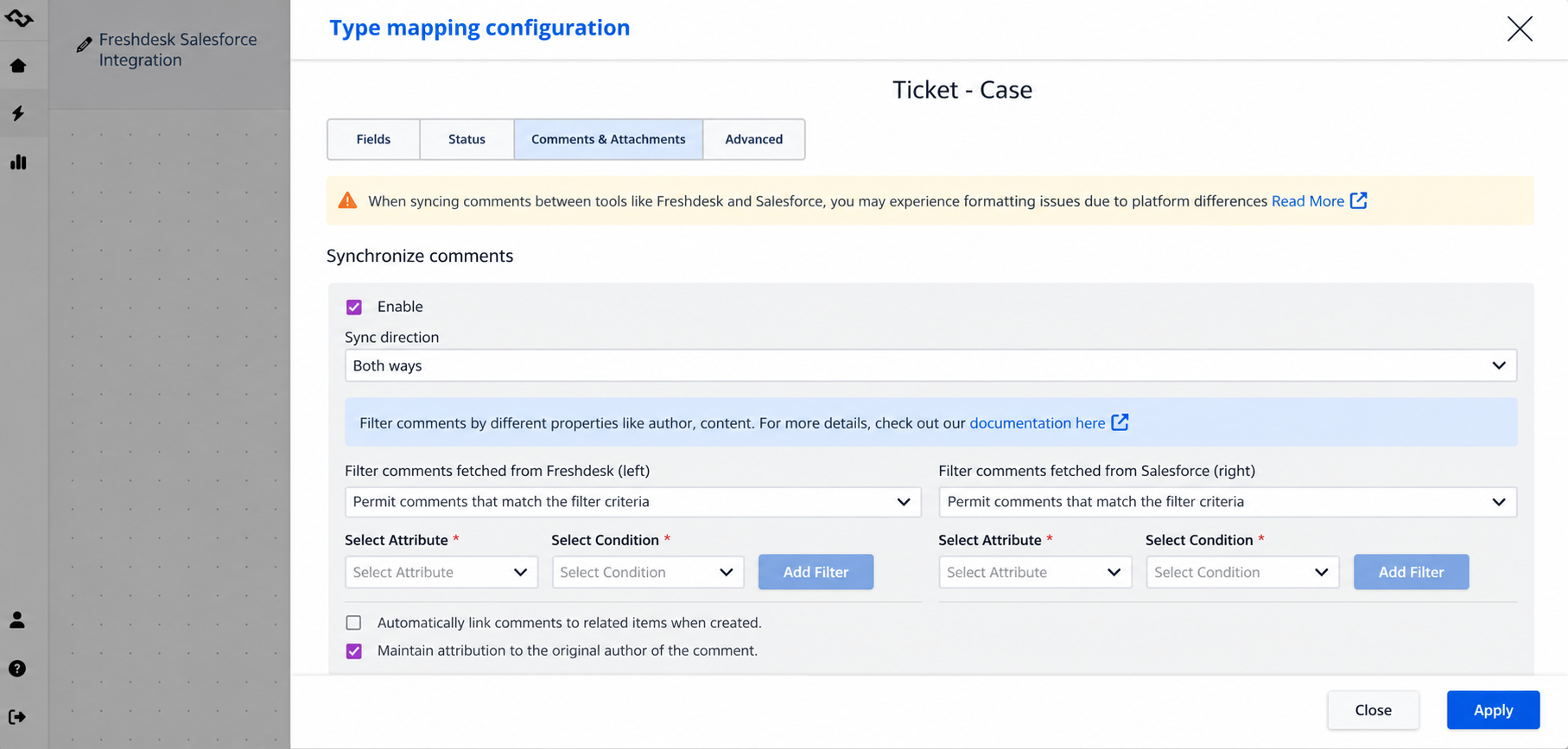
Getint provides field-level direction, status mapping, assignee mapping, comment and attachment settings, filters, and configurable create/update actions. This allows both platforms to keep their own workflows while translating differences between them.
*Freshdesk also distinguishes between public replies and private notes, so comment visibility should be configured carefully.
Ways to Integrate Freshdesk With Salesforce
It's good to mention that there are several ways to connect the two platforms.
- Native or marketplace integrations can work well when the required workflow closely matches the functionality already provided.
- Salesforce Flow Builder can support automation inside Salesforce and can participate in broader integrations with external systems. This can be a good option for organizations with experienced Salesforce admins that could maintain the integration on a daily basis as their standard task.
- APIs and custom scripts give development teams complete control over data formats, transformations, authentication, and business logic. They also create ongoing responsibility for maintenance, monitoring, retries, API changes, and error handling.
- General automation tools (like Zapier, n8n, Make) are useful for trigger-action workflows, such as creating a Salesforce record when something happens in Freshdesk. They can become harder to manage when the requirement changes from simple automation to continuous synchronization.
- A dedicated synchronization platform such as Getint focuses on keeping connected records aligned over time, with control over data flows, mappings, filters, updates, comments, and attachments.
What a Controlled Two-Way Integration Looks Like
A two-way sync does not mean every field needs to move in both directions.
For example:
- account-related information: Salesforce → Freshdesk
- ticket status: Freshdesk → Salesforce
- priority: both directions
- public replies: both directions
- private notes: Freshdesk only
- new record creation: Freshdesk → Salesforce
- updates after creation: Freshdesk ↔ Salesforce
This gives teams more control than applying a single synchronization direction to the entire integration.
Getint connects Salesforce through OAuth credentials created with a Salesforce External Client App. Freshdesk uses an API key. Dedicated service accounts are recommended so automated activity can be separated from actions performed by individual users.
Security Considerations for Freshdesk Salesforce Integration
A Freshdesk Salesforce integration may transfer customer details, ticket content, internal notes, attachments, and CRM data between two business-critical systems. Security therefore needs to be part of the integration design from the beginning, not something reviewed after the workflow is already live.
The first question is access. The accounts used for Freshdesk and Salesforce should have only the permissions required for the integration. Dedicated service accounts are useful because they separate automated activity from actions performed by individual users and make access easier to manage.
Authentication also differs between the two platforms. Freshdesk connections use an API key, while Salesforce uses OAuth credentials through an External Client App. Those credentials should be stored securely and updated whenever access changes or a key is rotated.
Another important area is data scope. Not every support ticket, CRM field, attachment, or internal comment needs to cross the integration boundary. Filters and field-level mapping can limit synchronization to the information required by the business process, reducing unnecessary exposure of customer data.
Freshdesk's distinction between public replies and private notes is particularly relevant. Internal support discussions should not automatically become visible outside the intended audience. Comment visibility should therefore be configured explicitly before enabling synchronization.
For larger or regulated environments, the security review should cover:
- which data is allowed to leave each platform;
- which users or service accounts can access the integration;
- how credentials are managed and rotated;
- whether private notes and attachments should synchronize;
- which fields contain sensitive customer information;
- how logs and integration activity are monitored;
- whether SaaS or On-Premise deployment better fits internal requirements.
Getint Security and Deployment Options
Getint supports both SaaS and On-Premise deployment, giving organizations different levels of control over where the integration platform is hosted and how data flows are managed.
Its security and compliance capabilities include ISO/IEC 27001, ISO/IEC 27018, SOC 2 Type II, GDPR support, role-based access, and encryption in transit and at rest.

For teams with stricter infrastructure or governance requirements, On-Premise deployment allows the Getint platform to run in customer-managed infrastructure. More advanced implementations can also be supported with tailored onboarding, which is useful when security, access controls, workflow design, or deployment requirements need to be planned more closely.
A secure integration should do more than authenticate successfully. It should minimize unnecessary data flows and give administrators clear control over what is synchronized, who can access it, and how the connection is monitored.
How to Set Up a Freshdesk Salesforce Integration With Getint
Once the workflow is clear, the technical setup is relatively straightforward.
Step 1: Create a New Integration
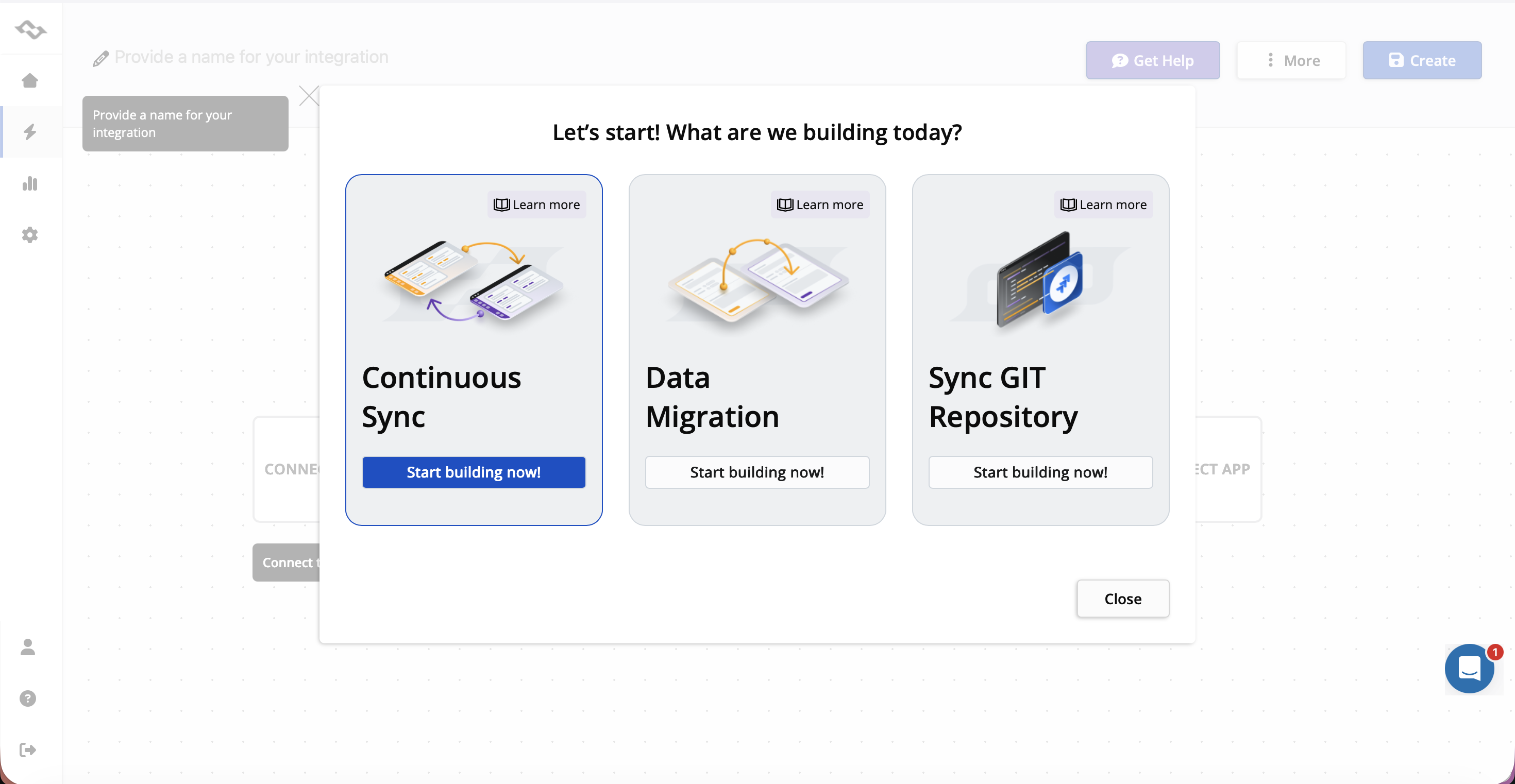
Open Getint and select Create Integration.
Choose Continuous Sync if Freshdesk and Salesforce should continue exchanging updates after the initial connection.
Step 2: Connect Freshdesk
Select Freshdesk and create a new connection.
You will need:
- your Freshdesk instance URL;
- the relevant account email;
- a Freshdesk API key.
The API key is available in Freshdesk profile settings. A dedicated service account is recommended because activity created through the integration is associated with the account used for the connection.
For the detailed information how to get tokens, visit our documentation.
Step 3: Connect Salesforce
Select Salesforce and create the connection.
Salesforce uses OAuth authentication through an External Client App. Create the app, enable the required API access, and use the generated client ID and client secret when configuring Salesforce in Getint.
Once both systems are connected, select them for the integration.
Step 4: Choose What to Synchronize
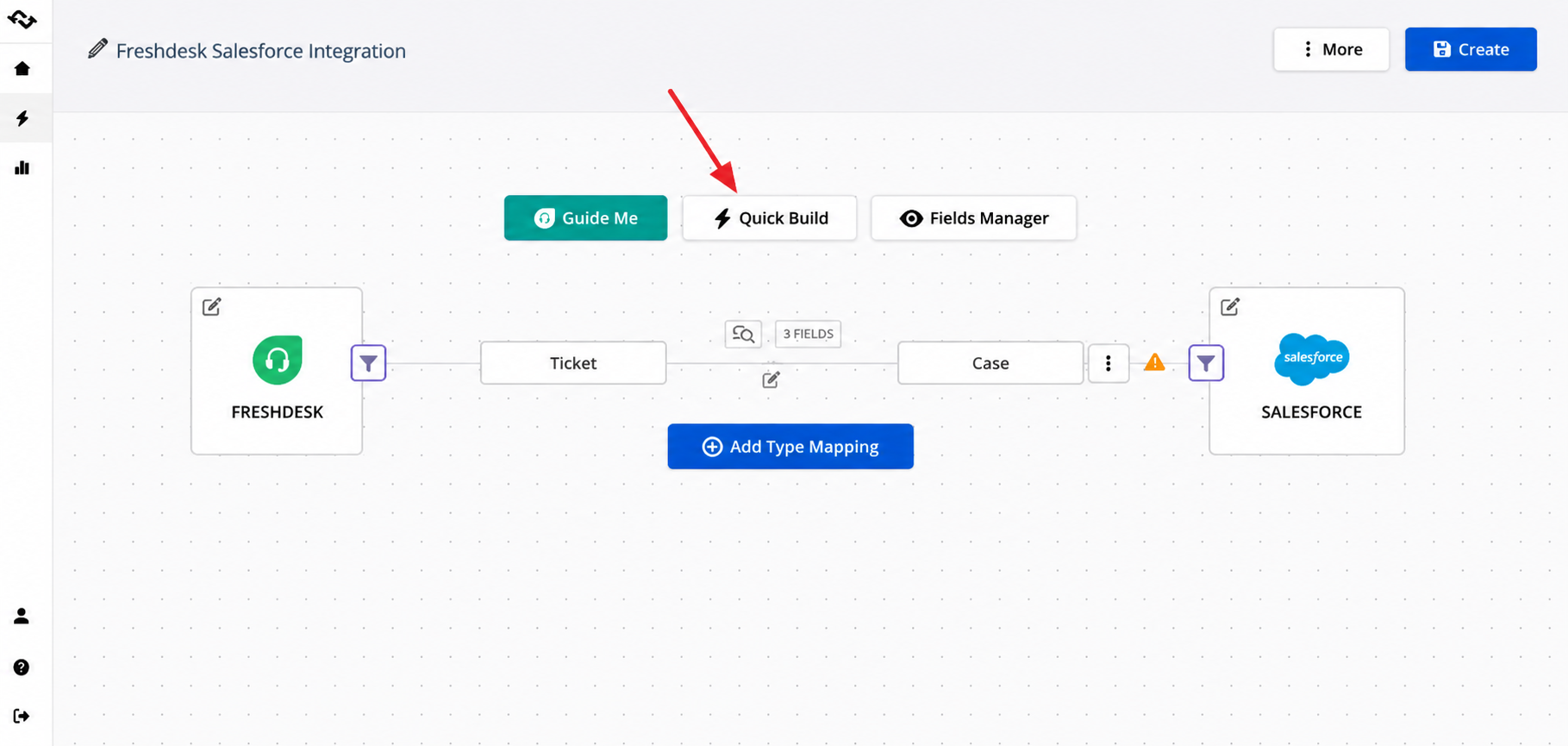
Define which Freshdesk record type should correspond to the required Salesforce object.
For many support workflows, that may mean connecting Freshdesk tickets with Salesforce cases, although custom Salesforce objects may also be used depending on the business process.
Getint offers Quick Build for automatic mappings or manual mapping for more specific workflows.
Step 5: Map the Fields
Choose which fields should correspond between Freshdesk and Salesforce and define the direction of each flow.
For example:
- Subject ↔ Subject
- Description ↔ Description
- Priority ↔ Priority
- Requester ↔ Contact-related field
- Agent ↔ Owner
- Custom field ↔ Custom field
Some data may need two-way synchronization, while other fields should remain controlled by one platform.
*When the integration creates Freshdesk tickets, remember that requester, status, and priority are required values.
Step 6: Configure Status Mapping
Freshdesk and Salesforce can use different workflow labels.
For example:
Freshdesk: Open → Pending → Resolved → Closed
Salesforce: New → Working → Escalated → Closed
Map equivalent statuses and define whether changes should move in one or both directions.
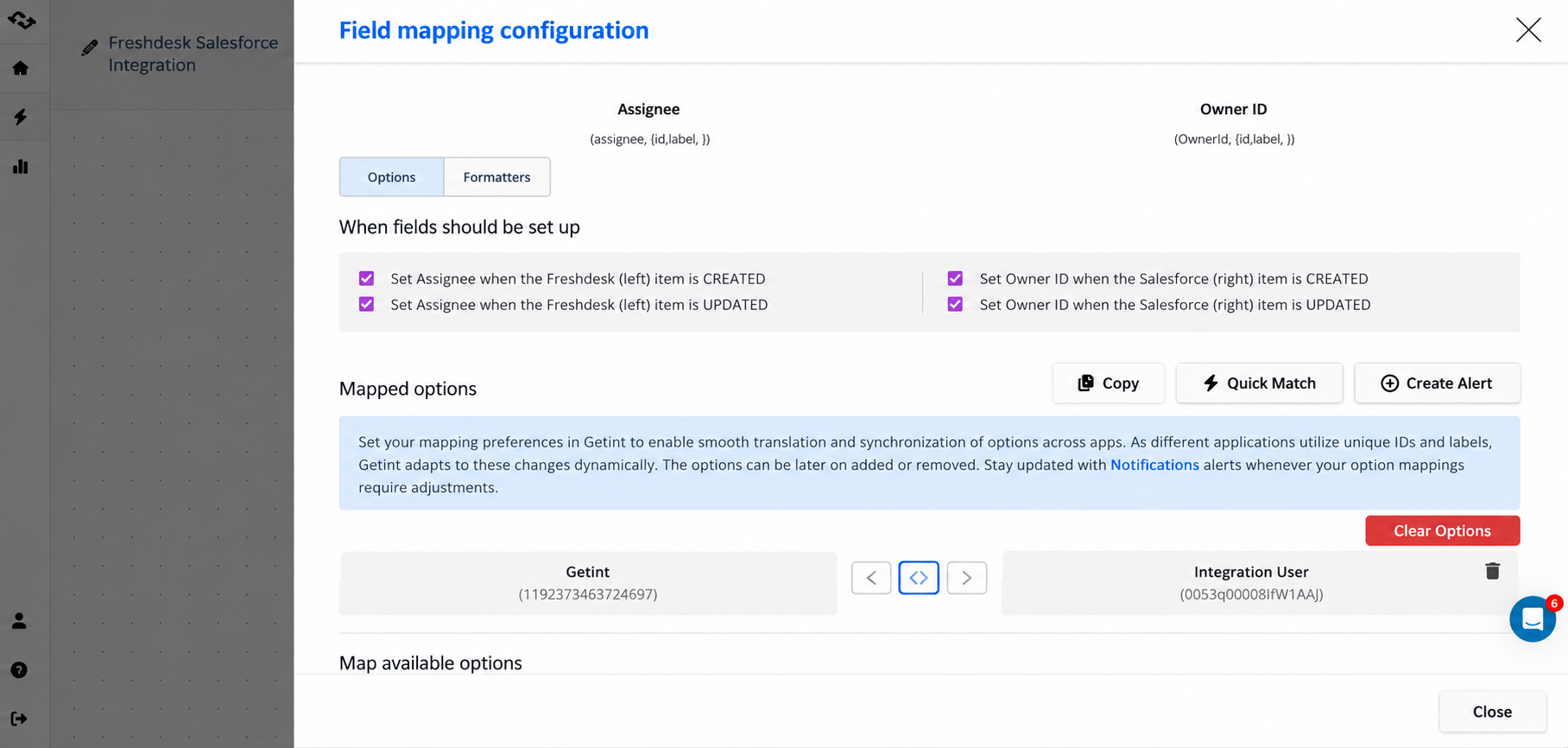
Step 7: Map Users and Assignees
If ownership needs to remain visible across both platforms, map Freshdesk agents to the appropriate Salesforce users.
This is useful when a ticket owner in Freshdesk should correspond to a responsible user or owner in Salesforce.
Step 8: Configure Comments and Attachments
Choose whether comments and attachments should synchronize:
- both ways;
- Freshdesk → Salesforce;
- Salesforce → Freshdesk;
- or not at all.
For Freshdesk, decide specifically how public replies and private notes should behave. Internal communication should not accidentally become customer-visible.
Step 9: Add Filters
Use filters to control which records enter the integration.
For example, you may synchronize only:
- urgent tickets;
- selected customers;
- specific support groups;
- certain statuses;
- tickets with a particular custom field.
Filters help reduce unnecessary data flows and keep Salesforce focused on relevant support activity.
Step 10: Define Creation and Update Logic
Creation and ongoing synchronization can follow different rules.
For example:
Creation: Freshdesk → Salesforce
Updates: Freshdesk ↔ Salesforce
This works well when Freshdesk is the entry point for support issues, while both platforms should remain synchronized afterward.
Step 11: Create the Integration
Review the mappings, filters, status rules, comments, attachments, and users. Give the integration a clear name and select Create.
Step 12: Test the Workflow
Before moving to production, test more than basic record creation.
Check:
- mapped fields;
- priority changes;
- status transitions;
- reassignment;
- public replies;
- private notes;
- attachments;
- Salesforce-side updates;
- records that should be excluded by filters.
Then review Getint logs and synchronization status to verify that the setup works as intended.
Best Practices for Freshdesk Salesforce Integration
- Do not synchronize data simply because you can. Sales rarely needs the entire support-ticket timeline, and support does not need every Salesforce field. Sync the information that changes a decision or helps someone complete a task.
- Decide which system owns each field. Account data may belong to Salesforce, while support status belongs to Freshdesk. Clear ownership reduces conflicts and improves data accuracy.
- Plan for different data formats. Statuses, priorities, users, and custom fields may not match directly. Use mapping and data transformation to translate them correctly.
- Treat privacy as part of the integration design. Review private notes, attachments, access controls, and customer information before activating the workflow.
- Monitor the integration after launch. Business processes, fields, workflows, and users change over time. Reviewing logs and synchronization health helps keep the setup reliable.
Final Thoughts
Freshdesk and Salesforce can serve different teams while still supporting the same customer interactions and customer issues.
Freshdesk can remain the platform where support manages tickets, customer conversations, and resolution workflows. Salesforce can remain as CRM system where sales and account teams manage customer data, opportunities, and broader business context.
The integration handles the information that needs to move between them.With Getint work sync platform, teams can configure selective record creation, one-way or two-way synchronization, custom fields, filters, status and assignee mapping, comments, attachments, and rules controlling how data flows over time.
If you're planning a Freshdesk Salesforce integration and want to see how it could work with your own processes, book a free demo with our integration expert.