The best ClickUp integrations are the ones that remove a step from your day: no copying a Slack thread into a task, no retyping a support ticket, no chasing developers for an update that already exists in another tool. ClickUp markets itself as one platform for all your work, but most teams still run it alongside a chat app, a calendar, a code repository, a CRM or a help desk. Every gap between those tools is filled by manual data entry, and manual data entry is where errors, duplicate work and missed deadlines start.
In this guide we walk through the most popular ClickUp integrations by category, explain how to connect ClickUp to other apps, and show where native connectors stop and a dedicated third-party tools take over. You will find integrations for communication (Slack, Microsoft Teams, Zoom), calendars and time tracking (Google Calendar, Outlook, Toggl, Harvest), development (GitHub, GitLab, Jira, Azure DevOps), data and forms (Google Sheets, Google Forms, Google Drive) and customer-facing teams (HubSpot, Salesforce, Zendesk, Intercom), plus automation tools like Zapier and Make.
Quick summary of the best ClickUp integrations
What are ClickUp integrations?
ClickUp integrations are connections that let data move between your ClickUp workspace and external apps. A good integration lets you create ClickUp items directly from where the work starts (a Slack message, a support ticket, a form response) and keeps task updates visible where people already spend their day. The result is less tool switching, fewer repetitive tasks and better team productivity.
Not every ClickUp integration works the same way. Before you pick popular tools, it helps to know the four main types.
1. Native ClickUp integrations. These are built and maintained by ClickUp and live in the App Center inside your ClickUp account. Examples include Slack, Microsoft Teams, Google Calendar, GitHub, GitLab, Zoom and HubSpot. They are quick to set up and usually free, but they are designed for specific scenarios. Most of them push information in one direction, such as sending ClickUp notifications to a Slack channel or attaching a GitHub pull request to an existing task.
2. Automation platforms. Tools like Zapier and Make connect ClickUp to thousands of other apps through triggers and actions. They are a good fit to automate workflows in simpler cases: a new Google Forms response creates a new task, or a new row in Google Sheets triggers task creation. They are trigger-based, so each workflow usually runs one way, and complex multi step actions can become hard to maintain.

3. Dedicated sync platforms. Integration platforms such as Getint are built to keep records consistent across systems over time. Instead of firing a one-off action, they map fields between tools and keep tasks, statuses, comments, custom fields and attachments synchronized in one or both directions. This is the category to look at when ClickUp has to work with another work management system like Jira, Azure DevOps, ServiceNow, Asana or monday.com.
4. Custom integrations. ClickUp offers a public API and webhooks, so developers can build custom integrations for internal systems. This gives you full control, but your team also owns the maintenance, error handling, authentication changes and API limits.
Most companies end up using a mix: native integrations for communication and calendars, an automation tool for lightweight triggers, and a sync platform for cross-team workflows where data has to stay accurate in both tools.
How to connect ClickUp with other apps
The process to connect ClickUp with a native integration takes a few minutes and looks similar for most apps. ClickUp's own Microsoft Teams guide follows the same pattern described below.
- Open your ClickUp workspace and go to the App Center (via your workspace avatar or the Apps menu).
- Use the search bar or select integrations by category, then pick the app you want, for example Microsoft Teams, Slack or Google Calendar.
- Choose whether you are connecting it for yourself (Personal) or for the whole workspace. Some integrations, like Google Calendar, only support personal connections.
- Click the Connect button and sign in to the other app.
- Authorize access by reviewing the permissions and clicking Allow. In some companies, an admin of the other tool (for example a Microsoft 365 admin) has to approve the requested scopes first.
- Configure the integration: pick the Spaces, Folders or Lists to sync, the channels that should receive notifications, and the fields you want to see.
- Test it. Create a new task with a due date, post a new message, or update a status and check that it appears where you expect.
To remove an integration, open it again in the App Center, choose the Personal or Workspace tab, and select Disconnect. Disconnecting stops future syncing, but data that has already been created in the other tool usually stays there.
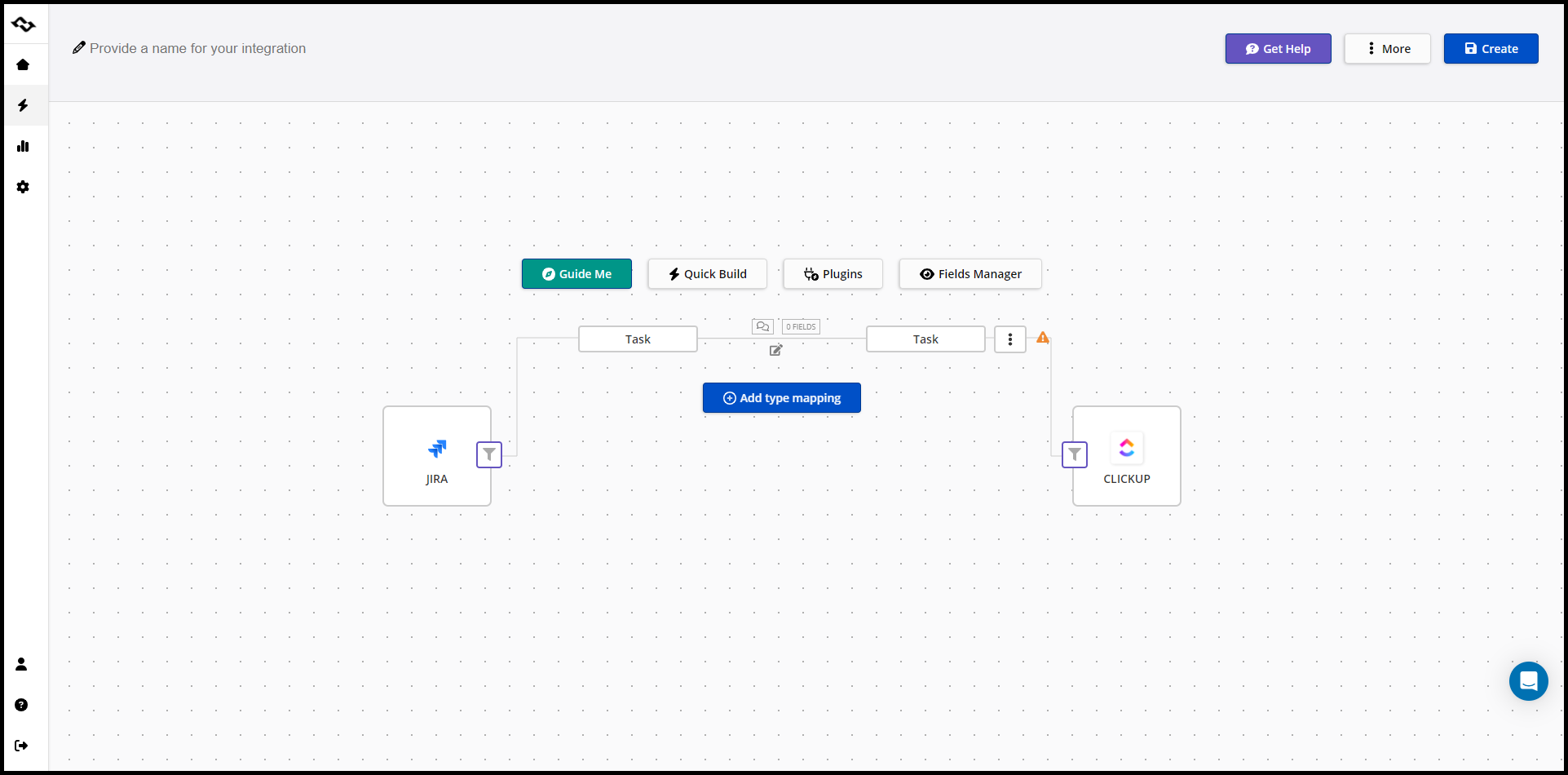
For integrations that are not in the App Center, such as a two-way sync between ClickUp and Jira or Azure DevOps, you will connect ClickUp through the external platform instead. With Getint, for example, you add ClickUp and the second tool as connections using API tokens, then map task types, statuses and fields in a no-code editor.
The best ClickUp integrations by category
Let's take a look at the most popular ClickUp integrations, grouped by what they help you do. For each one we explain what it does, how it works and where its limits are.
ClickUp integrations for communication
Slack
Slack is where many work requests start, which makes it one of the most used ClickUp integrations. The native integration lets you create a new task from any Slack message, attach a conversation to an existing task, and receive ClickUp notifications in selected Slack channels.
How it works: after you connect ClickUp in the App Center, you can use the /clickup slash command (for example /clickup new) to create ClickUp tasks directly from a channel. You can also update statuses, change the assignee, priority or due date, and get rich link previews when someone pastes a task link.
Best for: turning conversations into actionable tasks so requests do not get lost in chat history.
Limitation: the integration is designed for creating tasks and posting task updates. Slack threads do not stay in two way sync with ClickUp comments.
Microsoft Teams
The Microsoft Teams integration brings ClickUp into the Microsoft 365 workspace. You can create tasks from a Teams channel or message, attach Teams messages to tasks, preview ClickUp links, and sync ClickUp activity from a Space, Folder or List to a selected Teams channel.
How it works: connect ClickUp from the App Center, click Connect, and allow ClickUp access to your Microsoft account. A ClickUp bot then appears in Teams and sends notifications on comments, status changes and assignments.
Best for: companies standardized on Microsoft 365 that want task updates visible where people already chat. Microsoft Teams integration also pairs well with Outlook for teams that live in the Microsoft ecosystem.
Limitation: as with Slack, it is mainly a notification and task creation layer. Some setups also require a Microsoft admin to approve permissions first.
Zoom
The Zoom integration lets you start a Zoom meeting from a ClickUp task with one click or the /zoom slash command. The meeting link is posted on the task so late joiners can find it, and after the call the recording is available from that task. It keeps meeting context next to the work it relates to, which is useful for client calls and sprint reviews.
ClickUp integrations for email
Gmail and Outlook
A large share of work requests still arrive by email. ClickUp's email integrations, available as a Chrome extension for Gmail and an add-in for Outlook, let you turn a message into a new task, attach the full email to an existing task, and see related tasks next to the conversation. This is one of the quickest ways to improve operational efficiency across teams that handle client requests, approvals or vendor communication.
Best for: account managers, operations and anyone whose inbox is effectively a task list.
Limitation: the email is attached as a snapshot. Replies in the thread do not automatically update the task, so agree on where the conversation continues.
ClickUp integrations for calendars and time management
Google Calendar
ClickUp Google Calendar integration is the go-to choice for time management. According to ClickUp's help center, it is available on every plan, supports only personal connections, and offers two-way sync so you can see and update Google Calendar events in your Planner.
How it works: connect your Google account in the App Center, choose which calendars to show, and decide whether tasks with due dates should appear as calendar events. Changes to timing can flow in both directions, so moving an event can update the task.
Best for: time blocking, shared schedules and avoiding missed deadlines by showing tasks and meetings in one view.
Limitation: the integration is private to each user, so it is not a team-wide sync of shared calendars.
Outlook Calendar
ClickUp also connects to Outlook Calendar, so Microsoft users can see ClickUp tasks next to their meetings. Compared to Google Calendar, the sync options have historically been more limited, so test whether it covers your workflow before rolling it out.
Time tracking tools: Toggl, Harvest, Everhour, Clockify
ClickUp has built-in time tracking, but many teams already bill clients or report hours through a dedicated tool. Integrations with Toggl, Harvest, Everhour and Clockify (usually via browser extension or native connector) add a timer button to tasks in ClickUp. This gives you precise time tracking without manual data entry into timesheets.
ClickUp integrations for development teams
GitHub, GitLab and Bitbucket
The native Git integrations link code activity to ClickUp tasks. When developers include the task ID in a branch name, commit message or pull request, that activity appears on the task. Product managers can see what is in progress without asking engineers for an update. Developers can also change a task's status straight from a commit message by referencing the task ID, which keeps ClickUp up to date without opening it.
Best for: visibility into pull requests, commits and merges directly from ClickUp.
Limitation: these integrations show activity on tasks. They do not keep GitHub issues and ClickUp tasks in a full two way sync of fields, statuses and comments. For that, a sync platform like Getint enables ClickUp and GitHub and GitLab and ClickUp integrations.
Jira
Many organizations run ClickUp for business, marketing or product teams and Jira for software development. ClickUp has a native Jira import and basic linking, but keeping both tools aligned day to day requires a sync. If you are still deciding between the two tools, read our Jira vs ClickUp comparison. If you need both, the Jira ClickUp integration keeps issues and tasks, statuses, comments and custom fields synchronized.
Azure DevOps
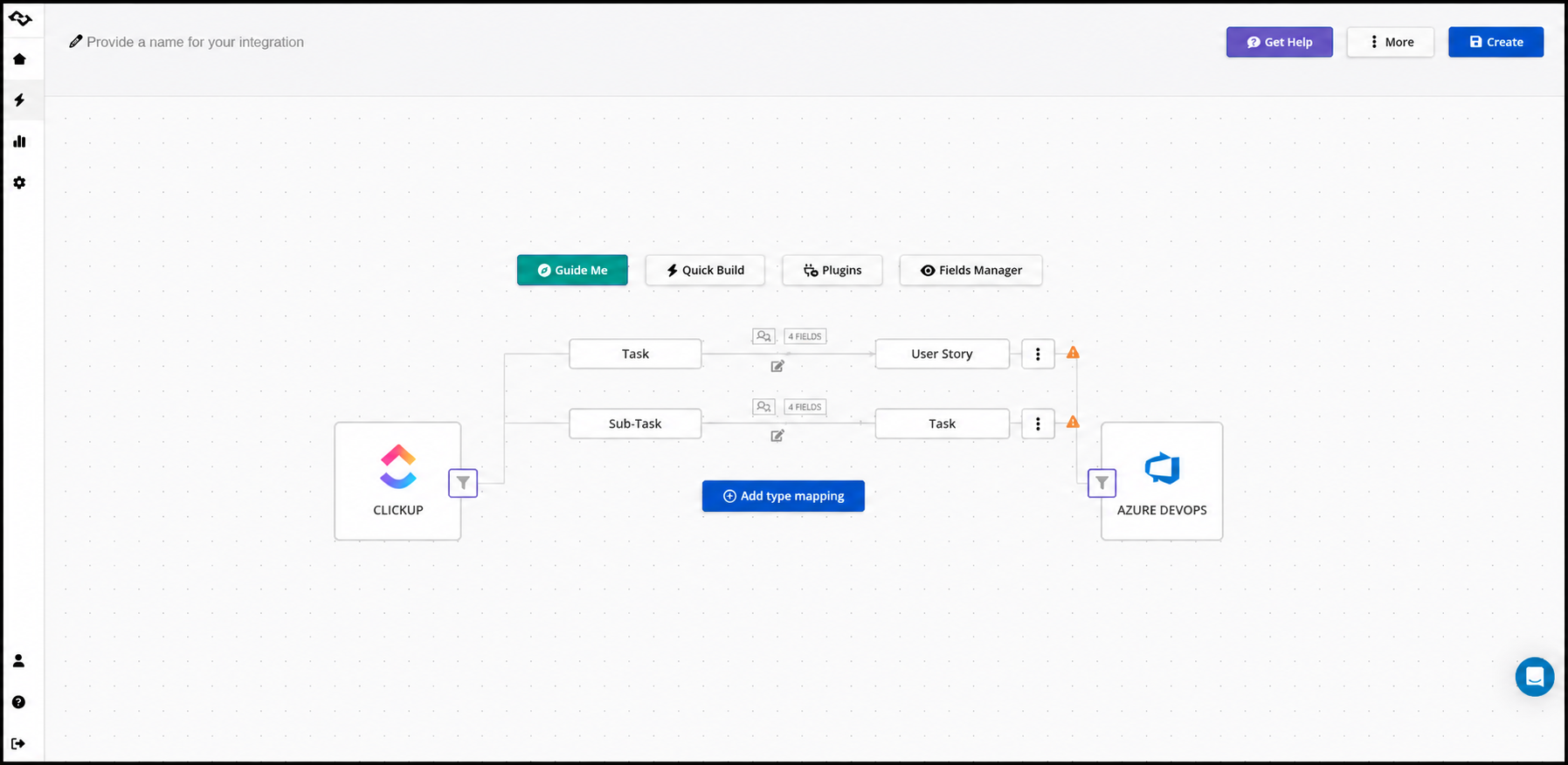
Azure DevOps is where many engineering teams manage work items, sprints and pipelines, while ClickUp handles planning and cross-functional task management. There is no native ClickUp app for this connection, so teams use an integration platform. Our Azure DevOps ClickUp integration guide walks through the full setup, from generating a personal access token to mapping work item types, statuses and comments.
ClickUp integrations for data, documents and forms
Google Sheets
Google Sheets is still the default for ad-hoc reporting, budgets and business plan models. ClickUp can import spreadsheets and export task data, but there is no live native sync. Teams usually connect Google Sheets through an automation tool (for example, a new row creates a new task) or a sync platform when they want ClickUp data and spreadsheet rows to stay up to date.
Google Forms
Google Forms is popular for internal requests, event registrations and client intake. ClickUp does not have a direct native integration, but Zapier or Make can create a task from every new form response, mapping answers to the task name, task description and custom fields. If you only need intake inside ClickUp, the built-in ClickUp Forms view is an alternative.
Typeform, Calendly and other intake tools
Form builders like Typeform and lead-capture tools work the same way as Google Forms: each submission becomes a ClickUp task with answers mapped to custom fields. Scheduling tools like Calendly can create a task for every new booking, so sales calls, onboarding sessions or interviews automatically land in the right list with a due date.
Google Drive, Dropbox, OneDrive and Box
Cloud storage integrations let you attach files to tasks directly from your drive and preview them inside ClickUp. They keep the latest version of a document linked to the work, instead of uploading copies that quickly go out of date.
ClickUp integrations for reporting and BI
ClickUp Dashboards cover day-to-day reporting, but leadership often wants project data next to finance, CRM or support metrics. To get ClickUp data into Power BI, Tableau, Looker Studio or a data warehouse, teams use one of three routes: scheduled exports to Google Sheets, ETL or ODBC connectors that expose ClickUp data as tables, or custom scripts on the ClickUp API. Choose based on how fresh the data must be and who will maintain the pipeline. If the goal is to see another tool's data inside ClickUp rather than in a BI tool, syncing it directly into ClickUp tasks is often simpler.
Finance teams can also connect accounting tools such as QuickBooks, typically through Zapier or Make, to create tasks from new invoices or overdue payments.
ClickUp integrations for customer-facing teams
HubSpot and Salesforce
Sales teams live in a CRM, while onboarding, delivery and account management teams often plan in ClickUp. The native HubSpot integration lets you create ClickUp tasks from HubSpot records. For a full handoff where deal or account updates and task progress stay aligned, get interested in Getint ClickUp HubSpot and ClickUp Salesforce integrations, having user-friendly interface and not requiring coding knowledge to run the connection.
Zendesk, Freshdesk and Intercom
Support teams need to escalate bugs and feature requests to product and engineering. Native integrations with Zendesk and Intercom let agents create a ClickUp task from a ticket or conversation and see its status. When customer interactions need ongoing updates in both directions, for example so agents see when a fix is released, a two-way connection such as ClickUp Zendesk or Freshdesk ClickUp keeps both records in sync.
Automation platforms: Zapier and Make
Zapier and Make connect ClickUp to thousands of other apps. They are ideal when you want to automate repetitive tasks such as creating a task from an email, posting a message when a status changes, or adding a row to Google Sheets when a task is completed.
Popular ClickUp automation workflows include:
- Gmail to ClickUp: create a task for every email that matches a filter, such as a subject containing “Support request”
- Google Forms or Typeform to ClickUp: create a new task for each response, with answers mapped to custom fields
- Microsoft Teams to ClickUp: create a task when a new message is posted in a specific channel
- ClickUp to Google Sheets: add a row when a task is completed, for lightweight reporting
- Calendly to ClickUp: create a task for every new booking with the meeting date as the due date
To set one up, connect your ClickUp account in Zapier or Make, choose a trigger app and event, select ClickUp as the action (Create Task or Update Task), map the fields, then test and turn it on.
Best for: simple, trigger-based automation workflows across many tools.
Limitation: each workflow reacts to one event. Keeping a record synchronized over its whole lifecycle (status, comments, attachments, custom fields) means building and maintaining several workflows in each direction, and costs grow with the number of tasks. See our comparisons of Getint vs Zapier and Getint vs Make.

One-way and two-way ClickUp integrations with business tools: Getint
Most native ClickUp integrations do one job well: they create a task, post a notification, or show activity. The problem appears when the same piece of work lives in two systems for weeks. A task is created in ClickUp, then copied to Jira or Azure DevOps, then updated in both places by different people. Within days, statuses, due dates and comments no longer match.
Getint is an integration platform built for exactly this situation. It connects ClickUp with the business tools your other teams already use and lets you choose between one-way and two-way sync for every integration and even for individual fields.
One-way vs two-way sync: what is the difference?
- Choose one-way sync when one team only needs visibility. For example, leadership wants to see delivery progress from Azure DevOps inside ClickUp, or support wants every escalated Zendesk ticket to create a task in ClickUp without receiving updates back.
- Choose two-way sync when two or more teams actively work on the same item. A project management team update priority in ClickUp, a developer moves the status in Jira, and a support agent adds a comment, and everyone sees the same information without switching tools.
With Getint you can also mix both: sync status in both directions, but send the task description only from ClickUp to the other tool so it stays the single source of truth.
Which tools can you connect to ClickUp with Getint?
Our platform currently offers ClickUp integrations with:
- Development and IT: Jira, Jira Service Management, Azure DevOps, GitHub, GitLab, ServiceNow, Freshservice
- Work management: Asana, monday.com, Wrike, Trello, Notion, Airtable and ClickUp to ClickUp (for example, between two separate workspaces)
- CRM and customer support: Salesforce, HubSpot, Zendesk, Freshdesk
You can build one-to-one integrations between ClickUp and a single system, or one-to-many integrations that connect ClickUp with several platforms at once.
What ClickUp data can you sync?
Getint syncs tasks, lists, folders, statuses, assignees, priorities, due dates, checklists, comments, attachments, tags and custom fields. Auto-mapping matches fields between ClickUp and the connected tool, and you can adjust every mapping manually. Advanced filtering lets you sync only relevant items, for example only tasks with a specific tag or status, and sync logs show what happened with each update.
Example: two-way sync between ClickUp and Azure DevOps
A common setup is product planning in ClickUp and delivery in Azure DevOps. Without integration, project managers retype ClickUp tasks as work items and copy status changes back by hand. With Getint, you connect both tools with API tokens, pick the Azure DevOps project and the ClickUp list, choose the sync direction, and map work item types, fields, statuses, comments and attachments. The full walkthrough is in our Azure DevOps ClickUp integration guide.
In a Getint guest post on Azure project management challenges, Product Manager Vasil Buraliev describes setting up this Clickup ADO connection in about 10 minutes, with statuses, comments and attachments syncing in both directions.
His conclusion: instead of forcing every team into one tool, let each team stay in the tool it knows and sync the data between them.
Why teams choose Getint for ClickUp integrations
- One-way and two-way sync configurable per integration and per field
- No-code setup with Quick Build, auto-mapping and support for custom fields
- SaaS or on-premise deployment for teams with strict data residency rules
- Enterprise security: ISO 27001 and ISO 27018 certified, SOC 2 Type II audited and GDPR compliant
- Migrations included: move tasks, lists, folders, comments, attachments and custom fields when you switch tools
- Predictable pricing: a fixed fee per connection, with unlimited fields and projects
You can start for free or schedule a demo to review your workflow with the Getint team.
How to choose the right ClickUp integrations for your tech stack
The right set of integrations depends less on which apps are popular and more on where your work actually breaks down. Use these questions to decide.
- Where do you lose time today? List the moments when someone copies data by hand: retyping a Slack request, updating a status in two tools, exporting tasks to a spreadsheet. Each one is a candidate for an integration that helps eliminate manual data entry.
- Do you need a notification, an automation or a sync? If people only need to know that something happened, a native integration with ClickUp notifications is enough. If one event should create one record, use an automation tool. If two teams work on the same item over time, you need a two way sync.
- Which tool is the source of truth? Decide which system owns each field. This tells you whether to set up one-way or two-way sync, and avoids conflicting task updates.
- What data must move? Task name and status are rarely enough. Check whether you need comments, attachments, assignees, due date and custom fields, and confirm the integration supports them.
- How will it scale? An integration that works for one list may become expensive or fragile across 20 projects. Look at pricing per task or per connection, filters, and the ability to duplicate a configuration.
- What are your security requirements? For tools that hold customer or engineering data, check certifications, encryption, data residency options and who can authorize access.
- Who will maintain it? Custom integrations and long chains of automation workflows need an owner. No-code platforms with sync logs reduce errors and make troubleshooting faster.
A practical starting point for most teams: connect Slack or Microsoft Teams for communication, Google Calendar for scheduling, your Git provider for development visibility, and a sync platform for any tool where another department manages the same work.
Conclusion: build a connected ClickUp workspace
ClickUp works best when it is connected to the rest of your tech stack, not when it tries to replace every tool. Native integrations with Slack, Microsoft Teams, Google Calendar and GitHub cover everyday communication and visibility. Automation platforms handle simple triggers between other apps. When ClickUp has to stay aligned with Jira, Azure DevOps, ServiceNow, Salesforce or Zendesk, a one-way or two-way sync keeps every team working in its own tool while sharing the same data.
Start with the workflow that causes the most manual data entry today, connect ClickUp there, and expand from that point. If that workflow involves another team's system, try Getint's ClickUp integrations for free and see how quickly your tasks, statuses and comments can stay in sync.
FAQ
What are the most popular ClickUp integrations?
The most popular ClickUp integrations are Slack, Microsoft Teams, Google Calendar, Zoom, GitHub, Google Drive, HubSpot and Zapier. For cross-team work, integrations with Jira, Azure DevOps, Salesforce and Zendesk are also common, usually through a sync platform.
How do I connect ClickUp to another app?
Open the App Center in your ClickUp workspace, find the app, click Connect, and authorize access in the other tool. Then choose the Spaces, Lists or channels to connect. For tools without a native integration, connect ClickUp through an integration platform like Getint using an API token.
Does ClickUp support two-way sync?
Some native integrations, like Google Calendar, offer two-way sync for specific data. Most others are one-way: they create tasks or send notifications. For full two-way sync of tasks, statuses, comments and custom fields with tools like Jira, Azure DevOps or Salesforce, you need a dedicated sync platform.
Can I create ClickUp tasks from Slack or Microsoft Teams?
Yes. In Slack, use the /clickup slash command or the message menu. In Microsoft Teams, use the ClickUp add-in in a channel or the More actions menu on a message and select Create Task.
How do I integrate Google Forms with ClickUp?
There is no direct native Google Forms integration. Use Zapier or Make to create a new ClickUp task for each form response, or use ClickUp's built-in Forms view if you want intake to happen inside ClickUp.
Can I integrate ClickUp with Jira or Azure DevOps?
Yes. Getint offers two-way Jira ClickUp and Azure DevOps ClickUp integrations that sync tasks, work items, statuses, comments, attachments and custom fields without code.
How do I disconnect a ClickUp integration?
Open the integration in the App Center, go to the Personal or Workspace tab, and select Disconnect. Data already created in the other tool usually remains there.
Can I create tasks in ClickUp from emails?
Yes. ClickUp's Gmail extension and Outlook add-in let you create a task from an email or attach an email to an existing task. For rule-based task creation, such as every email with a specific subject, use Zapier or Make.
How do I get ClickUp data into Power BI or Tableau?
Use scheduled exports to Google Sheets for simple reports, an ODBC or ETL connector for live dashboards, or the ClickUp API for a custom pipeline. Pick the route based on how often data must refresh and who will maintain it.