
The best Wrike integrations are the ones that connect Wrike to the systems your other teams already live in: Jira or Azure DevOps for engineering, Salesforce or HubSpot for sales, ServiceNow or Zendesk for support, Slack or Microsoft Teams for communication, Google Drive or Box for file storage, and a business intelligence tool for reporting. Pick them by workflow, not by popularity. A good Wrike integration removes a handoff that currently happens by copy-paste, email, or a status meeting.
This guide is for project managers, PMO leads, operations and IT teams who run work management in Wrike but share projects with departments that use other software. It matters because every manual update between systems is time consuming, easy to forget, and a common source of conflicting project status.
Here is what you will get:
- How Wrike integrations work, from native apps and Wrike Integrate recipes to the API and two-way sync platforms
- The business case for integrating Wrike, in concrete terms
- The best Wrike integrations by category, with what each one is good for and where it stops
- A step-by-step example of connecting Wrike with Jira using Getint
- A comparison table to help you choose the right integration approach, plus notes on data migration
How Wrike integrations work
There are five ways to connect Wrike with other apps, and most companies use two or three of them at once. The difference between them comes down to three things: does data flow one way or both ways, does it update in real time or near real-time, and who builds and maintains it.
1. Native apps from the Wrike app directory
These are ready-made integrations you switch on from Wrike's apps and integrations directory: Slack, Microsoft Teams, Google Drive, Adobe Creative Cloud, Okta and more. They are the fastest to set up and need no technical skills. Most of them are "embed and notify" integrations: they attach files, push notifications, or let users create Wrike tasks without opening Wrike.
Limitation: They rarely sync records between two systems in depth.
2. Wrike Integrate and its recipes
Wrike Integrate is a paid add-on that connects Wrike with hundreds of business apps, including CRM, marketing, accounting, and HR systems. Wrike says it reaches more than 400 apps. Automated workflows in Wrike Integrate are called recipes. A recipe has a trigger (a business event, such as a closed-won deal in Salesforce) and one or more actions (such as creating a Wrike project from a template). Recipes run in the background, can be scheduled, and support if-then logic and loops without code. Recipes are built and shared by admins with the right permissions.
3. Wrike Sync and Datahub
Wrike Sync is Wrike's built-in two-way sync add-on for a limited set of tools. Wrike Datahub works differently: it stores records from other systems in a database inside your Wrike workspace, so tasks can reference the same customer, product, or asset data. Both are tied to specific Wrike plans or paid add-ons.
4. The Wrike API
Wrike supports API integrations for custom workflows through its REST API and webhooks. This gives developers full control: custom fields, folders, time logs, approvals, and anything else the API exposes. The trade-off is ownership. Your team writes the code, handles API rate limits and errors, and updates the integration whenever either system changes.
5. Third-party integration and sync platforms
Dedicated integration platforms, such as Getint, connect Wrike with tools like Jira, Azure DevOps, ServiceNow, or Salesforce through a visual setup. They focus on two-way, near real-time updates: tasks, statuses, comments, attachments, assignees and custom fields stay aligned in both systems. This is the right layer when two teams actively work on the same items in different tools, or when you need to migrate data with history.

Why integrating Wrike pays off
Integrating Wrike turns it from one team's project management tool into the place where cross-department work comes together. Each benefit below maps to a cost you can already see today.
- Less manual data entry. Systems integrations reduce the copying of task titles, due dates, and status updates between apps. That removes typos, missing context, and hours of time consuming admin work every week.
- Fewer lost action items. Automated tasks reduce the risk of losing action items from a meeting, an email, a CRM deal, or a support ticket. The work lands in Wrike with an owner and a due date.
- Real-time project status. Wrike integrations allow near real-time (commonly seconds to minutes) updates across platforms. When a developer completes a task in Jira, the linked Wrike task updates, so project managers stop chasing status in chat.
- Collaboration across departments. Integrating Wrike with other tools lets marketing, engineering, sales, and support work in their own apps while sharing one up-to-date record. Two-way syncs also keep customer-facing project plans aligned with engineering tools.
- One source of truth for reporting. Integrations help teams centralize project information. Centralized reporting gives managers a single view for resource allocation, budgeting, and project performance, instead of a spreadsheet stitched together by hand.
- Better data for advanced analytics. Exporting Wrike data to business intelligence tools lets leadership combine project metrics with sales, finance, or support data for deeper analysis.
- Security and control at scale. For large teams, identity and access integrations manage who can access the Wrike workspace, and integration platforms with field-level filters control which records leave Wrike at all.
The best Wrike integrations by team
Instead of a list of logos, this section groups the best Wrike integrations by the team that benefits most. Start with the team that loses the most time to manual updates today.
Engineering and IT: Jira, Azure DevOps, GitHub, GitLab
This is where Wrike integrations save the most time. Project managers plan launches in Wrike, while developers work in Jira or Azure DevOps. Without a link, someone copies tickets by hand and asks for status in stand-ups.
- Wrike and Jira. A two-way sync creates a Jira work item when a Wrike task is ready for development, then returns status, comments, attachments, and custom fields to Wrike. Product and project managers see real progress, and developers never open Wrike. We show the setup step by step below.

- Wrike and Azure DevOps. The same pattern for Microsoft-centric teams: Wrike tasks map to Azure Boards work items, and sprint progress flows back into the Wrike project timeline.
- GitHub and GitLab. Linking issues and pull requests to Wrike tasks shows which code change delivered which deliverable. QA teams can also link test cases and bug reports so testing milestones are completed before release.
Sales and account management: Salesforce and HubSpot
Wrike integrates with Salesforce for CRM data synchronization, and HubSpot follows the same pattern. The classic workflow is the sales-to-delivery handoff: when an opportunity closes, a Wrike Integrate recipe or sync rule creates a delivery project from a template, copies the account, contract value, and deadline, and assigns the onboarding team. Account managers can then see project status from their CRM record, without asking delivery for an update.
Customer support and ITSM: ServiceNow, Zendesk, Freshservice
Support agents work in their help desk, while the teams that fix the underlying problem often plan work in Wrike. A two-way integration turns an escalated ticket or a ServiceNow request into a Wrike task, then returns progress and public comments to the original ticket. Agents give customers accurate updates, and nobody re-types the problem description.
For larger IT organizations, read our guide to the best ServiceNow integrations.
Communication: Slack, Microsoft Teams, Gmail, Outlook
Communication tools let teams manage tasks without switching apps. With the Slack and Microsoft Teams apps, users get Wrike notifications in channels, create tasks from messages, and comment or approve work from chat. Email add-ons for Gmail and Outlook turn an email into a Wrike task with the message attached, which is one of the simplest ways to stop action items from getting lost in inboxes.

File storage: Google Drive, OneDrive, SharePoint, Box, Dropbox
The Google Drive integration lets you attach files directly to tasks, and the same works for OneDrive, SharePoint, Box, and Dropbox. Files stay in your file storage, with its permissions and version history, while the task always points to the current version. This keeps briefs, contracts, and specs next to the work they belong to.
Creative and design: Adobe Creative Cloud, Figma, InVision, Sketch, Miro
The Adobe Creative Cloud extension lets designers manage creative assets and Wrike tasks directly within design tools such as Photoshop and Illustrator. They see the brief, upload new versions, and receive proofing feedback without leaving their app. Wrike also allows embedding designs from tools like InVision or Sketch, and boards from Miro, so reviewers comment on the live design inside the task.
Marketing and events: Eventbrite, Marketo, HubSpot
Marketing teams usually connect Wrike through Wrike Integrate recipes. For example, integrating Wrike with Eventbrite automates event management tasks: a new event creates a Wrike project with a checklist for venue, speakers, promotion, and follow-up. A marketing automation platform can create campaign tasks when a new campaign is launched, and pull completion dates back into the campaign calendar.
Business intelligence and reporting: Power BI, Tableau, Google Sheets, Excel
Wrike's built-in reports and dashboards cover most project status needs. When leadership wants to compare project performance with revenue, support volume, or headcount, a BI tools integration exports project data for deeper analysis. Google Sheets and Excel exports work for quick, ad hoc reports. Power BI and Tableau suit recurring portfolio reports with metrics such as on-time delivery, effort by department, and resource allocation.
Time tracking, budgeting, and finance
Wrike lets users log time on tasks. Teams that bill clients or manage budgets often add a dedicated time tracking app, or connect Wrike to finance systems like QuickBooks or NetSuite through Wrike Integrate. This links logged hours to budgets and invoices, and shows estimates against actuals for each project.
Other work management tools: ClickUp, Asana, Airtable, monday.com, Smartsheet
Large companies rarely run on a single project management tool. After an acquisition, or when a partner works in a different system, Wrike can connect with ClickUp, Asana and Airtable for task management, as well as monday.com or Smartsheet. A two-way sync keeps shared tasks aligned while each team keeps its own workspace. The same connection can later be used to migrate data into one system.
Identity and security: Okta, Microsoft Entra ID
Single sign-on and user provisioning integrations manage access to Wrike centrally. For large teams, they simplify onboarding and offboarding, enforce security policies, and make sure former employees lose access to project data on time.
How to connect Wrike and Jira with Getint, step by step
You can connect Wrike and Jira in about ten steps with Getint, without writing code. Getint keeps Wrike tasks and Jira work items in one-way or two-way sync, including titles, descriptions, assignees, statuses, comments, attachments, and custom fields.
It is available as a Wrike integration for Jira on the Atlassian Marketplace.

The steps below follow our full Jira Wrike integration guide.
- Open the Getint app in Jira. Go to Apps and select the Jira-Wrike integration.

- Create an integration. Click Create Integration and choose Continuous Sync for ongoing collaboration, or Migration to move data once.
- Generate a Jira API token. In your Atlassian account, go to Account Settings, then Security, create an API token, and store it securely.
- Generate a Wrike permanent access token. In Wrike, go to Account Settings, then Apps & Integrations, then API Access, and generate a token. If API settings are not visible, verify your Wrike account first.

- Connect both systems. Enter your Jira URL, username, and token, and select the Jira project. Then connect Wrike with its token and choose the Wrike workspace and folder to sync. Click Save.
- Map types. Map Wrike tasks to Jira tasks and subtasks to subtasks. The Quick Build feature can suggest type and field mappings automatically.

- Map fields and set the direction. Choose fields such as title, description, assignees, and custom fields. Use the arrows to make each field unidirectional or bidirectional, then click Apply.
- Map statuses. Add each Wrike status manually by pasting its status ID, give it a name, and map it to its Jira counterpart. Add statuses one at a time so the dropdown does not reset.
- Add filters. Limit the sync to the items that matter, for example only tasks with a certain tag, and choose whether a filter applies to all, new, or already synced items. Name the integration and click Create.

- Test and monitor. Create test tasks on both sides, add comments and attachments, change statuses, and check the Getint logs to confirm every update arrived.
Once it runs, project managers keep the plan, timeline, and reporting in Wrike, and developers keep working in Jira. Neither side has to ask the other for an update.
Wrike migrations with Getint
The same Getint connection can move data into or out of Wrike instead of syncing it. Choose Migration instead of Continuous Sync when you create the integration. Teams use it to consolidate tools after a merger, move from Wrike to Jira or Asana, or bring another team's projects into their Wrike workspace.
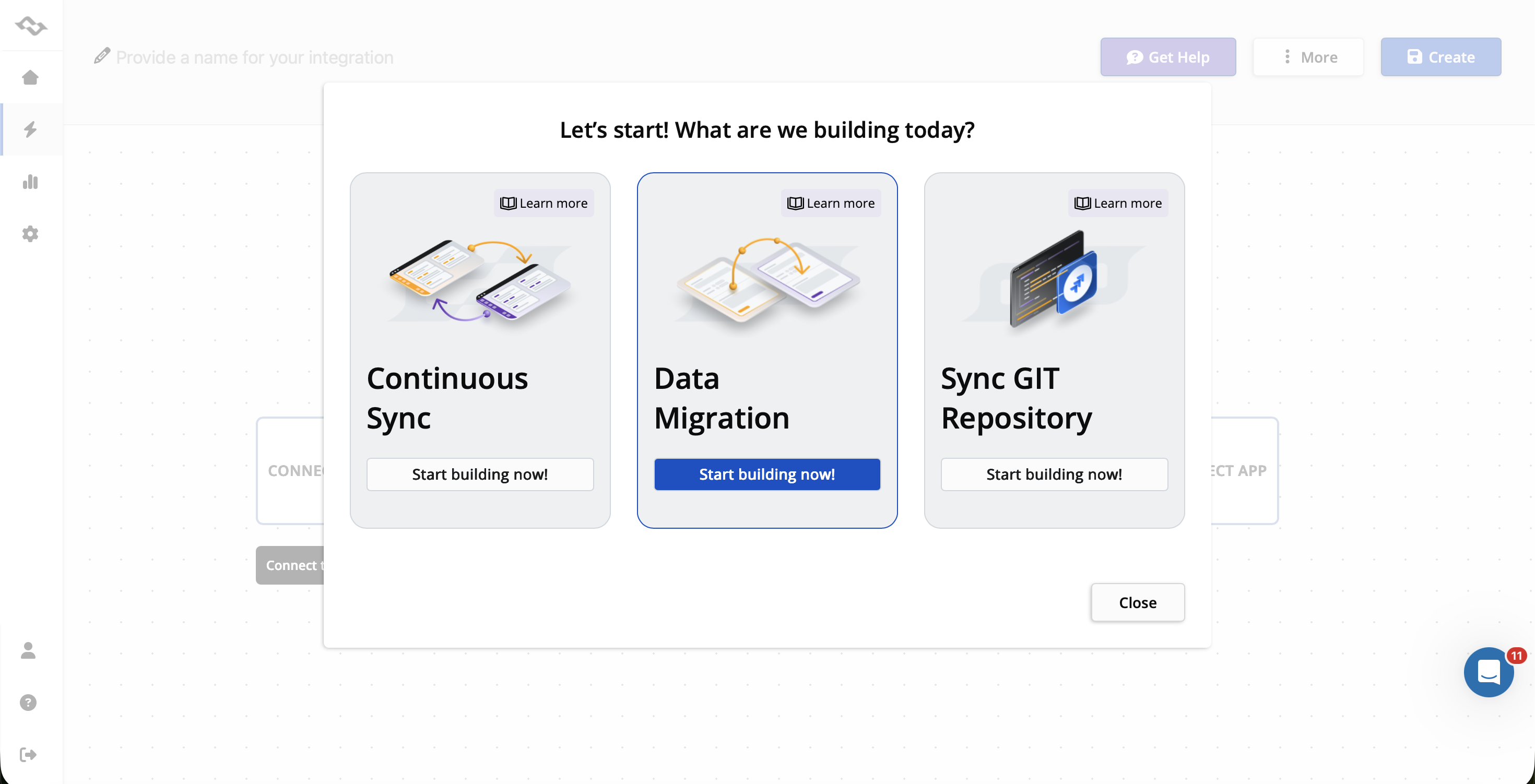
Compared with a CSV export and import, a Getint migration gives you:
- Advanced field mapping for types, statuses, and custom fields, instead of rigid import templates. Fields without a match can still be migrated as text, or several fields can be merged into one.
- Selective migration by item IDs, filters, or a creation or update date range, so you move only what you need.
- Field resynchronization to update specific fields, such as assignee or status, on items you already migrated, without re-importing everything.
- Live monitoring through sync logs, so errors surface during the run rather than after.
- An optional continuous sync afterwards, so new items keep flowing while teams switch over.
The setup follows our guide to migrating data with Getint: create a Migration integration, map types and fields, choose the migration direction, decide whether existing items are recreated, updated, or skipped, set filters or a time range, and click Schedule Migration.
Example: Altudo's Wrike to Asana migration
Altudo, a global technical consulting firm, had to move a client from Wrike to Asana just weeks before the client's Wrike subscription expired. Manual migration was not an option. The team chose Getint because it could run custom scripts during the migration to handle the client's non-standard data, and Getint's engineers supported them daily for two weeks.
On a project scoped at about 100 hours, Altudo estimates Getint saved dozens of hours of effort, and the migration was delivered on time. Read the full Wrike to Asana migration success story.

Which Wrike integration approach fits your use case
Match the approach to the job: native apps for convenience, Wrike Integrate recipes to automate workflows triggered by business events, the API for unique requirements, and a two-way sync platform when two teams work on the same items in different tools.
Before you choose, answer four questions:
- Which data has to move, and which system owns it? List the records (tasks, projects, custom fields, time logs) and decide which tool is the source of truth for each field.
- Does it need to flow both ways? Notifications and reports are one-way. Shared work between two teams almost always needs two-way sync.
- Who maintains it? A recipe or custom script needs an owner who updates it when Wrike or the other app changes.
- What do security and compliance require? Check certifications such as SOC 2 Type II and ISO 27001, encryption, access controls, hosting options, and whether you can filter out sensitive fields.
Migrating data into or out of Wrike
The same connection that syncs Wrike with another tool can also migrate data, and automated migration can cut migration time by up to 10x compared with manual export and import. That matters when you consolidate tools after an acquisition, move a department into Wrike, or move development work out of Wrike into Jira.
A clean migration depends on five practices:
- Map fields first. Field mapping is crucial for accurate data transformation. Decide how Wrike custom fields, statuses, and folders translate into the target tool before you move a single record.
- Automate the mapping. Automated data mapping reduces manual data entry errors and keeps comments, attachments, assignees, and history attached to the right item.
- Validate before you sync. Data integrity is ensured through validation before synchronization: check required fields, user accounts, and status values on both sides in a test project.
- Respect API rate limits. Both Wrike and the target system limit how many API calls you can make. Migrate in batches and let the tool queue and retry requests instead of failing silently.
- Run a pilot. Migrate one project, compare record counts and a sample of tasks, then move the rest.
With Getint, you choose Migration instead of Continuous Sync when you create the integration, and the same type, field, and status mappings apply.
Conclusion
Wrike works best as the hub where work from every department meets, and integrations are what make that possible. The best Wrike integrations connect it with development tools, CRM and support systems, communication apps, file storage, creative tools, and BI platforms, so data flows where teams need it and manual updates disappear.
Start with one handoff that costs your team the most time today, often Wrike and Jira or Wrike and Salesforce. Pick the approach that fits it, run a small pilot, and expand once it proves its value.
Ready to connect Wrike with the rest of your stack? Try Getint or schedule a demo to see two-way Wrike sync in action.